
1. Introduction
This manual provides detailed instructions for the ARZOPA 15.6" Dual Portable Monitor. This device is designed to extend your laptop's display, offering a versatile and portable solution for enhanced productivity and entertainment. Please read this manual thoroughly before using the product to ensure proper operation and to maximize its lifespan.

Image: The ARZOPA 15.6" Dual Portable Monitor, showcasing its dual-screen setup with vibrant visuals and key display specifications like Low Blue Light, 16.7 Million Colors, 300 cd/m² brightness, HDR10+, 100% sRGB, and 1200:1 Contrast Ratio.
2. Product Features
- 15.6" FHD IPS Dual Display: Features two 1080P Full HD screens with 100% sRGB color gamut and HDR technology, providing vivid, true-to-life colors and wide viewing angles. The flicker-free design helps reduce eye strain during extended use.
- Foldable and Stackable Design: An integrated structure allows for easy folding and stacking, making it slim and highly portable for travel and on-the-go use.
- Adjustable Kickstand: Equipped with a sturdy kickstand that allows for 315° free screen adjustment and an 80° tilt, accommodating various viewing and usage needs without requiring additional setup.
- Plug & Play Connectivity: Offers universal USB-C and HDMI dual interfaces for direct connection and stable signal transmission. No drivers are required for most operating systems (except MacOS, which may require a driver).
- Premium PU Sleeve Bag: Includes a water-resistant PU leather sleeve with a soft lining to protect the portable monitor from scratches, water, and dust.
3. What's in the Box
Carefully unpack the box and ensure all items listed below are present and in good condition.

Image: A visual representation of the items included in the product package. It shows the dual portable monitor, a USB-C to USB-C Cable (Data), a USB-C to USB-C Cable (Power), a PD30W Charger, a USB-C to USB-A Adapter, and a Mini HDMI to HDMI Cable.
- ARZOPA 15.6" Dual Portable Monitor
- USB-C to USB-C Cable (Data)
- USB-C to USB-C Cable (Power)
- PD30W Charger
- USB-C to USB-A Adapter
- Mini HDMI to HDMI Cable
- PU Sleeve Bag
4. Setup Guide
4.1 Connecting the Monitor
The ARZOPA Dual Portable Monitor supports both USB-C and HDMI connections for video and power. Ensure your device has compatible ports.
- USB-C Connection (Full Functionality): If your laptop or device has a full-featured USB-C port (supporting DisplayPort Alternate Mode and power delivery), connect one end of the USB-C to USB-C cable to your device and the other end to the monitor's USB-C port. This single cable can transmit video, audio, and power.
- HDMI Connection: Connect the Mini HDMI to HDMI cable from your device's HDMI port to the monitor's Mini HDMI port. For power, connect the USB-C to USB-C (Power) cable from the monitor's USB-C port to the PD30W charger or a powered USB-A port using the USB-C to USB-A adapter.
- Power Supply: If your device cannot provide sufficient power via USB-C, or if using HDMI, connect the monitor to the included PD30W charger using the USB-C to USB-C (Power) cable.
4.2 Driver Installation
The monitor is generally Plug & Play for most operating systems. However, for MacOS, a specific driver may be required for optimal functionality. Please refer to the ARZOPA official website for the latest driver downloads if necessary.
4.3 Display Modes
The monitor supports various display modes to suit your workflow.

Image: This diagram illustrates three display modes: Extended Mode, where the dual monitors expand the desktop horizontally; Mirror Mode, where the dual monitors duplicate the laptop's display; and Splice Mode, where the dual monitors are stacked vertically to expand the screen.
- Extended Mode: Expands your desktop across multiple screens, allowing for more workspace.
- Mirror Mode: Duplicates your primary display onto the portable monitors, useful for presentations.
- Splice Mode: Expands your screen vertically by stacking the monitors, ideal for specific applications requiring vertical screen space.
You can typically configure these display settings through your operating system's display settings (e.g., Windows Display Settings, macOS System Preferences > Displays).
5. Operating Instructions
5.1 Adjusting the Monitor Position
The integrated kickstand allows for flexible positioning of the dual monitors.

Image: The ARZOPA Dual Portable Monitor demonstrating its stable adjustable kickstand. It shows the screens rotated up to 315 degrees and the kickstand tilted up to 80 degrees, allowing for various viewing angles and configurations.
- Screen Rotation: The screens can be rotated up to 315° to achieve your desired viewing angle.
- Kickstand Tilt: The sturdy kickstand can be adjusted from 0° to 80° to provide stable support and ergonomic viewing.
Gently adjust the screens and kickstand to avoid damage. Do not force movements beyond the specified ranges.
5.2 On-Screen Display (OSD) Menu
The monitor features an OSD menu for adjusting display settings such as brightness, contrast, color temperature, and input source. Refer to the specific button layout on your monitor for navigation instructions.
6. Device Compatibility
The ARZOPA Dual Portable Monitor is designed for broad compatibility with various devices.
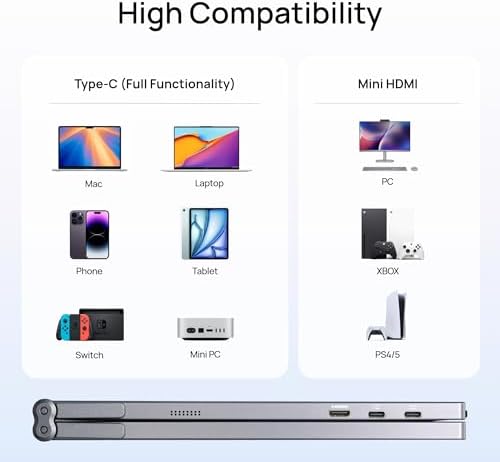
Image: A compatibility chart illustrating various devices that can connect to the ARZOPA Dual Portable Monitor. It shows compatibility with Mac, Laptops, Phones, Tablets, PCs, Xbox, Nintendo Switch, Mini PCs, and PlayStation 4/5, via Type-C (Full Functionality) or Mini HDMI ports.
- Type-C (Full Functionality): Compatible with Mac, Laptops, Phones, Tablets, Nintendo Switch, and Mini PCs that support DisplayPort Alternate Mode and power delivery via USB-C.
- Mini HDMI: Compatible with PCs, Xbox consoles, and PlayStation 4/5.
Ensure your device has the necessary ports and supports the required video output protocols for optimal performance.
7. Maintenance and Care
7.1 Cleaning the Monitor
- Always power off and unplug the monitor before cleaning.
- Use a soft, lint-free cloth slightly dampened with water or a non-abrasive screen cleaner.
- Do not spray cleaner directly onto the screen. Apply it to the cloth first.
- Avoid using harsh chemicals, alcohol, or abrasive materials, as these can damage the screen and casing.
7.2 Caring for the PU Sleeve Bag
The included PU sleeve bag is designed to protect your monitor during transport and storage.
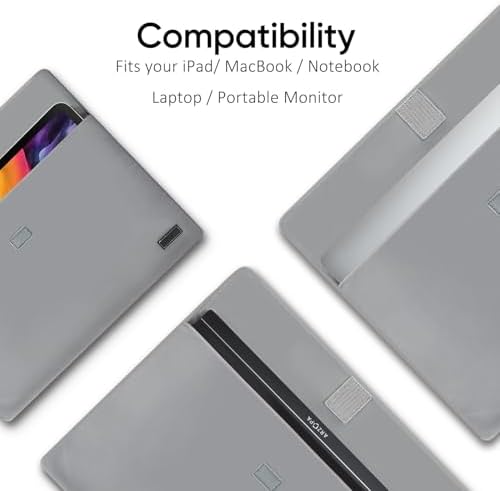
Image: The ARZOPA PU sleeve bag, designed to fit various devices including iPads, MacBooks, notebooks, laptops, and portable monitors, providing protective storage.

Image: A close-up view of the ARZOPA PU leather storage bag's interior, highlighting its soft interlayer design for enhanced protection and additional storage space.
- Keep the sleeve clean and dry. Wipe with a damp cloth if needed.
- Avoid exposing the sleeve to extreme temperatures or direct sunlight for prolonged periods.
- Ensure the monitor is securely placed inside the sleeve with the tight closure to prevent it from slipping out.
8. Troubleshooting
If you encounter issues with your ARZOPA Dual Portable Monitor, refer to the following common problems and solutions.
| Problem | Possible Cause | Solution |
|---|---|---|
| No display/Black screen |
|
|
| Flickering screen |
|
|
| No sound |
|
|
| "No Signal" message |
|
|
9. Product Specifications
| Feature | Detail |
|---|---|
| Brand | ARZOPA |
| Screen Size | 15.6 Inches (each display) |
| Resolution | FHD 1080p (1920 x 1080) |
| Aspect Ratio | 16:9 |
| Refresh Rate | 60 Hz |
| Display Technology | IPS LCD |
| Color Gamut | 100% sRGB |
| Picture Quality Enhancement | HDR, Wide Color Gamut, Flicker-Free |
| Connectivity | HDMI, USB Type C |
| Number of Component Outputs | 2 (referring to the dual screens) |
10. Warranty and Support
ARZOPA products are designed for reliability and performance. For warranty information, technical support, or service inquiries, please visit the official ARZOPA website or contact their customer support directly. Keep your purchase receipt as proof of purchase for warranty claims.
ARZOPA Official Website: ARZOPA Store on Amazon (This link directs to the brand's Amazon store page, which often contains links to official support or contact information).


