
1. Introduction
Welcome to the user manual for your ZWXYVUT X95Pro Retro Handheld Game Console. This device is designed to provide a portable gaming experience with access to a vast library of classic games and modern Android functionalities. Featuring a 3.5-inch IPS OCA display, Android 9.0 operating system, and a 3000mAh battery, the X95Pro offers hours of entertainment. This manual will guide you through the setup, operation, maintenance, and troubleshooting of your console.
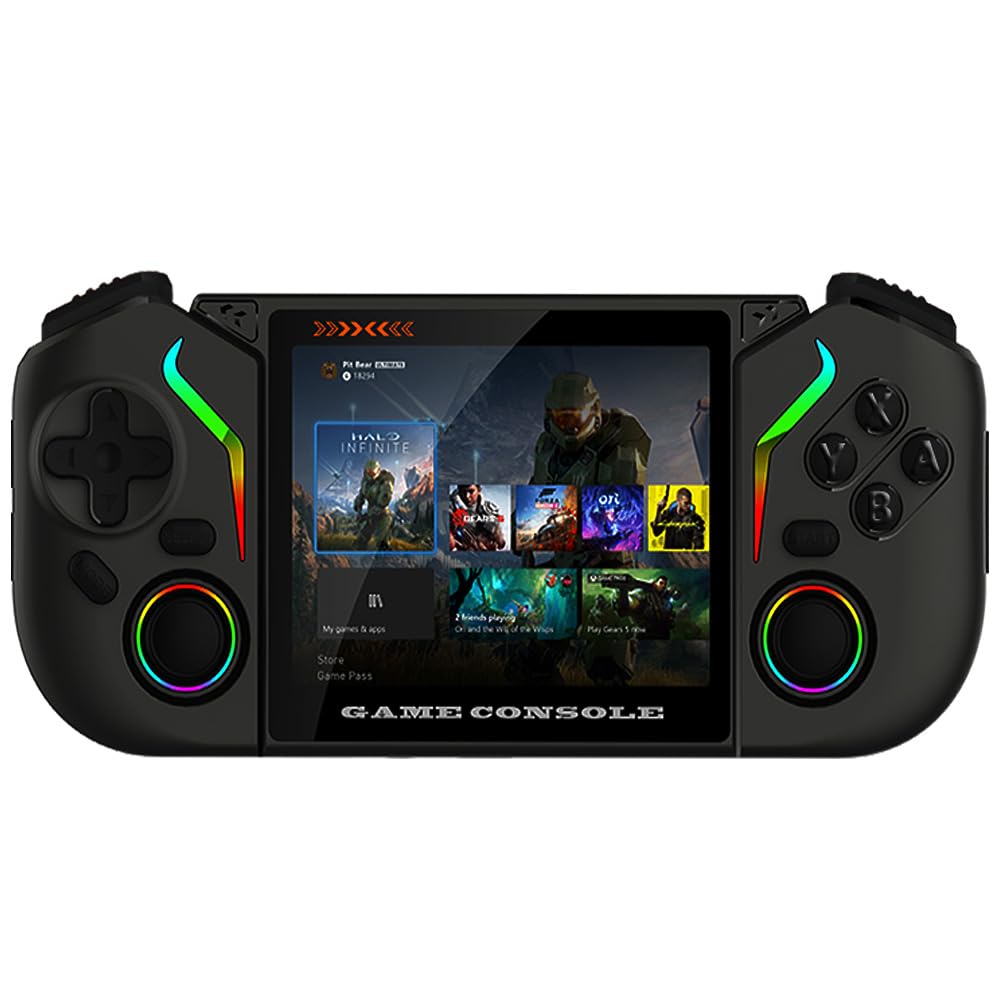
Figure 1: The ZWXYVUT X95Pro Retro Handheld Game Console, showcasing its compact design and screen.
2. Package Contents
Before you begin, please ensure all items are present in the package:
- X95Pro Handheld Game Console
- Type-C Charging Cable
- User Manual (this document)
- Storage Bag
- Screen Protector
3. Device Layout
Familiarize yourself with the buttons and ports on your X95Pro console.

Figure 2: Front view of the X95Pro console, showing the screen, D-pad, analog sticks, and action buttons.

Figure 3: Side view illustrating the various ports (Type-C, OTG, 3.5mm audio jack) and shoulder buttons.
4. Setup
4.1 Initial Charging
Before first use, fully charge your X95Pro console. Connect the provided Type-C charging cable to the console's charging port and the other end to a 5V/2A power adapter (not included). A full charge takes approximately 2 hours and provides up to 8 hours of gameplay.
4.2 Powering On/Off
- To Power On: Press and hold the Power button for a few seconds until the screen illuminates.
- To Power Off: Press and hold the Power button until a power-off menu appears on the screen. Select "Power Off" and confirm. A short press will put the device into sleep mode.
4.3 Screen Protector Application
Carefully apply the included screen protector to prevent scratches and damage to the display. Ensure the screen is clean and dust-free before application.
5. Operating Instructions
5.1 Navigation and User Interface
The X95Pro runs on Android 9.0, offering a familiar interface. Use the D-pad or analog sticks to navigate menus and select options. The A/B/X/Y buttons typically serve as confirmation and cancellation, similar to standard game controllers.

Figure 4: The X95Pro displaying its Android 9.0 home screen with various applications and game icons.
5.2 Playing Games
The console comes pre-loaded with thousands of classic games and supports various emulators. To access games:
- Navigate to the "Games" or "Emulators" section on the home screen.
- Select your desired emulator or game title.
- Follow on-screen prompts to load and start playing.
The X95Pro supports emulators for systems such as MAME, PS1, NEOGEO, GBA, FC, SFC, CPS1, CPS2, CPS3, and PSP.
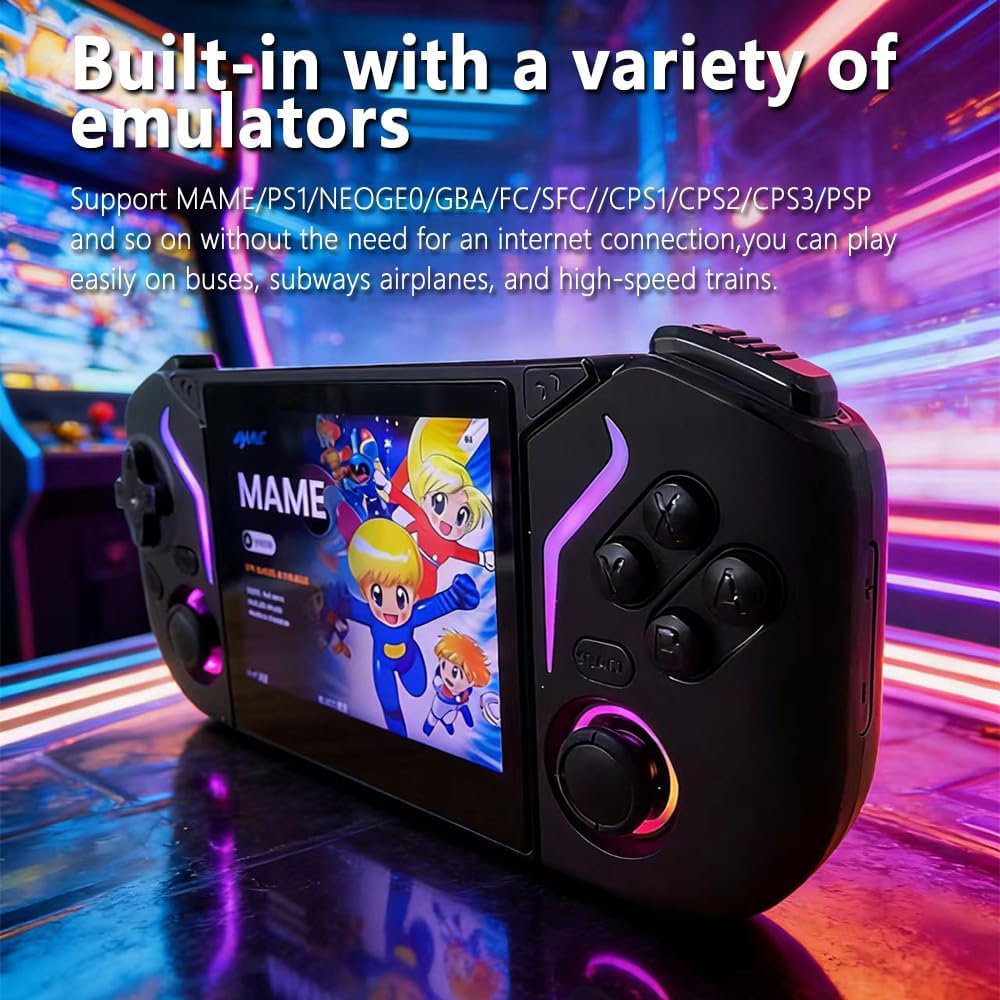
Figure 5: The X95Pro displaying a list of supported emulators, ready for game selection.
5.3 Wi-Fi Connectivity
To connect to a Wi-Fi network:
- Go to "Settings" from the home screen.
- Select "Network & Internet" and then "Wi-Fi".
- Turn on Wi-Fi and select your desired network from the list.
- Enter the password if prompted and connect.
Wi-Fi enables online gaming, web browsing, and streaming content from platforms like YouTube.
5.4 External Storage
The console supports external storage via its OTG data port, allowing you to expand your game library or transfer files. Use a compatible OTG adapter (not included) to connect USB drives or other storage devices.
6. Maintenance
6.1 Cleaning
- Use a soft, dry, lint-free cloth to clean the console's exterior.
- For the screen, use a screen-specific cleaning solution and a microfiber cloth.
- Avoid using harsh chemicals, abrasives, or excessive moisture.
6.2 Storage
When not in use, store the console in the provided storage bag to protect it from dust and scratches. Keep it in a cool, dry place away from direct sunlight and extreme temperatures.
6.3 Battery Care
To prolong battery life, avoid fully discharging the battery frequently. If storing for an extended period, charge the battery to approximately 50% before storage.
7. Troubleshooting
| Problem | Possible Cause | Solution |
|---|---|---|
| Console does not power on. | Low battery. | Charge the console for at least 30 minutes using the provided Type-C cable and a 5V/2A adapter. |
| Screen is unresponsive or frozen. | Software glitch. | Press and hold the Power button for 10-15 seconds to force a restart. |
| Cannot connect to Wi-Fi. | Incorrect password, out of range, or router issue. | Verify Wi-Fi password, move closer to the router, or restart your router. |
| Games are not loading. | Corrupt game file or emulator issue. | Try a different game. Ensure the game file is compatible with the selected emulator. |
8. Specifications
| Feature | Detail |
|---|---|
| Model | X95Pro |
| Operating System | Android 9.0 |
| Display | 3.5-inch IPS OCA Full-Lamination MIPI Screen |
| Resolution | 640x480 |
| Battery | 3000mAh Lithium Battery |
| Battery Life | Up to 8 hours |
| Charging Time | Approx. 2 hours (with 5V/2A input) |
| Connectivity | Wi-Fi, Type-C (charging), OTG (data), 3.5mm Audio Jack |
| Material | Plastic |
| Dimensions (L x W x H) | 1 x 1 x 1 inches (Note: This dimension may be generic; actual product size may vary.) |
9. Warranty and Support
For warranty information and customer support, please refer to the documentation provided at the time of purchase or contact your retailer. Keep your proof of purchase for any warranty claims.
For technical assistance or further inquiries, please visit the official ZWXYVUT website or contact their customer service department.