
1. Introduction
Thank you for choosing the Fitcamx HD2-3J00 Dash Cam. This product is specifically designed for 2024-2026 Volkswagen Passat models, offering a seamless, factory-integrated appearance. It provides high-resolution front (2K/1440p) and rear (1080p) video recording to enhance your driving safety and provide evidence in case of incidents. This manual will guide you through the installation, operation, and maintenance of your new dash cam.
The Fitcamx dash cam features an integrated OEM-style design that blends seamlessly with your vehicle's interior, appearing as a factory-installed component. There are no visible wires, ensuring an unobstructed view of the windshield. It is designed to perfectly match your vehicle and avoid interference with preventative safety systems.
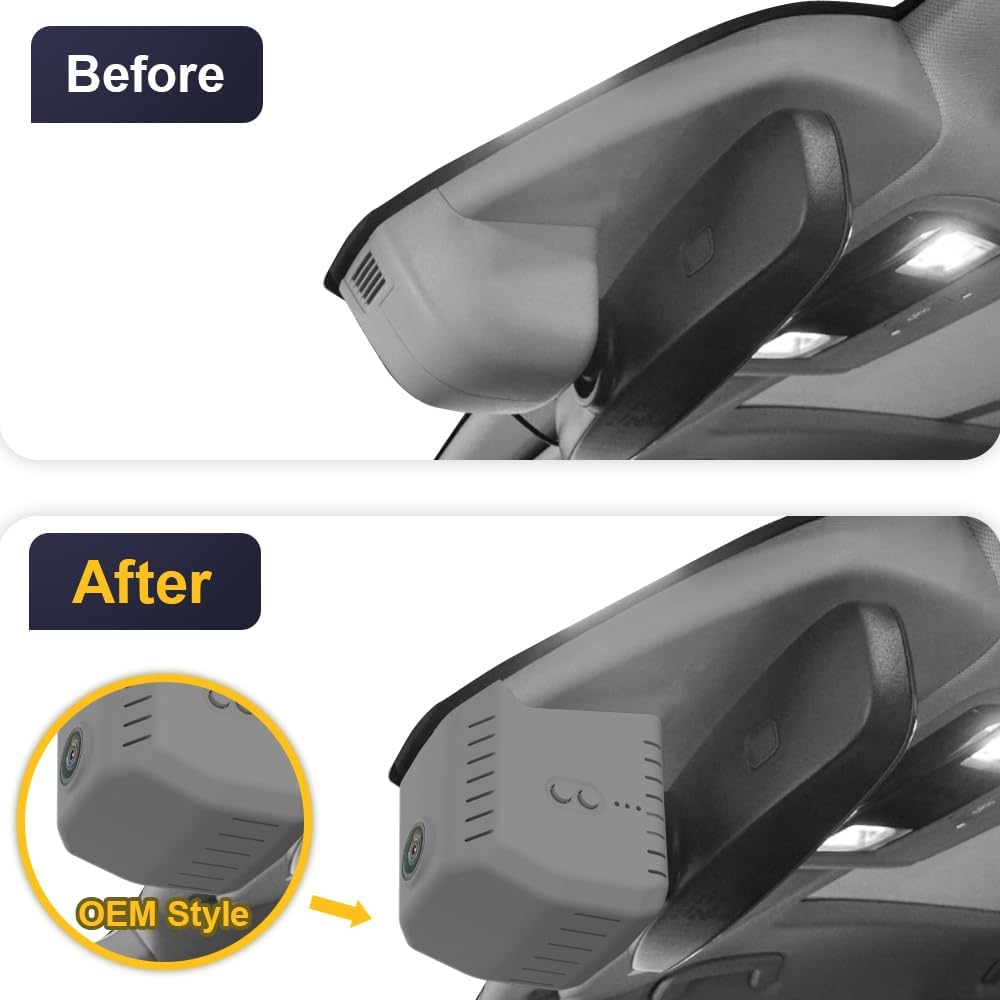
Figure 1: Comparison of the overhead console before and after Fitcamx dash cam installation, highlighting its integrated design.
2. Setup and Installation
The Fitcamx dash cam is designed for a plug-and-play installation, integrating directly into your vehicle's existing wiring without cutting or splicing. Follow these steps carefully:

Figure 2: Visual step-by-step installation guide for the Fitcamx Dash Cam.
- Step 1: Prepare the Area. Use the provided pry tool to carefully remove the front cover of your vehicle's overhead console.
- Step 2: Remove Covers. After the front cover, remove the back cover of the console.
- Step 3: Disconnect Connector. Locate the two connectors (labeled A and B in Figure 2, Step 4). Gently pull out the 'A' connector.
- Step 4: Connect Dash Cam. Connect the dash cam's cable to the rain sensor connector and the vehicle's wiring. Ensure a secure connection.
- Step 5: Mount Rear Camera (if applicable). If you have the rear camera option, route the rear extension cable and connect the rear camera.
- Step 6: Reinstall Covers. Mount the back cover first, then mount the front dash cam unit into its position.
- Step 7: Final Check. Ensure all connections are secure and the dash cam is firmly in place. The installation is now complete.
Note: For detailed vehicle-specific instructions or if you encounter difficulties, please refer to the official Fitcamx installation videos or contact customer support.
3. Operating Instructions
The Fitcamx dash cam is designed for automatic operation once installed and powered. Key features include:
3.1 Automatic Recording
The dash cam automatically starts recording when your vehicle's ignition is turned on and stops when the ignition is turned off. Footage is saved to the inserted microSDXC card.
3.2 Wi-Fi Connectivity and App Control
The dash cam features built-in 2.4GHz Wi-Fi for seamless connection to the FITCAMX app on your smartphone (Android & iOS). This allows for:
- Real-time viewing of recorded footage.
- Downloading important video data directly to your smartphone.
- Easy playback and sharing of videos.
- Adjusting camera settings conveniently through the app.
Note: A constant Wi-Fi connection is not required for the dash cam's basic recording functions. The frequency band is 2412MHz-2472MHz.

Figure 3: The Fitcamx app interface showing live video feed and control options.
3.3 Loop Recording
The seamless loop recording function ensures continuous recording. When the memory card reaches its full capacity, the oldest video files are automatically overwritten by new footage. This ensures that you always have the most recent recordings available.
3.4 G-Sensor and Emergency Lock
The built-in G-sensor automatically detects sudden impacts or collisions. When an event is detected, the relevant footage is immediately saved to a protected file on the memory card, preventing it from being overwritten by loop recording. This ensures critical incident data is preserved.
4. Maintenance
To ensure optimal performance and longevity of your Fitcamx Dash Cam, follow these maintenance guidelines:
- Clean the Lens: Regularly wipe the camera lens with a soft, lint-free cloth to ensure clear video quality. Avoid abrasive materials or harsh chemicals.
- Check Memory Card: Periodically check the memory card for errors or corruption. It is recommended to format the card every few months (via the app or on a computer) to maintain optimal performance and prevent data issues. Back up any important files before formatting.
- Firmware Updates: Check the Fitcamx official website or app for any available firmware updates. Keeping your dash cam's firmware up-to-date can improve performance and add new features.
- Operating Temperature: The dash cam is designed to operate in temperatures from -20°C to 85°C (-4°F to 185°F). Avoid exposing the device to extreme temperatures outside this range for extended periods.
5. Troubleshooting
If you encounter any issues with your Fitcamx Dash Cam, please refer to the following common troubleshooting steps:
| Problem | Possible Cause | Solution |
|---|---|---|
| Dash cam does not power on. | No power supply; loose connection. | Check all power connections. Ensure the vehicle's ignition is on. |
| Recording stops unexpectedly. | Memory card full or corrupted; power interruption. | Format the memory card. Check power connections. Use a high-quality microSDXC card. |
| Wi-Fi connection issues. | Incorrect Wi-Fi password; app issues; interference. | Ensure correct password. Restart the app and dash cam. Try connecting in a different location. |
| Poor video quality. | Dirty lens; incorrect settings; low light conditions. | Clean the lens. Check video resolution settings in the app. WDR technology helps in low light. |
| G-sensor not triggering. | G-sensor sensitivity setting too low. | Adjust G-sensor sensitivity in the app settings. |
If the problem persists after trying these steps, please contact Fitcamx customer support for further assistance.
6. Specifications
| Brand: | FITCAMX |
| Model: | HD2-3J00 (Manufacturer Model: passat-vw-2425-3J00bl-fr2k) |
| Compatible Vehicle Type: | Car (Volkswagen Passat 2024-2026) |
| Video Capture Resolution: | Front 1440p (2K), Rear 1080p |
| CPU: | Novatek |
| Aperture: | F1.6 |
| Wi-Fi: | 2.4GHz (2412MHz-2472MHz) |
| Control Method: | App (Android & iOS) |
| Features: | G-sensor, App Control, Loop Recording, Built-in Wi-Fi, WDR Technology |
| Mounting Type: | Front Glass Mount (OEM Style) |
| Color: | Black |
| Product Dimensions (D x W x H): | 29 x 22 x 10 cm |
| Product Weight: | 0.7 kg |
| Memory Card Type: | microSDXC |
| Included Memory Card: | 64 GB |
| Max Supported Memory Card: | 256 GB |
| Operating Temperature: | -20°C to 85°C (-4°F to 185°F) |
| Battery: | Lithium Metal (Included) |
| Country of Origin: | China |
7. Warranty and Support
Fitcamx provides a 12-month manufacturer's warranty for this product, ensuring quality and reliability. This warranty covers manufacturing defects and issues arising from normal use.
For any questions, technical assistance, or warranty claims, please contact Fitcamx customer service. Our team is dedicated to providing prompt and responsive technical support to optimize your user experience.
You can find contact information on the official Fitcamx website or through your purchase platform.


