
1. Product Overview
The SOLAKAKA E9 PRO is an ergonomic vertical MMO gaming mouse designed for comfort and high-performance gaming. It features a 45-degree vertical design, 10 programmable side buttons, a PAW3395 sensor with up to 36000 DPI, an 8000Hz polling rate, and tri-mode connectivity (2.4GHz wireless, Bluetooth 5.0, USB-C wired).
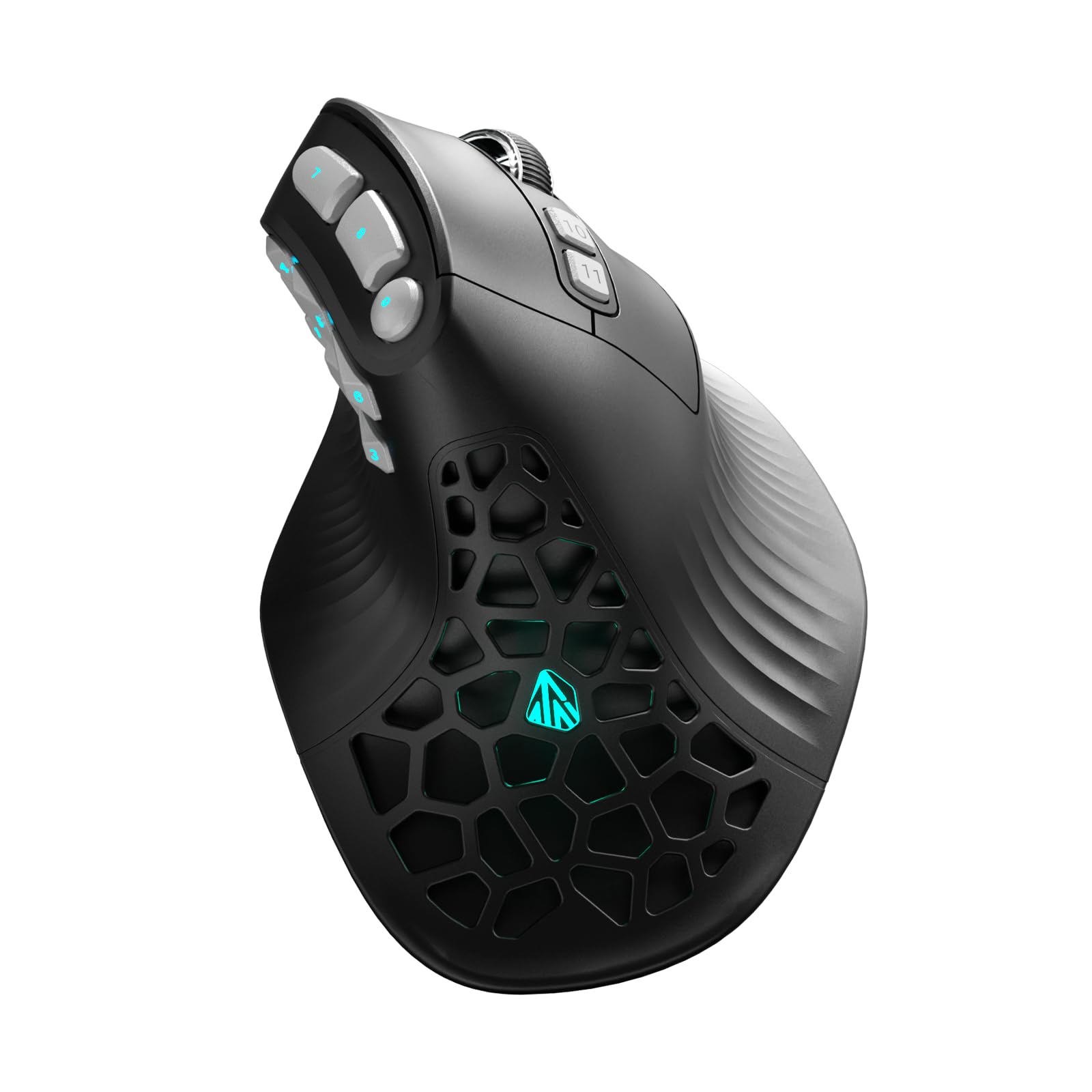
Image 1: The SOLAKAKA E9 PRO Vertical MMO Gaming Mouse in black-gray color, showcasing its ergonomic design and side buttons.

Image 2: Illustration of the mouse's 45-degree vertical ergonomic design, promoting a natural handshake posture.
Video 1: An overview of the E9 PRO Ergonomic Wireless Gaming Mouse for MMOs, highlighting its features and design.
2. Setup Guide
2.1 Package Contents
- SOLAKAKA E9 PRO Vertical MMO Gaming Mouse
- 8K Dongle (USB receiver)
- USB-C Charging Cable
- User Manual
2.2 Connectivity Modes
The E9 PRO mouse supports three connection modes:
- 2.4GHz Wireless: For ultra-low-latency gaming. Insert the 8K dongle into a USB port on your computer.
- Bluetooth 5.0: For multi-device productivity. Pair the mouse with your device via Bluetooth settings.
- USB-C Wired: For zero-lag tournament play and charging. Connect the mouse directly to your computer using the provided USB-C cable.

Image 3: Visual representation of the mouse's Tri-Mode connectivity: Bluetooth, 2.4GHz Wireless, and Type-C Wired.
2.3 Initial Charging
Before first use, it is recommended to fully charge the mouse. Connect the USB-C cable to the mouse and a power source (e.g., computer USB port or USB wall adapter). The mouse can be used while charging.
2.4 Software Configuration
The E9 PRO features a browser-based configuration tool for customizing buttons, DPI settings, and RGB lighting. This tool is compatible with Windows PCs.
- Access the configuration tool at solakakadriver.com.
- Alternatively, press and hold the DPI+ button for 3 to 5 seconds to automatically open the webpage.
- For Mac users: The configuration tool is Windows-only. Program your settings on a Windows PC first. Settings are saved to the mouse's onboard memory and will function seamlessly on Mac, Linux, or ChromeOS.

Image 4: The browser-based configuration interface for customizing mouse settings.
Video 2: A guide demonstrating the use of the Software Driver for the SOLAKAKA E9 PRO mouse.
3. Operating Instructions
3.1 Ergonomic Design
The E9 PRO's 45-degree vertical design promotes a natural handshake position, reducing wrist strain and discomfort during prolonged use. This design is particularly beneficial for users seeking relief from repetitive strain injury (RSI).
Image 5: A hand demonstrating the natural grip on the ergonomic vertical mouse.
3.2 Programmable Buttons
The mouse features 10 programmable side buttons, along with standard left/right click, scroll wheel, and DPI buttons. All buttons can be customized via the browser-based configuration tool to assign macros, keybinds, or other functions.

Image 6: Detailed view of the 10 programmable side buttons, designed for MMO gaming and complex workflows.
3.3 DPI and Polling Rate
Equipped with the PAW3395 optical sensor, the E9 PRO offers:
- DPI: Six onboard presets (800/1200/1600/2400/3200/6400), software-extendable up to 36000 DPI.
- Polling Rate: True 8KHz (8000Hz) in 2.4GHz wireless and wired modes.
- Tracking Speed: 650 IPS (Inches Per Second).
- Acceleration: 50G.
These specifications ensure precise tracking and responsiveness, even on challenging surfaces like glass.

Image 7: Diagram illustrating the PAW3395 sensor and its high-performance capabilities, including 8KHz polling rate.
3.4 Customizable RGB Lighting
The mouse features configurable RGB lighting zones on the side buttons and logo. These can be adjusted via the browser-based control interface to indicate DPI stages, game profiles, or simply for aesthetic preference.

Image 8: The E9 PRO mouse displaying its customizable RGB lighting effects.
4. Maintenance
4.1 Battery Management
The E9 PRO is equipped with a built-in 1000mAh lithium-polymer battery, offering up to 270 hours of use on a single charge. To charge, connect the mouse using the USB-C cable. The mouse can be used normally during charging.
4.2 Cleaning
To maintain optimal performance and hygiene, regularly clean your mouse. Use a soft, dry cloth to wipe the surface. For the honeycomb shell design, a soft brush can be used to gently remove dust or debris. Avoid using harsh chemicals or abrasive materials.

Image 9: The honeycomb shell design, which aids in heat dissipation and sweat resistance.
5. Troubleshooting
5.1 Common Issues
- Q1: The software shows "Device not connected"
A: Switch to 2.4G wireless or wired mode (Bluetooth does not support advanced configuration). Allow browser permissions (the web driver requires HID device access). Close other mouse software to avoid conflicts. Unplug and re-plug the USB receiver, then refresh the page. - Q2: Settings don't work or high latency over Bluetooth?
A: Bluetooth has protocol limitations and only supports basic functions. Configure complex macros in 2.4G/wired mode first, then switch back to Bluetooth. To reduce latency, stay within 1 meter of your computer and away from Wi-Fi routers or other 2.4GHz interference. - Q3: How do I restore factory settings?
A: Via Software: In the driver, navigate to "Restore Factory Defaults" and save to device. Via Hardware: Press and hold the DPI+ and Mode buttons for 5 seconds while plugging in the USB cable.

Image 10: Visual guide for troubleshooting common software and connectivity issues.
5.2 Mac Compatibility
- Q1: Can the E9 be used on a Mac?
A: Yes. The E9 is plug-and-play on Mac with all basic functions (click, scroll, side buttons). However, button customization requires Windows software for the initial setup. Once configured, settings are saved to the mouse's onboard memory and remain fully functional on Mac without any additional software. - Q2: How do I configure the side buttons if I only have a Mac?
A: You have three options: 1) Borrow a Windows PC temporarily to configure settings, which are permanently saved to the mouse. 2) Use the default configuration (side buttons function as forward/back out of the box). 3) Run Windows on your Mac using Boot Camp (Intel Macs) or virtualization software like Parallels (Apple Silicon) to run the configuration tool. - Q3: Will my settings be preserved when switching from Windows to Mac?
A: Yes. Settings are stored in the mouse's onboard memory, not on your computer. Your custom button functions remain unchanged regardless of which device or operating system you use.

Image 11: Information regarding Mac compatibility and how to configure the mouse for macOS users.
6. Specifications
| Feature | Specification |
|---|---|
| Brand | SOLAKAKA |
| Model Name | E9 PRO |
| Color | Black-Gray |
| Connectivity Technology | 2.4GHz, BT5.0, Type-C Wired |
| Movement Detection Technology | Optical (PAW3395 Sensor) |
| Mouse Maximum Sensitivity | 36000 DPI |
| Polling Rate | 8000Hz (8KHz) |
| Tracking Speed | 650 IPS |
| Acceleration | 50G |
| Button Quantity | 16 (10 programmable side buttons) |
| Hand Orientation | Right |
| Battery Capacity | 1000mAh Lithium-Polymer |
| Battery Average Life | Up to 270 hours |
| Compatible Devices | Gaming Console, Personal Computer, Smartphone, Tablet |
| Operating System | Linux, Mac, Windows |
| Enclosure Material | Plastic |

Image 12: A table comparing the specifications of the E9 PRO (8K Edition) with the E9 (1K Standard).
7. Warranty and Support
The SOLAKAKA E9 PRO Vertical MMO Gaming Mouse comes with a 2-year warranty covering hardware quality. Software receives ongoing updates with new features and compatibility improvements.
For setup assistance or troubleshooting, technical support is available through official SOLAKAKA channels. Please refer to the official website solakakadriver.com for contact information and further resources.

