
1. Introduction
The Redragon M919 Pro is a high-performance wireless gaming mouse designed for precision and comfort. Featuring a lightweight design, multiple connectivity options, and a high-resolution optical sensor, it is suitable for various gaming and computing needs.

Image 1.1: Top-down view of the Redragon M919 Pro Wireless Gaming Mouse, showcasing its ergonomic shape and button layout.
Key features include a 54-gram ultra-lightweight design, an optical sensor capable of up to 45,000 DPI, 8K polling rate, and versatile tri-mode connectivity (USB-C Wired, 2.4GHz Wireless, and Bluetooth 5.1).
2. Package Contents
- Redragon M919 Pro Wireless Gaming Mouse
- USB-C to USB-A Cable
- 2.4GHz USB Receiver
- User Manual (this document)
3. Setup Instructions
3.1. Charging the Mouse
Before first use, it is recommended to fully charge the mouse. Connect the provided USB-C cable to the mouse's front port and the other end to a USB-A port on your computer or a USB wall adapter. The LED indicator on the mouse will show charging status and turn off when fully charged. A full charge provides up to 85 hours of battery life.
3.2. Connectivity Modes
The M919 Pro supports three connectivity modes: USB-C Wired, 2.4GHz Wireless, and Bluetooth 5.1. A switch on the bottom of the mouse allows you to select the desired mode.

Image 3.1: Illustration of the mouse's triple-mode connectivity options.
3.2.1. 2.4GHz Wireless Mode
- Locate the 2.4GHz USB receiver (dongle) in the package.
- Plug the USB receiver into an available USB-A port on your computer.
- Slide the mode switch on the bottom of the mouse to the "2.4G" position.
- The mouse should connect automatically.
3.2.2. Bluetooth 5.1 Mode
- Slide the mode switch on the bottom of the mouse to the "BT" position.
- On your computer or device, open Bluetooth settings and search for new devices.
- Select "Redragon M919 Pro" from the list of available devices to pair.
3.2.3. USB-C Wired Mode
- Connect the provided USB-C cable to the mouse and the USB-A end to your computer.
- The mouse will automatically switch to wired mode and begin charging.
3.3. Software Installation (Optional)
For advanced customization of buttons, DPI settings, and other features, Redragon provides dedicated software. This software can be accessed via a web-based driver, eliminating the need for a download.
- Access the web-based driver at: controlhub.top/redragonzone/
- Follow the on-screen instructions to customize your mouse settings.
4. Operating Instructions
4.1. Button Functions
The M919 Pro features 6 programmable buttons. By default, these buttons perform standard mouse functions (left click, right click, scroll wheel click, forward, backward, DPI cycle). Through the Redragon software, these buttons can be remapped to various functions, macros, or media controls.
4.2. DPI Adjustment
The mouse features a dedicated DPI button, typically located behind the scroll wheel, allowing you to cycle through 5 adjustable DPI levels. The optical sensor supports up to 45,000 DPI for precise tracking.

Image 4.1: Location of the DPI button and an example of 5 adjustable DPI levels (400, 800, 1600, 2400, 3200 DPI).
4.3. Polling Rate
The M919 Pro supports an 8000Hz polling rate in both wired and 2.4GHz wireless modes, providing ultra-low latency and responsive cursor movement.
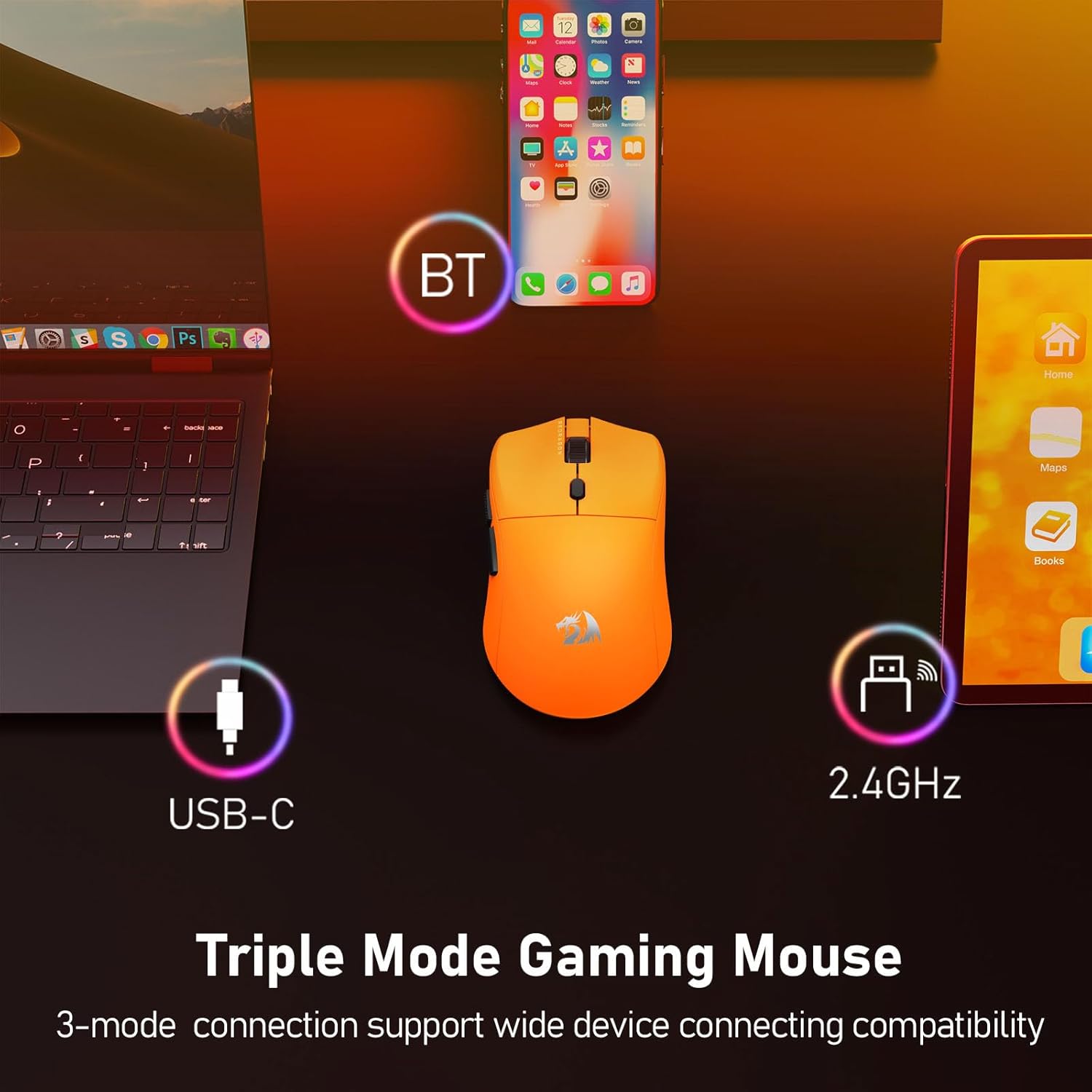
Image 4.2: Visual representation of the mouse's 8000Hz report rate capability.
4.4. Optimizing Mouse Accuracy
For optimal accuracy, it is recommended to disable the "Enhance pointer precision" option in your operating system's mouse settings. Further fine-tuning can be achieved using the Redragon software.
5. Maintenance
5.1. Cleaning
To clean the mouse, use a soft, dry cloth. For stubborn dirt, a slightly damp cloth can be used, ensuring no liquid enters the mouse's internal components. Avoid harsh chemicals or abrasive materials.
5.2. Teflon Foot Pads
The mouse is equipped with large, wear-resistant Teflon foot pads to ensure smooth gliding. If the mouse's movement becomes rough over time, inspect the foot pads for wear or debris. Replacement foot pads may be available from Redragon support.

Image 5.1: View of the mouse's underside, highlighting the Teflon foot pads for smooth movement.
6. Troubleshooting
- Mouse not responding: Ensure the mouse is charged and the correct connectivity mode (2.4G, BT, or Wired) is selected. Try reconnecting the USB receiver or re-pairing Bluetooth.
- Intermittent connection: Ensure the USB receiver is not obstructed and is within 10 meters of the mouse. Avoid placing the receiver near other wireless devices that may cause interference.
- Inaccurate tracking: Clean the optical sensor on the bottom of the mouse. Disable "Enhance pointer precision" in your operating system's mouse settings. Adjust DPI settings using the mouse button or software.
- Buttons not working as expected: Check the Redragon software for custom button assignments. Reset settings to default if necessary.
- Software not accessible: Ensure your internet connection is stable when accessing the web-based driver. Verify the URL: controlhub.top/redragonzone/.
7. Specifications
| Feature | Detail |
|---|---|
| Model | M919 Pro |
| Weight | 54g (approximate) |
| Connectivity | USB-C Wired, 2.4GHz Wireless, Bluetooth 5.1 |
| Sensor | Redragon 3953 Optical Sensor |
| DPI Range | Up to 45,000 DPI (5 adjustable levels) |
| Polling Rate | Up to 8000Hz (Wired & 2.4GHz modes) |
| Buttons | 6 Programmable Buttons |
| Battery Life | Up to 85 hours |
| Operating System Compatibility | Windows 7+, macOS, Ubuntu 22.04+ |
| Wireless Range | Up to 10 meters |
| Item Dimensions (L x W) | 4.76"L x 2.52"W |
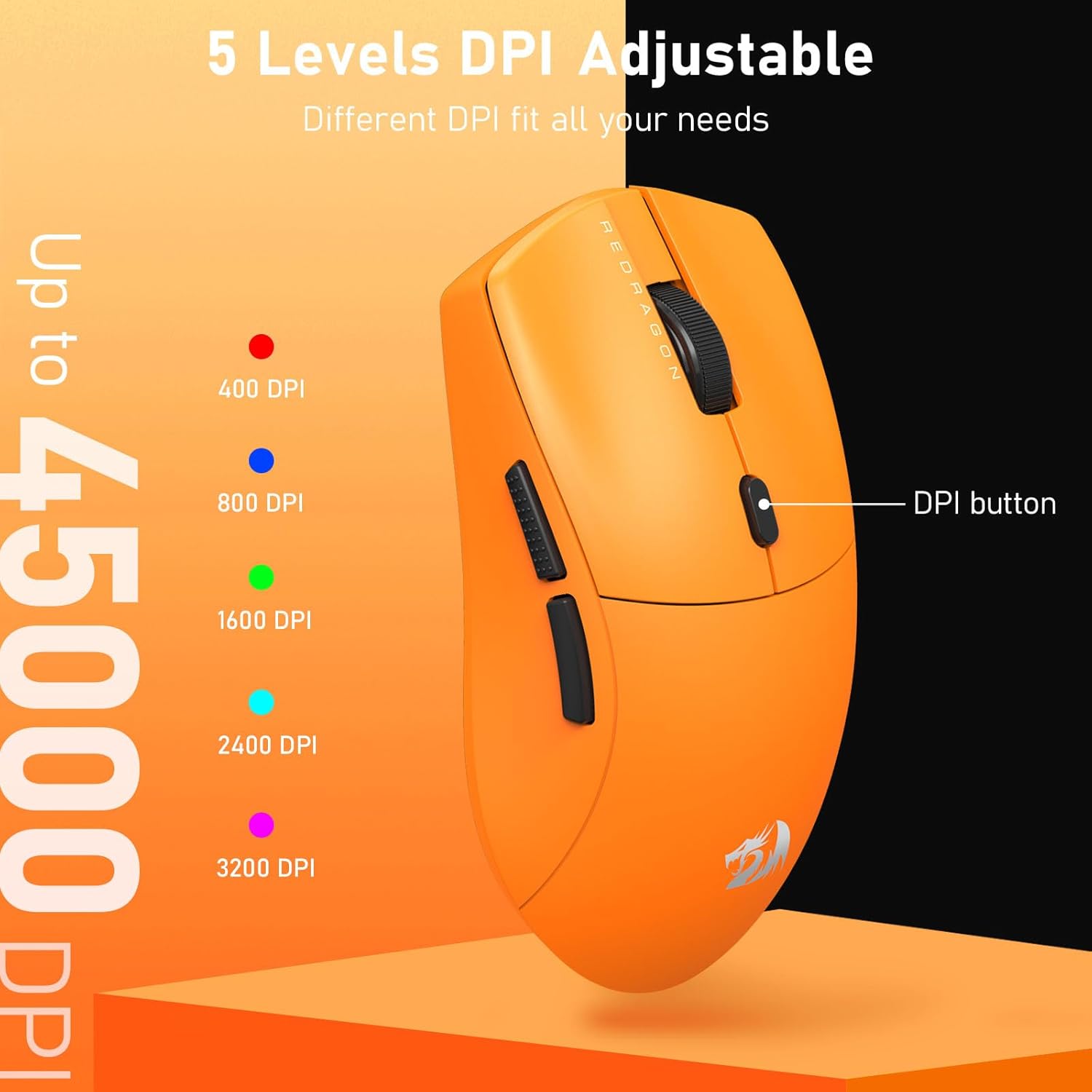
Image 7.1: Diagram illustrating the Redragon 3953 Optical Sensor and 8K report rate technology.

Image 7.2: The lightweight design of the M919 Pro, weighing approximately 54 grams.
8. Warranty Information
The Redragon M919 Pro Wireless Gaming Mouse comes with a 2-year manufacturer's warranty from the date of purchase. This warranty covers defects in materials and workmanship under normal use. It does not cover damage caused by misuse, accidents, unauthorized modifications, or normal wear and tear. Please retain your proof of purchase for warranty claims.
9. Support
For further assistance, technical support, or to access the latest software and drivers, please visit the official Redragon support portal:
You may also refer to the Redragon official website for contact information and additional resources.


