
1. Introduction
This manual provides essential instructions for setting up, operating, maintaining, and troubleshooting your Nothing Phone (4a) Pro smartphone. Please read this guide thoroughly before using your device to ensure proper functionality and safety.
2. Package Contents
Verify that your package contains the following items:
- Nothing Phone (4a) Pro Handset
- Headset
- USB Type-C Cable
- SIM Ejector Tool
- Quick Start Guide
- Safety Information
3. Device Layout
Familiarize yourself with the physical features of your Nothing Phone (4a) Pro.
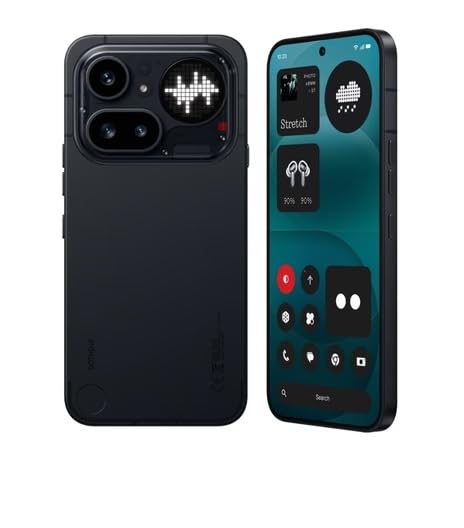
Figure 3.1: Rear View of Nothing Phone (4a) Pro. This image displays the back of the device, highlighting the dual camera system, LED flash, and the unique Glyph Interface. The Nothing brand logo is visible at the bottom.

Figure 3.2: Front and Side View of Nothing Phone (4a) Pro. This image shows the device from the front and a slight angle, revealing the display with its punch-hole camera, and the power and volume buttons located on the sides.
3.1. Front Panel
- Display: AMOLED screen for visual output and touch interaction.
- Front Camera: For selfies and video calls.
- Earpiece: For audio during calls.
3.2. Rear Panel
- Main Camera Module: Contains primary and secondary cameras.
- LED Flash: Provides illumination for photos and as a flashlight.
- Glyph Interface: Unique LED lighting system for notifications and alerts.
3.3. Side Panels
- Power Button: Located on the right side, used to power on/off and lock/unlock the screen.
- Volume Buttons: Located on the left side, used to adjust media and call volume.
- SIM Card Tray: Located on the left side, for inserting SIM cards.
3.4. Top and Bottom Panels
- USB Type-C Port: Located at the bottom, for charging and data transfer.
- Microphone: For voice input during calls and recordings.
- Speaker: For audio output.
4. Setup
4.1. Inserting the SIM Card
- Locate the SIM card tray on the left side of the device.
- Insert the SIM ejector tool into the small hole next to the tray and press firmly until the tray pops out.
- Place your Nano-SIM card(s) into the tray with the gold contacts facing down. Ensure proper orientation.
- Gently push the tray back into the slot until it clicks into place.
4.2. Initial Power On
- Press and hold the Power Button on the right side of the device until the Nothing logo appears on the screen.
- Follow the on-screen prompts to select your language, connect to a Wi-Fi network, and set up your Google account.
4.3. Charging the Battery
Before first use, it is recommended to fully charge the device. Connect the USB Type-C cable to the phone's charging port and the other end to a compatible power adapter (sold separately) or a computer's USB port.
5. Operating Your Device
5.1. Power On/Off and Restart
- Power On: Press and hold the Power Button until the device vibrates and the Nothing logo appears.
- Power Off: Press and hold the Power Button, then tap "Power off" on the screen.
- Restart: Press and hold the Power Button, then tap "Restart" on the screen.
5.2. Basic Navigation
- Tap: Touch the screen once to open apps, select items, or press buttons.
- Swipe: Drag your finger across the screen to scroll, switch screens, or dismiss notifications.
- Pinch: Use two fingers to zoom in or out on photos and web pages.
5.3. Making Calls
- Open the Phone app.
- Enter the phone number using the dial pad or select a contact.
- Tap the Call icon to initiate the call.
5.4. Using the Camera
- Open the Camera app.
- Frame your shot.
- Tap the Shutter button to take a photo or the Record button to start/stop video recording.
5.5. Connectivity
- Wi-Fi: Go to Settings > Network & internet > Wi-Fi to connect to available networks.
- Bluetooth: Go to Settings > Connected devices > Bluetooth to pair with other Bluetooth devices.
- Mobile Data: Go to Settings > Network & internet > Mobile network to manage cellular data usage.
6. Maintenance
6.1. Cleaning Your Device
Use a soft, lint-free cloth to clean the screen and body of your phone. Avoid using harsh chemicals or abrasive materials.
6.2. Software Updates
Regularly check for and install software updates to ensure optimal performance and security. Go to Settings > System > System update.
6.3. Battery Care
To prolong battery life, avoid extreme temperatures and do not let the battery completely drain frequently. Use only approved chargers and cables.
7. Troubleshooting
If you encounter issues with your Nothing Phone (4a) Pro, try the following solutions:
- Device not turning on: Ensure the battery is charged. Connect to a charger for at least 15 minutes, then try powering on.
- Apps crashing or freezing: Close and reopen the app. If the issue persists, restart your phone.
- Poor network signal: Check your SIM card insertion. Move to an area with better network coverage.
- Battery draining quickly: Reduce screen brightness, close unused apps, and disable unnecessary features like GPS or Bluetooth when not in use.
- Touchscreen unresponsive: Restart the device. If the problem continues, contact support.
8. Specifications
| Feature | Detail |
|---|---|
| Brand | Nothing |
| Model | Phone (4a) Pro |
| Operating System | Android 14 |
| RAM Memory | 8 GB |
| Internal Storage | 128 GB (Flash Memory Supported Size Maximum) |
| CPU Model | G4 |
| CPU Speed | 2.5 GHz |
| Colour | Black |
| Connector Type | USB Type C (USB 2.0) |
| Battery Capacity | 5000 Milliamp Hours (Lithium-Ion) |
| Item Weight | 250 Grams |
| Item Dimensions | 16.4 x 7.8 x 0.8 Centimeters |
| Display Type | AMOLED |
| Maximum Display Resolution | 1920 x 1080 |
| Cellular Technology | 5G |
| Wireless Network Technology | LTE |
9. Warranty and Support
9.1. Warranty Information
Your Nothing Phone (4a) Pro comes with a 1 Year manufacturer's warranty from the date of purchase. This warranty covers manufacturing defects under normal use conditions. Please retain your proof of purchase for warranty claims.
For detailed warranty terms and conditions, please refer to the warranty card included in your package or visit the official Nothing website.
9.2. Customer Support
If you require technical assistance, have questions about your device, or need to report an issue, please contact Nothing customer support.
- Online Support: Visit the official Nothing support website for FAQs, troubleshooting guides, and contact options.
- Service Centers: Information on authorized service centers can be found on the Nothing website.
Manufacturer: Nothing
Packer/Importer Contact Information: Essentially Nothing


