
Nothing 4a Pro
Nothing Phone (4a) Pro User Manual
Model: 4a Pro
Introduction
Welcome to the user manual for your Nothing Phone (4a) Pro. This guide provides essential information on setting up, operating, maintaining, and troubleshooting your device. Please read this manual thoroughly to ensure optimal performance and longevity of your smartphone.
Setup
1. Unboxing and Initial Inspection
Carefully remove all components from the packaging. Verify that all items listed in the box contents are present. Inspect the device for any physical damage before proceeding.
2. Inserting the SIM Card
Locate the SIM card tray on the side of your phone. Use the provided SIM ejector tool to open the tray. Insert your Nano-SIM card(s) into the tray with the gold contacts facing down. Ensure the tray is fully reinserted to prevent dust and moisture ingress.
3. Charging the Device
Before first use, fully charge your Nothing Phone (4a) Pro. Connect the USB Type-C cable to the phone's charging port and the other end to a compatible power adapter. The battery indicator on the screen will show charging progress. The device supports 50W fast charging.

Image: Front and back view of the Nothing Phone (4a) Pro, illustrating its design and port locations.
4. Powering On and Initial Setup
Press and hold the Power button until the Nothing logo appears. Follow the on-screen instructions to select your language, connect to a Wi-Fi network, sign in with your Google account, and transfer data from a previous device if desired. Complete the setup wizard to begin using your phone.
Operating Your Device
1. Basic Navigation
Your Nothing Phone (4a) Pro features an intuitive Android 14 operating system. Use touch gestures such as tapping, swiping, pinching, and spreading to navigate the interface. The 6.83-inch 1.5K Flexible AMOLED Display with a 144Hz refresh rate provides a smooth visual experience.
2. Camera System
The device is equipped with a Pro 3-Camera System, designed for versatile photography. It includes a 50 MP OIS Sony main camera (1/1.56" sensor), a 50 MP OIS Periscope camera, and a 120° Sony ultra-wide camera. The system supports 0.6x ultra-wide to 140x ultra zoom, allowing you to capture details from various distances. A 32 MP front camera is also included for selfies and video calls.

Image: Detailed view of the Nothing Phone (4a) Pro's rear camera module, highlighting the 50 MP OIS Periscope, 120° Sony Ultra-Wide, and 50 MP OIS Sony Main cameras.
3. Software Features
Experience the Nothing OS built on Android 14, offering a clean user interface and various customization options. The device integrates Google Gemini and ChatGPT for enhanced AI capabilities and smart assistance.
4. Battery Management
Your phone features a 5000 mAh Lithium-Ion battery. To optimize battery life, adjust screen brightness, disable unnecessary background apps, and utilize power-saving modes. Avoid extreme temperatures during charging and operation.
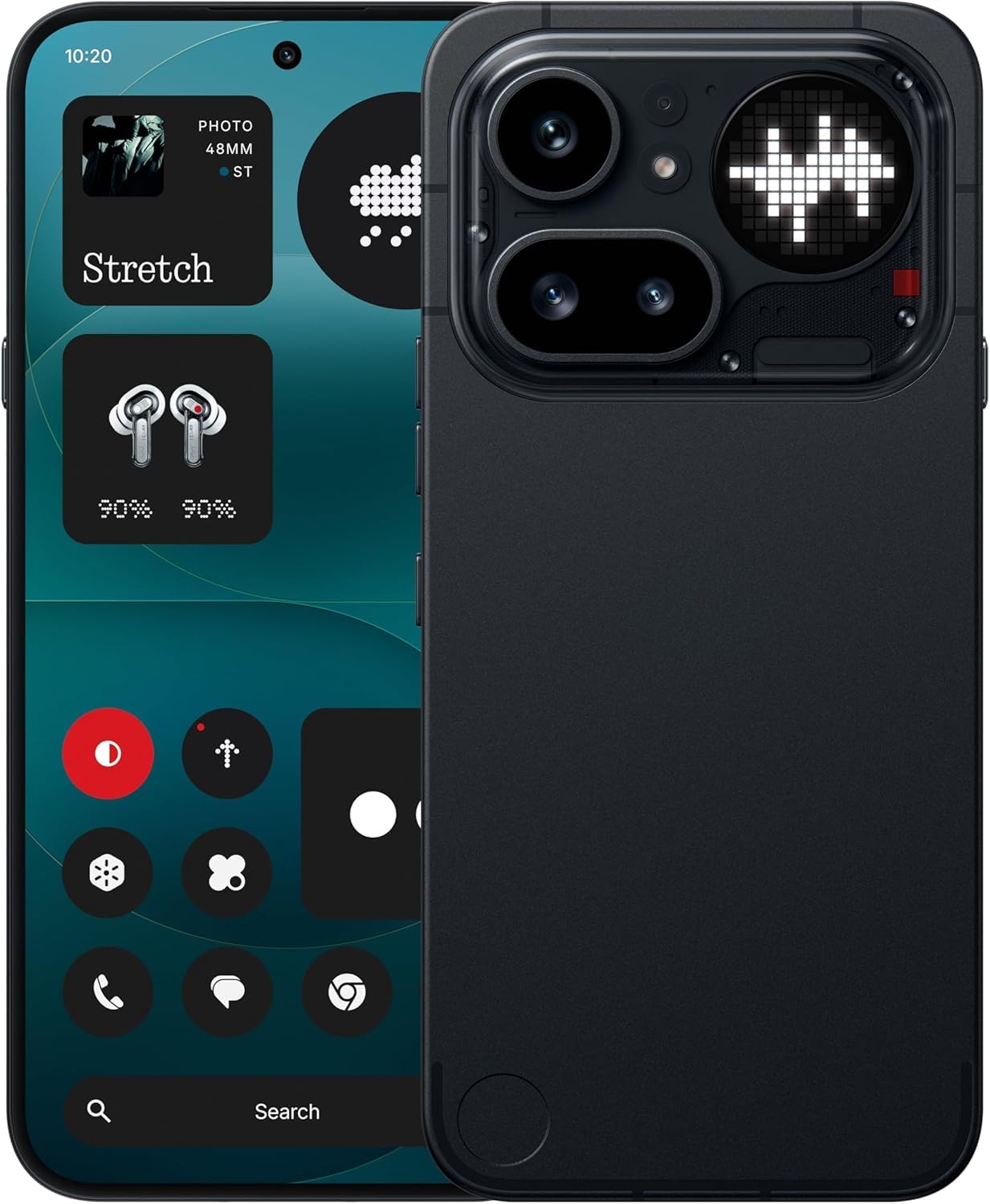
Image: A collage showcasing key features of the Nothing Phone (4a) Pro, including the triple camera system, 5080 mAh battery, Snapdragon 7 Gen 4 processor, AMOLED display, and AI tool integration.
Maintenance
1. Cleaning Your Device
Use a soft, lint-free cloth to clean the screen and body of your phone. Avoid using harsh chemicals or abrasive materials, which can damage the display and finish. For stubborn smudges, lightly dampen the cloth with water or a screen cleaner designed for electronics.
2. Software Updates
Regularly check for and install software updates to ensure your device has the latest features, security patches, and performance improvements. Navigate to Settings > System > System update to check for available updates.
3. Storage Management
Your device comes with 256 GB of internal storage. To maintain optimal performance, regularly review and delete unnecessary files, apps, and media. You can check storage usage in Settings > Storage.
Troubleshooting
1. Device Not Responding
If your phone becomes unresponsive, press and hold the Power button for approximately 10-15 seconds to force a restart. If the issue persists, ensure the device is charged.
2. Excessive Heating
It is normal for the device to warm up during intensive use, such as gaming or prolonged video streaming. If the phone becomes excessively hot, close background applications, reduce screen brightness, and avoid direct sunlight. If heating persists, contact customer support.
3. Network Connectivity Issues
If you experience issues with Wi-Fi or cellular data, try toggling Airplane Mode on and off. Restart your device. For cellular issues, ensure your SIM card is properly inserted and your mobile data plan is active. You can also reset network settings in Settings > System > Reset options > Reset Wi-Fi, mobile & Bluetooth.
4. Factory Reset
As a last resort for persistent software issues, you may perform a factory data reset. This will erase all data on your phone. Before proceeding, back up all important data. Go to Settings > System > Reset options > Erase all data (factory reset) and follow the prompts.
Specifications
| Feature | Detail |
|---|---|
| Brand | Nothing |
| Model | 4a Pro |
| Operating System | Android 14 |
| RAM Memory | 8 GB |
| Storage Capacity | 256 GB |
| CPU Model | G4 |
| CPU Speed | 2.5 GHz |
| Colour | Black |
| Connector Type | USB Type C (USB 2.0) |
| Battery Capacity | 5000 Milliamp Hours (Lithium-Ion) |
| Item Weight | 250 Grams |
| Item Dimensions | 16.4 x 7.8 x 0.8 Centimeters |
| Display Type | AMOLED |
| Maximum Display Resolution | 1080 x 2400 |
| Cellular Technology | 5G |
| Box Contents | Headset (Note: Charger and cable may be sold separately) |
Warranty Information
Your Nothing Phone (4a) Pro comes with a 1-year limited manufacturer's warranty from the date of purchase. This warranty covers manufacturing defects under normal use. It does not cover damage caused by accidents, misuse, unauthorized modifications, or normal wear and tear.
For detailed terms and conditions, please refer to the warranty card included with your product or visit the official Nothing website.
Customer Support
For technical assistance, warranty claims, or general inquiries regarding your Nothing Phone (4a) Pro, please contact Nothing customer support.
- Manufacturer: Nothing
- Packer Contact: Essentially Nothing
- Online Support: Visit the official Nothing website for FAQs, support articles, and contact options. nothing.tech/support (Example link, actual link may vary)
Please have your device's model number (4a Pro) and serial number ready when contacting support.
Related documents4a Pro


Ask a question about this manual
Ask about setup, troubleshooting, compatibility, parts, safety, or missing instructions. Manuals+ will review the question and use this page’s manual context to help answer it.