
1. Introduction
Welcome to the Samsung S26 User Manual. This guide provides essential information to help you set up, operate, maintain, and troubleshoot your Samsung S26 smartphone. Please read this manual carefully to ensure optimal performance and longevity of your device. For the most up-to-date information and support, please visit the official Samsung website.
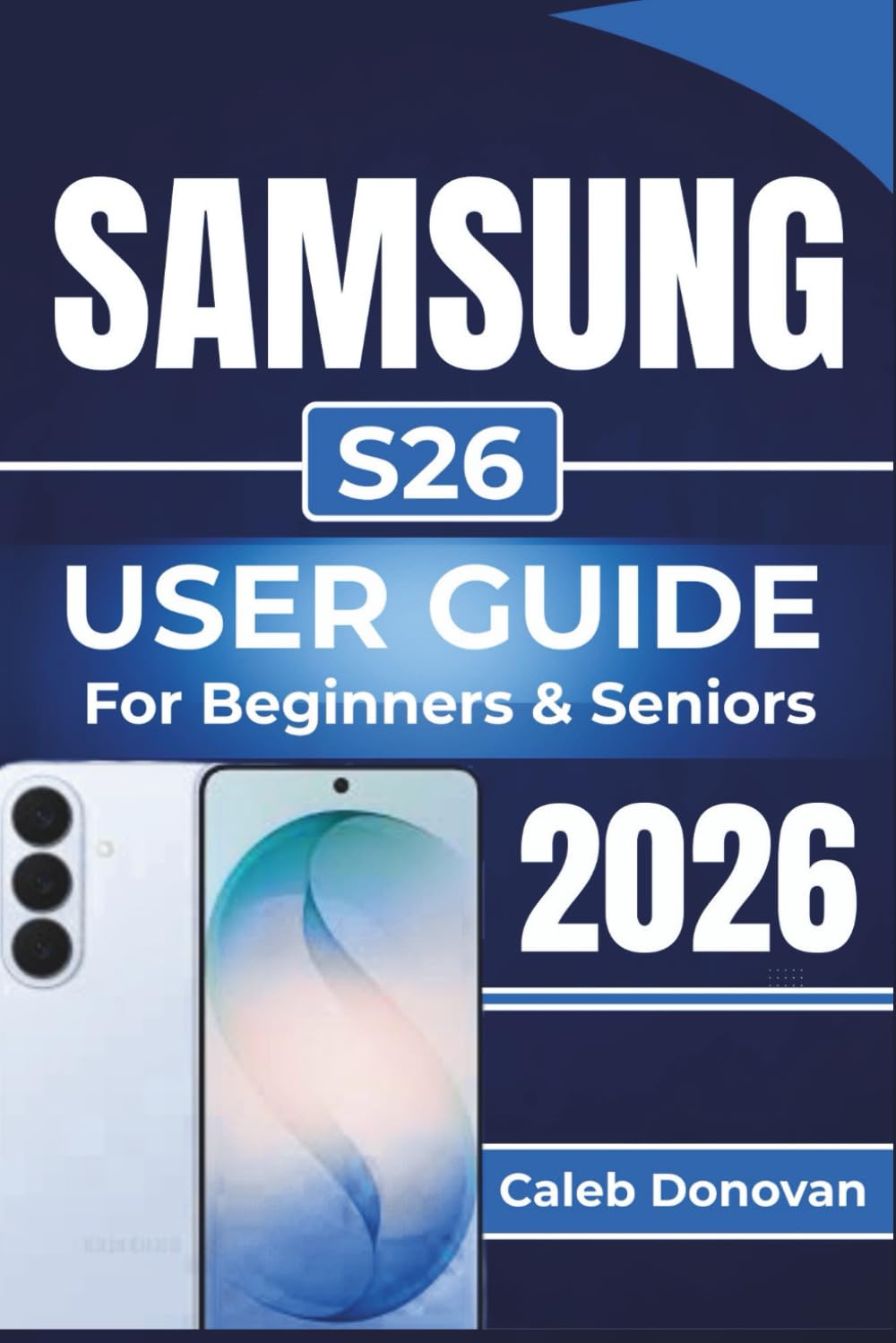
Image 1.1: Front cover of the Samsung S26 User Guide book. This image represents the instructional material for the device.
2. Initial Setup
This section guides you through the initial steps to get your Samsung S26 ready for use.
2.1. Unboxing and SIM Card Installation
- Inspect Contents: Verify all items are present: Samsung S26 device, USB-C cable, SIM ejector tool, and this manual.
- Insert SIM Card: Locate the SIM card tray on the side of your device. Use the provided SIM ejector tool to open the tray. Place your Nano-SIM card into the tray with the gold contacts facing down. Gently push the tray back into the device until it clicks into place.
- Insert MicroSD Card (Optional): If your model supports it, you can also insert a MicroSD card into the designated slot on the SIM tray for expanded storage.
2.2. Powering On and Initial Configuration
- Power On: Press and hold the Power/Side key until the Samsung logo appears.
- Language Selection: Follow the on-screen prompts to select your preferred language.
- Connect to Wi-Fi: Select your Wi-Fi network and enter the password to connect to the internet. This is crucial for software updates and account setup.
- Google Account Setup: Sign in with your existing Google account or create a new one. This is necessary for accessing the Google Play Store, Gmail, and other Google services.
- Data Transfer: If you are upgrading from an old device, follow the instructions to transfer your data using Samsung Smart Switch or Google's data transfer tools.
- Security Setup: Set up your preferred screen lock method (PIN, pattern, password, fingerprint, or facial recognition).
3. Operating Your Samsung S26
This section covers the essential functions and key features of your Samsung S26.
3.1. Basic Navigation
- Home Screen: Swipe left or right to navigate between home screens. Pinch to access home screen settings.
- App Drawer: Swipe up from the home screen to access all your installed applications.
- Notification Panel: Swipe down from the top of the screen to view notifications and quick settings.
- Recent Apps: Tap the Recent Apps button (usually a square icon) to view and switch between recently used applications.
3.2. Camera Usage
The Samsung S26 features an advanced camera system. To open the camera, tap the Camera icon on your home screen or app drawer.
- Photo Mode: Tap the shutter button to take a picture.
- Video Mode: Swipe to "Video" and tap the record button to start/stop recording.
- Pro Mode: For advanced users, Pro Mode allows manual control over ISO, shutter speed, white balance, and more.
- Portrait Mode: Creates a depth-of-field effect, blurring the background for professional-looking portraits.
3.3. Advanced Features (e.g., DeX)
The Samsung S26 may support advanced features like Samsung DeX, which allows you to connect your phone to a monitor, keyboard, and mouse for a desktop-like experience. Refer to the device settings or Samsung's official support for detailed instructions on enabling and using DeX.
4. Device Maintenance
Proper maintenance ensures your Samsung S26 remains in optimal condition and performs reliably.
4.1. Battery Care
- Optimal Charging: Use only Samsung-approved chargers and cables. Avoid extreme temperatures during charging.
- Battery Health: To prolong battery life, avoid fully discharging the battery frequently. Aim to keep the charge between 20% and 80%.
- Power Saving Modes: Utilize the built-in power-saving modes to extend battery life when needed.
4.2. Cleaning Your Device
- Screen: Use a soft, lint-free cloth, slightly dampened with water or a screen cleaner, to gently wipe the screen.
- Body: Wipe the device body with a soft, dry cloth. Avoid harsh chemicals or abrasive materials.
- Ports: Keep charging ports and speaker grilles free of dust and debris. Use a soft brush or compressed air carefully.
4.3. Software Updates
Regularly check for and install software updates. Updates provide new features, performance improvements, and crucial security patches. Navigate to Settings > Software update > Download and install.
4.4. Privacy and Security
Protecting your personal information is vital. Ensure you have a strong screen lock, enable two-factor authentication for your accounts, and regularly review app permissions. Samsung Knox provides enhanced security features for your device.

Image 4.1: Back cover of the Samsung S26 User Guide book. This image provides publication details for the instructional material, including ISBN 9798250847698.
5. Troubleshooting Common Issues
This section offers solutions to common problems you might encounter with your Samsung S26.
| Problem | Possible Solution |
|---|---|
| Device not powering on | Ensure the battery is charged. Connect to a charger for at least 10 minutes, then try powering on again. If unresponsive, perform a forced restart (hold Power and Volume Down buttons for 7-10 seconds). |
| Apps crashing or freezing | Close and reopen the app. Clear the app's cache (Settings > Apps > [App Name] > Storage > Clear cache). Ensure the app and device software are up to date. |
| Poor battery life | Check battery usage in Settings > Battery and device care > Battery to identify draining apps. Reduce screen brightness, disable unnecessary features (GPS, Bluetooth, Wi-Fi when not in use), and enable power-saving mode. |
| Wi-Fi or Bluetooth connectivity issues | Toggle Wi-Fi/Bluetooth off and on. Restart your device. Forget the network/device and reconnect. Restart your router for Wi-Fi issues. |
| Device running slow | Clear cache of frequently used apps. Uninstall unused apps. Free up storage space. Restart your device regularly. Consider a factory reset as a last resort (Warning: This will erase all data!). |
6. Specifications
Note: Specific technical specifications for the Samsung S26 are not provided in the source material for this manual. The following are general characteristics typical of a high-end Samsung smartphone. For precise details, please refer to the official Samsung product page for the S26 model.
- Model Name: Samsung S26
- Operating System: Android (latest version at release)
- Display: Dynamic AMOLED 2X (typical for flagship models)
- Processor: High-performance Octa-core processor
- Memory (RAM): Varies by configuration
- Storage: Internal storage options (e.g., 128GB, 256GB, 512GB) with potential for expandable storage via microSD.
- Camera: Multi-lens rear camera system with advanced features; high-resolution front camera.
- Battery: High-capacity Li-Po battery with fast charging and wireless charging support.
- Connectivity: 5G, Wi-Fi 6E, Bluetooth 5.x, NFC, USB Type-C.
- Sensors: Accelerometer, Barometer, Fingerprint Sensor, Gyro Sensor, Geomagnetic Sensor, Hall Sensor, Light Sensor, Proximity Sensor.
- Dimensions & Weight: Varies by specific design.
7. Warranty Information & Support
7.1. Warranty
Your Samsung S26 device is covered by a limited manufacturer's warranty. The terms and conditions of this warranty vary by region and purchase location. Please refer to the warranty card included with your device or visit the official Samsung website for detailed warranty information, including coverage period and exclusions.
Important: Keep your proof of purchase (receipt or invoice) as it is required for warranty claims.
7.2. Customer Support
For further assistance, technical support, or service inquiries, please contact Samsung Customer Service through one of the following channels:
- Official Samsung Website: Visit www.samsung.com/support for FAQs, downloads, and contact options.
- Samsung Members App: Use the pre-installed Samsung Members app on your device for diagnostics, FAQs, and direct support.
- Phone Support: Refer to your regional Samsung website for local customer service phone numbers.
- Service Centers: Locate authorized Samsung service centers near you via the Samsung website.


