
1. Introduction
The OTTOCAST Mini Nova is a compact adapter designed to convert your vehicle's existing wired Apple CarPlay or Android Auto system into a wireless connection. This device allows for automatic, seamless connectivity to your smartphone, enhancing your in-car experience without the need for cables.

Image: The compact OTTOCAST Mini Nova adapter showcasing its dual compatibility with CarPlay and Android Auto interfaces.
2. Package Contents
- 1 x OTTOCAST Mini Nova Wireless Adapter
- 1 x USB-A to USB-C Adapter
- 1 x User Manual

Image: The OTTOCAST Mini Nova package contents, including the adapter, USB-A to USB-C adapter, and user manual.
3. Setup Instructions
Follow these steps to set up your OTTOCAST Mini Nova adapter:
- Check Compatibility: Ensure your vehicle supports factory-wired Apple CarPlay or Android Auto. If your car's infotainment system displays CarPlay or Android Auto when connected via a USB cable, it is compatible.
- Plug In: Insert the OTTOCAST Mini Nova adapter into your car's USB port. Use the provided USB-A to USB-C adapter if your car has a USB-C port. The adapter's indicator light will illuminate.
- Pair Bluetooth: On your smartphone, enable Bluetooth and Wi-Fi. Search for the Bluetooth device named "CAR2-XXXX" (where XXXX is a unique identifier) and tap to connect. Confirm any pairing requests on your phone and car's display.
- Connect to CarPlay/Android Auto: After successful Bluetooth pairing, a prompt to connect to CarPlay or Android Auto will appear on your phone. Tap "Connect".
- Enjoy Wireless Connectivity: Your car's display should now show the CarPlay or Android Auto interface. The system will automatically connect to your phone each time you start your car.
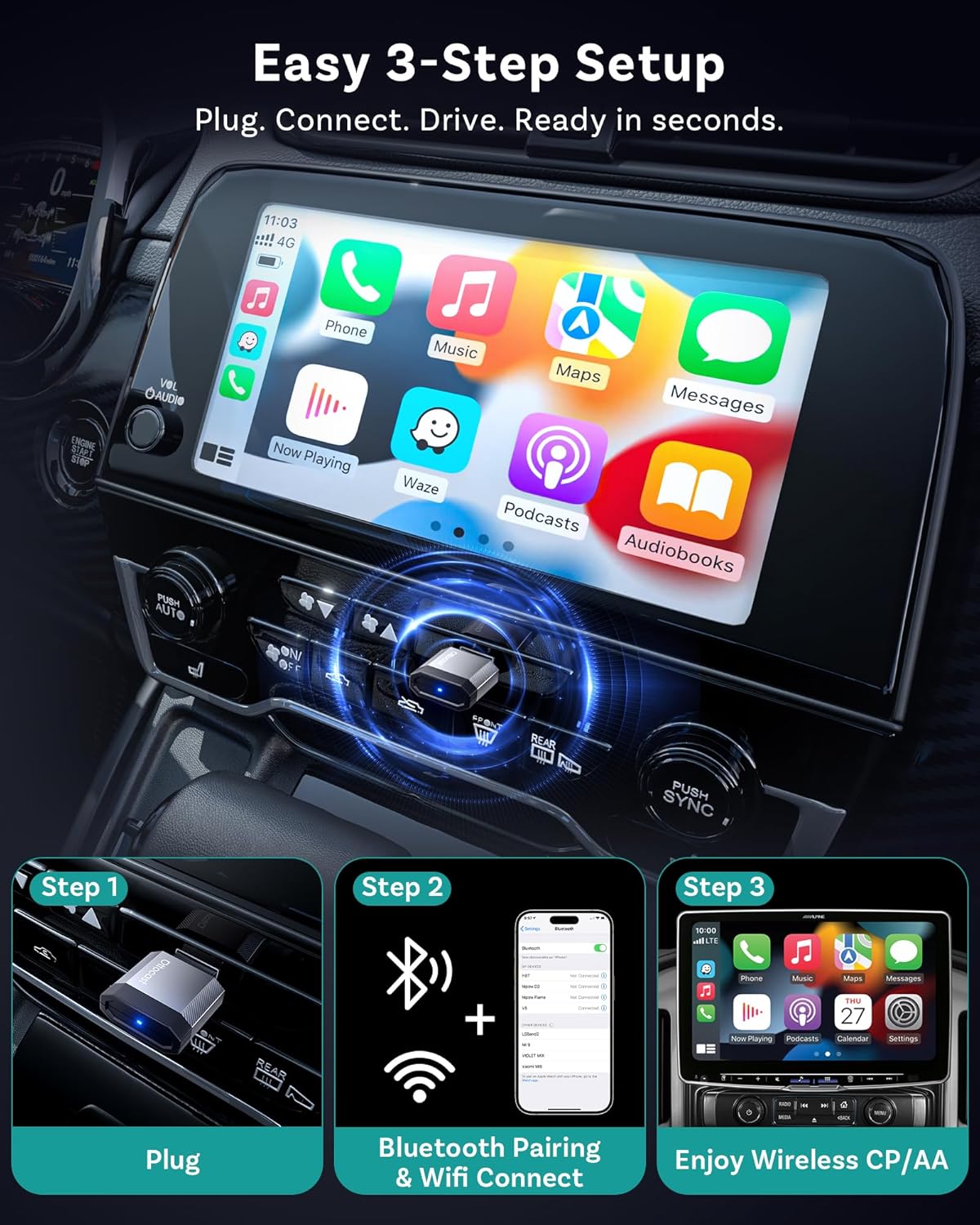
Image: A visual guide to the simple three-step setup process: plug in, pair Bluetooth/Wi-Fi, and enjoy wireless CarPlay/Android Auto.

Image: The automatic reconnection feature of the Mini Nova, showing the adapter plugged in and a driver using CarPlay on the car's display.
Setup Video Tutorial
Video: Official tutorial demonstrating the step-by-step process of setting up and using the OTTOCAST Mini Nova adapter for both CarPlay and Android Auto.
4. Operating Instructions
Once connected, the OTTOCAST Mini Nova provides a seamless wireless experience for both Apple CarPlay and Android Auto. You can interact with your car's infotainment system as you normally would with a wired connection.
Key Features:
- Dual Compatibility: Supports both Apple CarPlay (iOS 10+) and Android Auto (Android 11+).
- Automatic Connection: Connects automatically within approximately 5 seconds of starting your vehicle.
- Stable Performance: Utilizes advanced A9 chip processing, 5GHz Wi-Fi, and optimized Bluetooth for reliable performance.
- Original Car Controls: Maintain full functionality of your car's original controls, including steering wheel buttons, touch screen, rotary knobs, and voice commands (Siri/Google Assistant).
- Lossless Audio & Visuals: Experience high-quality audio and video transmission without compression.

Image: Illustration of various control methods for CarPlay/Android Auto: voice control (Siri/Google Assistant), button control, touch control, and knob control.

Image: Highlighting the stable connection provided by Bluetooth 4.2 and Wi-Fi 5, showing a phone connected to the car's display with navigation and music.
AI Assistant Integration
The OTTOCAST Mini Nova supports AI assistant integration for enhanced driving convenience. To use AI assistants:
- Ensure your iPhone is updated to iOS 26.3+ (if applicable).
- Download your preferred AI assistant app (e.g., ChatGPT, Gemini, Claude) on your phone.
- Add the AI app widget to your CarPlay settings.
- Tap the AI icon in CarPlay or open the app on your phone to start interacting with the AI assistant.

Image: A three-step visual guide on how to use AI assistants in CarPlay: download the app, add the widget, and tap to start AI.
5. Maintenance
The OTTOCAST Mini Nova is designed for durability with an ultra-light aluminum alloy housing that aids in heat dissipation. To ensure optimal performance and longevity:
- Keep the device clean and free from dust and debris.
- Avoid exposing the device to extreme temperatures or moisture.
- Handle the device with care to prevent physical damage.
Firmware Updates (OTA)
Regularly check for and install Over-The-Air (OTA) firmware updates to ensure your device has the latest features and performance improvements. To update:
- Connect your phone to the Mini Nova's Wi-Fi network.
- Open a web browser on your phone and navigate to the IP address provided in the device's settings (e.g., 192.168.1.101).
- Follow the on-screen instructions to check for and install any available updates. Ensure your phone remains connected to the device's Wi-Fi throughout the process.

Image: A smartphone screen showing the OTA update interface for the OTTOCAST Mini Nova, indicating easy firmware upgrades.
6. Troubleshooting
If you encounter issues with your OTTOCAST Mini Nova, try the following troubleshooting steps:
- No Connection:
- Ensure your car's USB port supports data transfer and is not just for charging.
- Verify that Bluetooth and Wi-Fi are enabled on your smartphone.
- Forget the device from your phone's Bluetooth settings and re-pair.
- Restart your car and phone, then try connecting again.
- Intermittent Connection:
- Check for any physical obstructions around the adapter or your phone that might interfere with the wireless signal.
- Ensure your phone's battery saving modes are not interfering with Bluetooth/Wi-Fi connectivity.
- Perform an OTA firmware update if available.
- Audio/Video Lag:
- Ensure your phone is not running too many background applications.
- Check for firmware updates.
Troubleshooting Video
Video: Official video demonstrating the benefits of the OTTOCAST Mini Nova, including its seamless conversion from wired to wireless CarPlay, which can help resolve connectivity issues.
7. Specifications
| Feature | Detail |
|---|---|
| Model Number | CA530 |
| Brand | OTTOCAST |
| Compatible Devices | Android 11+, Car with Factory wired CarPlay, iOS 10+, iPhone 17 |
| Specific Uses For Product | Driving, Navigation, calls |
| Connector Type | Auxiliary, USB Type A |
| Color | Silver |
| Item Dimensions L x W x H | 0.83 x 0.35 x 1.3 inches |
| Number of Ports | 2 |
| Item Weight | 8.8 Grams |
8. Warranty
The OTTOCAST Mini Nova (Model CA530) comes with a 2-Year Warranty from the date of purchase. This warranty covers manufacturing defects and ensures the product functions as intended under normal use. Please retain your proof of purchase for warranty claims.
9. Support
For further assistance, technical support, or warranty inquiries, please visit the official OTTOCAST website or contact their customer service. Refer to the contact information provided in your product packaging or on the official brand store for the most up-to-date support channels.
You can also visit the OTTOCAST Brand Store for additional resources and product information.


