
Introduction
Welcome to the official user manual for your Nothing Phone 4a. This guide provides comprehensive instructions for setting up, operating, maintaining, and troubleshooting your device. Please read this manual thoroughly to ensure optimal performance and longevity of your smartphone.
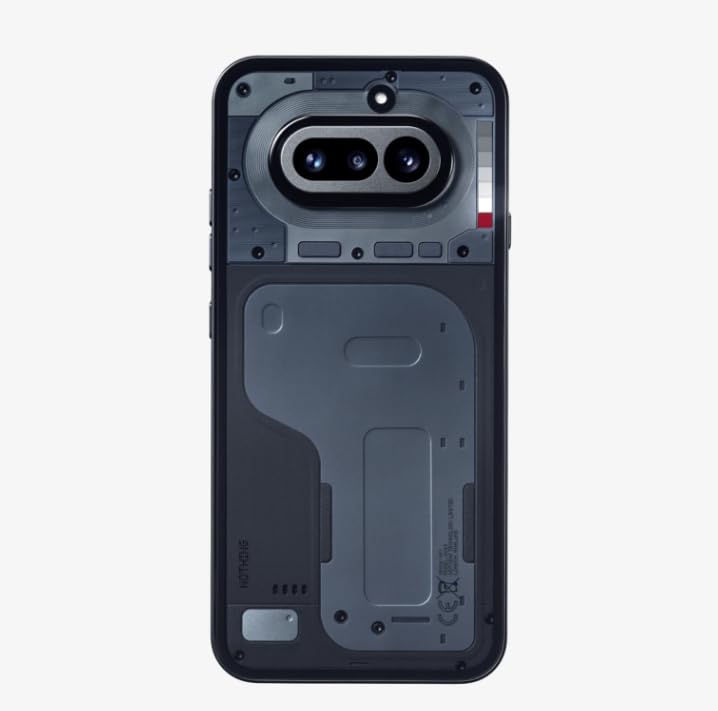
Image: Nothing Phone 4a in use, highlighting its sleek form factor.
What's in the Box
Verify that your package contains the following items:
- Nothing Phone 4a Smartphone
- Headset
- USB Type-C Cable
- SIM Ejector Tool
- Safety and Warranty Information Guide
Setup
1. Inserting the SIM Card
- Locate the SIM card tray on the side of your Nothing Phone 4a.
- Insert the SIM ejector tool into the small hole on the tray and press gently until the tray pops out.
- Place your Nano-SIM card(s) into the tray with the gold contacts facing down. Ensure proper orientation.
- Carefully push the tray back into the phone until it clicks into place.
2. Powering On and Initial Setup
- Press and hold the Power button (usually on the right side) until the Nothing logo appears.
- Follow the on-screen instructions to select your language, connect to Wi-Fi, set up your Google account, and configure security settings.
3. Charging Your Device
Before first use, it is recommended to fully charge your Nothing Phone 4a.
- Connect the USB Type-C cable to the charging port at the bottom of the phone.
- Connect the other end of the cable to a compatible power adapter and plug it into a wall outlet.
- The charging indicator will appear on the screen.
Operating Your Device
1. Power On/Off and Restart
- To Power On: Press and hold the Power button until the device vibrates and the Nothing logo appears.
- To Power Off: Press and hold the Power button, then tap "Power off" on the screen.
- To Restart: Press and hold the Power button, then tap "Restart" on the screen.
2. Basic Navigation
Your Nothing Phone 4a uses intuitive touch gestures for navigation:
- Tap: Select an item or activate a function.
- Swipe: Move between screens, scroll through lists, or dismiss notifications.
- Pinch: Zoom in or out on images and web pages.
- Long Press: Access contextual menus or move icons.
3. Camera Usage
Capture high-quality photos and videos with your Phone 4a's camera system. The device features a 32 MP Front Camera designed for wider group selfies and clear video calls.

Image: Key features of the Nothing Phone 4a, including camera capabilities and AI integration.
4. Operating System
Your Nothing Phone 4a runs on Android 14, offering a smooth and customizable user experience. Explore various apps, widgets, and settings to personalize your device.
5. Connectivity
The Phone 4a supports 4G cellular technology for fast mobile data. Connect to Wi-Fi networks for internet access and use Bluetooth for pairing with accessories like headsets.
Maintenance
1. Cleaning Your Device
- Use a soft, lint-free cloth to gently wipe the screen and body of the phone.
- Avoid using harsh chemicals, abrasive materials, or aerosol sprays.
- Disconnect all cables before cleaning.
2. Battery Care
To maximize the lifespan of your 5080 Milliamp Hours Lithium-Ion battery:
- Avoid extreme temperatures.
- Do not let the battery completely drain frequently.
- Use only approved chargers and cables.
3. Water Resistance
The Nothing Phone 4a is rated as Water Resistant. This means it can withstand splashes and light rain, but it is not designed for submersion in water. Avoid exposing the device to pressurized water or liquids other than fresh water.
Troubleshooting
1. Device Not Responding
- If your device is unresponsive, press and hold the Power button for approximately 10-15 seconds to force a restart.
- Ensure the battery is charged. Connect the phone to a charger for at least 30 minutes.
2. Charging Issues
- Check if the charging cable and adapter are securely connected.
- Try using a different USB Type-C cable and power adapter.
- Inspect the charging port for any debris or damage.
3. Software Updates
Regularly check for and install software updates to ensure your device has the latest features, security patches, and performance improvements. Go to Settings > System > System update.
4. Factory Reset
A factory reset will erase all data from your phone and restore it to its original factory settings. This can resolve persistent software issues. Backup your data before proceeding. Go to Settings > System > Reset options > Erase all data (factory reset).
Specifications
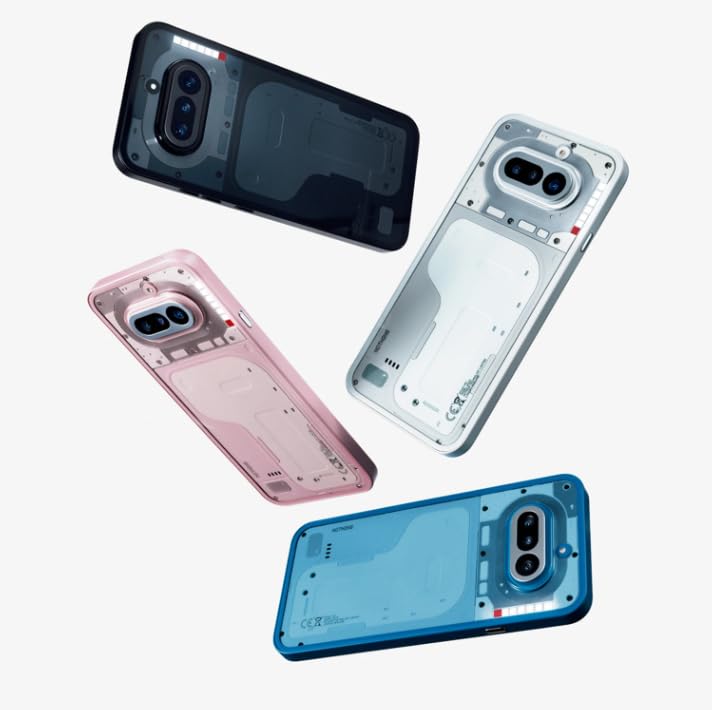
Image: Nothing Phone 4a design variations.
| Brand | Nothing |
| Model | Phone 4a |
| Operating System | Android 14 |
| RAM | 12 GB |
| Storage Capacity | 256 GB |
| CPU Model | Mobile CPU (2 GHz) |
| Display Type | AMOLED |
| Battery Capacity | 5080 Milliamp Hours (Lithium-Ion) |
| Water Resistance | Water Resistant |
| Connectivity | 4G, USB Type C |
| Item Weight | 230 Grams |
| Item Dimensions | 16.2 x 7.6 x 0.9 Centimeters |
| Color | Black |
Warranty Information
Your Nothing Phone 4a is covered by a 1-year manufacturer's warranty from the date of purchase. This warranty covers manufacturing defects under normal use. Please refer to the included Safety and Warranty Information Guide for full terms and conditions.
Support
For technical assistance, service inquiries, or further support, please contact Nothing customer service:
- Toll-free number: 18002021232
- Email: support.india@nothing.tech
You can also visit the official Nothing support website for FAQs and additional resources.
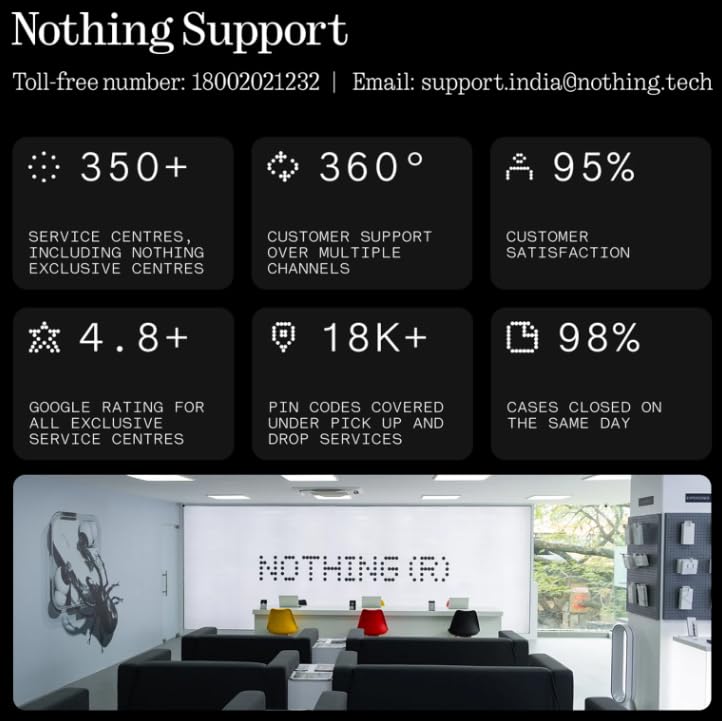
Image: Nothing customer support details and service network overview.


