
1. Introduction
This manual provides essential information for setting up, operating, and maintaining your Nothing Phone 4a. Please read this guide thoroughly to ensure proper use and to maximize the performance of your device. Keep this manual for future reference.
2. What's in the Box
Upon unboxing your Nothing Phone 4a, verify that all items are present:
- Nothing Phone 4a (8GB RAM + 256GB Storage)
- Headset
- USB Type-C Cable (for charging and data transfer)
- SIM Ejector Tool
- Quick Start Guide
- Safety Information
Note: The contents of the box may vary slightly depending on your region.
3. Device Overview
Familiarize yourself with the physical components of your Nothing Phone 4a.
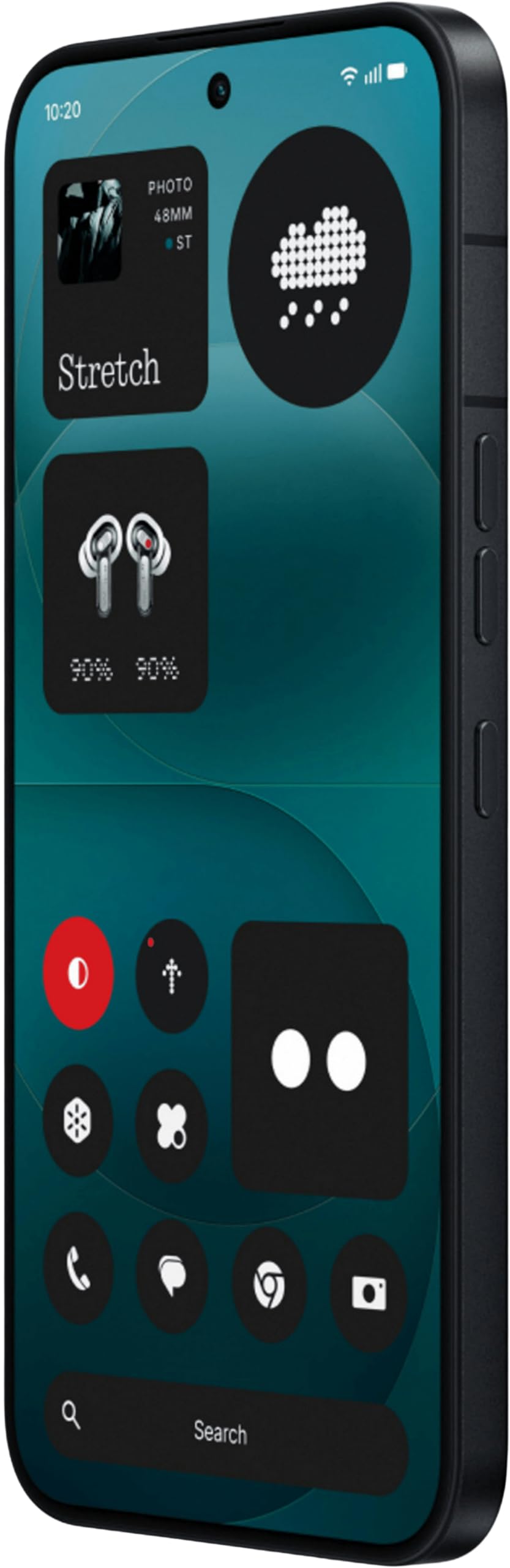
Image: Front and back view of the Nothing Phone 4a. The device features a large display on the front and a camera module on the rear. The overall design is sleek and minimalist.
3.1 Front View
- Earpiece: For audio during calls.
- Front Camera: For selfies and video calls.
- Display: AMOLED touchscreen for interaction.
- In-display Fingerprint Sensor: For secure unlocking.
3.2 Rear View
- Rear Camera Module: Contains primary and secondary cameras, along with an LED flash.
- Nothing Glyph Interface (if applicable): Unique LED lighting system for notifications and alerts.
3.3 Side and Bottom Views
- Power Button: On the right side, for turning the device on/off and locking/unlocking the screen.
- Volume Buttons: On the left side, for adjusting media and call volume.
- USB Type-C Port: At the bottom, for charging and data transfer.
- Speaker: At the bottom, for audio output.
- Microphone: For voice input during calls and recordings.
- SIM Card Tray: On the side, for inserting SIM cards.
4. Setup
4.1 Inserting the SIM Card
- Locate the SIM card tray on the side of your phone.
- Insert the SIM ejector tool into the small hole next to the tray and push gently until the tray pops out.
- Place your Nano-SIM card(s) into the tray with the gold contacts facing down. Ensure proper orientation.
- Carefully push the tray back into the phone until it clicks into place.
4.2 Initial Power On and Setup
- Press and hold the Power button until the Nothing logo appears.
- Follow the on-screen instructions to select your language, connect to a Wi-Fi network, and set up your Google account.
- You will be prompted to set up a screen lock (PIN, pattern, password, or fingerprint).
- Complete the remaining setup steps to personalize your device.
4.3 Charging the Battery
Before first use, it is recommended to fully charge your Nothing Phone 4a. Connect the USB Type-C cable to the phone's charging port and the other end to a compatible power adapter. Plug the adapter into a wall outlet.
5. Operating Instructions
5.1 Basic Navigation
- Tap: Touch the screen once to open apps, select items, or press buttons.
- Swipe: Drag your finger across the screen to scroll through lists or switch between home screens.
- Pinch: Use two fingers to zoom in or out on photos and web pages.
- Long Press: Press and hold an item to access additional options or move icons.
5.2 Making Calls
- Open the Phone app.
- Enter the phone number using the dial pad or select a contact from your address book.
- Tap the call icon to initiate the call.
5.3 Sending Messages
- Open the Messages app.
- Tap the "Start chat" or "New message" icon.
- Enter the recipient's phone number or select a contact.
- Type your message in the text field and tap the send icon.
5.4 Connecting to Wi-Fi
- Go to Settings > Network & internet > Wi-Fi.
- Toggle Wi-Fi on.
- Select your desired Wi-Fi network from the list.
- Enter the password if prompted and tap Connect.
5.5 Using the Camera
- Open the Camera app.
- Frame your shot using the display.
- Tap the shutter button to take a photo or press the record button to start/stop video recording.
- Swipe left or right to switch between different camera modes (e.g., Portrait, Night, Video).
6. Maintenance
6.1 Cleaning Your Device
Use a soft, lint-free cloth to clean the screen and body of your phone. Avoid using harsh chemicals or abrasive materials, as these can damage the device's finish. The Nothing Phone 4a is Water Resistant, but avoid submerging it in water.
6.2 Battery Care
- Avoid extreme temperatures, as they can degrade battery life.
- Do not let the battery completely drain frequently.
- Use only Nothing-approved chargers and cables.
6.3 Software Updates
Regularly check for and install software updates to ensure your device has the latest features, security patches, and performance improvements. Go to Settings > System > System update.
7. Troubleshooting
If you encounter issues with your Nothing Phone 4a, refer to the following common solutions:
| Problem | Solution |
|---|---|
| Device not turning on | Ensure the battery is charged. Press and hold the Power button for at least 10-15 seconds to force a restart. |
| Apps crashing or freezing | Close and reopen the app. Clear the app's cache (Settings > Apps > [App Name] > Storage & cache). Restart the phone. |
| Poor network signal | Check if Airplane Mode is off. Restart the phone. Ensure your SIM card is properly inserted. Contact your network provider. |
| Battery draining quickly | Reduce screen brightness. Close unused apps. Limit background data usage. Check battery usage in Settings to identify power-hungry apps. |
| Fingerprint sensor not working | Ensure your finger and the sensor are clean and dry. Re-register your fingerprints in Settings > Security & privacy > Device unlock. |
For more advanced troubleshooting, visit the official Nothing support website.
8. Specifications
Key technical specifications for the Nothing Phone 4a:
| Feature | Detail |
|---|---|
| Brand | Nothing |
| Model | Phone 4a |
| Operating System | Android 14 |
| RAM Memory | 8 GB |
| Storage Capacity | 256 GB |
| CPU Model | Mobile CPU |
| CPU Speed | 2 GHz |
| Display Type | AMOLED |
| Battery Capacity | 5080 Milliamp Hours (Lithium-Ion) |
| Water Resistance Level | Water Resistant |
| Dimensions (L x W x H) | 16.2 x 7.6 x 0.9 Centimeters |
| Weight | 230 Grams |
| Connectivity | 4G, USB Type C |
| Wireless Provider | Unlocked for All Carriers |
| Model Year | 2025 |
9. Warranty and Support
9.1 Warranty Information
Your Nothing Phone 4a comes with a 1 Year Warranty from the date of purchase. This warranty covers manufacturing defects. Please retain your proof of purchase for warranty claims. For detailed terms and conditions, refer to the warranty card included in your product packaging or visit the official Nothing website.
9.2 Customer Support
For technical assistance, service, or further inquiries, please contact Nothing customer support or visit the official brand store:
Official Nothing Store: Visit the Nothing Store on Amazon
Manufacturer: Padget Electronics
Packer Contact Information: Nothing
Importer Contact Information: Nothing


