
Introduction
Thank you for choosing the NYXI Imperial PC Gaming Controller. This manual provides detailed instructions for setting up, operating, maintaining, and troubleshooting your controller. Please read this manual carefully to ensure optimal performance and longevity of your device.
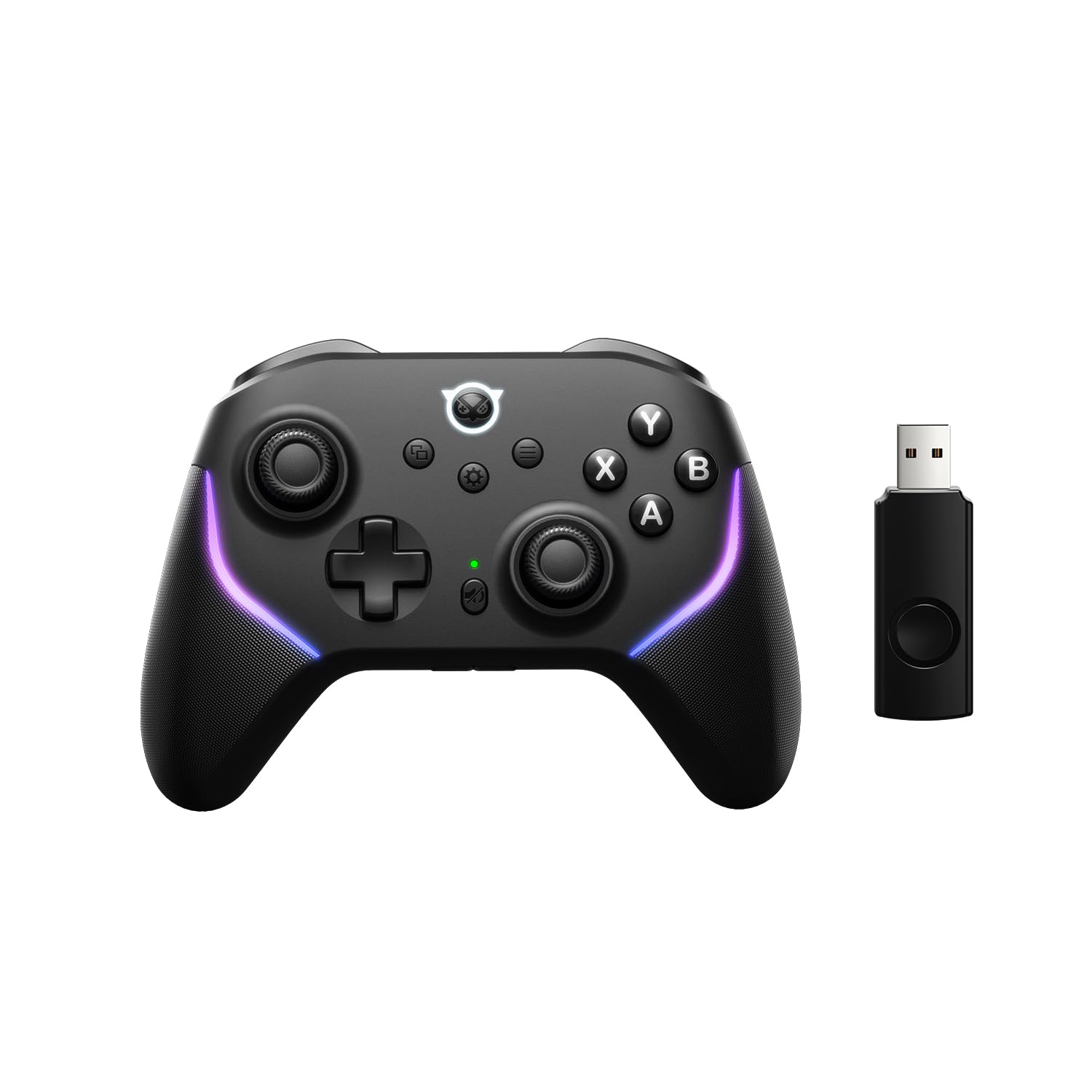
Image: The NYXI Imperial PC Gaming Controller illuminated by a vibrant neon ring, showcasing its design.
Product Overview and Key Features
The NYXI Imperial controller is designed for versatile gaming across multiple platforms, offering advanced features for an enhanced gaming experience.
- Triple-Mode Connectivity: Supports low-latency 2.4GHz wireless, Bluetooth, and wired connections for PC, Steam Deck, Windows, Android, and Switch.
- Adjustable Tension TMR Joysticks: Pro-level joysticks with stepless resistance adjustment (40gf to 80gf) for precision and comfort, featuring zero drift and TMR magnetic sensors.
- 1000Hz Polling Rate: Ensures rapid input transmission for 2.4G and wired connections, providing responsive gameplay.
- Dual-Mode Hall Triggers: Hardware-level toggle for instant micro-switch actuation (FPS) or linear Hall-effect control (racing).
- Interchangeable ABXY Buttons: Physical button caps can be swapped to match PC or Switch layouts.
- 2 Programmable M Buttons & Turbo Function: Customizable back buttons to reduce fatigue and a turbo function for automatic repeated actions.
- 1200mAh Battery & Smart Charging Dock: Provides up to 15 hours of play, with a convenient magnetic charging dock and included 2.4GHz wireless receiver.
Setup
1. Charging the Controller
Before first use, fully charge the controller. Place the controller onto the included smart charging dock. The LED indicator on the controller will show charging status and turn off when fully charged. The 1200mAh battery provides approximately 15 hours of gameplay on a full charge.
2. Connecting to Devices
The NYXI Imperial controller supports three connection modes:
- 2.4GHz Wireless (PC/Steam Deck/Windows): Insert the 2.4GHz wireless receiver into a USB port on your device. The controller will automatically connect. This mode offers a 1000Hz polling rate for minimal latency.
- Bluetooth (PC/Android/Switch):
- Turn on the controller.
- Enable Bluetooth on your device (PC, Android, or Switch).
- On the controller, press and hold the Bluetooth pairing button (refer to controller diagram for location) until the indicator light flashes rapidly.
- Select "NYXI Imperial Controller" from the list of available Bluetooth devices on your system.
- The indicator light will become solid when connected.
- Wired Connection (PC/Switch): Connect the controller to your device using a USB-C cable. The controller will automatically switch to wired mode. This mode also supports a 1000Hz polling rate.
3. Interchangeable ABXY Buttons
The ABXY buttons are magnetically attached and can be swapped to match either PC (Xbox layout) or Switch layouts. Gently pull the button caps to remove them and place the desired layout caps into position.
Operating Instructions
1. Adjustable Tension TMR Joysticks

Image: A detailed view of the Hall Effect Joystick, illustrating its internal magnetic sensor technology for zero drift.
The joysticks feature adjustable tension. Use the included tool (if applicable) or a small screwdriver to rotate the adjustment mechanism located at the base of each joystick. Rotate clockwise for stiffer tension (80gf) and counter-clockwise for softer tension (40gf). Adjust to your preference for comfort or precision aiming.
2. Dual-Mode Hall Triggers

Image: A close-up of the controller's trigger, showing the Hall Sensor and micro-switch components for dual-mode functionality.
Each trigger has a physical toggle switch (located near the trigger) to select between two modes:
- Micro-switch Actuation: Provides an instant, short travel click, ideal for quick actions in FPS games.
- Hall-Effect Linear Control: Offers a full range of analog input, suitable for precise acceleration and braking in racing games.
3. Programmable M Buttons & Turbo Function

Image: The back of the controller, highlighting the M1 and M2 programmable buttons and the USB-C port.
The controller features two programmable 'M' buttons on the back. To program:
- Press and hold the 'M' button you wish to program, then press the button you want to map to it (e.g., A, B, X, Y, L1, R1, etc.).
- Release both buttons. The 'M' button is now programmed.
To activate the Turbo function for a button, press the Turbo button (refer to controller diagram) and the desired action button simultaneously. Repeat the action to deactivate. To lock the M button to prevent accidental presses, long press the M button for 3 seconds.
4. One-Touch Mute Button & Volume Adjustment

Image: A close-up of the controller's center, showing the one-touch mute button and volume adjustment keys.
The controller includes a dedicated one-touch mute button and volume adjustment keys (+/-) for convenient audio control during gameplay.
5. Adjustable RGB Lights

Image: The NYXI Imperial controller displaying its adjustable breathing RGB lights along the grips.
The controller features adjustable RGB lighting. Refer to the quick start guide or the official NYXI website for specific button combinations to change lighting modes, colors, and brightness.
Maintenance
To ensure the longevity and optimal performance of your NYXI Imperial controller, follow these maintenance guidelines:
- Cleaning: Use a soft, dry cloth to wipe the controller. For stubborn dirt, slightly dampen the cloth with water. Avoid using harsh chemicals or abrasive materials.
- Storage: Store the controller in a cool, dry place away from direct sunlight and extreme temperatures. When not in use, placing it on its charging dock is recommended.
- Battery Care: Avoid fully discharging the battery frequently. Charge the controller regularly, even if not in constant use, to maintain battery health.
- Joystick and Trigger Care: The TMR joysticks and Hall triggers are designed for durability. Avoid applying excessive force or twisting them beyond their natural range of motion.
Troubleshooting
- Controller Not Connecting:
- Ensure the controller is charged.
- Verify the correct connection mode (2.4GHz, Bluetooth, or wired) is selected and properly initiated.
- For Bluetooth, ensure your device's Bluetooth is enabled and the controller is in pairing mode.
- Try restarting both the controller and the connected device.
- Vibration Function Misbehavior: If the vibration function acts erratically (e.g., stays on or activates unexpectedly), power the controller off and then back on. This typically resolves the issue.
- Joystick Drift: The TMR joysticks are designed to prevent drift. If you experience any issues, ensure the controller's firmware is up to date. Contact support if the problem persists.
- Buttons Unresponsive: Ensure the controller is properly connected. If using interchangeable buttons, verify they are seated correctly.
Specifications
| Brand | NYXI |
| Model Name | Imperial |
| Model Number | NP08 |
| Compatible Devices | Nintendo Switch, PC, Android, Steam Deck, Windows |
| Connectivity | 2.4GHz Wireless, Bluetooth, Wired (USB-C) |
| Polling Rate | 1000Hz (2.4G and wired connection) |
| Joystick Type | Adjustable Tension TMR (Hall Effect) |
| Trigger Type | Dual-Mode Hall Effect |
| Battery Capacity | 1200mAh |
| Battery Life | Up to 15 hours |
| Item Weight | 1.2 pounds |
Warranty Information
The NYXI Imperial PC Gaming Controller comes with a 2 Year Manufacturer Warranty. Please retain your proof of purchase for warranty claims. For detailed terms and conditions, refer to the official NYXI website or contact customer support.
Support
For further assistance, updated drivers, or firmware, please visit the official NYXI website or refer to the online manual:
- Official Manual: https://nyxigame.com/pages/NP01_manual
- NYXI Customer Support: Refer to the contact information provided on the official NYXI website.