
Introduction
The Ipega PG-9218 Gold Soldier BT Gamepad is a versatile wireless controller designed to enhance your gaming experience across multiple platforms. It offers dual connectivity via Bluetooth and a 2.4G receiver, ensuring compatibility with Android, iOS, smartphones, tablets, Smart TVs, PS3, Nintendo Switch, and Windows PCs. This manual provides essential instructions for setup, operation, and maintenance of your gamepad.
Key Features
- Universal Compatibility: Supports Android, iOS, smartphones, tablets, Smart TV, PS3, Nintendo Switch, and Windows PC.
- Dual Connection Modes: Features Bluetooth and an included 2.4G USB receiver for stable wireless connectivity up to 10 meters.
- Ergonomic Design: Anti-slip textured grips provide comfort during extended gaming sessions, complemented by colored buttons and a high-precision golden D-pad.
- Comprehensive Controls: Equipped with two analog joysticks, triggers, ABXY action buttons, SELECT, START, and a Home button for full in-game navigation.
- Rechargeable Battery: Built-in long-lasting battery with USB charging, offering hours of continuous gameplay.
Package Contents
Please check the package for the following items:
- Ipega PG-9218 Wireless Gamepad
- 2.4G USB Receiver
- USB Charging Cable
- User Manual (this document)

Image: The Ipega PG-9218 Gamepad shown in its retail packaging, highlighting the product and its features.
Product Overview
Familiarize yourself with the layout of your Ipega PG-9218 Gamepad:
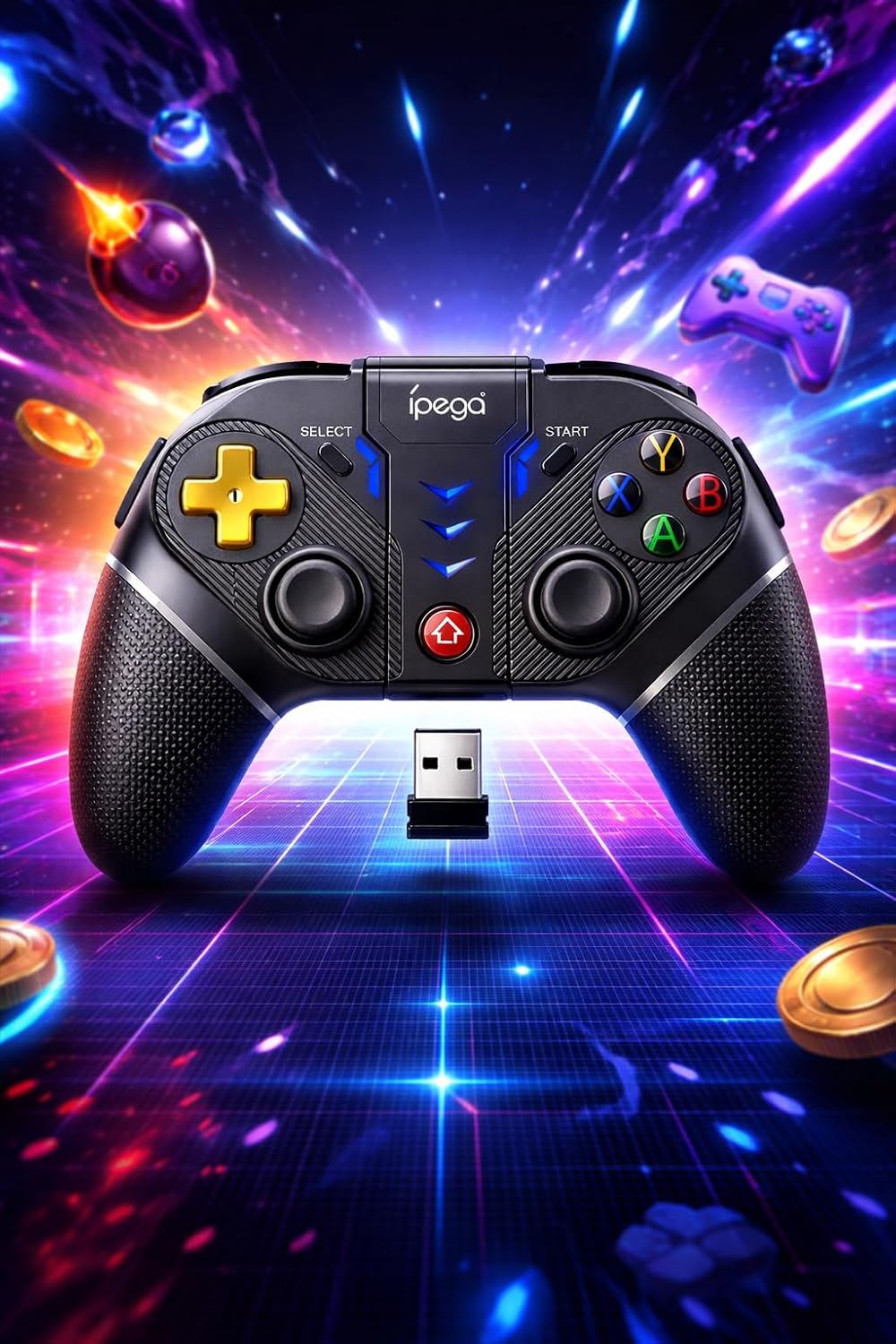
Image: A detailed view of the Ipega PG-9218 Gamepad, displaying its dual analog joysticks, D-pad, ABXY buttons, SELECT, START, and Home buttons, along with the 2.4G USB receiver.
- Left Analog Joystick: For movement and camera control.
- Right Analog Joystick: For camera control or specific in-game actions.
- D-Pad (Directional Pad): For precise directional input.
- ABXY Buttons: Standard action buttons.
- L1/L2, R1/R2 Triggers/Shoulder Buttons: For various in-game actions.
- SELECT Button: Typically for menu navigation or specific functions.
- START Button: Typically for pausing or starting games.
- HOME Button: To return to the system's home screen or activate pairing mode.
- Charging Port: USB port for charging the gamepad.
- 2.4G USB Receiver Slot: Storage for the USB receiver.
Setup and Connection
1. Charging the Gamepad
- Connect the supplied USB charging cable to the gamepad's charging port.
- Connect the other end of the USB cable to a USB power source (e.g., computer USB port, USB wall adapter).
- The indicator light will show charging status and turn off or change color when fully charged.
2. Connecting via Bluetooth (Android, iOS, PS3, Nintendo Switch, Smart TV)
- Ensure the gamepad is sufficiently charged.
- Press and hold the HOME button (or a specific combination, refer to device-specific instructions if provided by Ipega) until the indicator light starts flashing rapidly, indicating pairing mode.
- On your device (smartphone, tablet, Smart TV, Nintendo Switch, PS3), go to Bluetooth settings.
- Search for new devices and select "PG-9218" or a similar name from the list.
- Once paired, the indicator light on the gamepad will become solid.
Note: Specific pairing instructions may vary slightly depending on the operating system or device. For Nintendo Switch, ensure "Pro Controller Wired Communication" is enabled in system settings if connecting via USB, or follow standard Bluetooth pairing for wireless.
3. Connecting via 2.4G USB Receiver (PC, Smart TV)
- Ensure the gamepad is sufficiently charged.
- Insert the 2.4G USB receiver into an available USB port on your PC or Smart TV.
- Turn on the gamepad. It should automatically connect to the receiver.
- The indicator light on the gamepad will become solid once connected.
- Your system should automatically recognize the gamepad as a standard input device.
Operation
After successful connection, your Ipega PG-9218 Gamepad is ready for use. The gamepad functions as a standard controller for compatible games and applications.
- Power On/Off: Press and hold the HOME button for a few seconds to power on or off the gamepad.
- Automatic Sleep Mode: The gamepad will enter sleep mode if inactive for a certain period to conserve battery. Press the HOME button to wake it up.
- Mode Switching: The gamepad automatically detects the connection type (Bluetooth or 2.4G). If you need to switch between modes, you may need to disconnect from one and initiate pairing for the other.
- Game Compatibility: Ensure the game you are playing supports gamepad input. Some games may require specific controller configurations within their settings.
Maintenance
- Cleaning: Use a soft, dry cloth to clean the surface of the gamepad. Do not use harsh chemicals or abrasive cleaners.
- Storage: Store the gamepad in a cool, dry place away from direct sunlight and extreme temperatures.
- Battery Care: To prolong battery life, avoid fully discharging the battery frequently. Charge the gamepad regularly, even if not in use for extended periods.
- Avoid Drops: Protect the gamepad from drops and impacts, which can damage internal components.
Troubleshooting
- Gamepad does not turn on:
- Ensure the gamepad is fully charged. Connect it to a power source using the USB cable and try again.
- Gamepad does not connect via Bluetooth:
- Ensure the gamepad is in pairing mode (indicator light flashing rapidly).
- Make sure Bluetooth is enabled on your device.
- Delete any previous pairings of the gamepad from your device's Bluetooth list and try pairing again.
- Ensure the gamepad is within the 10-meter range of your device.
- Restart both the gamepad and your device.
- Gamepad does not connect via 2.4G USB receiver:
- Ensure the USB receiver is securely plugged into a working USB port.
- Try a different USB port.
- Ensure the gamepad is turned on.
- Restart your PC or Smart TV.
- Input lag or unresponsive controls:
- Ensure the gamepad is fully charged. Low battery can affect performance.
- Reduce the distance between the gamepad and your device/receiver.
- Minimize interference from other wireless devices (Wi-Fi routers, other Bluetooth devices).
- Ensure your device's operating system and game drivers are up to date.
Specifications
| Model: | PG-9218 |
| Connectivity: | Bluetooth, 2.4G Wireless (with USB receiver) |
| Compatibility: | Android, iOS, Smartphones, Tablets, Smart TV, PS3, Nintendo Switch, Windows PC |
| Wireless Range: | Up to 10 meters |
| Battery: | Built-in Rechargeable (USB charging) |
| Product Dimensions: | 10.5 x 16.5 x 10.5 cm |
| Product Weight: | 250 g |
| ASIN: | B0GRC8TWY5 |


