
Introduction
Thank you for purchasing the Aiwa 14-inch Portable Media Player Travel Kit. This device is designed to provide versatile entertainment on the go, allowing you to enjoy DVDs, CDs, and other media without relying on internet connectivity. This manual provides essential information for setting up, operating, and maintaining your portable media player.
Safety Information
Please read all safety instructions carefully before using this product. Keep this manual for future reference.
- Do not expose the device to rain, moisture, or extreme temperatures.
- Avoid placing the device near heat sources or in direct sunlight.
- Use only the provided power adapters (AC/DC and car adapter) to charge the device.
- Do not attempt to disassemble or modify the device. Refer all servicing to qualified personnel.
- Handle discs carefully to prevent scratches or damage.
- Ensure proper ventilation when operating the device.
Package Contents
Verify that all items are present in your package:
- Aiwa 14-inch Portable Media Player (Main Unit)
- Remote Control
- Wired Headphones
- Protective Carrying Bag
- AC/DC Power Adapter
- Car Power Adapter (12V)
- User Manual
Product Overview
Familiarize yourself with the components and controls of your portable media player.
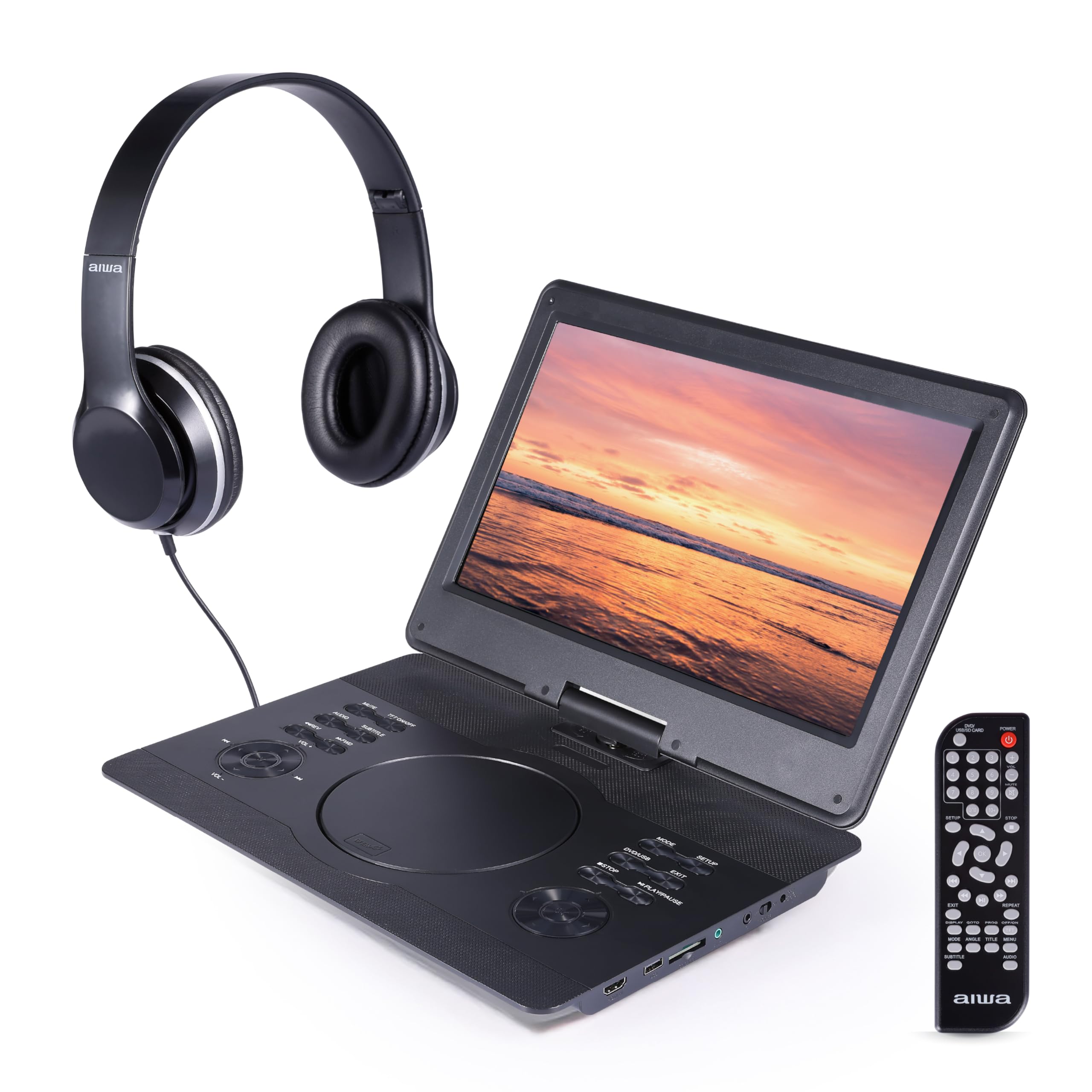
Figure 1: Front view of the Aiwa Portable Media Player with included remote control.

Figure 2: Side view showing the open disc tray and headphone connection.
Main Unit Features:
- 14-inch Swiveling LCD Screen: Provides flexible viewing angles and can fold flat.
- Disc Tray: For inserting DVDs and CDs.
- Control Buttons: Play/Pause, Stop, Skip, Volume, Menu, Setup, Mode, etc.
- Built-in Stereo Speakers: For audio playback without headphones.
- HDMI Input: Connect external devices like gaming consoles or streaming sticks.
- USB Port: For playing media from USB flash drives.
- SD Card Slot: For playing media from SD memory cards.
- Headphone Jack: For private listening.
- Power Input: For connecting AC/DC or car adapters.

Figure 3: The screen can swivel and fold flat for compact use.
Setup
1. Charging the Battery
- Connect the AC/DC power adapter to the DC IN port on the player and then to a wall outlet.
- The charging indicator light will illuminate. A full charge typically takes 2-3 hours.
- Alternatively, use the car power adapter to charge the device in a vehicle.
2. Powering On/Off
- To power on, press and hold the POWER button on the unit or remote control.
- To power off, press and hold the POWER button again.
3. Connecting Headphones
- Plug the included wired headphones into the HEADPHONE jack on the side of the player.
- The built-in speakers will automatically mute when headphones are connected.
4. Using the Carrying Bag

Figure 4: The included carrying bag for transport and protection.
- Place the media player and its accessories into the protective carrying bag for safe transport.
Operating
1. Disc Playback (DVD/CD)
- Open the disc tray cover.
- Carefully place a DVD or CD onto the spindle with the label side facing up.
- Close the disc tray cover firmly.
- The player will automatically detect the disc and begin playback or display the disc menu.
- Use the control buttons on the unit or remote (Play/Pause, Stop, Skip, Menu, etc.) to navigate and control playback.
2. USB/SD Card Playback
- Insert a USB flash drive into the USB port or an SD card into the SD card slot.
- Press the MODE button on the unit or remote to select USB or SD mode.
- Navigate through your files using the directional buttons and press PLAY/ENTER to select and play media.
3. HDMI Input
- Connect an external device (e.g., gaming console, streaming stick) to the HDMI IN port on the player using an HDMI cable (not included).
- Press the MODE button on the unit or remote to select HDMI input.
- The player's screen will display the content from the connected HDMI device.
4. Screen Adjustment

Figure 5: The screen can be swiveled and tilted for optimal viewing.
- The screen can swivel up to 180 degrees and tilt for various viewing angles.
- It can also be folded flat against the base unit, transforming the device into a tablet-like form factor.
5. Volume Control
- Adjust the volume using the VOL+ and VOL- buttons on the unit or the remote control.
Maintenance
Cleaning the Device
- Wipe the screen and exterior surfaces with a soft, dry, lint-free cloth.
- For stubborn marks, slightly dampen the cloth with water or a mild, non-abrasive cleaner.
- Do not use harsh chemicals or abrasive materials, as they may damage the finish.
- Keep the disc tray and ports free of dust and debris.
Storage
- When not in use, store the player in its protective carrying bag in a cool, dry place.
- Avoid storing in areas with extreme temperatures or high humidity.
Troubleshooting
If you encounter issues, refer to the following common problems and solutions:
| Problem | Possible Cause | Solution |
|---|---|---|
| No power | Battery depleted; Power adapter not connected or faulty. | Charge the battery using the AC/DC or car adapter. Ensure connections are secure. |
| Disc not playing / "No Disc" error | Disc inserted incorrectly; Disc is dirty or scratched; Incompatible disc format. | Ensure disc is inserted label-side up. Clean the disc. Try a different disc. Verify disc is DVD/CD/VCD format. |
| No sound | Volume too low; Headphones connected; Mute function active. | Increase volume. Disconnect headphones if using speakers. Check if mute is active on remote. |
| Poor picture quality | Disc quality; Screen viewing angle; Low resolution content. | Ensure disc is clean and undamaged. Adjust screen angle. Note that native resolution is 800x480. |
| Remote control not working | Batteries depleted; Obstruction between remote and player; Remote sensor blocked. | Replace remote batteries. Ensure clear line of sight to the player's IR sensor. |
Specifications
| Feature | Detail |
|---|---|
| Brand | Aiwa |
| Model Number | AI7017-BLK-T37-6 |
| Screen Size | 14 inches |
| Display Type | LCD |
| Native Resolution | 800x480 |
| Media Type Support | DVD, CD, CD-R, DVD-R, VCD, USB, SD Card |
| Connectivity | HDMI Input, USB Port, SD Card Slot, Headphone Jack |
| Audio | Built-in Stereo Speakers, Headphone Output |
| Power Source | Rechargeable Battery, AC/DC Adapter, Car Adapter (12V) |
| UPC | 021331134455 |
Warranty Information
This product is covered by a limited manufacturer's warranty. Please refer to the warranty card included in your package or contact customer support for details regarding warranty terms and conditions.
Customer Support
For technical assistance, troubleshooting, or warranty inquiries, please contact Aiwa customer support. Contact information can typically be found on the product packaging or the official Aiwa website.


