
Introduction
Welcome to the user manual for your new Samsung Galaxy A17 5G smartphone. This guide provides essential information to help you set up, operate, and maintain your device. The Galaxy A17 5G features a 50MP No Shake Camera, a vibrant Super AMOLED display, 5G connectivity, and advanced AI capabilities like Gemini Live and Circle to Search, all within a sleek 7.5mm design protected by Corning Gorilla Glass Victus.
Setup
1. Package Contents
Before you begin, ensure your package contains the following items:
- Samsung Galaxy A17 5G Smartphone
- Ejection Pin
- USB Type-C Data Cable
- Quick Start Guide

Figure 1: Included items and phone dimensions (6.7" display, 77.9mm width, 164.4mm height, 7.5mm thickness).
2. Insert SIM Card
- Locate the SIM card tray on the side of your device.
- Insert the ejection pin into the small hole next to the tray to open it.
- Place your Nano-SIM card(s) and/or microSD card (if applicable) into the tray with the gold contacts facing down. The Galaxy A17 5G supports Dual SIM.
- Gently push the tray back into the slot until it clicks into place.
3. Charge the Battery
Before first use, fully charge the device battery. Connect the USB Type-C data cable to the phone's charging port and the other end to a compatible power adapter (sold separately) or a computer's USB port.
4. Power On and Initial Setup
Press and hold the Power/Side key until the Samsung logo appears. Follow the on-screen instructions to complete the initial setup, including language selection, Wi-Fi connection, Google account setup, and data transfer.
Operating Instructions
1. Power On/Off and Restart
- To Power On: Press and hold the Power/Side key until the device vibrates and the Samsung logo appears.
- To Power Off: Press and hold the Power/Side key and Volume Down button simultaneously. Tap "Power off" on the screen. Alternatively, swipe down from the top of the screen to open the Quick Panel, tap the Power icon, then select "Power off".
- To Restart: Follow the power off procedure, then select "Restart".
2. Super AMOLED Display
The Galaxy A17 5G features a Super AMOLED display, offering vibrant colors and deep blacks for an enhanced viewing experience. Adjust brightness and display settings via the Quick Panel or in the Settings menu under "Display".

Figure 2: The Super AMOLED display provides vivid colors and sharp clarity.
3. Camera Features
Capture high-quality photos and videos with the versatile triple camera system and 50MP No Shake Camera.
- Main Camera: 50MP with Optical Image Stabilization (OIS) for clear and stable shots.
- Wide Camera: 5MP for capturing broader scenes.
- Macro Camera: 2MP for detailed close-up shots.
- Front Camera: 13MP for selfies and video calls.

Figure 3: Overview of the Triple Camera system specifications.

Figure 4: The 50MP No Shake Camera reduces blur for clearer images and videos.

Figure 5: Examples of photos taken with Ultra Wide, Macro, and Selfie modes.
4. AI Features: Gemini Live & Circle to Search
Leverage integrated AI tools for enhanced productivity and convenience.
- Gemini Live: Provides real-time AI assistance for various tasks, making interactions more intuitive.
- Circle to Search: Quickly search for information about any object, text, or image on your screen by simply circling it.

Figure 6: Gemini Live offers intelligent assistance for daily queries.

Figure 7: Circle to Search allows instant information retrieval from your screen.
5. 5G Connectivity
Experience fast downloads, smooth streaming, and low-latency online gaming with 5G network support. Ensure your SIM card and service provider support 5G for optimal performance.
6. Multitasking and Storage
With 6GB of RAM, the Galaxy A17 5G handles everyday applications and multitasking smoothly. The 128GB internal storage provides ample space for photos, videos, and apps. Storage can be expanded via a microSD card (sold separately).
Maintenance
1. Device Cleaning
To clean your device, gently wipe it with a soft, lint-free cloth. Avoid using harsh chemicals or abrasive materials that could damage the screen or finish.
2. Software Updates
Keep your device's software up to date to ensure optimal performance, security, and access to new features. The Galaxy A17 5G is designed to receive up to 6 OS upgrades and 6 years of security updates.
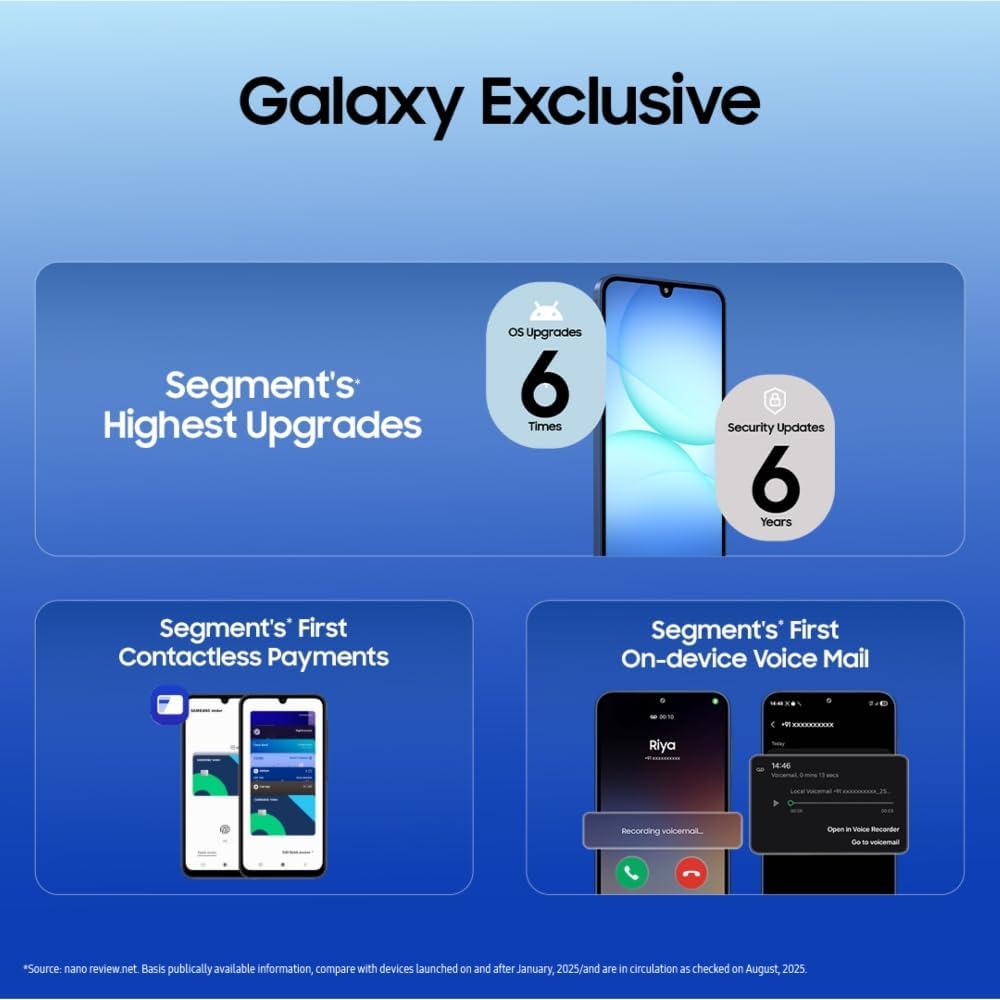
Figure 8: The Galaxy A17 5G offers extended OS and security update support.
3. Battery Care
To prolong battery life, avoid extreme temperatures, use only Samsung-approved chargers, and consider enabling power-saving modes when needed. Avoid completely draining the battery frequently.
4. Durability and Protection
The device features Corning Gorilla Glass Victus for enhanced scratch and drop resistance. It also has an IP54 rating, providing protection against dust and splashing water.

Figure 9: Corning Gorilla Glass Victus and IP54 rating provide enhanced durability.
Troubleshooting
If you encounter issues with your device, refer to the following common solutions:
- Device Not Responding: If the device is frozen or unresponsive, press and hold the Power/Side key and Volume Down button simultaneously for more than 7 seconds to force restart.
- Poor Battery Life: Check for apps running in the background, reduce screen brightness, disable unnecessary features like GPS or Bluetooth when not in use, and ensure software is updated.
- Screen Touch Issues: Ensure your screen is clean and free from moisture. If issues persist after a restart, consider checking for software updates or contacting support.
- Network Connectivity Problems: Verify your SIM card is properly inserted. Try toggling Airplane Mode on and off. If issues persist, contact your network service provider.
- General Performance Issues: Clear cache of frequently used apps, uninstall unused apps, and ensure sufficient storage space is available. A factory reset can resolve persistent software issues, but back up your data first.
Specifications
| Feature | Detail |
|---|---|
| Brand | Samsung |
| Model Name | Samsung Galaxy A17 5G |
| RAM Memory | 6 GB |
| Internal Storage | 128 GB (Expandable) |
| Display Type | Super AMOLED |
| Main Camera | 50 MP (with OIS) |
| Front Camera | 13 MP |
| Cellular Technology | 5G |
| SIM Card Slot Count | Dual SIM |
| Color | Black |
| Dimensions (approx.) | 164.4mm (H) x 77.9mm (W) x 7.5mm (D) |
| Protection | Corning Gorilla Glass Victus, IP54 |
Warranty and Support
1. Warranty Information
Your Samsung Galaxy A17 5G is covered by a limited manufacturer's warranty. Please refer to the warranty card included in your product packaging or visit the official Samsung website for detailed terms and conditions.
2. Customer Support
For technical assistance, troubleshooting, or service inquiries, please contact Samsung Customer Service. Samsung offers extensive support with over 3300 service touch points and 24x7 support.
- Online Support: Visit the official Samsung support website for FAQs, manuals, and software downloads.
- Phone Support: Refer to your Quick Start Guide or Samsung's website for regional contact numbers.
- Service Centers: Locate authorized Samsung service centers near you for in-person assistance.

Figure 10: Samsung provides robust post-purchase service and support.


