
Introduction
The NIIMBOT B1 Pro Label Maker is a 300 DPI thermal label printer designed for various labeling needs in home, office, and small business environments. This upgraded model offers high-resolution printing, dual red and black color printing capabilities, and seamless integration with a versatile mobile application for extensive label customization.

Image: The NIIMBOT B1 Pro Label Maker, a compact thermal printer.
What's in the Box
Upon unboxing your NIIMBOT B1 Pro Label Maker, you should find the following items:
- 1x NIIMBOT B1 Pro Label Maker
- 1x Type-C Charging Cable
- 1x User Manual
- 1x 50x30mm (1.97" x 1.18") White Label Roll

Image: The NIIMBOT B1 Pro Label Maker, a Type-C cable, a user manual, and a roll of white labels.
Setup Instructions
- Charging the Device: Connect the label maker to a power source using the provided Type-C USB cable. The indicator light will show charging status.
-
Loading Labels:
- Open the label compartment cover.
- Insert the label roll with the printing surface facing upwards. Ensure the label feeds smoothly through the slot.
- Close the compartment cover firmly. The printer will automatically detect the label type and size.
Video: Demonstrates how to load a label roll into the NIIMBOT B1 Pro Label Maker.
- App Installation: Download the official "NIIMBOT" application from the Apple App Store (for iOS devices) or Google Play Store (for Android devices).
-
Bluetooth Connection:
- Turn on the NIIMBOT B1 Pro Label Maker by pressing the power button.
- Open the NIIMBOT app on your smartphone or tablet.
- Within the app, navigate to the device connection section and select your B1 Pro from the list of available Bluetooth devices.

Image: A visual guide showing the steps to download the app, connect via Bluetooth, and edit labels.
- PC Connection (Optional): For printing from a computer, download and install the necessary drivers from the official NIIMBOT brand website. Follow the on-screen instructions for installation.
Operating Instructions
- Design Your Label: Use the NIIMBOT app to create your desired label. The app provides a wide array of customization options including text, icons, borders, and templates.
- Select Label Type: Ensure the app correctly identifies the type and size of the label roll currently loaded in the printer. This ensures accurate printing and prevents waste.
-
Print Command: Once your label design is finalized, tap the print button within the app. The label maker will then print your design.
Video: Shows the NIIMBOT B1 Pro printing labels for various food items, demonstrating its use in daily life.
- Dual Color Printing: For labels supporting red and black dual color printing, select this option in the app to highlight key information or add visual layers to your labels.
-
Grayscale Printing: The B1 Pro supports 16 grayscale printing, allowing for detailed images and photos to be printed on compatible labels.
Video: Illustrates the grayscale printing capability of the NIIMBOT B1 Pro Label Maker, showing various images printed on labels.
App Features
The NIIMBOT app is a powerful tool for creating personalized labels with ease:
- Extensive Library: Access over 1500 interesting and practical icons, along with 100+ border materials to enhance your label designs.
- Font Variety: Choose from 249 free creative fonts and unlock over 100 VIP exclusive fonts for diverse typography options.
- Templates: Utilize more than 1000 pre-designed templates for quick and easy label creation across various categories.
- Multilingual Support: The app supports multiple languages, making it accessible to a broader user base.
- Label Recognition: Features smart label recognition to automatically identify the loaded label type, minimizing errors and material waste.
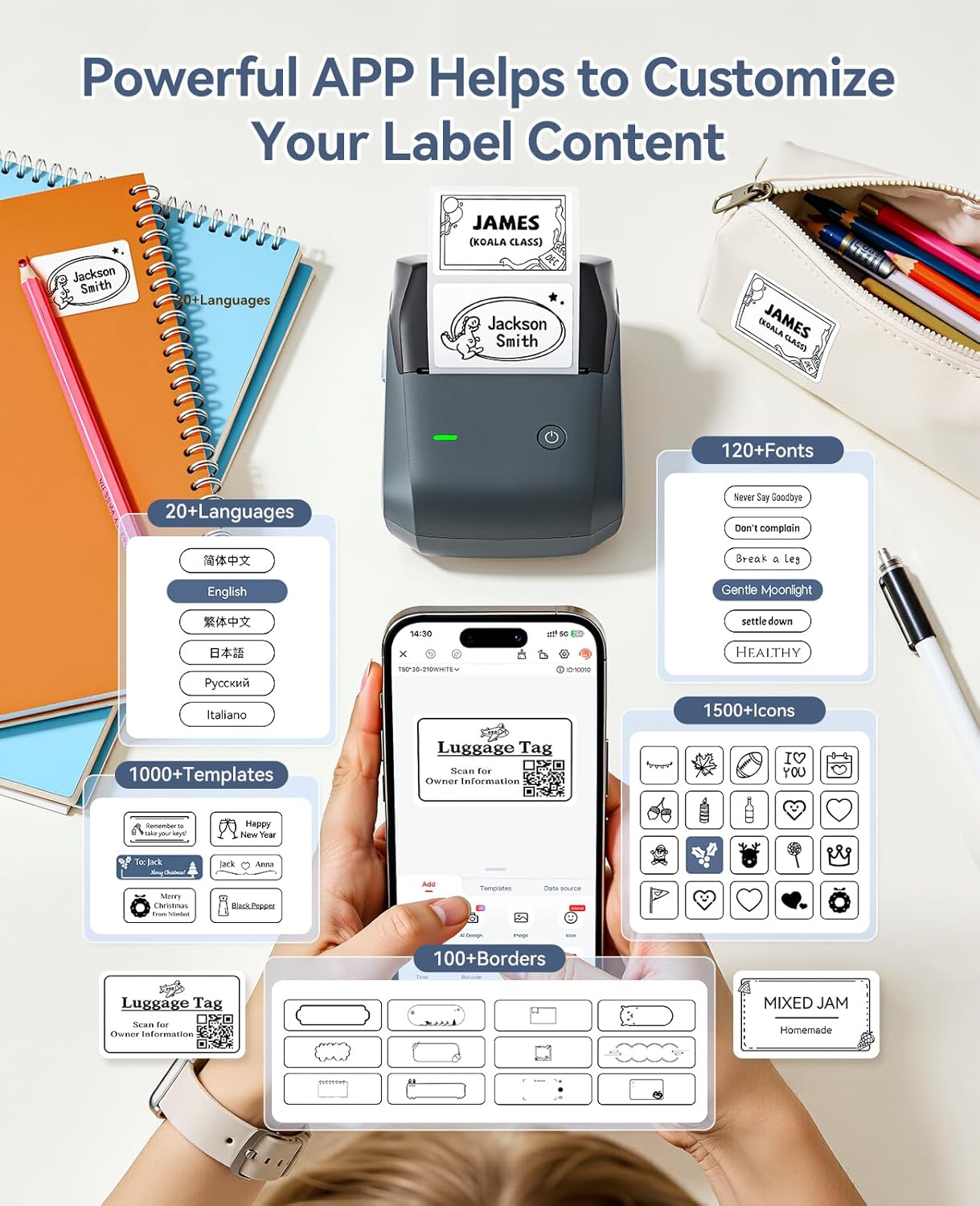
Image: A smartphone displaying the NIIMBOT app interface with options for fonts, icons, and templates, alongside the label maker.
Applications and Uses
The NIIMBOT B1 Pro Label Maker is versatile and can be used for a wide range of labeling tasks:
- Home Organization: Label kitchen food containers, spice jars, bottles, storage boxes, and homemade food items.
- Small Business: Create professional price tags, product information labels, QR codes, barcodes, and brand logos.
- School: Ideal for making name tags, quick teacher feedback labels, and cup labels for children.
- Crafts & Hobbies: Perfect for DIY crafts, scrapbooking, photo labeling, and creating decorative memos.

Image: Examples of labels used for organizing food, gifts, and notes.
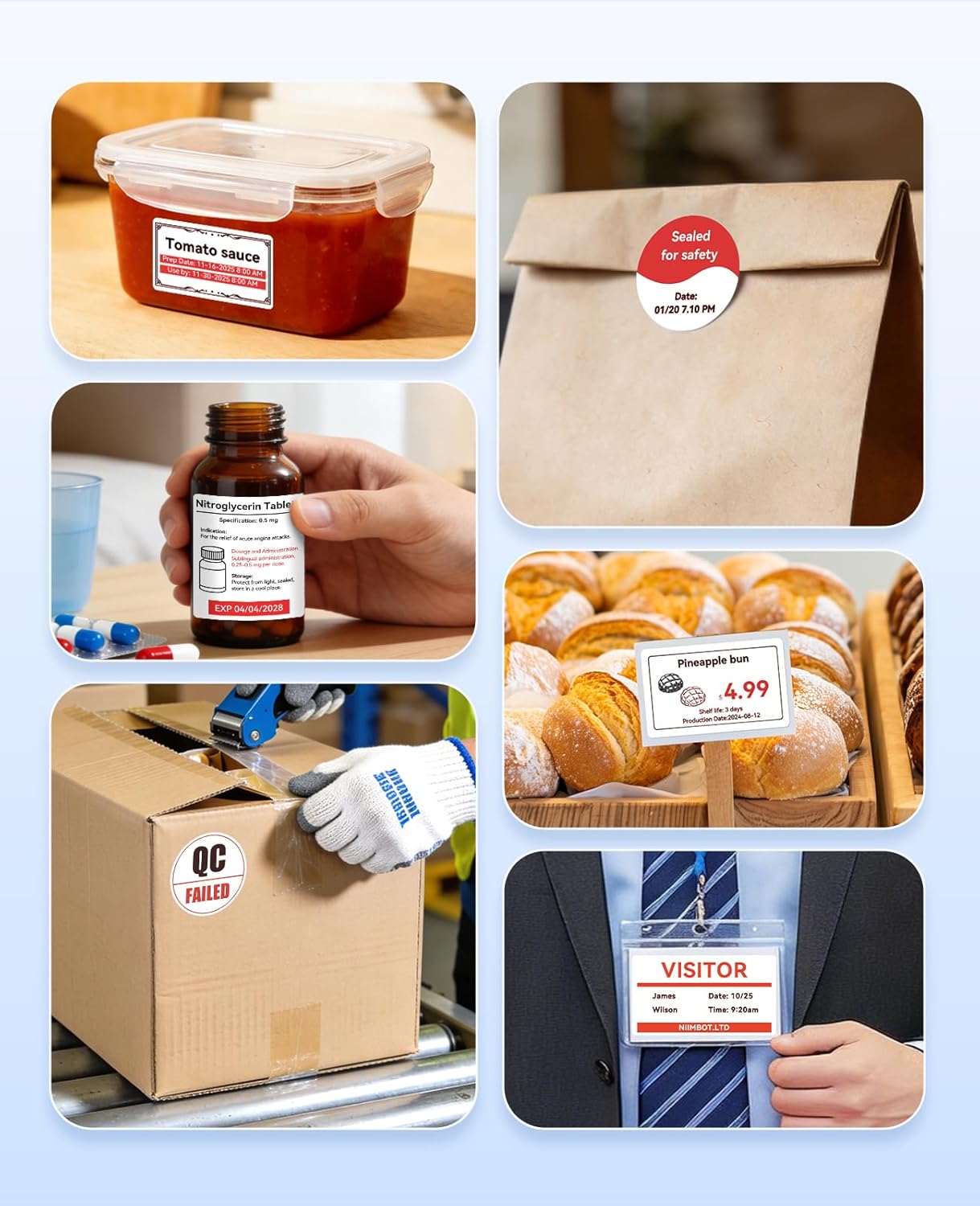
Image: Labels applied to product packaging, medicine bottles, and a visitor badge.
Video: Showcases the NIIMBOT B1 Pro Label Maker being used in a bakery setting for labeling products.
Specifications
| Feature | Detail |
|---|---|
| Brand | NIIMBOT |
| Model Name | B1 Pro |
| Connectivity Technology | Bluetooth |
| Printing Technology | Thermal |
| Resolution | 300 x 300 DPI |
| Printer Output | Color (Red & Black Dual Color Printing) |
| Max Print Speed Monochrome | 40 mm/s |
| Special Features | 16 Grayscale Printing, Bluetooth Multi-Connection, Label Recognition, No First-Label Waste, Red & Black Dual Color Printing |
| Item Weight | 12.48 ounces |
| Product Dimensions | 5.3"D x 2.5"W x 3.7"H |
| Print Media | Labels (supports 20 to 50mm width) |
| Power Source | Type-C Cable (Rechargeable) |

Image: A comparison chart highlighting the upgraded features of the B1 Pro over the standard B1 model, including 300 DPI resolution and red & black dual color printing.
Troubleshooting
- Connection Issues: If the label maker fails to connect via Bluetooth, ensure Bluetooth is enabled on your device and the label maker is powered on. Try restarting both the app and the label maker. For PC connection, verify that the correct drivers are installed.
- Poor Print Quality: Check if the label roll is inserted correctly with the printing side facing up. Ensure the print head is clean and free of any debris. Using genuine NIIMBOT labels is recommended for optimal print quality.
- Blank Labels: Confirm that the thermal label roll is loaded correctly and is not upside down. Thermal paper has a specific side that reacts to heat for printing.
- App Not Responding: Close and reopen the NIIMBOT app. Ensure your smartphone or tablet's operating system is up to date. If the issue persists, try reinstalling the app.
- Label Recognition Problems: If the label maker is not recognizing the label type or size, try re-inserting the roll. Ensure the label sensor area inside the compartment is clean.
Warranty and Support
The NIIMBOT B1 Pro Label Maker is covered by a 2-year warranty from the date of purchase. This warranty covers manufacturing defects and ensures reliable operation under normal use.
For detailed warranty information, technical support, or to purchase accessories and replacement labels, please visit the official NIIMBOT website or contact their customer service department.
Official NIIMBOT Store: Visit the NIIMBOT Store on Amazon