
1. Introduction
Thank you for choosing the SABLUTE CK13 PRO Wireless Keyboard and Mouse Combo. This product is designed to provide a comfortable and efficient typing experience with its retro typewriter style, backlit keys, and ergonomic features. This manual will guide you through the setup, operation, and maintenance of your new device.

Figure 1: SABLUTE CK13 PRO Wireless Keyboard and Mouse Combo with packaging and key dimensions. The image displays the full-size keyboard, mouse, and packaging, highlighting the overall design and size of the components.
2. Package Contents
Please check the package contents carefully. If any items are missing or damaged, please contact customer support.
- 1 x SABLUTE CK13 PRO Wireless Keyboard
- 1 x Wireless Mouse
- 1 x 2.4GHz USB Receiver (stored in mouse battery compartment)
- 1 x Type-C Adapter
- 1 x Magnetic Wrist Rest
- 1 x Instruction Manual (this document)
3. Setup Guide
3.1. Battery Installation
Batteries are not included in the package. Please prepare the following:
- Keyboard: 2 x AAA batteries
- Mouse: 1 x AA battery
- Keyboard: Open the battery compartment cover on the underside of the keyboard. Insert 2 AAA batteries, ensuring correct polarity (+/-). Close the cover.
- Mouse: Open the battery compartment cover on the underside of the mouse. Insert 1 AA battery, ensuring correct polarity (+/-). Close the cover.
3.2. Connecting the USB Receiver
The keyboard and mouse share a single 2.4GHz USB receiver.
- Locate the 2.4GHz USB receiver inside the mouse battery compartment. Carefully remove it.
- Plug the USB receiver into an available USB-A port on your computer (laptop or desktop PC).
- If your computer only has USB-C ports, attach the included Type-C adapter to the USB receiver, then plug the adapter into a USB-C port on your computer.
- Turn on the keyboard and mouse using their respective power switches.
- Your computer should automatically detect and install the necessary drivers. The devices are plug-and-play and should be ready for use within a few seconds.
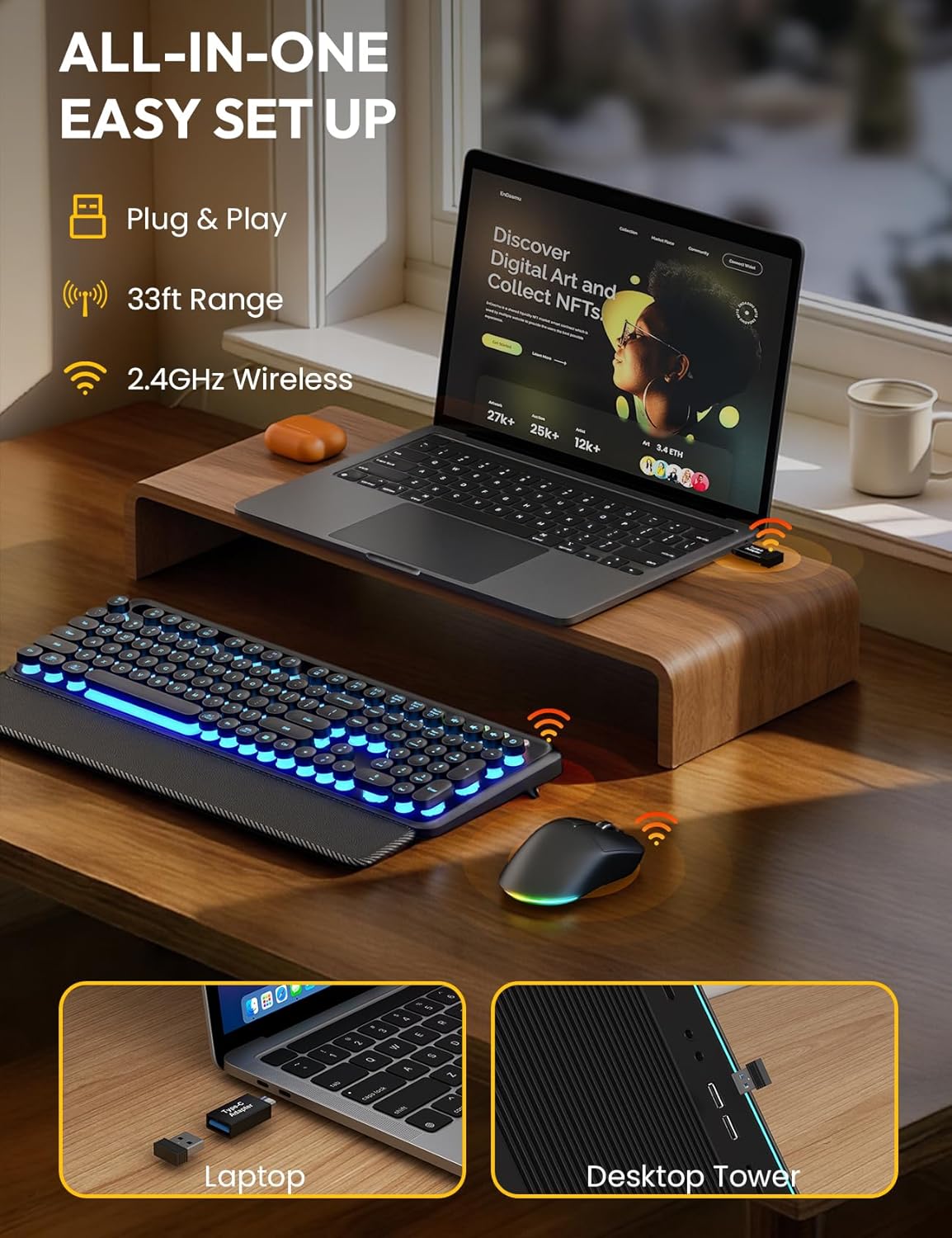
Figure 2: Illustration of the easy setup process. The image shows the USB receiver being plugged into a laptop and a desktop tower, demonstrating the 2.4GHz wireless connection and 33ft range.
3.3. Attaching the Magnetic Wrist Rest
The included wrist rest attaches magnetically to the front edge of the keyboard. Simply align the wrist rest with the keyboard, and the magnets will secure it in place. This provides ergonomic support during typing.
4. Operating Instructions
4.1. Keyboard Backlight Control
The keyboard features 7 different backlight colors and adjustable brightness.
- Switch Light Color: Press Fn + Scroll Lock to cycle through the 7 available backlight colors.
- Adjust Light Brightness: Press Fn + PgUp to increase brightness, and Fn + PgDn to decrease brightness.

Figure 3: The keyboard showcasing its 7-color backlight feature. Multiple keyboards are fanned out, each displaying a different backlight color, illustrating the variety of options available.
4.2. Mouse Functions
The mouse features adjustable DPI, RGB lighting, and navigation buttons.
- DPI Adjustment: Press the DPI button (usually located behind the scroll wheel) to cycle through DPI settings: 1000, 1600, and 2400.
- RGB Lighting Modes: The mouse has 11 switchable lighting modes. Use the dedicated button (often near the DPI button or on the underside) to change lighting effects or turn lights off.
- Forward/Back Buttons: Use the side buttons for quick navigation in web browsers and file explorers.

Figure 4: Close-up of the wireless mouse, highlighting its ergonomic design, silent click feature, and adjustable DPI settings (1000-1600-2400). The image also points out the forward and back navigation buttons.
4.3. Adjustable Keyboard Tilt Legs
The keyboard features dual-position foldable tilt legs on the underside, allowing you to adjust the typing angle to 6° or 8.8° for personalized comfort.

Figure 5: The keyboard in use with the magnetic wrist rest, demonstrating the adjustable tilt angles (4°/7° shown in image, product description states 6°/8.8°). This image emphasizes ergonomic support for wrists.
4.4. Built-in Phone/Tablet Holder
The keyboard includes a built-in slot at the top to hold your smartphone or tablet (up to 9.92 x 0.63 inches). This allows you to keep your device within easy view while working. Note: This holder does not provide connectivity or charging functions. Thick cases may not fit.

Figure 6: The keyboard featuring its integrated phone and tablet holder. An iPad is shown resting in the slot, illustrating how users can keep their devices within reach. Dimensions of the holder are indicated.
4.5. Power Saving Features
Both the keyboard and mouse are designed with power-saving features:
- Auto Sleep Mode: After 30 minutes of inactivity, both devices will enter auto sleep mode to conserve battery life. To wake them up, simply press any key on the keyboard or move/click the mouse.
- Low Battery Indicator: When the keyboard battery is low, the backlight will turn off first, allowing you to continue typing for a short period before the batteries need replacement.

Figure 7: This image illustrates the power management features, including auto-sleep after 2 minutes (product description states 30 minutes), 6-hour charge time, and 750 hours of use with lights off. It also shows the keyboard being charged via a USB-C cable.
5. Maintenance and Cleaning
To ensure the longevity and optimal performance of your keyboard and mouse, follow these maintenance guidelines:
- Splash-Resistant Design: The keyboard has a splash-resistant surface. In case of small accidental spills, quickly wipe off the liquid with a dry cloth. Do not immerse the keyboard in water.
- Removable Keycaps: The floating round keycaps are removable, making it easier to clean dust, crumbs, and debris from underneath. Use a keycap puller (not included) or gently pry them off. Reattach by pressing firmly until they click into place.
- General Cleaning: Use a soft, dry, lint-free cloth to wipe down the surfaces of the keyboard and mouse. For stubborn dirt, slightly dampen the cloth with water or a mild electronics cleaner. Avoid abrasive cleaners or solvents.
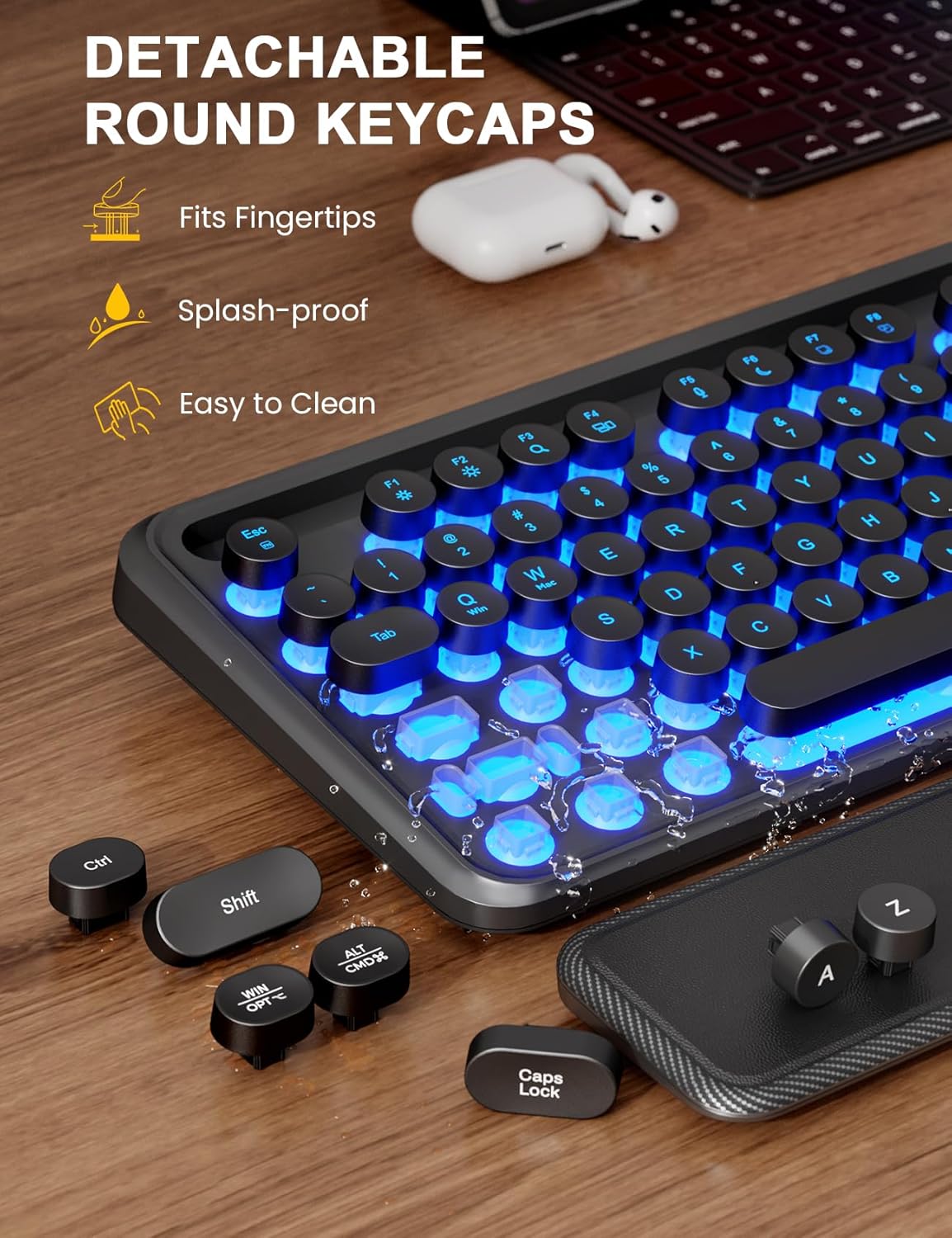
Figure 8: The keyboard highlighting its detachable round keycaps and splash-proof design. Several keycaps are shown removed from the keyboard, demonstrating the ease of cleaning.
6. Troubleshooting
If you encounter any issues, please try the following solutions before contacting customer support:
- Devices Not Responding:
- Ensure both the keyboard and mouse are powered on.
- Check if the batteries are correctly installed and have sufficient charge. Replace batteries if necessary.
- Ensure the USB receiver is securely plugged into a working USB port on your computer. Try a different USB port.
- Move the keyboard and mouse closer to the USB receiver to rule out range issues (maximum range is approximately 33 feet/10 meters).
- Restart your computer.
- Keyboard Backlight Not Working:
- Check battery levels. The backlight turns off first when batteries are low.
- Ensure the backlight is not set to the lowest brightness level. Adjust using Fn + PgUp.
- Mouse Cursor Jumps or is Erratic:
- Clean the optical sensor on the underside of the mouse.
- Ensure you are using the mouse on a suitable surface (not highly reflective or transparent).
- Lag or Intermittent Connection:
- Avoid placing the USB receiver near other wireless devices (e.g., Wi-Fi routers, cordless phones) that might cause interference.
- Ensure there are no large metal objects between the devices and the receiver.
7. Specifications
| Feature | Description |
|---|---|
| Brand | SABLUTE |
| Model Number | CK13 PRO |
| Connectivity | 2.4GHz Wireless (USB Receiver + USB-C Adapter) |
| Keyboard Layout | Full-Size, QWERTY, 104-key |
| Keyboard Features | 7-Color Backlit, Retro Typewriter Style, Round Keycaps, Magnetic Wrist Rest, Dual-position Tilt Legs (6°, 8.8°), Splash-resistant, Removable Keycaps, Built-in Phone/Tablet Holder |
| Mouse Features | RGB Lighting (11 modes), Optical Sensor, Adjustable DPI (1000/1600/2400), Silent Click, Ergonomic Design, Forward/Back Buttons |
| Power Source | Keyboard: 2 x AAA Batteries (not included) Mouse: 1 x AA Battery (not included) |
| Auto Sleep Mode | 30 minutes of inactivity |
| Compatible Operating Systems | Windows (full functionality), basic Mac typing (some top-row shortcuts may not function) |
| Item Weight | 1.2 kg (approx.) |
8. Warranty and Support
8.1. Product Warranty
This SABLUTE product comes with a 2-year warranty against manufacturer defects from the date of purchase. This warranty does not cover damage caused by misuse, accident, unauthorized modification, or normal wear and tear.
8.2. Customer Support
For any setup assistance, product inquiries, or warranty claims, please contact our customer support team. We offer 24-hour customer support to ensure your satisfaction.
Please refer to your purchase documentation or the SABLUTE official website for contact details.