
Introduction
This manual provides detailed instructions for the operation and maintenance of your Vandlion VV13Pro Digital Voice Recorder. Please read this manual thoroughly before using the device to ensure proper functionality and to maximize its performance.
Package Contents
- 1 x Vandlion VV13Pro Digital Voice Recorder
- 1 x USB-C Data Cable
- 1 x User Manual (this document)
- 1 x Standard Earbuds
Product Overview
The Vandlion VV13Pro is a compact and lightweight digital voice recorder designed for high-quality audio capture in various settings such as conferences, interviews, meetings, and classes. It features advanced noise reduction technology and a user-friendly one-touch recording system.

Figure 1: Key features of the Vandlion VV13Pro, including 32GB storage capacity, up to 450 hours of recording time, 1-hour fast charging, and 25 hours of continuous battery life.

Figure 2: The VV13Pro features a professional 2159 audio chip, powerful DSP for noise reduction, and a sensitive microphone for clear 1536Kbps audio recording.
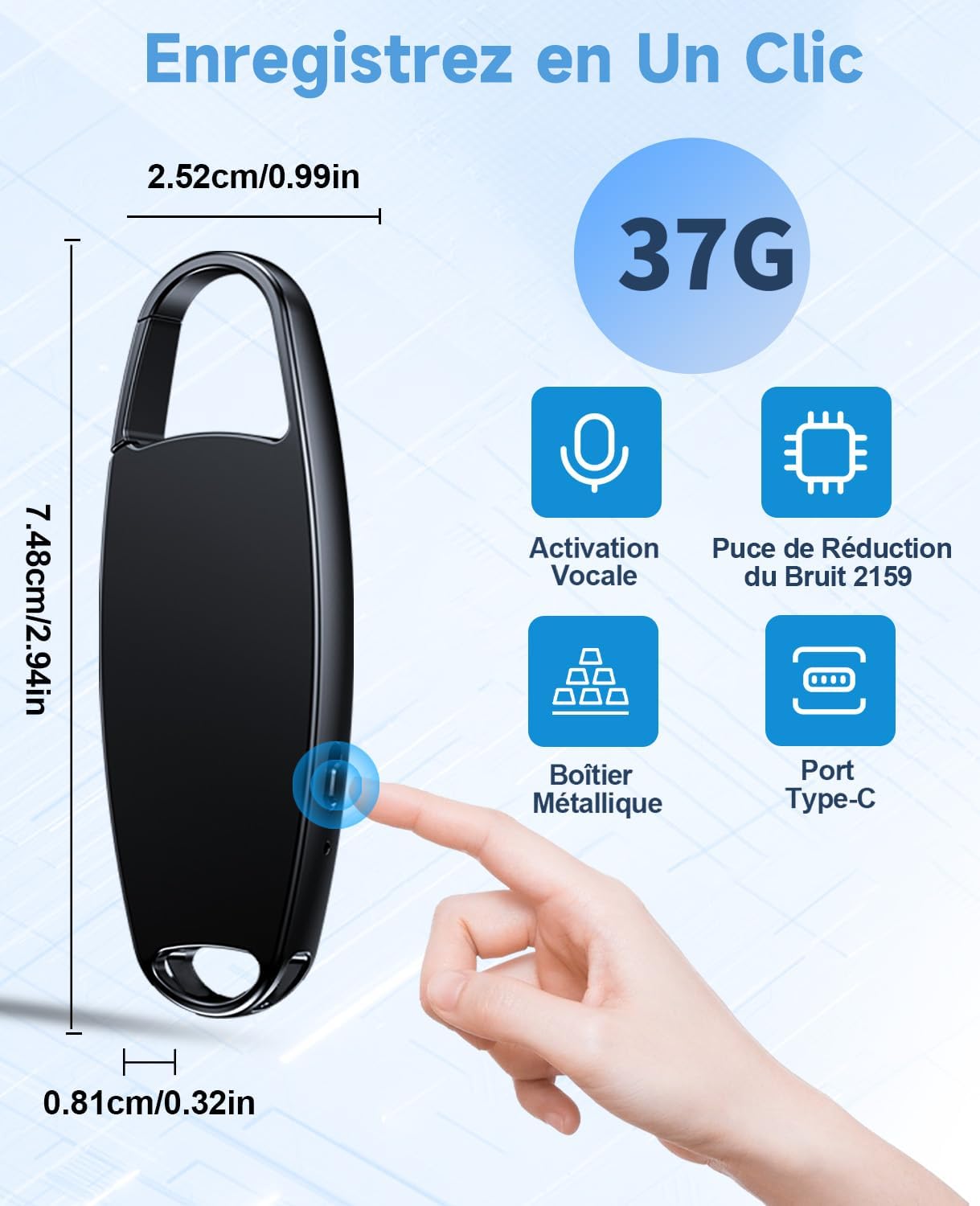
Figure 3: Physical dimensions and weight of the VV13Pro, highlighting its compact design, metallic casing, and USB Type-C port.

Figure 4: The VV13Pro supports file management via Windows computers, Mac computers, and Android smartphones using the USB-C connection. Playback is also possible through 3.5mm earphones.

Figure 5: The VV13Pro is suitable for diverse recording environments, including business meetings, academic classes, professional interviews, and personal note-taking.

Figure 6: The compact and lightweight design of the VV13Pro allows for easy portability, fitting into pockets, wallets, or clipped to clothing.

Figure 7: The voice activation feature optimizes storage space and recording time by automatically starting and stopping recording based on detected sound levels.
Setup
1. Charging the Device
Before first use, fully charge the voice recorder. Connect the supplied USB-C data cable to the recorder's USB-C port and the other end to a computer's USB port or a compatible USB power adapter. The device will indicate charging status (e.g., an LED indicator). A full charge typically takes approximately 1.5 hours.
2. Initial Power On
To power on the device, slide the 'ON' switch. The device will briefly indicate power-on status.
Operating Instructions
1. Recording Audio
The VV13Pro features a simple one-touch recording function:
- To start recording, slide the switch to the 'ON' position. The device will begin recording automatically.
- To stop recording and save the file, slide the switch to the 'OFF' position. The recording will be saved with an automatic filename based on the date and time.
2. Playback
The device does not have a built-in speaker. To listen to recordings:
- Using Earphones: Connect the supplied standard earphones to the 3.5mm headphone jack on the recorder.
- Using a Computer: Connect the recorder to a Windows or Mac computer using the USB-C cable. The recorder will appear as a removable storage device. Navigate to the recording files and play them using your computer's media player.
- Using an Android Phone: Connect the recorder to a compatible Android phone using the USB-C cable. Access the files through your phone's file manager and play them.
3. File Management
To manage your recorded files (transfer, delete, rename), connect the recorder to a computer or Android phone via the USB-C cable. The device will be recognized as a mass storage device, allowing you to access and organize your files.
4. Voice Activated Recording (VOR)
The VV13Pro supports voice activated recording. This feature allows the recorder to automatically start recording when sound is detected and pause when silence occurs, conserving battery life and storage space. Refer to the device's internal settings (accessible via computer connection) for adjusting VOR sensitivity levels (e.g., Level 1 to Level 7).
Maintenance
- Keep the device dry. Avoid exposure to moisture or liquids.
- Clean the device with a soft, dry cloth. Do not use abrasive cleaners or solvents.
- Avoid dropping or subjecting the device to strong impacts.
- Store the device in a cool, dry place away from direct sunlight and extreme temperatures.
- Regularly back up your important recordings to a computer or other storage device.
Troubleshooting
Device not turning on:
Ensure the device is fully charged. Connect it to a power source and allow it to charge for at least 30 minutes before attempting to power on again.
Cannot record:
Check if the device has sufficient storage space. If the memory is full, transfer or delete old files. Ensure the switch is firmly in the 'ON' position.
No sound during playback:
Verify that earphones are properly connected. If playing on a computer or phone, check the volume settings and ensure the correct media player is being used. Remember, the device has no built-in speaker.
Device not recognized by computer/phone:
Ensure the USB-C cable is securely connected to both the recorder and the computer/phone. Try a different USB port or cable. Restart your computer/phone and try again.
Poor recording quality:
Ensure the microphone is not obstructed. Reduce background noise in the recording environment. Check if the voice activation sensitivity is set appropriately for the environment.
Specifications
| Feature | Detail |
|---|---|
| Model | VV13Pro |
| Brand | Vandlion |
| Material | Aluminum Alloy |
| Memory Capacity | 32 GB |
| Recording Bit Rate | 32-1536kbps |
| Recording Format | MP3 (32-160Kbps), WAV (256-1536Kbps) |
| Interface | USB Type C |
| Microphone | Built-In, Stereo |
| Headphone Jack | 3.5 mm |
| Dimensions (L x W x D) | 75 x 25 x 8 mm |
| Weight | 37 Grams |
| Battery Type | Internal Rechargeable (150mAh) |
| Battery Life (Recording) | Approximately 25 Hours (at 160kbps) |
| Charging Time | Approximately 1.5 Hours |
| Compatible Devices | Personal Computer (Windows/Mac), Android Smartphone |
Warranty Information
Vandlion provides a standard limited warranty for this product. Please retain your proof of purchase for warranty claims. For specific warranty terms and conditions, please refer to the documentation included with your purchase or contact Vandlion customer support.
Support
For technical assistance, troubleshooting, or further inquiries, please visit the official Vandlion website or contact their customer support team. Contact details can typically be found on the product packaging or the brand's official online presence.


