
Introduction
Thank you for purchasing the Mikuso GP-USB008 Wired Double Game Pad. This device is designed to provide a responsive and comfortable gaming experience for multiplayer setups. This manual will guide you through the setup, operation, maintenance, and troubleshooting of your new game pad.
Safety Information
- Do not expose the device to extreme temperatures, humidity, or direct sunlight.
- Avoid dropping or subjecting the device to strong impacts.
- Do not attempt to disassemble or modify the game pad. This will void the warranty.
- Keep the device away from liquids.
- Use only with compatible USB ports.
Package Contents
Please check the package for the following items:
- 1 x Mikuso GP-USB008 Wired Double Game Pad
- 1 x User Manual (this document)

Image: The Mikuso GP-USB008 Wired Double Game Pad as it appears in its retail packaging.
Setup
- Connect to your device: Locate an available USB port on your computer or compatible gaming device. Insert the USB connector of the Mikuso GP-USB008 game pad firmly into the USB port.
- Automatic Driver Installation: The game pad is designed for plug-and-play functionality. Your operating system (e.g., Windows, macOS, Linux) should automatically detect the device and install the necessary drivers. This process may take a few moments.
- Verification: Once the drivers are installed, the game pad should be ready for use. You can typically verify its recognition in your device's control panel or system settings under "Game Controllers" or "Devices and Printers."
Note: No additional software or drivers are typically required for basic functionality.
Operating Instructions
The Mikuso GP-USB008 features a standard game pad layout for intuitive control.
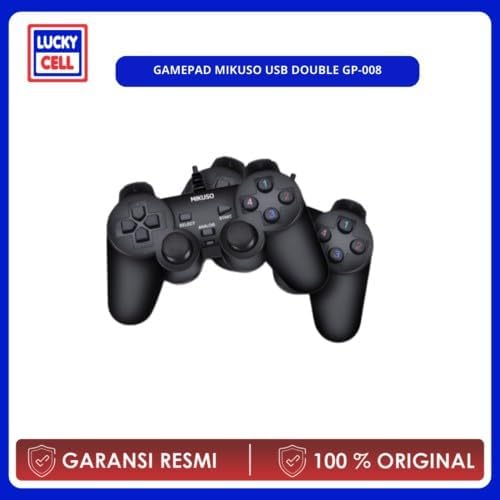
Image: The Mikuso GP-USB008 Wired Double Game Pad, highlighting its ergonomic design and button layout.
Button Layout and Functions:
- Directional Pad (D-Pad): For precise directional movement.
- Analog Sticks: Two analog sticks for 360-degree movement and camera control.
- Action Buttons: Typically labeled as X, Y, A, B or similar symbols, used for in-game actions.
- Shoulder Buttons (L1, R1) & Triggers (L2, R2): Located on the top of the game pad for additional actions.
- Start/Select/Mode Buttons: For pausing games, accessing menus, or changing controller modes.
Using in Games:
Once connected, most modern games will automatically detect and configure the game pad. If a game does not automatically recognize the controller, check the game's settings menu for controller configuration options. You may need to map specific actions to the game pad buttons manually.
Maintenance
- Cleaning: Use a soft, dry cloth to wipe the surface of the game pad. For stubborn dirt, a slightly damp cloth can be used, but ensure no moisture enters the device. Do not use harsh chemicals or abrasive cleaners.
- Storage: When not in use, store the game pad in a clean, dry place away from direct sunlight and extreme temperatures. Avoid wrapping the cable too tightly to prevent damage.
- Cable Care: Do not pull the game pad by its cable. Always grasp the USB connector when plugging or unplugging.
Troubleshooting
| Problem | Possible Solution |
|---|---|
| Game pad not recognized by computer/device. |
|
| Buttons or analog sticks are unresponsive or behave erratically. |
|
| Game pad works but specific game controls are incorrect. |
|
Specifications
| Brand | Mikuso |
| Model Name | GP-USB008 |
| Controller Type | Gamepad |
| Connectivity Technology | USB (Wired) |
| Color | Black |
| Item Weight | 350 Grams |
| Power Source | Corded Electric (USB Powered) |
Warranty Information
The Mikuso GP-USB008 Wired Double Game Pad comes with a 2 Year Manufacturer Warranty from the date of purchase. This warranty covers manufacturing defects under normal use. It does not cover damage caused by misuse, accidents, unauthorized modifications, or improper maintenance.
Please retain your proof of purchase for warranty claims.
Customer Support
If you encounter any issues not covered in this manual or require further assistance, please contact Mikuso customer support. Refer to the official Mikuso website or your purchase documentation for contact details.
When contacting support, please have your product model (GP-USB008) and proof of purchase ready.