
Introduction
This manual provides detailed instructions for the setup, operation, and maintenance of your NEEWER X11 2-in-1 Teleprompter. The X11 features an 11-inch monitor, supports screen mirroring, and can function as an external computer display. Please read this manual thoroughly before using the product to ensure proper functionality and to prevent damage.
What's in the Box
Verify that all components are present upon unpacking:
- 1 x X11 Teleprompter
- 1 x TM8 Monitor
- 1 x Hood
- 1 x Base
- 1 x Quick Release Plate
- 1 x Phone Clamp
- 1 x Data Cable Set

Setup Instructions
Follow these steps to assemble and prepare your teleprompter for use:
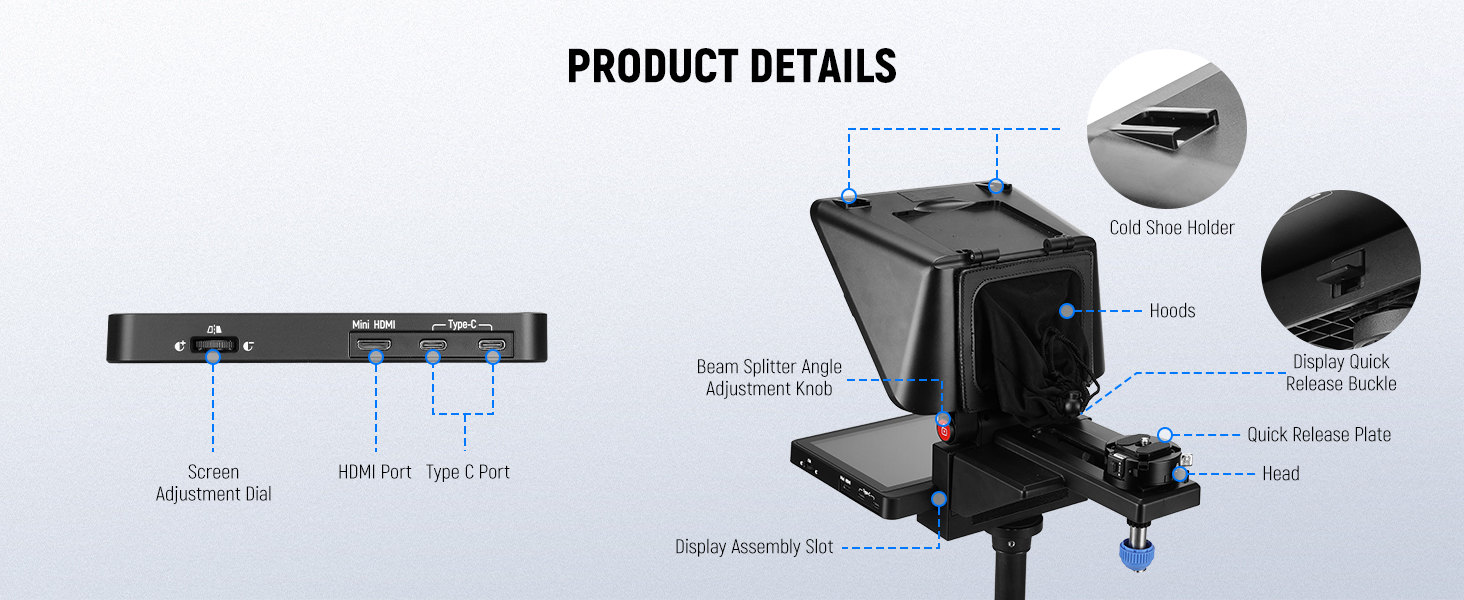
- Adjust Beam Splitter Angle: Carefully adjust the angle of the beam splitter glass to your desired position.
- Install the Monitor: Slide the TM8 monitor into the designated slot on the teleprompter unit.
- Assemble the Base: Attach the teleprompter unit to its base.
- Fix to a Tripod: Secure the assembled teleprompter to a compatible tripod using the 1/4 inch or 3/8 inch mounting holes on the base.
- Mount the Camera: Attach your camera (DSLR/mirrorless, webcam, or phone with clamp) to the quick release plate on the teleprompter base. Ensure it is securely fastened. The quick release plate supports up to 2 kg.

Connecting the Data Cable
Connect the HDMI and USB-C cables from the monitor to the corresponding ports on your computer. If your computer has a USB-C port, you can connect the monitor directly using a USB-C to USB-C cable. For other connections, use the provided USB-A to HDMI and USB-C splitter cable.
Driver Installation
For the initial HDMI setup, a driver installation may be required. After connecting the cables, your computer may automatically restart. Upon restart, reconnect the cables. A driver folder should automatically appear. Double-click to open it and install the appropriate driver for your operating system (Windows or macOS).

Video 1: A detailed how-to guide for setting up and using the NEEWER X11 Teleprompter, including assembly and connection steps.
Operating Instructions
Screen Mirroring
The NEEWER X11 supports screen mirroring from compatible smartphones and tablets. Use the included screen mirroring cable to connect your device. Once connected, click the mirroring button on the side of the monitor to activate screen mirroring. This allows you to display scripts directly from your mobile device without needing a separate prompting device.


External Monitor Functionality
The built-in 9-inch HD LCD screen (1024 x 768 resolution) can serve as a secondary display for Windows and macOS computers. This allows for live streaming, video conferencing, or extending your desktop. It helps maintain eye contact during broadcasts by displaying content directly in front of the camera lens.

Adjustable Arca-Type Holder
The teleprompter features an adjustable Arca-type holder, offering 10 cm (3.9 inches) of horizontal adjustment and 3 cm (1.2 inches) of vertical adjustment. This allows for precise positioning of your camera to achieve optimal framing and eye contact. The quick release plate with a 1/4 inch screw supports devices up to 2 kg.


Compatibility
The NEEWER X11 Teleprompter is designed for broad compatibility:
- Cameras: Supports lens threads up to 72 mm and focal lengths from 35 to 200 mm.
- Mobile Devices: Compatible with iPhone and Android smartphones that support DP protocol for screen mirroring.
- Computers: The built-in screen is compatible with Windows and macOS as a second display. Requires a USB 3 Type A port or higher for certain connections.
Note: Corresponding apps for both mobile and PC terminals are available and need to be downloaded separately.
Video 2: This video demonstrates the setup and various functionalities of the NEEWER X11, including compatibility with different devices and operating systems, as shown in the compatibility lists at the end of the video.
Maintenance
To ensure the longevity and optimal performance of your NEEWER X11 Teleprompter, follow these maintenance guidelines:
- Cleaning: Use a soft, dry cloth to clean the exterior surfaces. For the beam splitter glass and monitor screen, use a microfiber cloth specifically designed for optics and a gentle cleaning solution if necessary. Avoid abrasive materials or harsh chemicals.
- Storage: When not in use, store the teleprompter in a clean, dry environment, preferably in its original packaging or a protective case, to prevent dust accumulation and physical damage.
- Handling: Handle the teleprompter with care, especially the glass components, to avoid scratches or breakage.
Troubleshooting
If you encounter issues with your NEEWER X11 Teleprompter, refer to the following common problems and solutions:
- No Display on Monitor:
- Ensure all data cables (HDMI, USB-C) are securely connected to both the teleprompter monitor and your computer/device.
- Verify that the monitor is receiving power.
- Check if the correct input source is selected on your computer or device.
- If connecting via HDMI for the first time, ensure the necessary drivers are installed as per the setup instructions.
- Screen Mirroring Not Working:
- Confirm your smartphone or tablet supports DP protocol for screen mirroring.
- Ensure the screen mirroring cable is properly connected.
- Activate the mirroring function by pressing the button on the side of the monitor.
- Text Appears Flipped or Mirrored Incorrectly:
- Most teleprompter applications have a 'mirror' or 'flip' text option. Ensure this setting is correctly configured within your chosen app. The teleprompter glass itself will naturally mirror the image, so the source text needs to be horizontally flipped.
- Camera Not Mounting Securely:
- Ensure the quick release plate is properly attached to your camera and then securely locked into the teleprompter base.
- Verify your camera's weight does not exceed the maximum load capacity of 2 kg.
If these steps do not resolve the issue, please contact NEEWER customer support for further assistance.
Specifications
| Model Name | X11 |
| Brand | NEEWER |
| Color | Glossy Black |
| Product Dimensions (D x W x H) | 17.24" x 9.92" x 11.81" (43.8cm x 25.2cm x 30cm) |
| Item Weight | 1.3 pounds (0.59 kg) |
| Screen Size | 11 inches (28 cm) |
| Video Capture Resolution | 1024 x 768 |
| Maximum Weight Recommendation | 2 kg |
| Compatible Devices | Camera, Webcam, Cellphone |
| UPC | 191073132849 |

Warranty and Support
The NEEWER X11 Teleprompter comes with a 1-year warranty from the date of purchase. This warranty covers manufacturing defects and malfunctions under normal use.
For technical support, troubleshooting assistance, or warranty claims, please refer to the official NEEWER website or contact their customer service department. You can also find additional information and a downloadable PDF user manual here.


