
Introduction
This manual provides essential information for the safe and efficient use of your Samsung 50" U8050F 4K UHD Smart TV. Please read these instructions thoroughly before operating the device and retain them for future reference.
The Samsung U8050F series TV delivers stunning 4K UHD resolution with a Crystal Processor 4K for crisp, lifelike picture quality and rich colors. It supports HDR and HDR10+ for enhanced contrast and detail. Motion Xcelerator technology ensures smooth fast-action scenes. The Tizen Smart TV interface provides access to streaming apps and smart home integration.
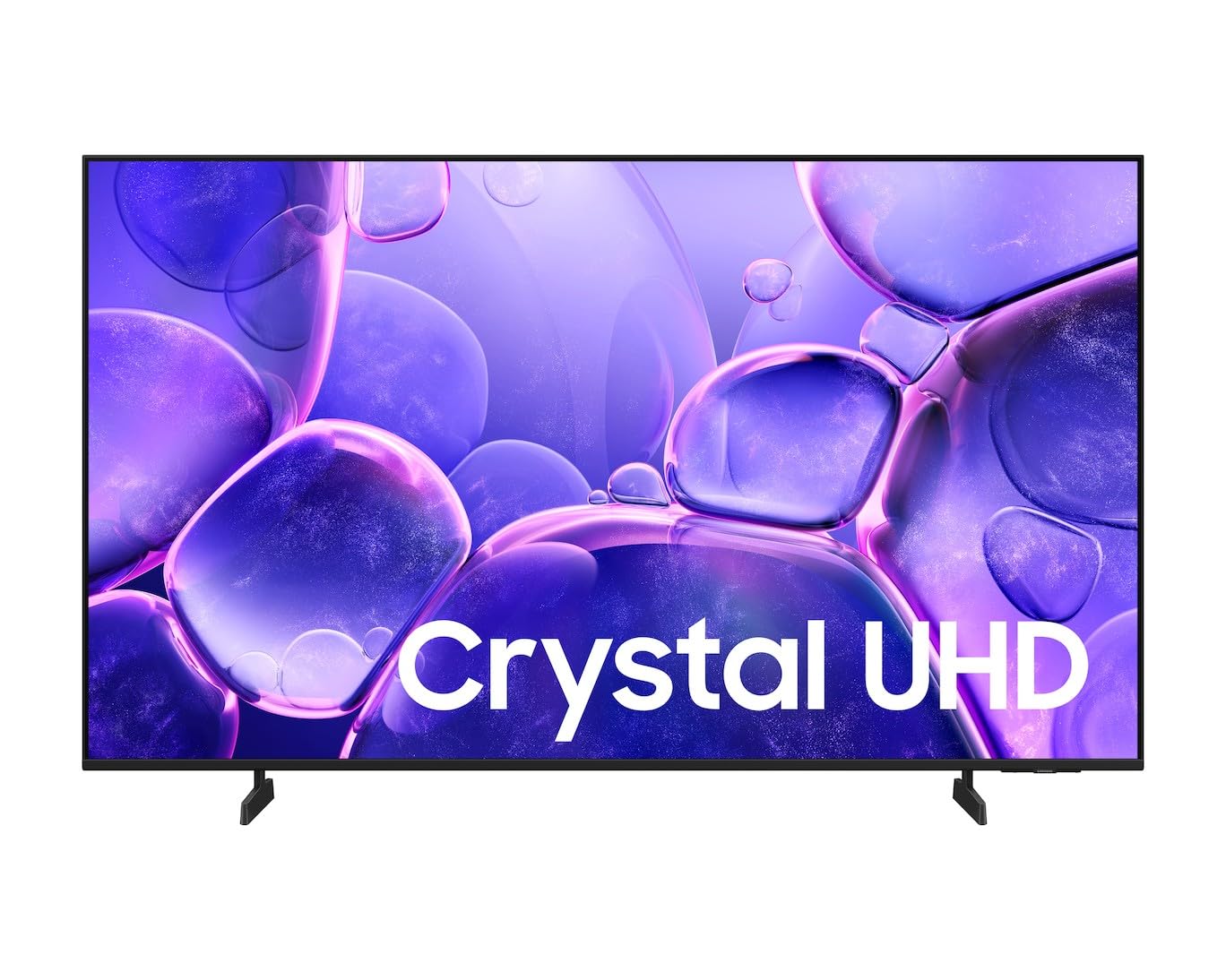
Image: Front view of the Samsung 50-inch U8050F 4K UHD Smart TV, showcasing its slim design and display.
Important Safety Information
Always follow basic safety precautions when using this product to reduce the risk of fire, electric shock, and injury.
- Do not expose this apparatus to rain or moisture.
- Do not block any ventilation openings. Install in accordance with the manufacturer's instructions.
- Do not install near any heat sources such as radiators, heat registers, stoves, or other apparatus (including amplifiers) that produce heat.
- Protect the power cord from being walked on or pinched, particularly at plugs, convenience receptacles, and the point where they exit from the apparatus.
- Only use attachments/accessories specified by the manufacturer.
- Refer all servicing to qualified service personnel. Servicing is required when the apparatus has been damaged in any way.
What's in the Box
Verify that all components are present before beginning setup.
- Samsung 50" U8050F 4K UHD Smart TV
- Remote Control
- Power Cable
- User Manual (this document)
- Stand (if not wall-mounted)

Image: A small image of the included remote control for the Samsung TV.
Setup Guide
1. Physical Installation
Your Samsung U8050F TV can be installed on a stand or wall-mounted. The mounting type is Wall Mount. If using a stand, ensure it is securely attached according to the separate stand assembly instructions. For wall mounting, use a compatible VESA wall mount kit (sold separately) and follow its instructions carefully.

Image: A small image showing the Samsung TV mounted on a wall in a living room setting.
2. Connecting External Devices
Connect your external devices such as Blu-ray players, game consoles, or sound systems to the TV's input ports. The TV features Bluetooth, HDMI, and USB connectivity. There are a total of 3 HDMI ports available.
- HDMI: For high-definition video and audio. Use an HDMI cable to connect devices like set-top boxes or gaming consoles.
- USB: For connecting USB storage devices to play media files.
- Bluetooth: For wireless audio devices like headphones or soundbars.
- RCA Audio Input: For connecting older audio devices.

Image: A small image showing the rear panel of the Samsung TV with various input ports visible.
3. Power Connection
Plug the power cable into the TV's power input, then plug the other end into a wall outlet.
4. Initial Setup Wizard
Upon first power-on, the TV will guide you through an initial setup process. This includes selecting your language, connecting to a Wi-Fi network, and tuning channels (if applicable). Follow the on-screen instructions.
Operating Your TV
Remote Control Functions
Use the included remote control to navigate the TV's menus and control playback.
- Power Button: Turns the TV on or off.
- Source Button: Switches between input sources (HDMI, USB, TV).
- Volume Up/Down: Adjusts the sound level.
- Channel Up/Down: Changes TV channels.
- Navigation Pad (Directional Buttons): Moves the cursor or selection.
- Enter Button: Confirms a selection.
- Smart Hub Button: Accesses the Smart TV interface.
Smart TV Features (Tizen OS)
Your Samsung U8050F TV runs on the Tizen operating system, providing a user-friendly interface for accessing various applications and features.
- Internet Applications: Access popular streaming services like Netflix, Prime Video, and YouTube, as well as a web browser.
- Smart Hub: The central point for all your smart features, including apps, connected devices, and settings.
- Voice Control: Use voice commands for easier navigation and control (if supported by your remote and region).

Image: A small image showing the Samsung Smart TV interface with various app icons.
Picture and Sound Settings
Customize your viewing and listening experience through the TV's settings menu.
- Picture Mode: Select from various presets (e.g., Standard, Dynamic, Movie) or customize brightness, contrast, sharpness, and color.
- Sound Mode: Choose sound presets (e.g., Standard, Adaptive Sound) or adjust equalizer settings.
- HDR Settings: The TV supports HDR10+ for enhanced dynamic range. Ensure your source content is HDR compatible for the best experience.
- Motion Xcelerator: Adjust settings for smoother motion, particularly useful for sports and action movies.
Maintenance and Care
Proper care will extend the life of your TV and maintain its performance.
- Cleaning the Screen: Gently wipe the screen with a soft, dry microfiber cloth. For stubborn marks, slightly dampen the cloth with water or a specialized screen cleaner (do not spray directly onto the screen).
- Cleaning the Frame: Use a soft, dry cloth to wipe the TV frame.
- Ventilation: Ensure the ventilation openings are not blocked to prevent overheating.
- Power Off: Always unplug the TV from the power outlet before cleaning or if it will be unused for an extended period.
Troubleshooting
If you encounter issues with your TV, refer to the following common problems and solutions.
No Power
- Check if the power cord is securely plugged into both the TV and the wall outlet.
- Ensure the wall outlet is functioning by plugging in another device.
- Try pressing the power button on the TV itself, not just the remote.
No Picture or Poor Picture Quality
- Verify the correct input source is selected (e.g., HDMI 1, HDMI 2).
- Check all cable connections (HDMI, antenna) for looseness or damage.
- Adjust picture settings (brightness, contrast, sharpness) in the TV menu.
- If using an external device, ensure it is powered on and functioning correctly.
No Sound or Poor Sound Quality
- Check the volume level and ensure the TV is not muted.
- Verify audio cable connections if using external speakers.
- Check sound settings in the TV menu.
- If using an external sound system, ensure it is powered on and the correct input is selected.
Remote Control Not Working
- Replace the batteries in the remote control.
- Ensure there are no obstructions between the remote and the TV's IR receiver.
- Point the remote directly at the TV.
Technical Specifications
| Model Name | U8050F |
| Model Number | UA50U8050FUXXA |
| Screen Size | 50 Inches |
| Display Technology | LED |
| Resolution | 4K UHD (3840 x 2160) |
| Refresh Rate | 60 Hz |
| HDR Format Supported | HDR10+ |
| Picture Quality Enhancement | Crystal Processor 4K |
| Motion Enhancement | Motion Xcelerator |
| Operating System | Tizen |
| Connectivity Technology | Bluetooth, HDMI, USB |
| Total Number of HDMI Ports | 3 |
| Audio Input | RCA |
| Internet Applications | Browser, Netflix, Prime Video, YouTube |
| Product Dimensions (D x W x H) | 19.9D x 111.1W x 69.5H centimetres |
| Item Weight | 8.6 Kilograms |
| Voltage | 240 Volts |
| Wattage | 85 watts |
| Mounting Type | Wall Mount |
| Included Components | Remote Control |
Warranty and Support
Your Samsung 50" U8050F 4K UHD Smart TV comes with a 1 Year Manufacturer Warranty. This warranty covers defects in materials and workmanship under normal use. Please retain your proof of purchase for warranty claims.
For technical support, service, or warranty inquiries, please contact Samsung Customer Service. You can find contact information on the official Samsung website for your region.
Online Resources: For additional support, FAQs, and software updates, visit the official Samsung support website: www.samsung.com/support


