
1. Introduction
Welcome to the user manual for your MEIZE D116 Android 14 Tablet. This guide provides essential information on setting up, operating, maintaining, and troubleshooting your device. Please read this manual thoroughly to ensure optimal performance and longevity of your tablet.
2. What's Included
Your MEIZE D116 Tablet package includes the following items:
- 10-inch Tablet
- Protective Case
- Bluetooth Keyboard
- Wireless Mouse
- Type-C Cable
- Screen Protector
- Adapter Charger
- Ejection Pin (for SIM/MicroSD tray)
- User Manual (this document)

Image: The MEIZE D116 Tablet displayed with its included accessories: a protective case, Bluetooth keyboard, wireless mouse, Type-C cable, charger, and stylus.
3. Setup Guide
3.1 Initial Charging and Power On
- Connect the provided Type-C cable to the tablet's charging port and the adapter charger to a power outlet.
- Allow the tablet to charge fully before first use. The battery indicator on the screen will show charging status.
- To power on, press and hold the power button located on the side of the tablet until the MEIZE logo appears.
- To power off, press and hold the power button, then select "Power off" from the options.
3.2 Connecting the Bluetooth Keyboard
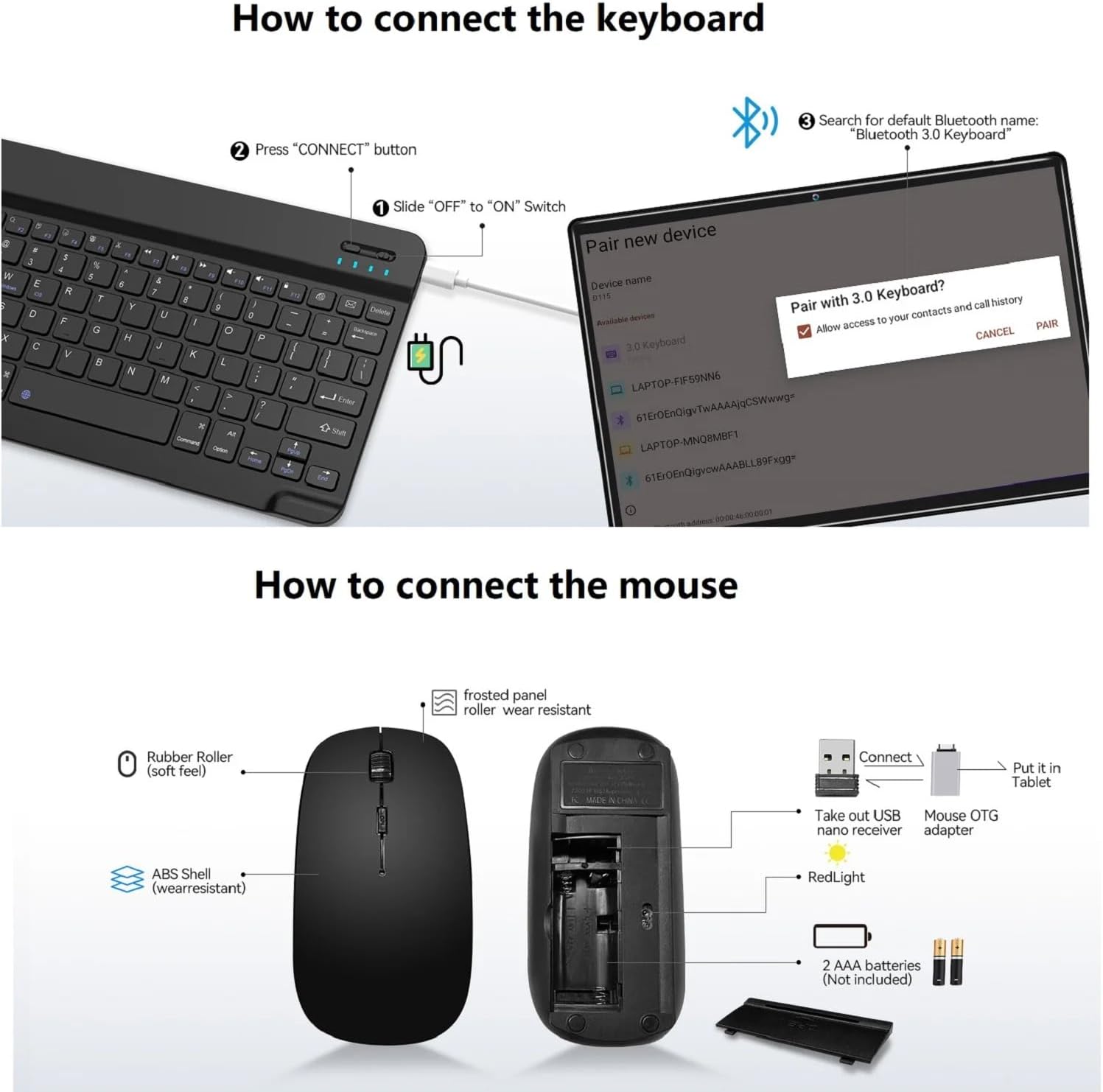
Image: A diagram illustrating the steps to connect the Bluetooth keyboard. It shows sliding the power switch to ON, pressing the CONNECT button, and then pairing via the tablet's Bluetooth settings.
- Ensure the Bluetooth keyboard is charged.
- Slide the "OFF" to "ON" switch on the keyboard.
- Press the "CONNECT" button on the keyboard. The Bluetooth indicator light will flash.
- On your MEIZE D116 tablet, go to Settings > Connected devices > Bluetooth.
- Turn on Bluetooth and search for available devices.
- Select "Bluetooth 3.0 Keyboard" (or similar name) from the list to pair.
3.3 Connecting the Wireless Mouse
Image: A diagram showing the components of the wireless mouse, including the USB nano receiver, battery compartment, and how to connect it to the tablet using an OTG adapter.
- Open the battery compartment of the wireless mouse and insert 2 AAA batteries (not included).
- Take out the USB nano receiver from the mouse's compartment.
- Connect the USB nano receiver to the provided OTG adapter.
- Plug the OTG adapter with the receiver into the tablet's Type-C port. The mouse should connect automatically.
3.4 Wi-Fi Connection
- Go to Settings > Network & internet > Wi-Fi.
- Turn on Wi-Fi. The tablet will scan for available networks.
- Select your desired 2.4GHz or 5GHz network and enter the password if prompted.

Image: The MEIZE D116 Tablet showcasing its key features, including support for 2.4GHz/5GHz dual-band Wi-Fi for stable network connections.
3.5 SIM Card and MicroSD Card Installation

Image: A close-up of the MEIZE D116 Tablet's side, revealing the tray for SIM cards and a MicroSD card, indicating its expandability and cellular capabilities.
- Locate the SIM/MicroSD card tray on the side of the tablet.
- Insert the ejection pin into the small hole next to the tray to open it.
- Place your SIM card(s) and/or MicroSD card into the designated slots on the tray. Ensure correct orientation.
- Gently push the tray back into the tablet until it clicks into place.
4. Operating Your Tablet
4.1 Basic Navigation (Android 14)
- Home Screen: Swipe left or right to access different home screens. Tap app icons to open them.
- Notifications: Swipe down from the top of the screen to view notifications and quick settings.
- App Drawer: Swipe up from the bottom of the screen to access all installed applications.
- Multitasking: Swipe up from the bottom and hold to see recently used apps.
4.2 Display Features
The MEIZE D116 features a 10.1-inch 1920x1200 IPS FHD display.
- Eye Protection Mode: Reduces blue light emission to minimize eye strain, especially during prolonged use. Activate this feature in Settings > Display.
- Dark Mode: Changes the system's color scheme to a darker palette, which can be more comfortable in low-light environments and save battery on some displays. Activate in Settings > Display.
4.3 Camera Usage
Your tablet is equipped with an 8MP front camera and a 13MP rear camera.

Image: The MEIZE D116 Tablet highlighting its 8MP front and 13MP rear cameras, suitable for video calls and capturing photos.
- Open the Camera app from your home screen or app drawer.
- Tap the camera icon to switch between front and rear cameras.
- Tap the shutter button to take a photo or start/stop video recording.
4.4 Storage Management
The tablet comes with 128GB of internal storage (ROM) and 16GB (8+8 virtual) of RAM. Storage can be expanded up to 1TB using a MicroSD card.
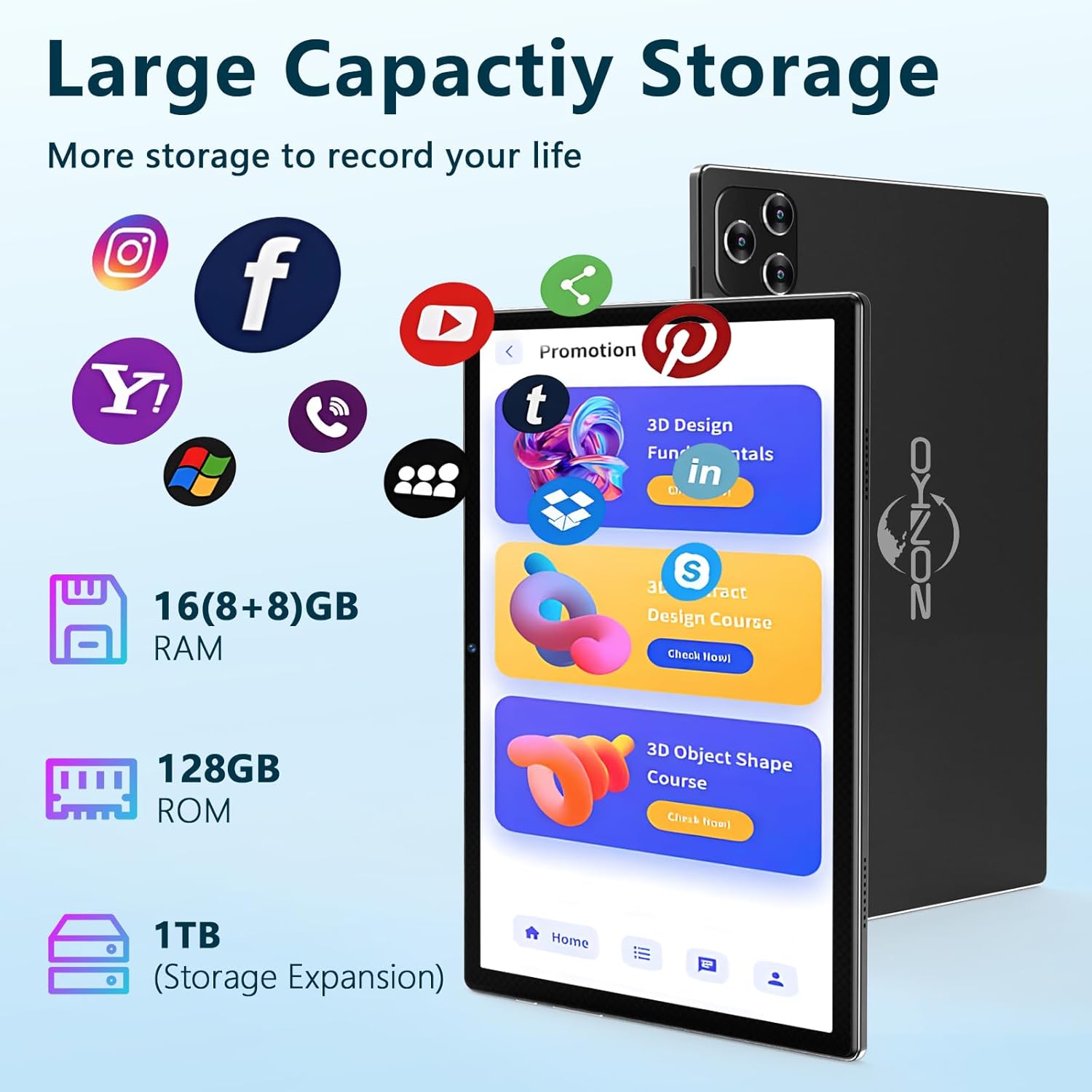
Image: The MEIZE D116 Tablet illustrating its large storage capacity, including 16GB RAM, 128GB ROM, and the ability to expand storage up to 1TB with a MicroSD card.
- Check Storage: Go to Settings > Storage to view internal and external storage usage.
- Move Files: You can move photos, videos, and other files to the MicroSD card to free up internal space.
- App Management: Uninstall unused apps or clear their cache in Settings > Apps.
4.5 Battery Management
The tablet is equipped with an 8000mAh battery, providing extended usage time.

Image: The MEIZE D116 Tablet emphasizing its 8000mAh long-lasting battery, designed to meet various entertainment and work needs.
- Battery Saver: Activate Battery Saver mode in Settings > Battery to extend battery life.
- Optimize Usage: Reduce screen brightness, turn off Wi-Fi/Bluetooth when not in use, and close background apps to conserve power.
- Charging: Use the provided charger for optimal charging speed and battery health.
4.6 General Usage Scenarios

Image: A collage showing the MEIZE D116 Tablet being used in various scenarios: for work with a keyboard, for learning, for reading, and for playing games, demonstrating its versatility.
The MEIZE D116 Tablet is designed for versatile use, including:
- Working: Utilize the Bluetooth keyboard and mouse for productivity tasks.
- Learning: Access educational apps and online resources.
- Reading: Enjoy e-books and articles with the eye-protection mode.
- Playing: Experience games and multimedia content on the HD display.
5. Maintenance
5.1 Cleaning Your Tablet
- Use a soft, lint-free cloth to clean the screen and body of the tablet.
- For stubborn smudges, slightly dampen the cloth with water or a screen cleaner designed for electronics.
- Avoid using harsh chemicals, abrasive materials, or excessive moisture.
5.2 Software Updates
Regularly check for and install software updates to ensure your tablet has the latest features, security patches, and performance improvements.
- Go to Settings > System > System update.
- Follow the on-screen instructions to download and install any available updates. Ensure your tablet is sufficiently charged or connected to power during updates.
5.3 Storage Optimization
- Periodically review your installed applications and uninstall those you no longer use.
- Clear cache data for apps that consume a lot of space (Settings > Apps > Select App > Storage & cache > Clear cache).
- Transfer large media files (photos, videos) to a MicroSD card or cloud storage.
6. Troubleshooting
6.1 Common Issues and Solutions
| Issue | Possible Solution |
|---|---|
| Tablet does not power on. | Ensure the tablet is charged. Connect to the charger for at least 30 minutes, then try powering on again. |
| Wi-Fi connection issues. | Restart your Wi-Fi router. On the tablet, turn Wi-Fi off and on again. Forget the network and reconnect. |
| Bluetooth accessory not connecting. | Ensure the accessory is in pairing mode and fully charged. Restart Bluetooth on the tablet. Try re-pairing the device. |
| Tablet is slow or unresponsive. | Close unused background apps. Clear app caches. Restart the tablet. Check for available software updates. |
| Apps are crashing. | Clear the cache and data for the problematic app (Settings > Apps). Reinstall the app if the issue persists. |
7. Specifications
Below are the technical specifications for the MEIZE D116 Android 14 Tablet:
| Feature | Detail |
|---|---|
| Brand | MEIZE |
| Model Name | D116 |
| Operating System | Android 14.0 |
| Processor | Octa-Core Processor, 2 GHz |
| RAM Memory | 16GB (8GB physical + 8GB virtual) |
| Internal Storage (ROM) | 128GB |
| Expandable Storage | Up to 1TB via MicroSD card |
| Screen Size | 10.1 Inches |
| Display Resolution | 1920 x 1200 IPS FHD |
| Front Camera | 8MP |
| Rear Camera | 13MP |
| Battery Capacity | 8000 mAh Lithium Polymer |
| Wi-Fi Connectivity | IEEE 802.11a/ac/b/g/n, Dual band (2.4GHz/5GHz) |
| Bluetooth | Bluetooth 5.0 |
| Cellular Technology | 4G (if SIM card installed) |
| Sensors | G-Sensor, GPS, FM, OTG, MIC, Vibration |
| Ports | 1 x Micro OTG / USB Port, 1 x 3.5mm stereo headphone jack |
| Product Dimensions | 9.65 x 6 x 0.36 inches |
| UPC | 646051391546 |
Image: An overview of the MEIZE D116 Tablet's key specifications, including Android 14, 10-inch display, 16GB RAM, 128GB ROM, 2.4GHz/5GHz Wi-Fi, Bluetooth 5.0, 8000mAh battery, and 13MP+8MP cameras.
8. Warranty Information
The MEIZE D116 Tablet comes with a 1-Year Warranty from the date of purchase. This warranty covers manufacturing defects and workmanship under normal use.
The warranty does not cover damage caused by misuse, accidents, unauthorized modifications, or natural disasters. Please retain your proof of purchase for warranty claims.
9. Customer Support
If you encounter any issues not covered in this manual or require further assistance, please contact MEIZE customer support.
- For support, please refer to the contact information provided on the MEIZE official website or your purchase platform.
- When contacting support, please have your tablet's model number (D116) and proof of purchase ready.