
Introduction
The SecuLife SOS Wristband is designed to provide safety and peace of mind for seniors and individuals requiring assistance. This device features automatic fall detection, real-time GPS tracking, geofencing capabilities, and two-way voice calling, all managed through a user-friendly mobile application. This manual provides essential information for setting up, operating, and maintaining your device.
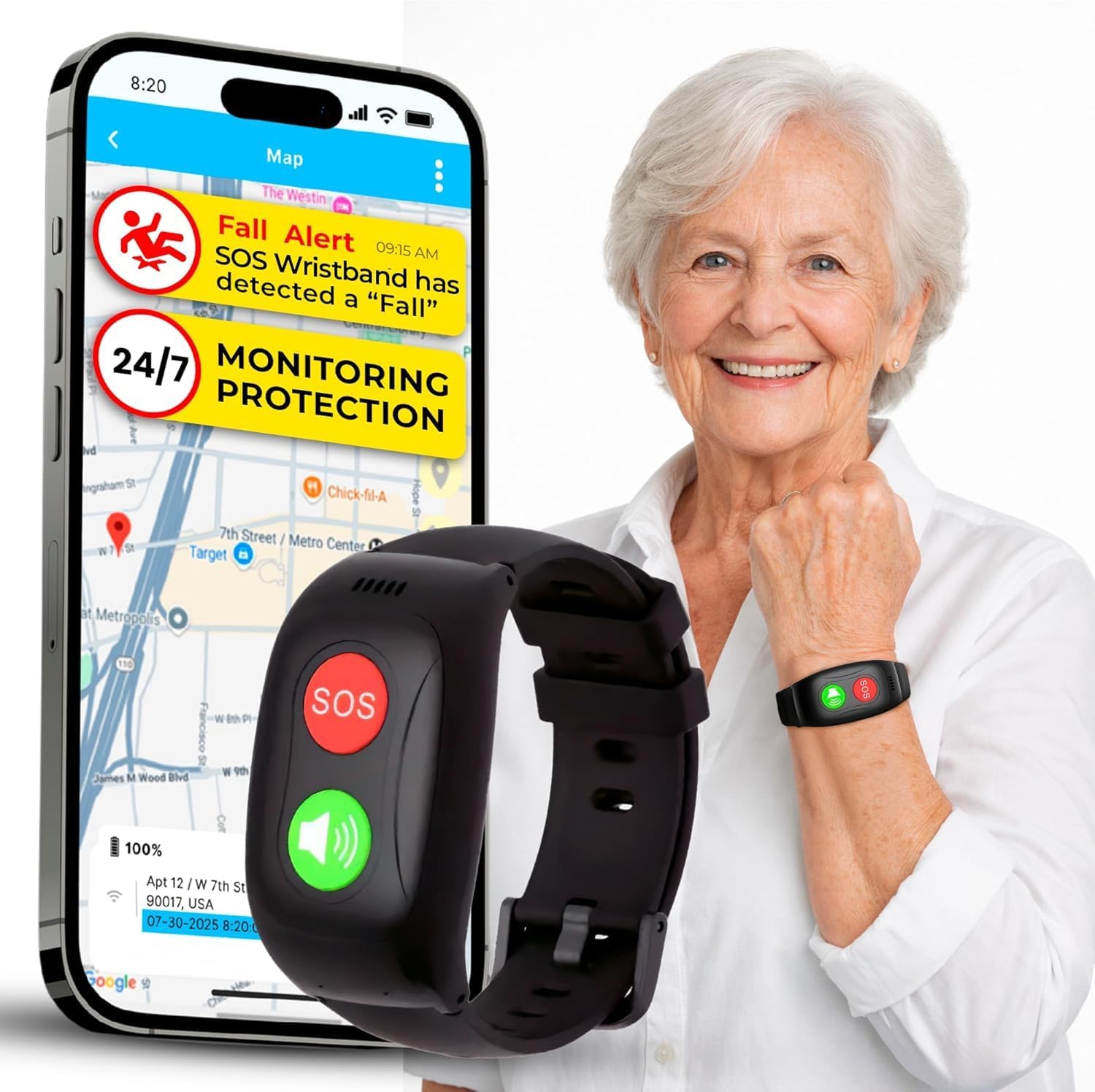
Image: The SecuLife SOS Wristband, featuring red SOS and green call buttons, worn on a wrist.
Getting Started
What's in the Box
- SecuLife SOS Wristband
- Charging Cable
- User Manual
Charging the Device
Before initial use, fully charge the SecuLife SOS Wristband using the provided charging cable. Connect the cable to the charging port on the device and a standard USB power adapter. The device will indicate when charging is complete.
Device Activation and App Setup
To utilize all features of your SecuLife SOS Wristband, activation and app setup are required. A monthly subscription is necessary for full functionality.
- Register Your Device: Visit activate.seculife.us to register your device and select a service plan.
- Download the SecuLife App: Search for "SecuLife" in the Apple App Store (for iOS devices) or Google Play Store (for Android devices) and install the application.
- Create an Account: Open the SecuLife app and follow the on-screen instructions to create your user account.
- Manage Contacts and Settings: Within the app, add emergency contacts, set up alert preferences, and configure other device settings.

Image: Visual guide for activating the SecuLife device, including website registration, app download, and managing emergency contacts.
Operating Your Device
SOS Button Functionality
The red SOS button is for immediate emergency alerts. Press and hold the SOS button to initiate an emergency call to pre-set contacts. The device will also send SMS alerts with your location to these contacts.

Image: A user activating the SOS function on the wristband, demonstrating how an emergency call is initiated to a contact's phone.
Automatic Fall Detection
The wristband is equipped with automatic fall detection. If a fall is detected, the device will automatically send alerts to your emergency contacts. Sensitivity can be adjusted via the SecuLife app to minimize false alarms.

Image: An illustration detailing the fall detection features, including SMS alerts with location, automatic calls to emergency contacts, and adjustable sensitivity.
Video: This video demonstrates the SecuLife Emergency Mode and app features, including automatic fall detection and one-touch SOS alerts.
Video: A demonstration of the SecuLife Senior Fall Detection (SL17) feature, showing how instant fall alerts are sent automatically and emergency contacts are auto-dialed.
GPS Tracking and Geofencing
Monitor the wearer's location in real-time using the SecuLife app. You can also set up geofence safe zones, receiving instant alerts if the wearer enters or exits these predefined areas. The app maintains a 1-year location history.

Image: A smartphone displaying the GPS tracking interface, highlighting real-time location, 1-year history, and geofence safe zones.

Image: A smartphone screen illustrating geofence notifications, showing alerts when the device enters or leaves a designated safe zone.
Two-Way Voice Calling
The wristband supports two-way voice calling, functioning like a simplified mobile phone. It features hands-free auto-answer and can block unwanted callers, ensuring communication only with approved contacts.
Health Features
The SecuLife app provides health insights based on data from the wristband's optical sensor. These features include:
- Heart Rate Monitoring in Real Time
- Blood Oxygen (SpO2) Tracking
- Blood Pressure Measurements
- Step Counter & Activity Tracker
Disclaimer: This device is intended for general wellness and informational purposes only and is not a medical device. All measurements are estimates.

Image: An overview of the health features available in the app, such as heart rate, blood oxygen, blood pressure, and activity tracking, highlighting the optical sensor on the wristband.
Maintenance
Waterproof Rating
The SecuLife SOS Wristband has an IP67 waterproof rating, meaning it is resistant to splashes, rain, and brief immersion in water. It is suitable for everyday wear, including handwashing. However, it is not recommended for swimming or showering for extended periods.

Image: The SecuLife SOS Wristband being worn while hands are under running water, illustrating its IP67 waterproof capability.
General Care
- Clean the device regularly with a soft, damp cloth. Avoid harsh chemicals or abrasive materials.
- Ensure the charging port is dry before connecting the charging cable.
- Store the device in a cool, dry place when not in use.
Troubleshooting
If you encounter issues with your SecuLife SOS Wristband, please refer to the following common solutions:
- Device Not Charging: Ensure the charging cable is securely connected to both the device and the power adapter. Try a different USB port or power adapter.
- Alerts Not Sending/Receiving: Verify that your device has an active subscription and cellular connectivity. Check the SecuLife app settings to ensure emergency contacts are correctly configured and notifications are enabled.
- GPS Not Tracking: Ensure the device is in an area with good cellular and GPS signal. Check the app for any location service permissions that might be disabled.
- Two-Way Calling Issues: Confirm that the device has cellular service. Check the app for blocked numbers or call restrictions.
- Device Unresponsive: Try restarting the device by holding down the SOS button for an extended period (refer to specific device instructions for exact restart procedure).
If these steps do not resolve the issue, please contact customer support for further assistance.
Specifications
| Brand | Seculife |
| Special Features | 2-way calling, Fall Alerts, GPS Tracking, Geo-Fence, SOS |
| Connectivity Technology | Cellular |
| Supported Application | Health Monitoring, Heart Rate Monitor, Location Tracking, Oxygen Meter, Voice Calling |
| Specific Uses | Elderly Care, Emergency Alert System, Seniors |
| Battery Average Life | 1 day |
| Compatible Devices | Android, Smartphone, iOS |
| Battery Capacity | 680 mAh |
| Enclosure Material | Plastic |
| Waterproof Rating | IP67 |
Warranty Information
The SecuLife SOS Wristband comes with a 1 Year Warranty from the date of purchase. This warranty covers manufacturing defects under normal use. For warranty claims or detailed terms and conditions, please contact SecuLife customer support.
Customer Support
For any questions, technical assistance, or support regarding your SecuLife SOS Wristband, please use the following contact methods:
- Phone: 877-606-8080
- Email: info@seculife.us
- Chat: Visit support.seculife.us
Customer support is available 7 days a week.

Image: Contact details for SecuLife customer support, including phone, email, and chat options, emphasizing 7-day availability.