
Jugeman T68
Contents
Jugeman T68 Smartwatch User Manual
Model: T68
Introduction
Thank you for choosing the Jugeman T68 Smartwatch. This manual provides detailed instructions on how to set up, operate, and maintain your device. Please read this manual carefully before using the watch to ensure proper function and to maximize your user experience. Keep this manual for future reference.
Package Contents
Ensure all items are present in your package:
- Jugeman T68 Smartwatch
- Charging Cable
- User Manual (this document)
Product Overview
The Jugeman T68 Smartwatch features a round AMOLED display, a side button for navigation, and sensors on the back for health monitoring. The charging contacts are also located on the back of the watch.
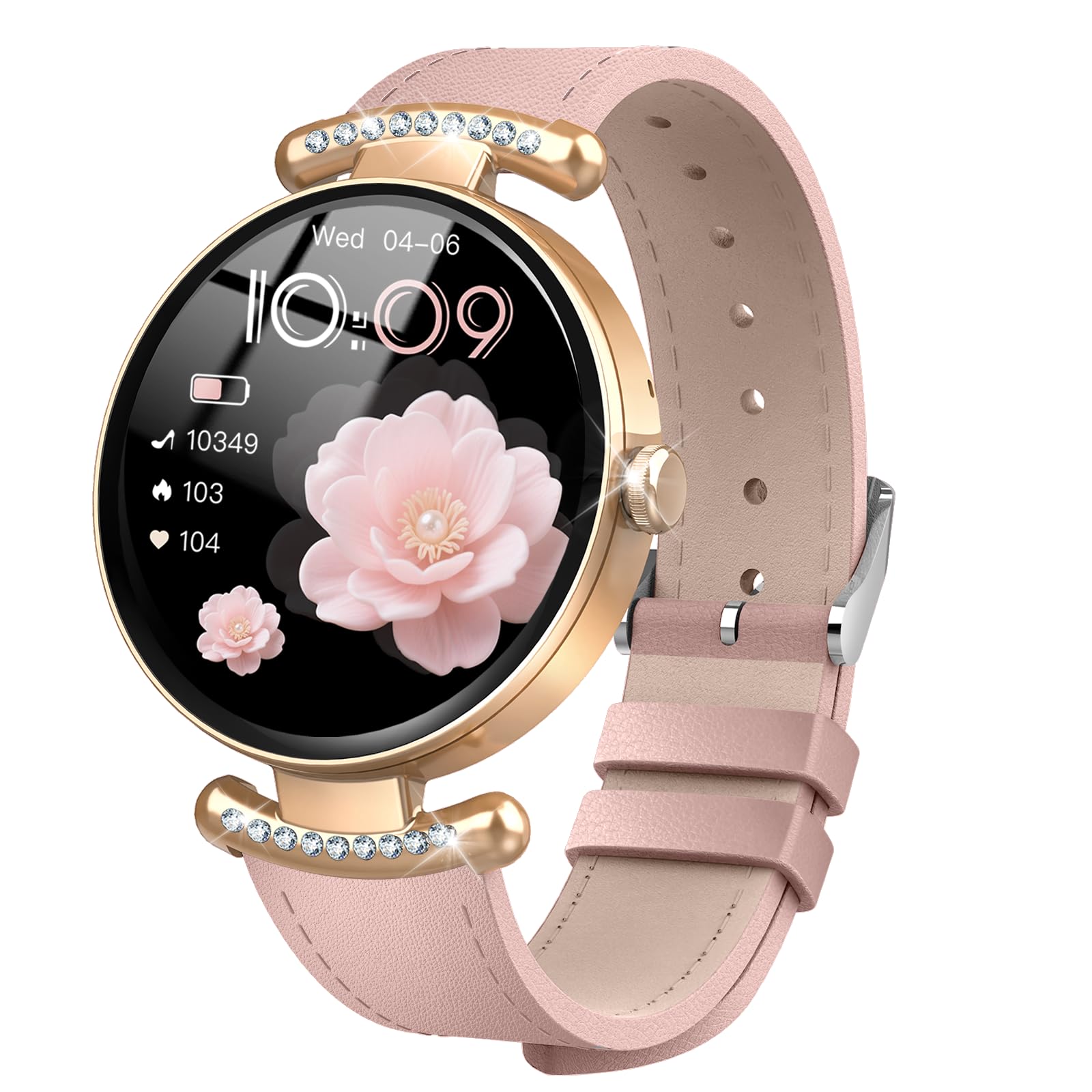
Image: Front view of the Jugeman T68 Smartwatch, showcasing its round display and sleek design.
Components
- Touchscreen Display: 1.2-inch AMOLED screen for interactive control.
- Side Button: Used for power on/off, returning to the home screen, and accessing menus.
- Heart Rate/SpO2 Sensors: Located on the back for health data collection.
- Charging Contacts: Magnetic contacts on the back for connecting the charging cable.
- Microphone: For Bluetooth call functionality.
Setup
1. Charging the Smartwatch
Before initial use, fully charge your smartwatch. Connect the magnetic charging cable to the charging contacts on the back of the watch, and plug the USB end into a standard USB power adapter (not included) or a computer's USB port. The watch display will show the charging status. A full charge typically takes about 2 hours.

Image: The Jugeman T68 Smartwatch with its magnetic charging cable attached to the back, illustrating the charging process.
2. Power On/Off
- Power On: Press and hold the side button for 3-5 seconds until the Jugeman logo appears.
- Power Off: From the home screen, swipe down to access the quick settings, then tap the power icon, or go to Settings > System > Power Off. Confirm your choice. Alternatively, press and hold the side button for 3-5 seconds and select 'Power Off' from the options.
3. App Installation and Pairing
To unlock the full potential of your smartwatch, you need to pair it with your smartphone using the companion application.
- Download the App: Search for the official Jugeman companion app (e.g., "Jugeman Fit" or similar) in your smartphone's app store (App Store for iOS or Google Play Store for Android).
- Install and Register: Install the app and follow the on-screen instructions to create an account or log in.
- Enable Bluetooth: Ensure Bluetooth is enabled on your smartphone.
- Pair the Device: Open the app, navigate to the 'Device' or 'My Watch' section, and select 'Add Device'. The app will search for available devices. Select 'T68' from the list.
- Confirm Pairing: A pairing request will appear on both your phone and the watch. Confirm the pairing on both devices.
Once paired, the watch will synchronize data with your phone, and you can customize settings through the app.

Image: A smartphone screen displaying the Jugeman companion app, illustrating the steps to pair the T68 Smartwatch via Bluetooth.
Operating Instructions
Basic Navigation
- Swipe Up: View notifications.
- Swipe Down: Access quick settings (brightness, DND, battery, settings).
- Swipe Left/Right: Scroll through widgets (activity, heart rate, weather, music control).
- Tap: Select an item or open an application.
- Press Side Button: Return to the home screen or open the app menu.
Making and Receiving Calls (Bluetooth Call)
Ensure your watch is paired with your phone and the Bluetooth call feature is enabled in the app.
- Making a Call: Access the 'Dialer' or 'Contacts' app on your watch. You can dial a number directly or select a contact from your synchronized phonebook.
- Receiving a Call: When a call comes in, the watch will display the caller ID. You can answer or reject the call directly from your watch using the touchscreen.
Health Monitoring
The T68 Smartwatch offers various health tracking features:
- Heart Rate: To measure your heart rate, navigate to the Heart Rate app on your watch. Ensure the watch is snug on your wrist. The watch can also perform continuous heart rate monitoring, which can be enabled in the companion app.
- SpO2 (Blood Oxygen): Access the SpO2 app on your watch. Keep your arm still during measurement for accurate results.
- Sleep Tracking: Wear the watch to bed, and it will automatically track your sleep patterns, including deep sleep, light sleep, and awake times. View detailed sleep data in the companion app.
- Pedometer: The watch automatically tracks your daily steps, distance, and calories burned.
Sports Modes
The watch supports over 120 sports modes. To start a workout:
- From the app menu, select the 'Workout' or 'Sports' icon.
- Choose your desired activity (e.g., Running, Cycling, Walking).
- Tap to start the activity. The watch will begin tracking your duration, heart rate, calories, and other relevant metrics.
- To end the workout, swipe right or press the side button, then select 'End' or 'Pause'.
Notifications
Once paired, your watch can receive notifications from your smartphone. Enable specific app notifications through the companion app settings.
- Viewing Notifications: Swipe up from the home screen to view your recent notifications.
- Clearing Notifications: You can clear individual notifications or clear all at once.
Customization
You can personalize your watch:
- Watch Faces: Long-press the home screen to change watch faces directly on the watch, or explore more options in the companion app.
- App Settings: Adjust various settings like alarms, sedentary reminders, and goal settings via the companion app.
Maintenance
Cleaning
- Regularly clean your watch and strap with a soft, damp cloth.
- Avoid using harsh chemicals or abrasive materials, as they can damage the watch's finish.
- Ensure the charging contacts are clean and dry before charging to prevent corrosion.
Water Resistance (IP68)
The Jugeman T68 Smartwatch is IP68 waterproof, meaning it is resistant to dust and can withstand immersion in water up to 1.5 meters for up to 30 minutes. This makes it suitable for daily use, such as washing hands, rain, and shallow swimming.
- Do NOT use the watch in hot water, saunas, or steam rooms, as steam can penetrate the seals.
- Do NOT press buttons underwater.
- After exposure to water, wipe the watch dry with a soft cloth before charging or using the touchscreen.
Battery Care
- Avoid extreme temperatures, which can degrade battery life.
- Charge the watch regularly, even if not in use for extended periods, to maintain battery health.
- Use only the provided charging cable.
Troubleshooting
If you encounter issues with your Jugeman T68 Smartwatch, try the following solutions:
- Watch not turning on: Ensure the watch is fully charged. Connect it to the charger for at least 10 minutes.
- Unable to pair with phone:
- Ensure Bluetooth is enabled on your phone and the watch.
- Make sure the watch is within range of your phone.
- Restart both the watch and your phone.
- Try unpairing and re-pairing the device through the app.
- Inaccurate health data: Ensure the watch is worn snugly on your wrist, not too tight or too loose. Clean the sensors regularly.
- Notifications not received: Check if notifications are enabled in the companion app and your phone's system settings for the app. Ensure the watch is connected via Bluetooth.
- Short battery life: Reduce screen brightness, disable continuous heart rate monitoring if not needed, and close unused apps.
If the problem persists, refer to the support section in the companion app or contact customer support.
Specifications
| Model Number | T68 |
| Brand | Jugeman |
| Display Size | 1.2 Inches |
| Display Type | AMOLED |
| Connectivity Technology | Bluetooth |
| Water Resistance Level | IP68 (Waterproof) |
| Health Monitoring | Heart Rate, SpO2, Sleep Tracking, Pedometer |
| Sports Modes | 120+ |
| Battery | 1 A (included) |
| Compatible Devices | Smartphone |
| Human Interface Input | Microphone, Touchscreen |
| GPS | Supported |
| Strap Material | Silicone |
Warranty and Support
For warranty information, please refer to the documentation provided with your purchase or contact your retailer. For technical support, frequently asked questions, or further assistance, please visit the official Jugeman website or contact their customer service department. Contact details can typically be found in the companion app or on the product packaging.
Official Product Videos
No official seller videos were provided in the product data. If available, relevant videos demonstrating features or setup would be embedded here with a maximum width of 420px and a detailed text description.
Ask a question about this manual
Ask about setup, troubleshooting, compatibility, parts, safety, or missing instructions. Manuals+ will review the question and use this page’s manual context to help answer it.