
1. Introduction
Thank you for purchasing the VECHTEL 9-inch Android 15 Car Stereo. This manual provides detailed instructions for installation, operation, and troubleshooting to ensure optimal performance and a safe user experience. Please read this manual thoroughly before installation and use, and retain it for future reference.
Safety Precautions:
- Ensure the vehicle's ignition is off and the battery is disconnected before beginning installation to prevent electrical shorts and damage.
- Professional installation is recommended. If you choose to install it yourself, ensure you have the necessary tools and technical knowledge.
- Do not operate the device in a way that distracts you from driving. Always prioritize road safety.
- Avoid exposing the unit to extreme temperatures, direct sunlight for prolonged periods, or excessive moisture.
2. Vehicle Compatibility
This car stereo is designed for specific Chrysler 200 models. It is compatible with:
- Chrysler 200 (2015-2019)
- Chrysler 200C (2015-2019)
- Chrysler 200S (2015-2019)
Important: Before purchasing or installing, carefully compare your vehicle's center console and dashboard with the images provided below to confirm compatibility. If your dashboard matches Figure D, this product is not suitable.

Image: Dashboard comparison for Chrysler 200, 200C, 200S models (2015-2019). Figures A, B, C show compatible dashboards, while Figure D shows an incompatible one. Ensure your car's dashboard matches A, B, or C.
3. Package Contents
Please verify that all items listed below are included in your package:
- VECHTEL 9-inch Android 15 Car Stereo Unit
- Backup Camera
- External Microphone
- GPS Antenna
- USB Cable (x2)
- Power Cable
- RCA Input/Output Cables
- Reversing Camera Input Cable
- Radio Antenna
- CANbus Box
- Installation Tool
- User Manual (this document)

Image: Visual representation of all components included in the VECHTEL car stereo package, including the main unit, cables, and accessories.
4. Setup & Installation
This section outlines the general steps for installing your new car stereo. Specific vehicle disassembly instructions are not included and may vary by model year. Refer to a professional installer or a vehicle-specific guide if needed.
4.1. Pre-Installation Steps
- Disconnect Battery: Turn off the vehicle's ignition and disconnect the negative terminal of the car battery.
- Remove Old Unit: Carefully remove the existing car radio and trim panels from your dashboard.
- Inspect Wiring: Familiarize yourself with the vehicle's wiring harness and the provided cables.
4.2. Wiring Connections
- Power Cable: Connect the provided power cable to the car stereo and the vehicle's wiring harness. Ensure all connections are secure.
- CANbus Box: Connect the CANbus box as shown in the attached photo (if applicable). This is crucial for features like steering wheel control and air conditioning integration.
- GPS Antenna: Connect the GPS antenna and mount it in a location with a clear view of the sky (e.g., on the dashboard, away from metal obstructions).
- USB Cables: Connect the USB cables. These can be routed to the glove compartment or center console for easy access.
- External Microphone: Connect the external microphone for improved call quality and voice commands. Mount it in a suitable location (e.g., near the rearview mirror or on the A-pillar).
- Backup Camera: Connect the backup camera cable to the designated input on the stereo. Route the camera cable to the rear of the vehicle and install the camera.
- Radio Antenna: Connect the vehicle's radio antenna to the stereo.
- RCA Cables: Connect any additional RCA input/output cables for external amplifiers, subwoofers, or video sources as needed.
4.3. Post-Installation Checks
- Reconnect Battery: Reconnect the negative terminal of the car battery.
- Test Functionality: Turn on the ignition and test all functions of the car stereo (power, audio, touch screen, radio, GPS, Bluetooth, etc.) before reassembling the dashboard.
- Air Conditioning Control: If the air conditioning control does not work after installation, ensure the power cable and CANbus box are correctly connected. Enter the Car Info app, then Factory Setup (password: 1234), navigate to CAN Setting, select 'Raise', and choose the corresponding model and year of your car.
- Secure Unit: Once all functions are verified, securely mount the car stereo and reassemble all trim panels.
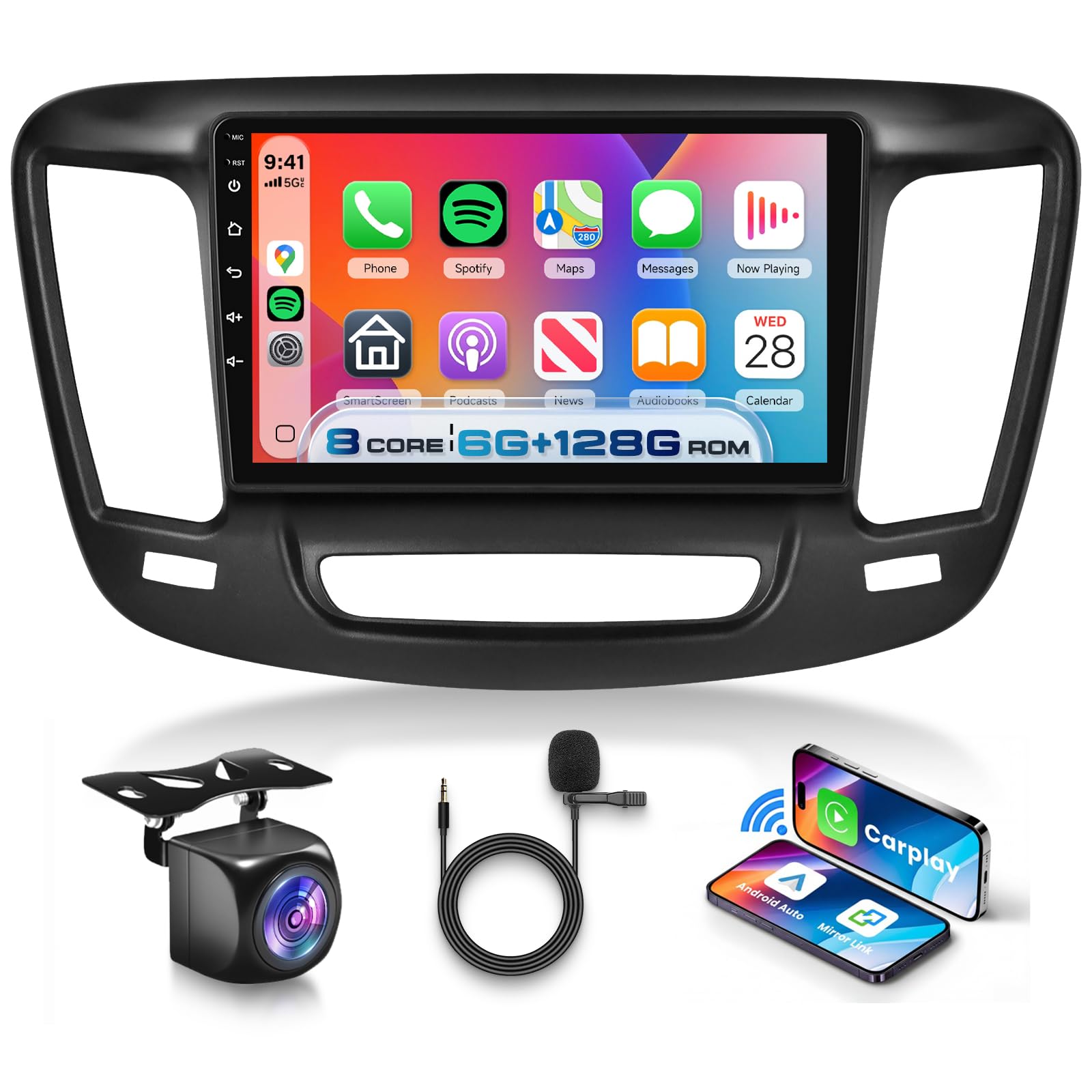
Image: Comparison of a Chrysler 200 dashboard before and after the installation of the VECHTEL 9-inch Android 15 Car Stereo, showing the integrated appearance.
5. Operating Instructions
This section details the operation of the VECHTEL Android 15 Car Stereo and its various features.
5.1. Android 15 Operating System & Performance
The unit runs on the latest Android 15 operating system, powered by an 8-core CPU, 6GB RAM, and 128GB ROM. This configuration ensures fast processing and smooth operation for all applications.
- 5G WiFi & Hotspot: Connect to 5G WiFi networks or use your phone's hotspot to access online content, download apps, and browse the internet.
- Google Play Store: Download and install your favorite apps like Waze, Spotify, YouTube, and Facebook directly from the Google Play Store.

Image: Illustrates the 8-core processor, 6GB RAM, and 128GB ROM, highlighting the high-performance specifications of the Android 15 car stereo.
5.2. Wireless CarPlay & Android Auto
Enjoy seamless integration with your smartphone using wireless or wired CarPlay and Android Auto. This feature provides instant access to navigation, calls, messages, and music.
- Connection: Connect your iPhone via Wireless CarPlay or Android phone via Wireless Android Auto. Follow the on-screen prompts for initial setup.
- Voice Control: Utilize Siri (for CarPlay) or Google Assistant (for Android Auto) for hands-free control of navigation, calls, and music.

Image: Displays the user interface for Wireless CarPlay and Android Auto, showing various apps like Spotify, YouTube Music, and navigation.

Image: Illustrates the voice control functionality, showing a user interacting with Siri or Google Assistant for tasks like playing music or making calls.
5.3. GPS Navigation
The unit supports both online and offline navigation. The included GPS antenna ensures accurate positioning.
- Online Maps: Use pre-installed map applications or download others from the Play Store (e.g., Google Maps, Waze) with an internet connection.
- Offline Maps: Download map data for offline use, allowing navigation without an internet connection.

Image: Shows the GPS navigation interface with both offline and online map options, alongside the 5G WiFi connectivity icon.
5.4. Bluetooth 5.0
Connect your smartphone via Bluetooth 5.0 for hands-free calling and audio streaming.
- Pairing: Enable Bluetooth on your phone and search for the car stereo. Select the device and confirm the pairing code.
- Hands-Free Calling: Make and receive calls directly from the stereo screen.
- Audio Streaming: Play music from your phone through the car's speakers.
5.5. FM/RDS Radio
Access your favorite radio stations with the built-in FM/RDS tuner.
- Automatic Scan: Use the auto-scan function to find and save available stations.
- RDS Functionality: Receive station information, song titles, and traffic announcements where available.

Image: Displays the Bluetooth 5.0 interface for calls and music, along with the FM/RDS radio tuner showing frequency selection and station presets.
5.6. DSP with 32-Band EQ
Customize your audio experience with the Digital Sound Processor (DSP) and 32-band equalizer.
- Equalizer: Adjust audio frequencies to match your preferences or vehicle acoustics.
- Subwoofer Output: Connect an external subwoofer for enhanced bass.

Image: Shows the DSP interface with a 32-band graphic equalizer, allowing fine-tuning of audio output for various sound profiles.
5.7. Mirror Link
Mirror your smartphone's screen directly onto the car stereo display.
- Connection: Use the 'CarbitLink' app or similar functionality to connect your Android or iOS device.
- Display: View your phone's apps, videos, and content on the larger car stereo screen.

Image: Depicts the Mirror Link function, showing a smartphone screen being mirrored onto the car stereo display, compatible with both Android and iOS systems.
5.8. Steering Wheel Control (SWC)
Control essential functions of the car stereo using your vehicle's existing steering wheel buttons for convenience and safety.
- Configuration: Access the SWC settings in the stereo's menu to map your steering wheel buttons to specific functions (e.g., volume up/down, track skip, mode change).
5.9. HD Rear Camera
The included waterproof night vision backup camera provides clear reversing images, assisting with parking and enhancing safety.
- Automatic Display: The rear camera view will automatically display on the screen when the vehicle is shifted into reverse gear.
- Static Trackline: If the reverse trackline is not displayed, navigate to the Car Info app > About > Custom Set, and enable 'Show static trackline'.

Image: Shows the backup camera view with parking guidelines and an illustration of steering wheel controls for safe and convenient operation.
5.10. IPS HD Touch Screen & UI
The 9-inch IPS HD touchscreen features a 1280x720 ultra-high resolution, offering clear visuals and a wide viewing angle.
- Split-Screen Display: Use two applications simultaneously on the screen, such as navigation and music playback.
- Customizable UI Themes: Choose from 59 different UI themes to personalize the look and feel of your stereo interface.
- App Management: Customize your home screen by deleting or rearranging app icons.

Image: Highlights the features of the IPS HD screen, including 1280x720 resolution, 178-degree wide viewing angle, 2.5D curved glass, and split-screen capability.

Image: Showcases the variety of 59 UI themes available, allowing users to customize the visual appearance of their car stereo interface.

Image: Demonstrates the screen partitioning feature, allowing two applications (e.g., FM Radio and Music, or Navigation and other apps) to be displayed simultaneously.
6. Troubleshooting
This section addresses common issues you might encounter and provides solutions.
| Problem | Possible Cause / Solution |
|---|---|
| Air conditioning control does not work. | Check if the power cable and CANbus box are well connected. Enter the Car Info app > Factory Setup (password: 1234) > CAN Setting > Raise, then choose the corresponding model and year of your car. |
| Reverse trackline is not displayed. | Enter the Car Info app > About > Custom Set, then turn on 'Show static trackline'. |
| No power to the unit. | Check all power connections, including the main power harness and fuse. Ensure the vehicle battery is properly connected. |
| No sound. | Check speaker connections. Ensure volume is not muted or set to zero. Verify DSP settings. |
| GPS signal is weak or inaccurate. | Ensure the GPS antenna is properly connected and mounted in a location with a clear view of the sky, away from metal obstructions. |
| Bluetooth device cannot connect. | Ensure Bluetooth is enabled on both the stereo and your device. Try restarting both devices and re-pairing. |
7. Specifications
| Feature | Detail |
|---|---|
| Brand | VECHTEL |
| Model Number | A8026A3476NA59 |
| Operating System | Android 15 |
| CPU | 8 Core |
| RAM | 6GB |
| ROM | 128GB |
| Screen Size | 9 Inches |
| Display Type | IPS HD Touch Screen |
| Resolution | 1280 x 720 |
| Connectivity | 5G WiFi, Bluetooth 5.0, USB |
| Special Features | Wireless CarPlay, Wireless Android Auto, GPS Navigation, DSP (32-band EQ), Mirror Link, Steering Wheel Control, Backup Camera Support |
| Audio Output Mode | Stereo |
| Included Components | Backup Camera, External Microphone, GPS Antenna, USB Cables, User Manual, Power Cable, RCA Cables, Radio Antenna, CANbus Box, Installation Tool |
8. Warranty & Support
Warranty Information:
This VECHTEL car stereo comes with a 2-year warranty from the date of purchase, covering manufacturing defects and malfunctions under normal use. Please retain your proof of purchase for warranty claims.
Customer Support:
If you encounter any issues, have questions about installation, or require technical assistance, please contact the VECHTEL customer support team. You can typically find contact information on the product packaging or by visiting the VECHTEL store page on Amazon (click 'VECHTEL' and then 'Ask a question').
When contacting support, please provide your product model number (A8026A3476NA59) and a detailed description of the issue.
