
1. Introduction
This manual provides essential information for setting up, operating, and maintaining your iFFALCON 50U95A 50-inch 4K QD-Mini LED Smart Google TV. Please read it thoroughly before using the product to ensure safe and optimal performance. Keep this manual for future reference.
The iFFALCON 50U95A combines advanced QD-Mini LED display technology with a 144Hz native refresh rate, HDR 1000nit peak brightness, and an ONKYO 2.1 Hi-Fi audio system to deliver an immersive viewing and listening experience. Powered by Google TV, it offers a wide range of smart features and content.
2. Important Safety Information
Always follow basic safety precautions when using this television to reduce the risk of fire, electric shock, and injury.
- Do not expose the TV to rain or moisture.
- Do not open the cabinet; refer all servicing to qualified personnel.
- Ensure proper ventilation and do not block ventilation openings.
- Use only the power adapter and cable supplied with the unit.
- Position the TV on a stable, level surface to prevent it from falling.
- Keep the TV away from direct sunlight, heat sources, and extreme temperatures.
- Unplug the TV during lightning storms or when unused for long periods.
3. What's Included
Verify that all components are present in the packaging:
- iFFALCON 50U95A 50-inch 4K QD-Mini LED Smart Google TV
- Power Adapter
- Power Cable
- Remote Control
- TV Stand (2 pieces)
- User Manual (this document)

Image: Front view of the iFFALCON 50U95A 50-inch TV. This image shows the television from the front, highlighting its slim bezels and stand.
4. Setup
4.1 Attaching the Stand
- Carefully place the TV face down on a soft, flat surface to prevent screen damage.
- Align the stand pieces with the screw holes on the bottom of the TV.
- Secure the stands using the provided screws. Ensure they are firmly attached.

Image: Side view of the iFFALCON 50U95A TV with stand. This image illustrates the television's profile and how the stand supports it.
4.2 Connecting Peripherals
The TV features multiple connectivity options:
- HDMI Ports (x4): Connect Blu-ray players, gaming consoles, and other HDMI-enabled devices.
- USB Port (x1): Connect USB storage devices for media playback.
- Wi-Fi & Bluetooth: For wireless network and accessory connections.
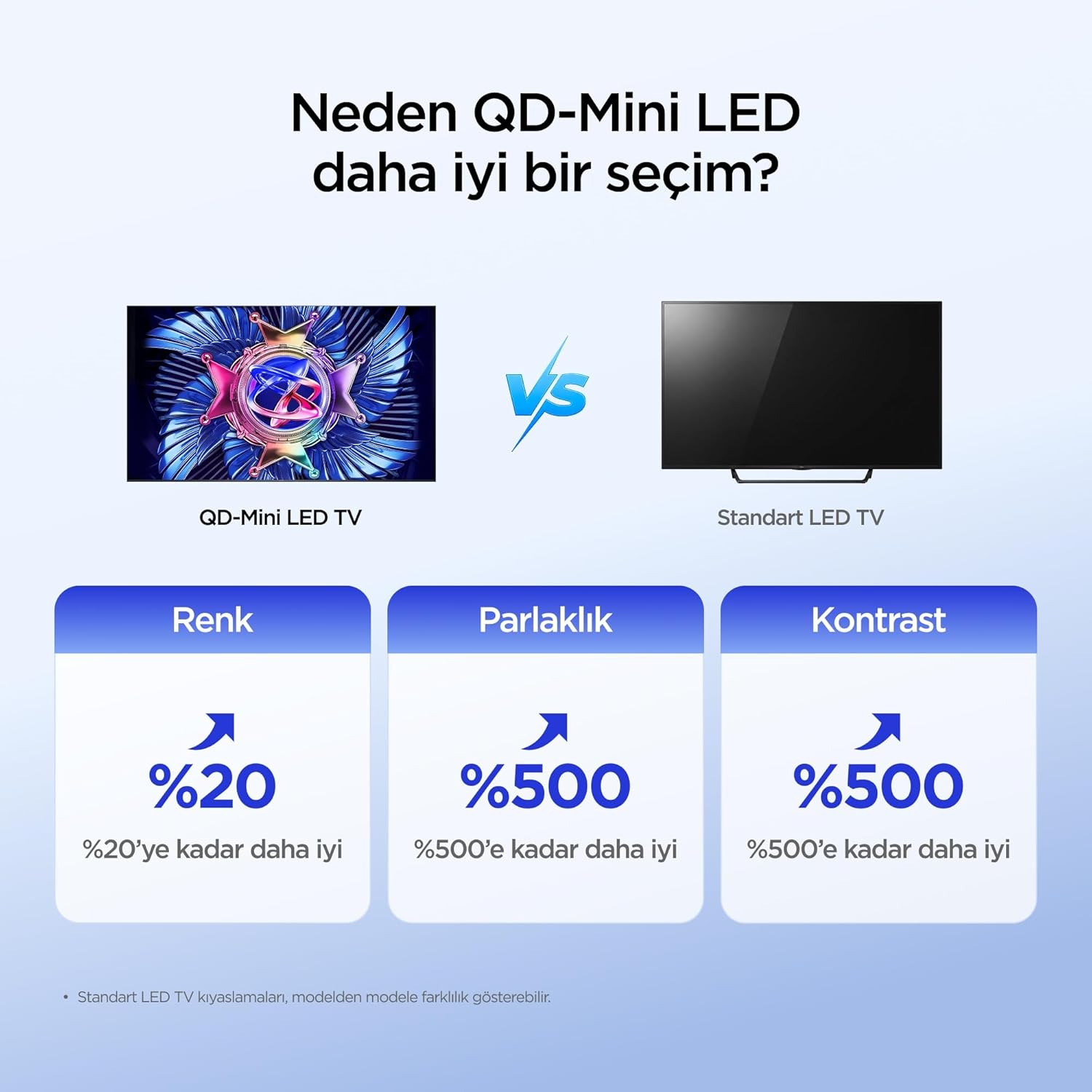
Image: Rear view of the iFFALCON 50U95A TV showing ports. This image displays the back panel of the television, indicating the location of various input and output ports.
4.3 Powering On
- Connect the power cable to the TV and then to a power outlet.
- Press the power button on the remote control or on the TV itself.
- Follow the on-screen instructions for initial setup, including network connection and Google TV account login.
5. Operating Instructions
5.1 Remote Control Functions
The remote control allows you to navigate the TV's interface, adjust settings, and access smart features. Refer to the remote control diagram in the separate quick start guide for button layout.
5.2 Google TV Interface
Your iFFALCON TV runs on Google TV, providing a personalized experience with content recommendations, access to streaming apps, and Google Assistant voice control.
- Home Screen: Access your favorite apps, movies, and shows.
- Google Assistant: Press the Google Assistant button on your remote to use voice commands for searching content, controlling smart home devices, and more.
- Apps: Download and manage apps from the Google Play Store.
5.3 Picture and Sound Settings
Access the settings menu to customize your viewing and listening experience:
- Picture Modes: Choose from various presets (e.g., Standard, Vivid, Movie, Game) or customize brightness, contrast, color, and sharpness.
- Sound Modes: Select audio presets (e.g., Standard, Music, Movie) or adjust equalizer settings.
- HDR Settings: The TV supports HDR10, HDR10+, Dolby Vision, and HLG. Ensure your content source is HDR compatible for optimal performance.
- Game Master: Activate Game Master mode for reduced input lag and optimized gaming performance.
6. Key Features
6.1 QD-Mini LED Display Technology
The iFFALCON 50U95A utilizes QD-Mini LED technology, combining Quantum Dot color with Mini LED backlighting. This results in superior brightness, contrast, and color accuracy compared to traditional LED TVs.

Image: Comparison illustrating the benefits of QD-Mini LED over standard LED TVs in terms of color, brightness, and contrast.
With over 500 local dimming zones, the TV provides precise light control at a pixel level, enhancing detail in both bright and dark scenes. It achieves a peak brightness of 1000 nits, ensuring vibrant images even in well-lit environments.

Image: A vibrant image demonstrating the 1000 nits peak brightness capability of the TV.
6.2 144Hz Native Refresh Rate
Experience smoother motion and clearer images with the 144Hz native refresh rate. This is particularly beneficial for fast-paced action movies and gaming, reducing motion blur and ghosting.

Image: A dynamic image of a race car, illustrating the smooth motion provided by the 144Hz native refresh rate.
6.3 ONKYO 2.1 Hi-Fi Audio System with Dolby Atmos
The integrated ONKYO 2.1 channel speaker system delivers rich, immersive stereo sound with deep bass. Combined with Dolby Atmos, it creates a cinematic audio experience, bringing sound to life with incredible clarity and depth.

Image: A living room scene depicting sound waves emanating from the TV, illustrating the immersive audio experience of the 2.1 speaker system.
6.4 AI PQ Pro Processor
The AI PQ Pro Processor intelligently analyzes and optimizes content pixel by pixel. This advanced processor enhances picture quality, delivering sharper details, improved contrast, and more vibrant colors for an overall superior viewing experience.

Image: A visual representation of the AI PQ Pro Processor chip, highlighting its role in optimizing image quality.
6.5 Matte HVA Panel & Ultra Slim Design
The Matte HVA Panel reduces glare and reflections, providing a comfortable viewing experience even in bright rooms. Its ultra-slim design allows for seamless integration into any living space, whether on a stand or wall-mounted.

Image: A comparison showing the reduced reflections and improved viewing experience of a Matte HVA Panel compared to a standard panel.

Image: A visual representation of the TV's ultra-slim design, highlighting its sleek profile.
7. Maintenance
7.1 Cleaning the Screen
- Turn off the TV and unplug the power cord.
- Gently wipe the screen with a soft, lint-free cloth.
- For stubborn marks, lightly dampen the cloth with water or a specialized screen cleaner (do not spray directly onto the screen).
- Avoid using harsh chemicals, abrasives, or alcohol-based cleaners.
7.2 Cleaning the Cabinet
- Wipe the cabinet with a soft, dry cloth.
- Do not use liquid or aerosol cleaners directly on the cabinet.
8. Troubleshooting
| Problem | Possible Cause | Solution |
|---|---|---|
| No power | Power cord not connected; power outlet not working. | Ensure power cord is securely plugged in. Test outlet with another device. |
| No picture, but sound is present | Incorrect input source selected; backlight off. | Press the "Input" button on the remote to select the correct source. Check picture settings. |
| No sound, but picture is present | Volume muted or too low; incorrect audio output selected. | Unmute volume or increase level. Check audio output settings (e.g., TV speakers, external soundbar). |
| Remote control not working | Batteries are dead or incorrectly inserted; obstruction between remote and TV. | Replace batteries. Ensure clear line of sight to the TV's IR receiver. |
| Wi-Fi connection issues | Incorrect password; router issues; TV too far from router. | Re-enter Wi-Fi password. Restart router. Move TV closer to router or use a Wi-Fi extender. |
If the problem persists after trying these solutions, please contact iFFALCON customer support.
9. Specifications
| Feature | Detail |
|---|---|
| Model | 50U95A |
| Screen Size | 50 inches |
| Display Technology | QD-Mini LED |
| Resolution | 4K (3840 x 2160) |
| Refresh Rate | 144 Hz (Native) |
| Peak Brightness | 1000 nits |
| HDR Support | HDR10, HDR10+, Dolby Vision, HLG |
| Audio System | ONKYO 2.1 Channel Speakers, Dolby Atmos, DTS Virtual:X |
| Operating System | Google TV |
| Processor | AI PQ Pro Processor |
| Connectivity | 4x HDMI, 1x USB, Wi-Fi, Bluetooth |
| Dimensions (D x W x H) | 6.9D x 111.1W x 64.6H cm |
| Weight | 13 kg |
10. Warranty and Support
Your iFFALCON 50U95A TV comes with a 2-year manufacturer's warranty. This warranty covers defects in materials and workmanship under normal use. For warranty claims or technical support, please contact iFFALCON customer service through their official website or the contact information provided in your product documentation.
For the latest support information, FAQs, and software updates, visit the official iFFALCON support website: www.iffalcon.com
