
Introduction
This manual provides detailed instructions for the installation, operation, and maintenance of your UJNIKM TTLOCK Wifi Electronic Smart Door Lock. This smart lock offers multiple unlocking methods and advanced features for enhanced security and convenience.
Key Features:
- 6-in-1 Keyless Entry: Unlock using Fingerprint, Passcode, Smart Card, Mobile App, Mechanical Key, or NFC.
- Reversible Handle: Designed for compatibility with both left and right-handed doors.
- High Capacity: Stores over 200 codes and 100 fingerprints.
- Flexible Code Generation: Create Permanent, Timed, or Custom access codes.
- Silent Mode: Option to disable lock sounds via the app.
- Emergency Power: USB port for temporary power supply in case of battery depletion.
- Auto-Lock Function: Automatically locks the door after a set period.
- Remote Control/WiFi Access: Manage the lock remotely when paired with an optional WiFi Gateway (sold separately).
Product Components
Familiarize yourself with the parts of your smart door lock before installation.

This image illustrates the various components of the smart door lock, including the front and back panels, fingerprint sensor, keypad, card reader, keyhole, USB charging port, and battery box.
- Front Plate and Back Plate with Rubber Gasket
- Door Handles
- Slide Bolt + Screws + Door Buckle
- 2 Mechanical Keys
- 2 Keycards
- Installation Screws
Setup and Installation
Door Compatibility:
- Door Thickness: 35mm - 55mm (1-3/8 inches to 2-1/8 inches)
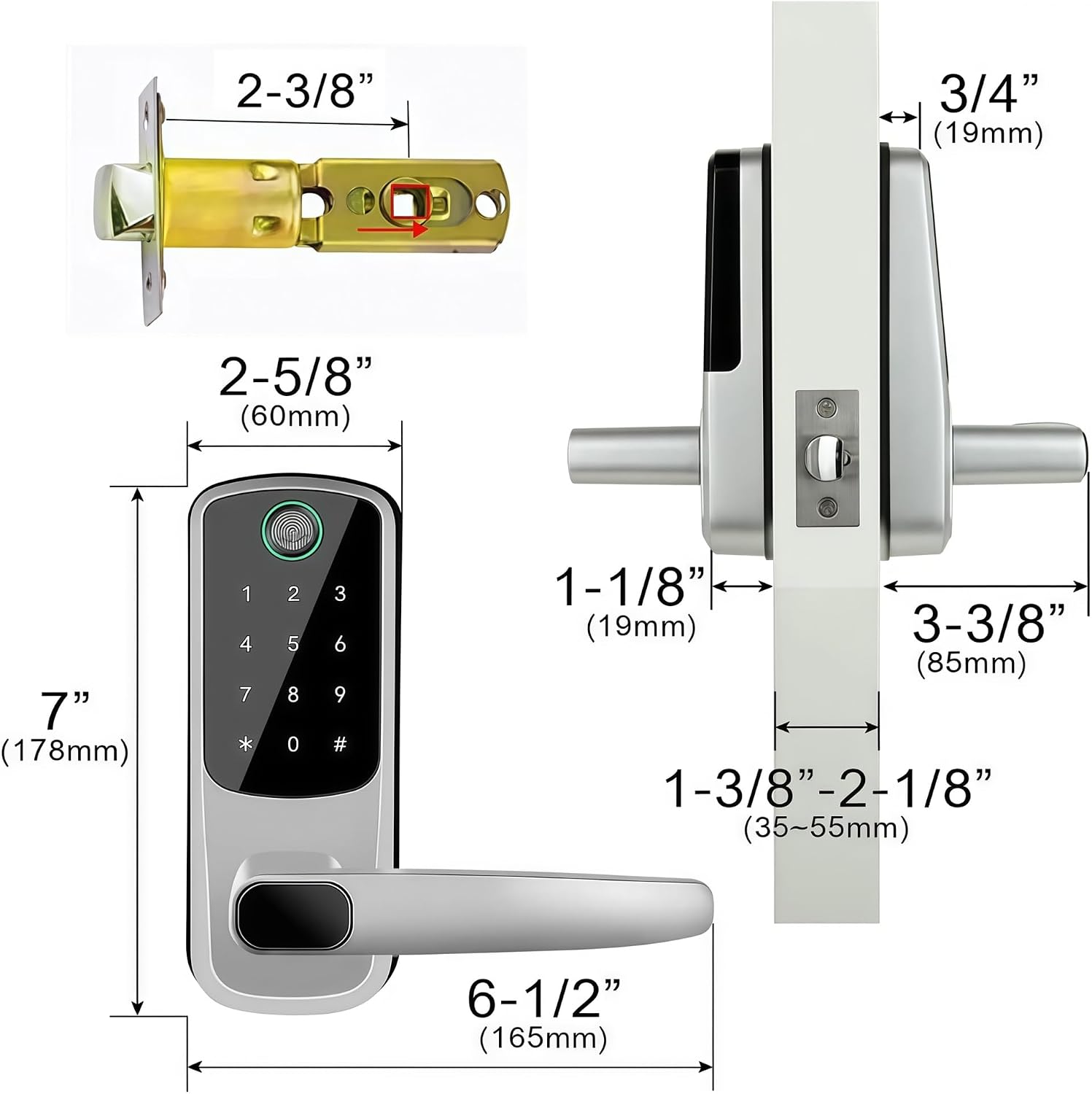
This image provides critical dimensions for door preparation and lock installation, ensuring proper fit and function.
Installation Steps:
The UJNIKM Smart Door Lock is designed for straightforward installation. A Phillips screwdriver and two AA batteries (not included) are required.
- Prepare the Door: Ensure your door meets the specified thickness requirements (35mm-55mm). Use the provided hole opening card as a guide if necessary.
- Install the Slide Bolt: Insert the slide bolt into the door edge and secure it with screws.
- Attach the Front Panel: Connect the front panel to the door, ensuring the spindle and cable pass through the door's bore hole.
- Attach the Back Panel: Connect the cable from the front panel to the back panel. Secure the back panel to the door using the provided screws.
- Install Batteries: Open the battery compartment on the back panel and insert 2 AA batteries.
- Test Operation: After installation, test all unlocking methods (fingerprint, keypad, key) to ensure proper function.
Refer to the detailed user manual included in the packaging for comprehensive step-by-step instructions and diagrams.
Operating Instructions
App Control (TTLock App):
The TTLock app allows for comprehensive management of your smart lock. Download the app by searching "TTLock" in your device's app store or by scanning the QR code provided in the physical user manual.

This image demonstrates the TTLock mobile application interface, used for managing lock settings, users, and access methods.
- Pairing: Follow the in-app instructions to pair your smart lock with your smartphone via Bluetooth.
- User Management: Add or remove fingerprints, passcodes, and smart cards.
- Code Generation: Generate Permanent, Timed, or Custom passcodes for guests or specific access periods.
- Access Records: View a history of lock and unlock events.
- Silent Mode: Enable or disable the lock's sound notifications.
- Auto-Lock Settings: Adjust the duration before the lock automatically engages.
- Remote Access (with Gateway): If you have an optional WiFi Gateway (purchased separately), you can lock/unlock remotely and check real-time access records from anywhere.
Unlocking Methods:
- Fingerprint: Place your registered finger on the fingerprint sensor. The lock will unlock upon successful verification.
- Passcode: Enter your registered passcode on the keypad, followed by the '#' key.
- Smart Card: Present your registered smart card to the card reader area on the lock.
- Mechanical Key: Insert the physical key into the keyhole and turn to unlock. This is for emergency use.
- NFC: Use a registered NFC-enabled device to unlock the door.
Maintenance
Battery Replacement:
The lock operates on 2 AA batteries. When the battery level is low, the lock will provide an audible or visual alert. Replace batteries promptly to ensure continuous operation.
- Open the battery compartment on the interior side of the lock.
- Remove the old batteries and insert new 2 AA batteries, ensuring correct polarity.
- Close the battery compartment securely.
Emergency Power Supply:
In case the batteries completely deplete, you can use a power bank to temporarily power the lock via the USB emergency charging port located on the front panel.

This image demonstrates how to use an external power bank to provide emergency power to the smart lock via its USB charging port.
Cleaning:
Wipe the lock's surface with a soft, dry cloth. Avoid using abrasive cleaners or solvents that could damage the finish or electronic components.
Durability:
The lock is constructed from aluminum alloy die-casting, providing durability, anti-pry, anti-trial opening, and anti-technical unlocking features. The fingerprint recognition module is designed for anti-misoperation and wear resistance.

This image showcases the robust aluminum alloy construction of the smart lock, emphasizing its durability and resistance to corrosion.
Troubleshooting
- Lock not responding:
- Check battery level. Replace batteries if low.
- Use the USB emergency charging port with a power bank.
- Try unlocking with the mechanical key.
- Fingerprint not recognized:
- Ensure your finger is clean and dry.
- Try repositioning your finger on the sensor.
- Re-register your fingerprint via the TTLock app if issues persist.
- Passcode not working:
- Verify the passcode entered is correct.
- Ensure the passcode has not expired (for timed codes).
- Check the passcode status in the TTLock app.
- App connectivity issues:
- Ensure Bluetooth is enabled on your smartphone.
- Make sure you are within Bluetooth range of the lock.
- Restart the TTLock app or your smartphone.
- If using a WiFi Gateway, ensure it is properly connected to your network and the lock.
Specifications
| Brand | UJNIKM |
| Model Number | UJNIKM |
| Power Supply | 2 x AA Dry Batteries |
| Protection Level | IP67 |
| Fit Door Thickness | 35-55mm (1-3/8" - 2-1/8") |
| Connectivity | Bluetooth, WiFi (via optional Gateway) |
| Ways To Unlock | App, Mechanical Keys, Fingerprint, Smart Card, WiFi, Password, NFC |
| Material | Aluminium Alloy |
| Handle Direction | Direction Reversible |
| Item Weight | 1.76 ounces |
| Package Dimensions | 0.39 x 0.39 x 0.39 inches |
Warranty Information
Specific warranty details for the UJNIKM TTLOCK Wifi Electronic Smart Door Lock are not provided in the product information. Please refer to the warranty card included with your product packaging or contact the seller directly for warranty terms and conditions.
Customer Support
For technical assistance, troubleshooting, or any questions regarding your UJNIKM TTLOCK Wifi Electronic Smart Door Lock, please refer to the contact information provided in your product packaging or on the seller's official website. The provided product data does not include direct customer support contact details.