
Introduction
This manual provides detailed instructions for setting up, operating, and maintaining your MOKiN MODK2401 USB C 17-in-1 Triple Display Docking Station. Please read this manual thoroughly before use to ensure optimal performance and to prevent damage.
Product Overview
The MOKiN MODK2401 is a versatile 17-in-1 USB C docking station designed to expand your laptop's connectivity and display capabilities. It features multiple ports for video output, data transfer, network connectivity, and power delivery.
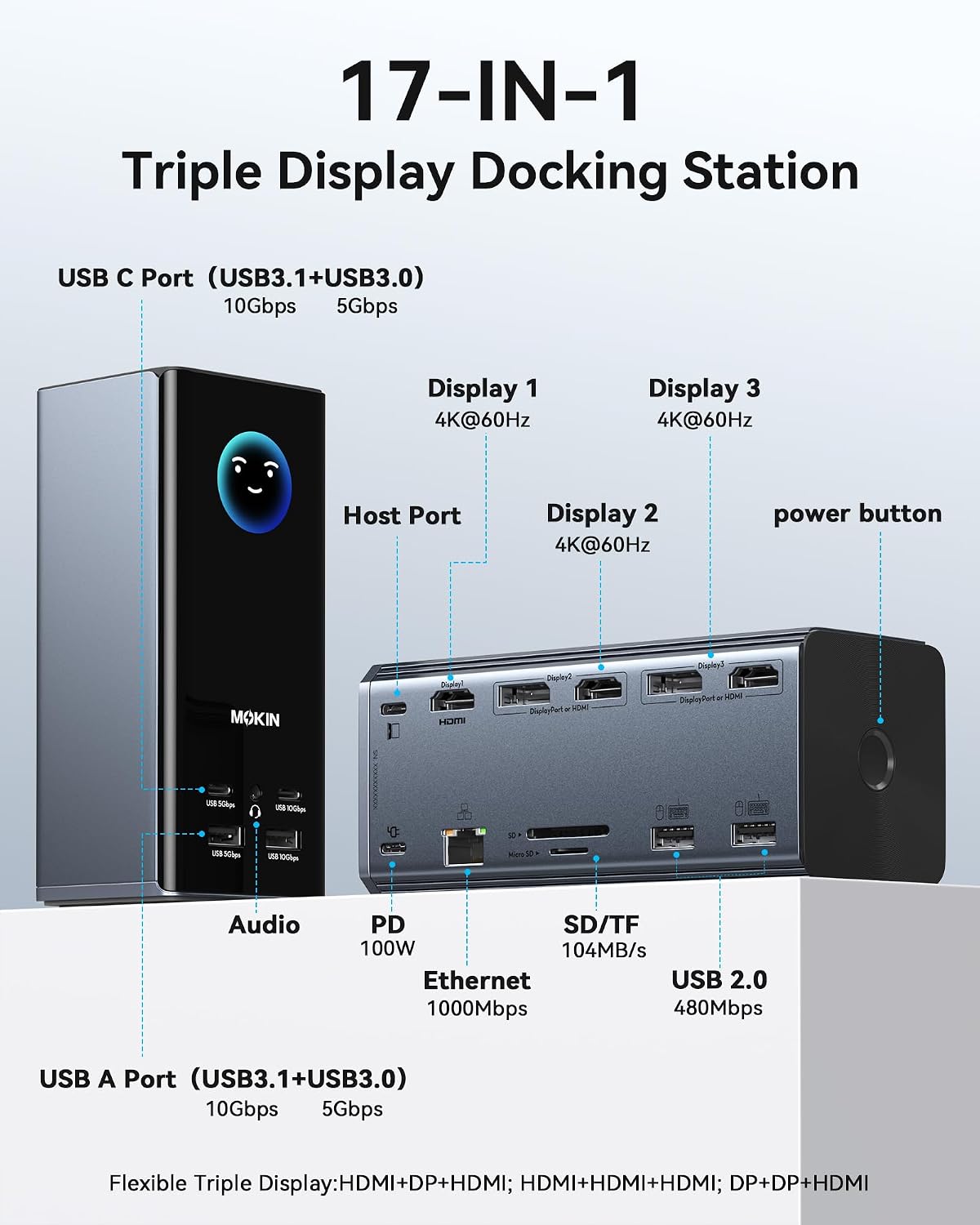
Image: Overview of the MOKiN 17-in-1 Triple Display Docking Station, highlighting its various ports including USB-C, USB-A, HDMI, DisplayPort, Ethernet, SD/TF card slots, and audio jack.
Key Features:
- Video Output: 3x HDMI, 2x DisplayPort for triple monitor setup.
- High-Speed Data Transfer: 2x USB-C/A (10Gbps), 2x USB-C/A (5Gbps), 2x USB 2.0.
- Network: Gigabit Ethernet (1000Mbps).
- Card Reader: SD/microSD (104MB/s).
- Audio: 3.5mm audio jack.
- Power Delivery: Up to 100W PD input, providing up to 85W charging for laptops.
- Smart Digital Display: Integrated LCD screen shows real-time charging status and resolution.
- Screen Lock Button: For instant privacy protection.
Setup Instructions
1. Driver Installation (Required for Video Output)
For full functionality, especially for video output, a driver is required. Follow these steps to download and install the necessary driver:
- Open your web browser and search for "siliconmotion.com".
- Navigate to the official Silicon Motion website.
- Locate the driver section and search for the "SM770" driver.
- Download the driver corresponding to your operating system (Windows, macOS, or Linux).
- Install the downloaded driver by following the on-screen instructions.
- For macOS users: After installation, go to "Security & Privacy" settings. Under "Screen Recording" permissions, allow "macOS Instant View" to join. This step is crucial for enabling USB to HDMI video output.

Image: Visual guide for driver download and installation, including steps for finding the SM770 driver and macOS security settings.
2. Physical Connection
- Connect the docking station to your laptop using the provided USB-C cable. Ensure your laptop's USB-C port supports video output (DisplayPort Alternate Mode) and power delivery for full functionality.
- Connect external monitors to the HDMI and DisplayPort outputs on the docking station.
- (Optional) Connect a power adapter (100W recommended, not included) to the PD input port on the docking station to enable laptop charging and stable power for connected devices.
- Connect other peripherals such as USB devices, Ethernet cable, and audio devices as needed.
Operating Instructions
Display Configuration
The docking station supports flexible triple display configurations, offering 4K@60Hz video quality. It can extend up to three independent displays on Windows, macOS, or Linux systems.

Image: Illustrates multi-stream transport (MST) support for Windows and macOS with DP1.4, showing how three external monitors can be connected. It also clarifies that macOS does not natively support MST for extended displays without specific driver solutions.
- Windows/Linux: Supports MST (Multi-Stream Transport) for extending displays to multiple monitors. Ensure your laptop's DP port is DP1.4 for optimal performance with three distinct displays. DP1.2 ports support a maximum of two external monitors.
- macOS: While macOS does not natively support MST for extended displays, this docking station, with the required driver, enables true 4K triple display functionality. Each connected monitor can display independent content.

Image: A user demonstrating a multi-monitor setup with a laptop and two external displays connected to the docking station, suitable for creative work or multitasking.
Smart Digital Display
The integrated LCD digital screen provides real-time information about the docking station's status, including charging power, resolution of connected displays, and data transfer rates of active ports. This allows for easy monitoring of connection status.
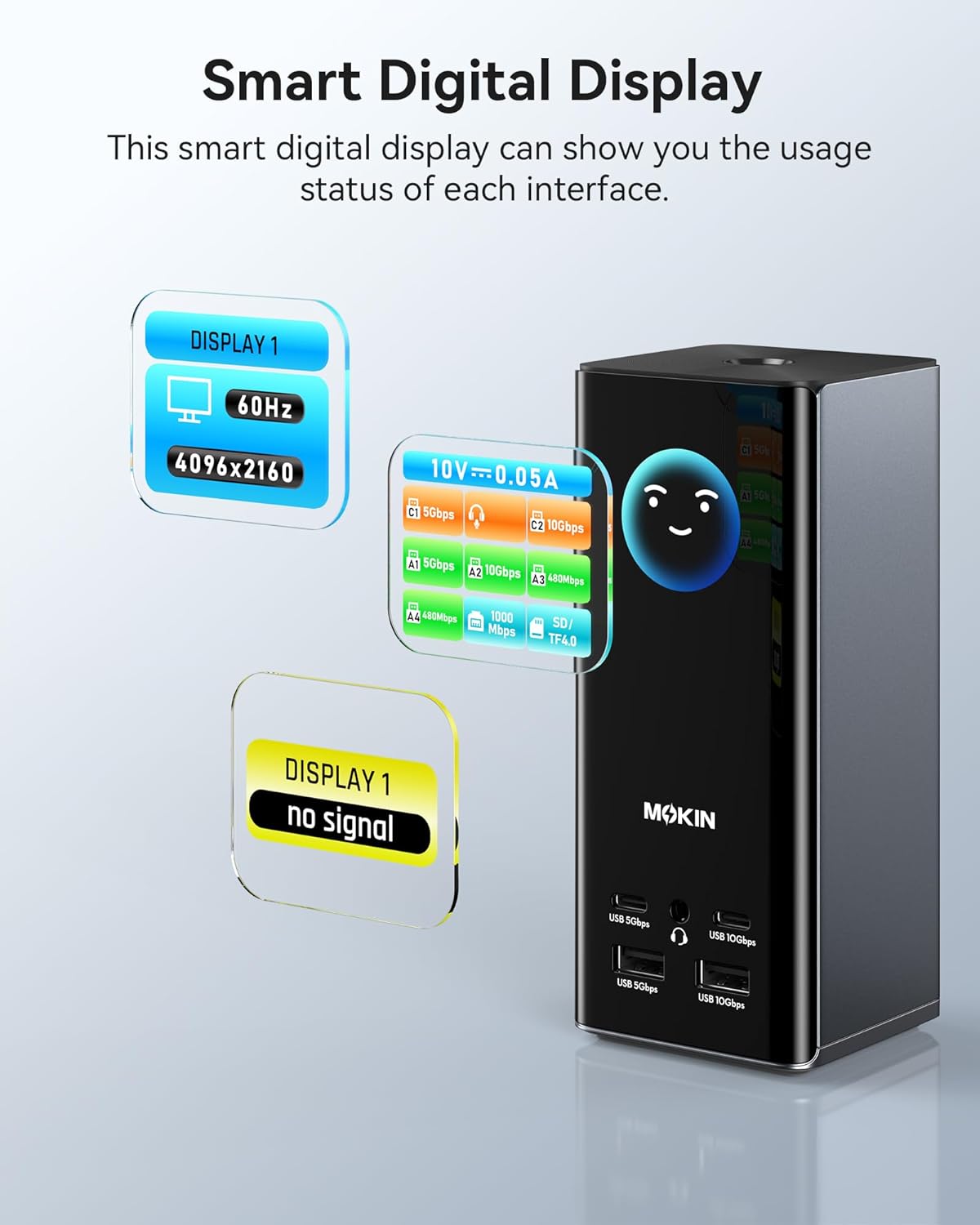
Image: The MOKiN docking station's smart digital display showing various operational parameters like refresh rate, resolution, and port activity.
Privacy Protection (Screen Lock)
The docking station features a screen lock button for instant privacy. Double-click the button to lock your screen, protecting sensitive information. Press and hold the button for more than 2 seconds to turn off the power to the docking station (laptop charging function remains active).

Image: A hand pressing the screen lock button on the docking station, demonstrating the privacy protection feature.
Ultra-Fast Data Transfer
Benefit from high-speed data transfer with 2x USB 3.1 ports (10Gbps) and 2x USB 3.0 ports (5Gbps). The SD/microSD card reader supports speeds up to 104MB/s, ensuring quick file transfers.

Image: Visual representation of the high-speed data transfer capabilities, including USB 3.1 (10Gbps) and SD/microSD card reader (104MB/s).
PD 100W Fast Charging
The docking station supports up to 100W Power Delivery input, allowing it to charge your laptop with up to 85W. A 100W power adapter (not included) is recommended for optimal charging performance.

Image: Depicts the docking station connected to a laptop and a 100W power adapter for fast charging. Note: Power adapter is sold separately.
Maintenance
- Keep the docking station in a dry, well-ventilated area.
- Avoid exposing the device to extreme temperatures or direct sunlight.
- Clean the exterior with a soft, dry cloth. Do not use liquid cleaners or aerosols.
- Ensure all cables are connected securely to prevent intermittent issues.
- Do not attempt to disassemble or repair the device yourself. Contact customer support if issues arise.
Troubleshooting
No Display Output:
- Ensure the required driver (SM770) is correctly installed. For macOS, verify "macOS Instant View" has screen recording permission.
- Check all video cables (HDMI, DisplayPort) are securely connected to both the docking station and the monitors.
- Verify your laptop's USB-C port supports DisplayPort Alternate Mode.
- Try connecting one monitor at a time to isolate the issue.
- Restart your laptop and the docking station.
Laptop Not Charging:
- Ensure a power adapter is connected to the docking station's PD input port.
- Verify the power adapter is at least 100W for optimal charging.
- Check if your laptop's USB-C port supports Power Delivery.
USB Devices Not Recognized:
- Reconnect the USB device.
- Try a different USB port on the docking station.
- Ensure the docking station is receiving sufficient power.
Ethernet Connection Issues:
- Check the Ethernet cable connection to both the docking station and your router/modem.
- Verify network settings on your computer.
Specifications
| Feature | Detail |
|---|---|
| Model Number | MODK2401 |
| Brand | MOKiN |
| Video Output | 3x HDMI, 2x DisplayPort (up to 4K@60Hz) |
| USB Data Ports | 2x USB-C (10Gbps), 2x USB-A (10Gbps), 2x USB-A (5Gbps), 2x USB 2.0 (480Mbps) |
| Ethernet | Gigabit Ethernet (1000Mbps) |
| Card Reader | SD/microSD (up to 104MB/s) |
| Audio Port | 3.5mm Audio Jack |
| Power Delivery (Input) | Up to 100W (for docking station) |
| Power Delivery (Output) | Up to 85W (for laptop charging) |
| Dimensions | Approx. 24.9 x 13.9 x 6.9 cm |
| Weight | Approx. 560 grams |
| Compatibility | Windows, macOS, Linux (driver required for full video functionality) |
Warranty and Support
For warranty information and technical support, please refer to the official MOKiN website or contact their customer service directly. Contact details are typically available on the product packaging or the brand's official online store.
If you encounter any issues not covered in this manual, please do not hesitate to contact MOKiN customer support for assistance.


