
1. Introduction
The Huawei OptiXstar K251a-21 is a sub-FTTR (Fiber to the Room) unit designed to extend the high-speed network provided by the Huawei FTTR OptiXstar F50 Plus main unit. This device supports ultra-Gigabit high-speed access via upstream fiber optic lines and delivers Ultra Gigabit dual-band Wi-Fi and ultra-Gigabit network ports to users. It integrates next-generation Wi-Fi 7 technology for higher speeds and lower latency, ensuring a superior home network experience.
2. Safety Information
Please read and understand all safety instructions before using this device. Failure to follow these instructions may result in injury, damage to the device, or property damage.
- Use only the power adapter supplied with the device.
- Do not expose the device to water, moisture, or extreme temperatures.
- Avoid placing the device near heat sources or in direct sunlight.
- Ensure proper ventilation to prevent overheating.
- Do not attempt to open or repair the device yourself. Contact qualified service personnel for assistance.
- Keep the device away from children and pets.
3. Package Contents
Verify that all items are present in your package:
- Huawei OptiXstar K251a-21 Sub FTTR Device
- Power Cable
- Quick Start Guide (if included)
4. Product Overview
Familiarize yourself with the device's components and indicators.
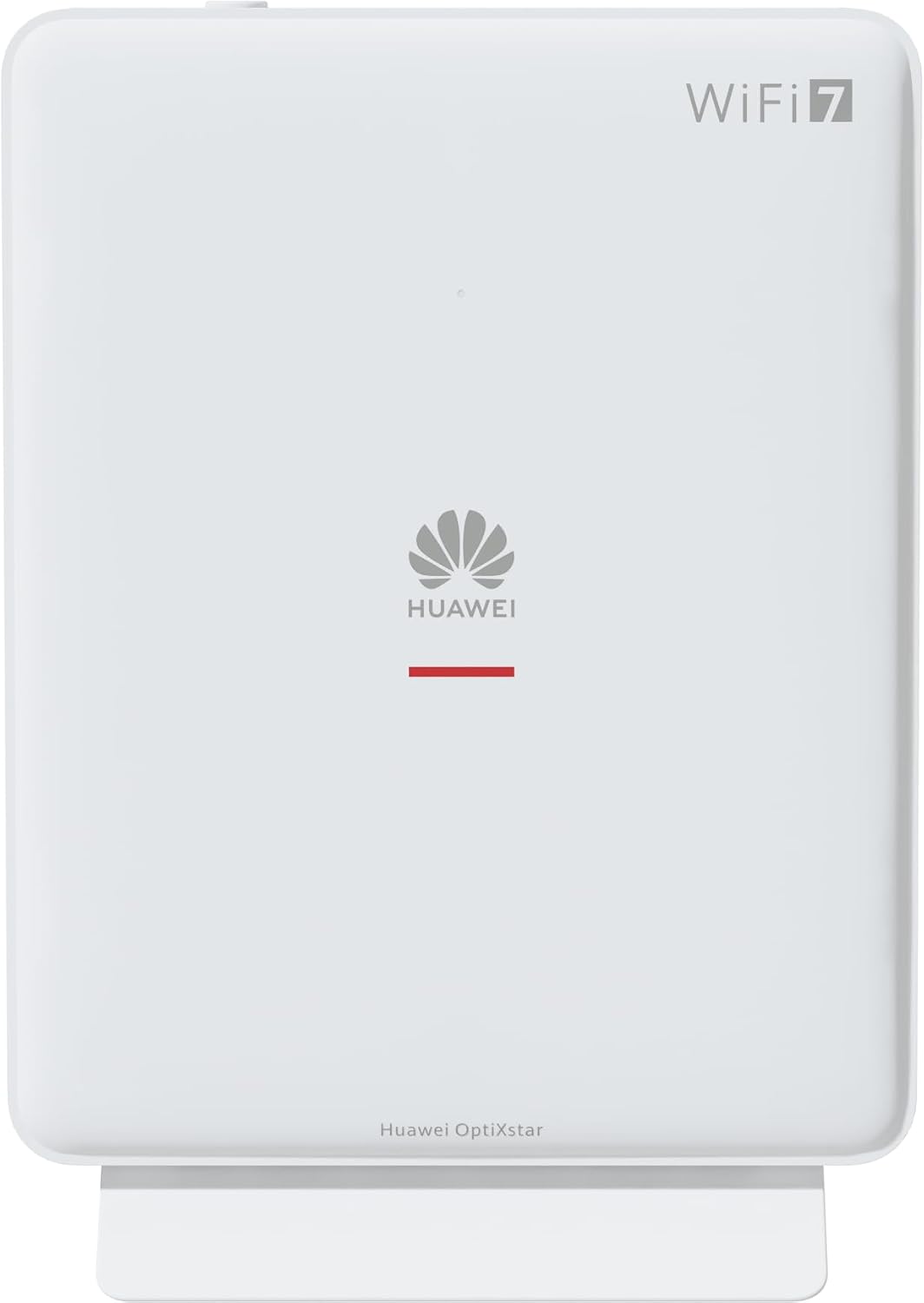
Figure 1: Front view of the Huawei OptiXstar K251a-21 Sub FTTR device, showing the Huawei logo and "WiFi 7" branding.

Figure 2: Angled front-side view of the Huawei OptiXstar K251a-21 Sub FTTR, highlighting its sleek design and ventilation.

Figure 3: Rear view of the Huawei OptiXstar K251a-21 Sub FTTR, displaying the ports (Reset, 2-GE, 1-2.5GE, Power, FTTR) and mounting options.

Figure 4: Side profile of the Huawei OptiXstar K251a-21 Sub FTTR, showing its slim form factor and ventilation grilles.

Figure 5: Angled rear view of the Huawei OptiXstar K251a-21 Sub FTTR, providing a clear look at the port labels and layout.

Figure 6: Top view of the Huawei OptiXstar K251a-21 Sub FTTR, featuring the WPS/LED button.
Ports and Buttons:
- FTTR Port: Connects to the main FTTR unit via a fiber optic cable.
- 1-2.5GE Port: Gigabit Ethernet port for high-speed wired connections.
- 2-GE Port: Gigabit Ethernet port for wired connections.
- Power Port: Connects to the power adapter.
- Reset Button: Used to restore factory settings (press and hold for 5-10 seconds).
- WPS/LED Button: Initiates Wi-Fi Protected Setup (WPS) for easy device connection and controls LED indicators.
5. Setup
Follow these steps to set up your Huawei OptiXstar K251a-21 Sub FTTR device:
- Placement: Choose a central location in your home for optimal Wi-Fi coverage. The device is suitable for various installation scenarios, including vertical placement on a desk, wall-mounting, plugging into a power strip, or mounting in an 86mm junction box with a bracket.
- Connect Fiber Optic Cable: Connect one end of the fiber optic cable to the FTTR port on the Sub FTTR unit and the other end to the corresponding FTTR port on your Huawei FTTR OptiXstar F50 Plus main unit or wall outlet. Ensure the connection is secure.
- Connect Power: Plug the power adapter into the Power port on the Sub FTTR unit, then plug the other end into a power outlet.
- Power On: The device will automatically power on. Wait for the indicator lights to stabilize, typically indicating a successful connection to the main FTTR unit and active Wi-Fi.
- Wired Connections (Optional): For wired devices, connect an Ethernet cable from the 1-2.5GE or 2-GE ports on the Sub FTTR to your computer, gaming console, or other network devices.
6. Operating
Once set up, your OptiXstar K251a-21 provides seamless Wi-Fi 7 connectivity.
- Wi-Fi Connection: Search for the Wi-Fi network name (SSID) broadcast by your FTTR system on your devices (smartphones, laptops, etc.). Enter the Wi-Fi password. The system's unique SRCN (Seamless Roaming Coordinate Network) technology ensures seamless roaming throughout your home.
- C-WAN Architecture: The C-WAN architecture centrally controls and coordinates network-wide Wi-Fi resources via the Main FTTR, providing an ultra-Gigabit high-speed experience.
- IoT Casing: The device features an IoT casing designed to protect home network security and privacy.
- WPS Function: Press the WPS/LED button briefly to use Wi-Fi Protected Setup (WPS) for quick connection of compatible devices without entering the password.
- LED Indicators: The LED indicators provide status information. Refer to the main FTTR unit's manual or the device's specific documentation for detailed LED status meanings.
7. Maintenance
Regular maintenance helps ensure optimal performance and longevity of your device.
- Cleaning: Gently wipe the device with a soft, dry cloth. Do not use liquid cleaners or abrasive materials.
- Firmware Updates: Huawei periodically releases firmware updates to improve performance and security. These updates are typically managed through the main FTTR unit or a dedicated mobile application. Ensure your system is always running the latest firmware.
- Ventilation: Ensure the ventilation openings are not blocked to prevent overheating.
- Cable Management: Keep fiber optic and power cables neatly organized and free from kinks or excessive bending.
8. Troubleshooting
If you encounter issues, try the following troubleshooting steps:
- No Power: Check if the power cable is securely connected to both the device and the power outlet. Try a different outlet.
- No Internet Connection:
- Verify that the fiber optic cable is correctly connected to the FTTR port.
- Check the status indicators on both the Sub FTTR and the main FTTR unit.
- Restart both the Sub FTTR and the main FTTR unit by unplugging them from power for 30 seconds and then plugging them back in.
- Ensure your main FTTR unit has an active internet connection.
- Slow Wi-Fi Speed:
- Ensure the device is placed optimally, away from obstructions and interference sources.
- Check if too many devices are connected to the network.
- Update the firmware of your FTTR system.
- Consider using a wired connection for bandwidth-intensive tasks.
- Cannot Connect to Wi-Fi:
- Verify you are entering the correct Wi-Fi password.
- Try using the WPS button to connect.
- Restart your device and the Sub FTTR unit.
- Factory Reset: If issues persist, you may need to perform a factory reset. With the device powered on, use a pointed object (like a paperclip) to press and hold the Reset button for 5-10 seconds until the indicators change. Note that this will erase all custom settings.
9. Specifications
| Feature | Specification |
|---|---|
| Brand | HUAWEI |
| Model Number | K8M251a-21G02 |
| Dimensions (Package) | 24.5 x 23.7 x 7.4 cm |
| Weight (Package) | 300 grams |
| Special Feature | Internet Security |
| Frequency Band Class | Dual Band |
| Wireless Communication Standard | 802.11ax (Wi-Fi 7 Generation) |
| Compatible Devices | Personal Computer |
| Recommended Uses | Home |
| Included Components | Power Cable |
| Connectivity Technology | Ethernet, FTTR, Wi-Fi, Fiberglass |
| Color | White |
| Number of Ports | 4 (FTTR, 1-2.5GE, 2-GE, Power) |
| Data Transfer Rate | 1 Gigabits per second |
| Smart Home Compatibility | Compatible with smart home systems |
| Internet Connectivity | Yes |
| Connectivity Protocol | Wi-Fi |
10. Warranty and Support
For warranty information and technical support, please refer to the official Huawei website or contact your local Huawei customer service. Keep your purchase receipt for warranty claims.
Online Resources: Visit the official Huawei support website for FAQs, updated manuals, and software downloads.
Customer Service: Contact details for customer support can typically be found on the Huawei website or in the documentation provided with your main FTTR unit.
