
Introduction
This manual provides comprehensive instructions for the safe and efficient use of your MSI PRO MP273 E14A 27-inch IPS monitor. Please read this manual thoroughly before operating the device and retain it for future reference.
1. Setup
1.1 Unpacking and Package Contents
Carefully remove all components from the packaging. Ensure all items listed in the package contents are present and undamaged. Keep the packaging materials for future transport or service needs.
1.2 Assembling the Stand
Follow these steps to attach the stand to your monitor:
- Place the monitor face down on a soft, clean surface to prevent scratches.
- Align the stand base with the stand neck and secure it with the provided screw.
- Attach the assembled stand to the back of the monitor until it clicks into place or is secured with screws, depending on the model's design.
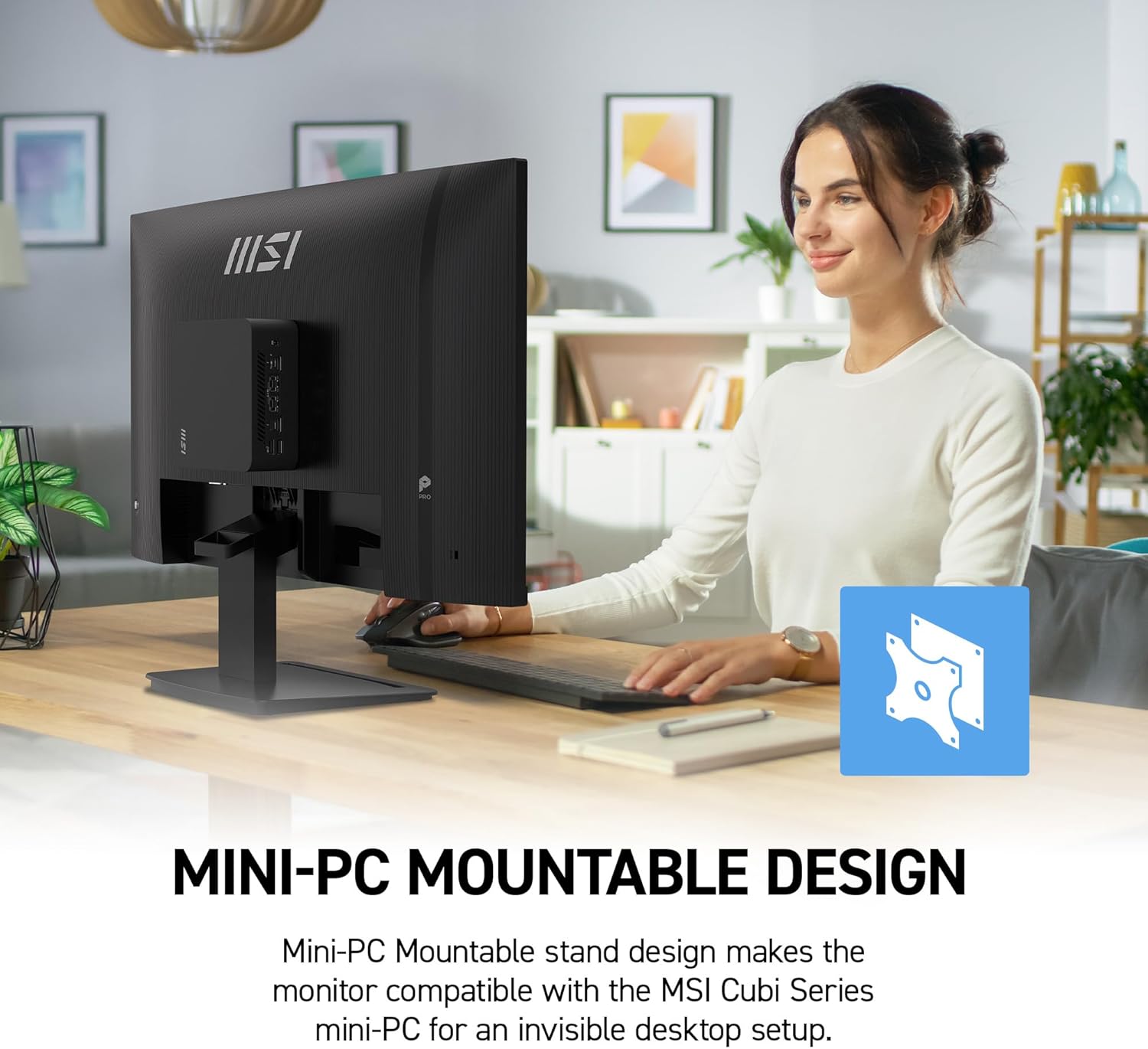
Image: The MSI PRO MP273 E14A monitor with its stand fully assembled, ready for use.
1.3 VESA Mounting
The monitor supports VESA mounting for wall mounts or monitor arms. Remove the stand if attached, then secure the VESA mount (not included) to the monitor's back panel using the appropriate screws.

Image: The MSI PRO MP273 E14A monitor demonstrating its VESA mountable design, shown with a mini-PC attached to the back for a compact setup.
1.4 Connecting to a Computer
Connect the monitor to your computer using one of the following cables:
- HDMI Cable: For high-definition video and audio.
- DisplayPort Cable: For high-resolution video and audio, supporting 144Hz refresh rate.
- VGA Cable: For standard video connection.
Ensure the cable is securely connected to both the monitor and your computer's graphics card.

Image: A close-up of the rear panel of the MSI PRO MP273 E14A monitor, highlighting the available input ports including HDMI, DisplayPort, and VGA.
1.5 Power Connection
Connect the power adapter to the monitor's power input, then plug the power cord into an electrical outlet.
2. Operating Instructions
2.1 Powering On/Off
Press the power button located on the monitor to turn it on or off. The power indicator light will illuminate when the monitor is active.
2.2 On-Screen Display (OSD) Menu
Use the joystick or buttons on the monitor's rear or bottom to navigate the OSD menu. The OSD allows you to adjust various display settings.

Image: The MSI PRO MP273 E14A monitor showing its OSD menu, which provides options for adjusting display settings.
2.3 Adjusting Display Settings
Common OSD settings include:
- Brightness/Contrast: Adjust the overall luminance and difference between light and dark areas.
- Color Settings: Modify color temperature, gamma, and individual RGB levels.
- Input Source: Manually select between HDMI, DisplayPort, or VGA inputs.
- Picture Mode: Choose from preset modes (e.g., Standard, Game, Movie).
2.4 144Hz Refresh Rate and AMD FreeSync
The monitor supports a 144Hz refresh rate for smoother visuals. Ensure your graphics card and connection cable (DisplayPort recommended) support this refresh rate. AMD FreeSync technology synchronizes the monitor's refresh rate with your GPU's frame rate to eliminate screen tearing and stuttering. Enable FreeSync in the OSD menu and your graphics card's control panel.

Image: The MSI PRO MP273 E14A monitor showcasing its 144Hz refresh rate capability during a fast-paced game scene, labeled "144Hz Game Ready".

Image: A visual representation of AMD FreeSync technology, demonstrating how it eliminates screen tearing for a smoother visual experience.
2.5 Built-in Speakers
The monitor features built-in speakers. Audio will be output through these speakers when connected via HDMI or DisplayPort. Adjust volume through your computer's operating system or the monitor's OSD menu.

Image: The MSI PRO MP273 E14A monitor displaying a video conference, with visual cues indicating the use of its built-in speakers.
2.6 Eye Care Features (MSI EyesErgo, Anti-Flicker, Eye-Q Check)
The monitor incorporates several features designed to reduce eye strain:
- MSI EyesErgo with Anti-Flicker: Reduces invisible flickering that can cause eye fatigue.
- Less Blue Light: Filters out harmful blue light emissions.
- MSI Eye-Q Check: Provides reminders to take breaks and self-check eye health during prolonged use.

Image: The MSI PRO MP273 E14A monitor displaying image editing software, with icons representing its premium eye comfort features like Less Blue Light and Anti-Flicker.
3. Maintenance
3.1 Cleaning the Monitor
To clean the monitor screen and casing:
- Always power off the monitor and unplug the power cord before cleaning.
- Use a soft, lint-free cloth lightly dampened with water or a specialized screen cleaner.
- Do not use abrasive cleaners, solvents, or ammonia-based liquids.
- Avoid spraying liquid directly onto the screen or into any openings.
4. Troubleshooting
If you encounter issues with your monitor, refer to the following common solutions:
- No Display:
- Ensure the power cable is securely connected and the monitor is powered on.
- Verify the video cable (HDMI, DisplayPort, VGA) is properly connected to both the monitor and the computer.
- Check if the correct input source is selected in the OSD menu.
- Test with a different video cable or port if available.
- Flickering Screen:
- Ensure the video cable is securely connected.
- Check the refresh rate setting in your computer's display settings; ensure it matches the monitor's capabilities.
- Enable Anti-Flicker in the OSD menu.
- No Sound from Speakers:
- Ensure the monitor is connected via HDMI or DisplayPort.
- Check the volume settings on both your computer and the monitor's OSD menu.
- Verify the monitor is selected as the default audio output device in your computer's sound settings.
For further assistance, please contact MSI customer support or visit the official MSI website.
5. Specifications
| Feature | Detail |
|---|---|
| Model Name | PRO MP273 E14A |
| Screen Size | 27 Inches |
| Resolution | 1920 x 1080 (FHD) |
| Panel Type | IPS |
| Refresh Rate | 144 Hz |
| Response Time | 1 Milliseconds |
| Aspect Ratio | 16:9 |
| Connectivity | 1x HDMI, 1x DisplayPort, 1x VGA |
| Adaptive Sync | AMD FreeSync |
| Viewing Angle | 178 Degrees |
| Speakers | Built-in |
| VESA Mount | Supported |
| Dimensions (D x W x H) | 7.91"D x 24.15"W x 18.53"H |
| Color | Black |
6. Warranty Information
This MSI PRO MP273 E14A monitor comes with a 3-year manufacturer's warranty. For detailed terms and conditions, please refer to the warranty card included in your product packaging or visit the official MSI website.
7. Customer Support
For technical support, service inquiries, or to download the latest drivers and firmware, please visit the official MSI support website:
Please have your monitor's model name (PRO MP273 E14A) and serial number ready when contacting support.


