
Introduction
This comprehensive guide is designed to help you understand and utilize all the features, settings, and functionalities of your Moto G Power 2026 smartphone. Whether you are a new user or looking to explore advanced capabilities, this manual provides clear, step-by-step instructions to enhance your device experience.
The Moto G Power 2026 is a versatile smartphone designed for everyday use. This manual covers essential topics from initial setup to advanced features, ensuring you can make the most of your device.
1. Initial Setup
Follow these steps to power on and configure your Moto G Power 2026 for the first time.
- Powering On: Press and hold the power button located on the side of the device until the Motorola logo appears.
- Language Selection: Choose your preferred language from the list.
- Connect to Wi-Fi: Select your Wi-Fi network and enter the password to connect to the internet. This is crucial for initial setup and updates.
- Google Account Setup: Sign in with your existing Google account or create a new one. This is necessary for accessing the Google Play Store, Gmail, and other Google services.
- Data Transfer (Optional): If you are upgrading from another device, follow the on-screen prompts to transfer your data.
- Security Setup: Set up a screen lock (PIN, pattern, password, or fingerprint) to protect your device.
- Personalize Settings: Adjust settings such as date and time, display preferences, and notification sounds.
Once these steps are completed, your Moto G Power 2026 is ready for use.
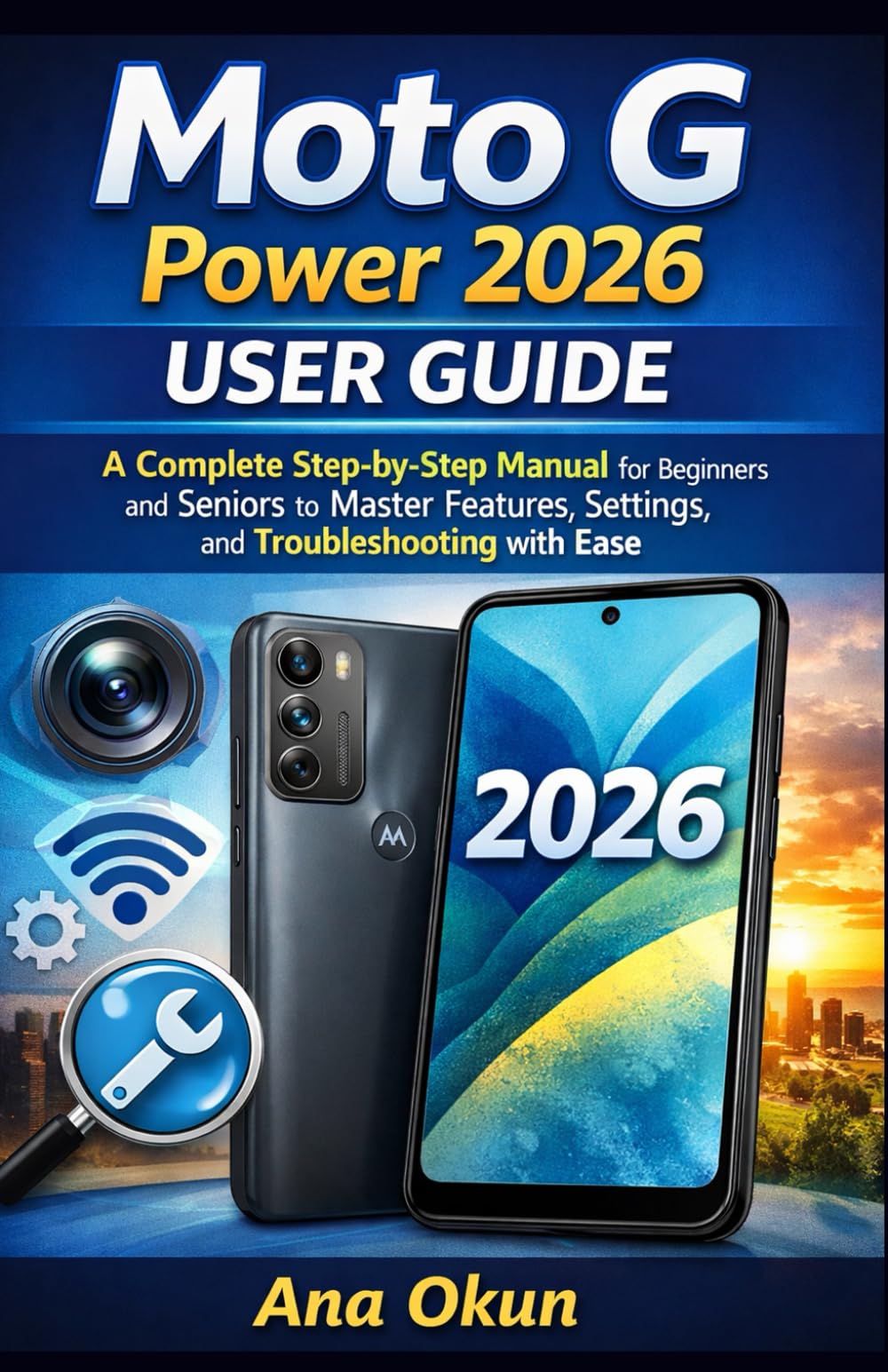
Image 1.1: Front cover of the Moto G Power 2026 User Guide. This image shows the book's title and overall design.
2. Operating Your Device
2.1 Navigating the Home Screen
The home screen is your central hub for accessing applications and information. Swipe left or right to view additional home screens. Swipe down from the top of the screen to access quick settings and notifications.
- App Drawer: Swipe up from the bottom of the home screen to open the app drawer, which contains all installed applications.
- Widgets: Long-press on an empty area of the home screen to add widgets for quick access to information like weather, calendar, or music controls.
- Folders: Drag one app icon over another to create a folder, helping you organize your applications.
2.2 Calls and Messaging
Staying connected is a primary function of your Moto G Power 2026.
- Making Calls: Tap the Phone icon, enter the number, and tap the call button. You can also select a contact from your address book.
- Managing Contacts: Use the Contacts app to add, edit, or delete contacts. You can sync contacts from your Google account.
- Sending Messages: Open the Messages app, tap the new message icon, enter the recipient's number or select from contacts, and type your message.
2.3 Internet Connectivity and Apps
Your device supports both Wi-Fi and mobile data for internet access.
- Wi-Fi: Go to Settings > Network & internet > Wi-Fi to connect to available networks.
- Mobile Data: Ensure your SIM card is inserted and mobile data is enabled in Settings > Network & internet > Mobile network.
- Google Assistant: Activate Google Assistant by saying "Hey Google" or long-pressing the power button (if configured). Use voice commands for tasks, information, and device control.
- App Management: Download new apps from the Google Play Store. Manage installed apps in Settings > Apps & notifications to adjust permissions, clear cache, or uninstall.
3. Camera Features
The Moto G Power 2026 camera allows you to capture high-quality photos and videos. Open the Camera app to begin.
- Taking Photos: Tap the shutter button to take a picture.
- Recording Videos: Switch to video mode and tap the record button to start/stop recording.
- Camera Modes: Explore various modes such as Portrait, Night Vision, Panorama, and Pro Mode for different photographic effects.
- Settings: Access camera settings to adjust resolution, aspect ratio, timer, and other preferences.
4. Troubleshooting Common Issues
This section addresses common problems you might encounter with your Moto G Power 2026.
- Device Not Responding: If your device freezes, press and hold the power button for about 10-15 seconds to force a restart.
- Battery Draining Quickly: Check battery usage in Settings > Battery to identify power-hungry apps. Reduce screen brightness, disable unnecessary features like GPS or Bluetooth when not in use, and close background apps.
- Connectivity Problems (Wi-Fi/Mobile Data):
- Toggle Wi-Fi or mobile data off and on.
- Restart your router for Wi-Fi issues.
- Ensure your mobile data plan is active and you have signal coverage.
- App Crashing: Clear the app's cache and data in Settings > Apps & notifications > [App Name] > Storage & cache. If the issue persists, uninstall and reinstall the app.
- Low Storage: Delete unnecessary files, photos, and videos. Uninstall unused apps. Move large files to cloud storage or an external SD card (if supported). Check storage usage in Settings > Storage.
5. Maintenance and Care
Proper maintenance ensures the longevity and optimal performance of your Moto G Power 2026.
- Software Updates: Regularly check for and install system updates in Settings > System > System updates. Updates often include performance improvements and security patches.
- Cleaning: Use a soft, lint-free cloth to clean the screen and body of the device. Avoid harsh chemicals or abrasive materials.
- Battery Health: Avoid extreme temperatures. Do not leave the device charging for extended periods after it reaches 100%.
- Data Backup: Regularly back up your important data to a cloud service (like Google Drive) or a computer to prevent data loss.
- Physical Protection: Consider using a protective case and screen protector to guard against drops and scratches.
6. Specifications
Key technical specifications for the Moto G Power 2026:
| Feature | Detail |
|---|---|
| ASIN | B0GP71KXZ1 |
| Publisher | Independently published |
| Publication date | February 18, 2026 |
| Language | English |
| Print length | 144 pages |
| ISBN-13 | 979-8248918850 |
| Item Weight | 8.6 ounces |
| Reading age | 12 - 18 years |
| Dimensions | 5.5 x 0.33 x 8.5 inches |
Image 6.1: Back cover of the Moto G Power 2026 User Guide. This image displays the ISBN barcode and other publication information.
7. Warranty and Support
For warranty information and customer support, please refer to the official Motorola website or the documentation included with your device at the time of purchase. This manual provides general operational guidance and does not replace official warranty statements or specific support channels.
- Official Website: Visit the Motorola official website for the latest support resources, FAQs, and contact information.
- Customer Service: Contact Motorola customer service for technical assistance or warranty claims.
- Online Resources: Many common issues can be resolved by consulting online forums or support communities.


