
1. Introduction
Thank you for choosing the Sharp 40HF2265E Full HD Google TV. This manual provides essential information for setting up, operating, and maintaining your television. Featuring integrated Google TV, HDR10 support, Dolby Digital audio, and Bluetooth connectivity, your new TV offers a rich entertainment experience. Please read this manual thoroughly before use to ensure proper operation and to maximize your viewing pleasure.

Image 1.1: Front view of the Sharp 40HF2265E Full HD Google TV.
2. What's in the Box
Carefully unpack your television and check that all the following items are included:
- Sharp 40HF2265E Television
- Power Cable
- Remote Control (requires 2 AAA batteries, not always included)
- User Manual (this document)
- Warranty Card
If any items are missing or damaged, please contact your retailer or Sharp customer support immediately.
3. Setup
3.1 Stand Installation
To install the TV stand, place the TV screen-down on a soft, flat surface to prevent scratches. Align the stand feet with the corresponding slots on the bottom of the TV and secure them with the provided screws. Ensure the stand is firmly attached before placing the TV upright.

Image 3.1: Front view of the TV with stand feet attached.
3.2 Wall Mounting
If you prefer to wall-mount your TV, you will need a VESA-compatible wall mount (not included). The Sharp 40HF2265E supports a VESA mounting standard of 200 x 200 mm. Refer to the wall mount's instructions for installation. Always ensure the wall can support the weight of the TV and the mount.

Image 3.2: Rear view of the TV, highlighting VESA mounting points and ports.
3.3 Connecting Peripherals
Connect your external devices to the appropriate ports on the back and side of the TV. The TV features multiple HDMI, USB, and other connectivity options.
- HDMI Ports: For connecting Blu-ray players, game consoles, set-top boxes, etc.
- USB Ports: For connecting USB storage devices to play media or for software updates.
- Ethernet Port: For a wired internet connection.
- Antenna/Cable Input: For connecting an antenna or cable TV signal.
- Audio Output: For connecting external audio systems.
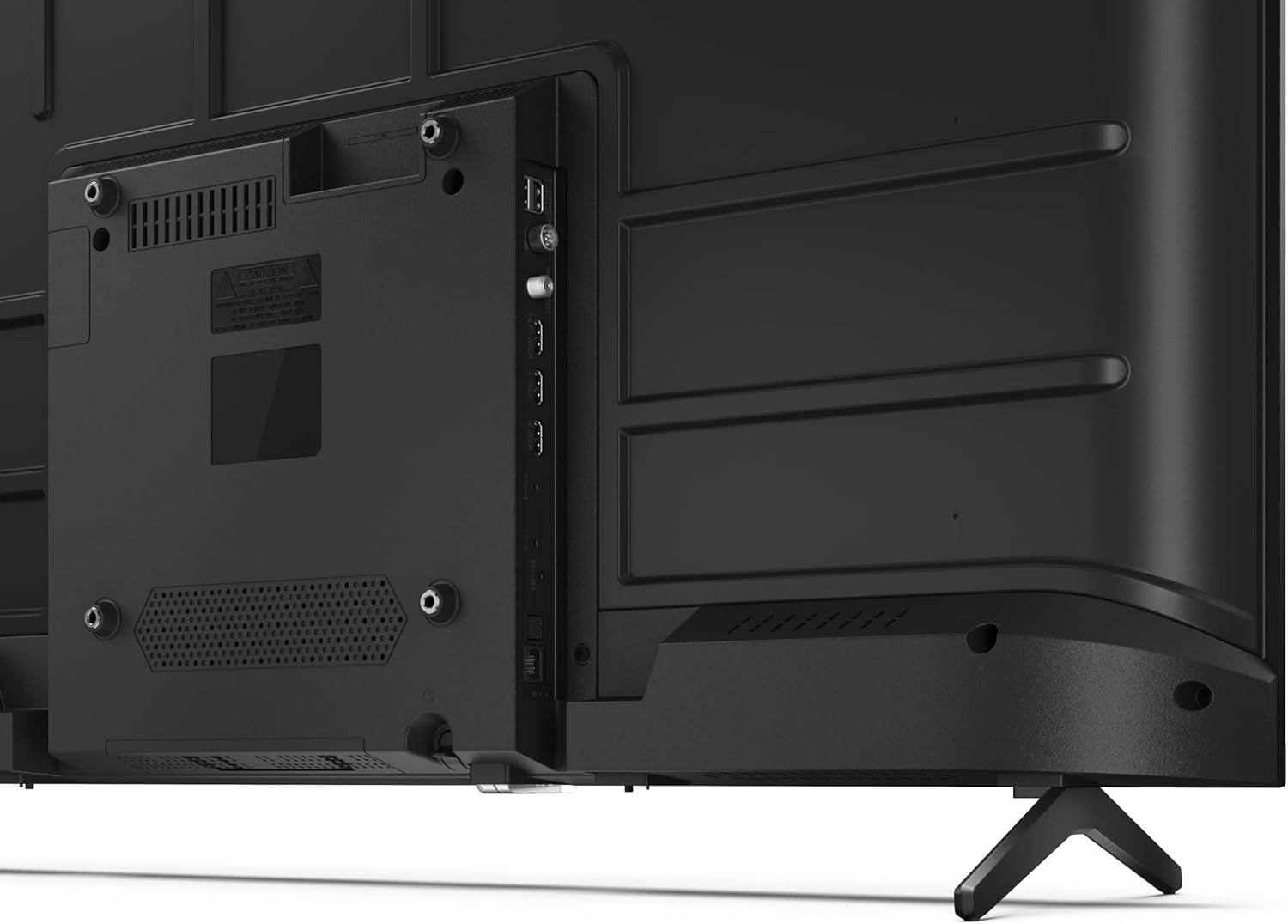
Image 3.3: Detailed view of the TV's connectivity ports.
3.4 Initial Power On and Google TV Setup
After connecting all necessary cables, plug the power cable into an electrical outlet. Press the power button on the remote control or on the TV. Follow the on-screen instructions to complete the initial setup, including network connection, Google account login, and channel scanning.
4. Operating
4.1 Remote Control Functions
The remote control allows you to navigate the TV's features. Common buttons include Power, Volume Up/Down, Channel Up/Down, Input Source, Home (Google TV), Navigation (directional arrows, OK), Back, and Google Assistant.
4.2 Google TV Interface
Your Sharp TV runs on Google TV, providing a personalized home screen with content recommendations from your subscriptions. Use the remote's navigation buttons to browse movies, shows, apps, and your library.

Image 4.1: The Google TV home screen on the Sharp 40HF2265E.
4.3 Input Selection
To switch between connected devices (e.g., HDMI 1, HDMI 2, TV tuner), press the 'Input' or 'Source' button on your remote control and select the desired input from the on-screen menu.
4.4 Picture and Sound Settings
Access the TV's settings menu to adjust picture modes (Standard, Vivid, Cinema, Game), brightness, contrast, color, and sound modes (Standard, Music, Movie, Speech). The TV supports HDR10 for enhanced contrast and color, and Dolby Digital for rich audio.

Image 4.2: Visual representation of HDR (High Dynamic Range) technology.
4.5 Google Assistant and Chromecast
Use the built-in Google Assistant for voice control. Press the Google Assistant button on your remote and speak your commands, such as searching for content, controlling smart home devices, or getting information. Chromecast allows you to cast content directly from compatible devices like smartphones or tablets to your TV.

Image 4.3: Google Assistant integration for voice commands.
4.6 Bluetooth Connectivity
Pair Bluetooth-enabled devices such as headphones or soundbars with your TV for a wireless audio experience. Navigate to the TV's settings menu, select 'Remotes & Accessories', and then 'Pair new device' to connect.
5. Maintenance
5.1 Cleaning the TV
Always unplug the TV before cleaning. Use a soft, dry cloth to wipe the screen and TV body. For stubborn marks, lightly dampen the cloth with water or a specialized screen cleaner. Never use abrasive cleaners, waxes, or solvents.
5.2 Software Updates
Your Google TV may receive automatic software updates. Ensure your TV is connected to the internet to receive these updates, which can improve performance and add new features. You can also manually check for updates in the settings menu.
6. Troubleshooting
If you encounter issues with your TV, refer to the following common solutions:
- No Power: Check if the power cable is securely plugged into both the TV and the wall outlet. Ensure the outlet is functional.
- No Picture/Sound: Verify that the correct input source is selected. Check all cable connections (HDMI, antenna). Try restarting the TV.
- Remote Control Not Working: Replace the batteries (2 AAA). Ensure there are no obstructions between the remote and the TV's IR sensor.
- Network Connection Issues: For Wi-Fi, check your router and ensure the TV is within range. For wired connections, check the Ethernet cable. Try restarting your router and the TV.
- Picture Quality Issues: Adjust picture settings (brightness, contrast, sharpness). Ensure the input source is providing a high-quality signal.
For more complex issues, consult the comprehensive troubleshooting section in the full digital manual or contact Sharp customer support.
7. Specifications
Below are the technical specifications for the Sharp 40HF2265E Full HD Google TV:

Image 7.1: Dimensions of the Sharp 40HF2265E TV.
| Feature | Specification |
|---|---|
| Brand | Sharp |
| Model Number | 40HF2265E |
| Model Name | HF Series |
| Model Year | 2025 |
| Screen Size | 40 Inches (81 Centimeters) |
| Display Technology | LED |
| Resolution | 1080p (Full HD) |
| Refresh Rate | 60 Hz |
| Aspect Ratio | 16:9 |
| Contrast Ratio | 100000:1 |
| Screen Finish | Matte |
| Response Time | 8 Milliseconds |
| Backlight Technology | LED |
| Supported HDR Format | HDR10, HLG |
| Image Quality Enhancement | Dynamic Contrast, HDR10, HLG |
| Motion Enhancement Technology | Motion Interpolation |
| Operating System | Google TV |
| Internet Applications | Apple TV, Google TV, Hulu, Prime Video, YouTube |
| Special Features | Bluetooth, Chromecast, Dolby Digital, HD Tuner |
| Connectivity Technology | Ethernet, USB, Wi-Fi |
| Wireless Technology | Bluetooth |
| Bluetooth Version | 5.0 |
| Screen Mirroring Technology | Chromecast, Google Cast |
| Total HDMI Ports | 3 |
| Total USB 2.0 Ports | 2 |
| Number of Composite Video Inputs | 1 |
| Audio Input | Mini composite/CVBS + audio input |
| Total Audio Output Ports | 2 |
| Audio Output Mode | Stereo |
| Audio Encoding | DD |
| Integrated Surround Sound Format | Dolby AC-4, Dolby Digital, Dolby Digital Plus |
| Max Speaker Output Power | 16 Watts (2x8W) |
| Number of Audio Channels | 2.0 |
| Broadcast System | DVB-T2/C/S/S2 |
| Video Encoding | MKV |
| Product Dimensions (DxWxH) | 8.4P x 89.2l x 50.9H cm |
| Item Weight | 5.4 Kilograms |
| Weight without Stand | 5.4 Kilograms |
| Base Width | 765 Millimeters |
| VESA Mounting Standard | 200 x 200 mm |
| Power Consumption | 37 Watts |
| Voltage | 230 Volt |
| Remote Control Battery Size | AAA |
| Remote Control Battery Quantity | 2 |
| Parental Control Technology | Kindersicherung Über Google Tv |
| EU Spare Parts Availability | 7 Years |
8. Warranty and Support
8.1 Product Warranty
The Sharp 40HF2265E television comes with a 2-year manufacturer's warranty. Please refer to the included Warranty Card for detailed terms and conditions regarding coverage and service. Keep your proof of purchase for warranty claims.
8.2 Customer Support
If you require further assistance, have questions not covered in this manual, or need technical support, please contact Sharp customer service. Contact information can typically be found on the Warranty Card or the official Sharp website.


