
1. Introduction
Thank you for purchasing the Roinvou Android 15 Car Stereo. This 10-inch touchscreen unit is designed specifically for Hyundai IX35 models from 2010 to 2015, offering advanced features such as Wireless CarPlay, Android Auto, GPS navigation, Bluetooth connectivity, Wi-Fi, and a rear camera input. This manual provides essential information for proper installation, operation, and maintenance of your new car stereo. Please read it thoroughly before use.
2. Safety Information
- Professional Installation Recommended: Due to the complexity of car electrical systems, professional installation is highly recommended to prevent damage to the unit or your vehicle.
- Power Supply: Ensure the unit is connected to a 12V DC power supply with negative grounding. Incorrect voltage can cause damage.
- Wiring: Do not short-circuit any wires. Insulate all unused wires.
- Driving Safety: Do not operate the unit in a way that distracts you from driving. Always prioritize road safety.
- Temperature: Avoid exposing the unit to extreme temperatures or direct sunlight for prolonged periods.
- Moisture: Keep the unit away from water and excessive moisture.
- Cleaning: Use a soft, dry cloth for cleaning. Do not use abrasive cleaners or solvents.
3. Package Contents
Verify that all items listed below are included in your package:
- Roinvou Car Stereo Unit for Hyundai IX35 (2010-2015)
- Power Cable
- RCA Cable
- Rear Camera Input Cable
- GPS Antenna
- USB Cable (x2)
- Rear View Camera
- External Microphone
- Installation Tool
- User Manual (this document)
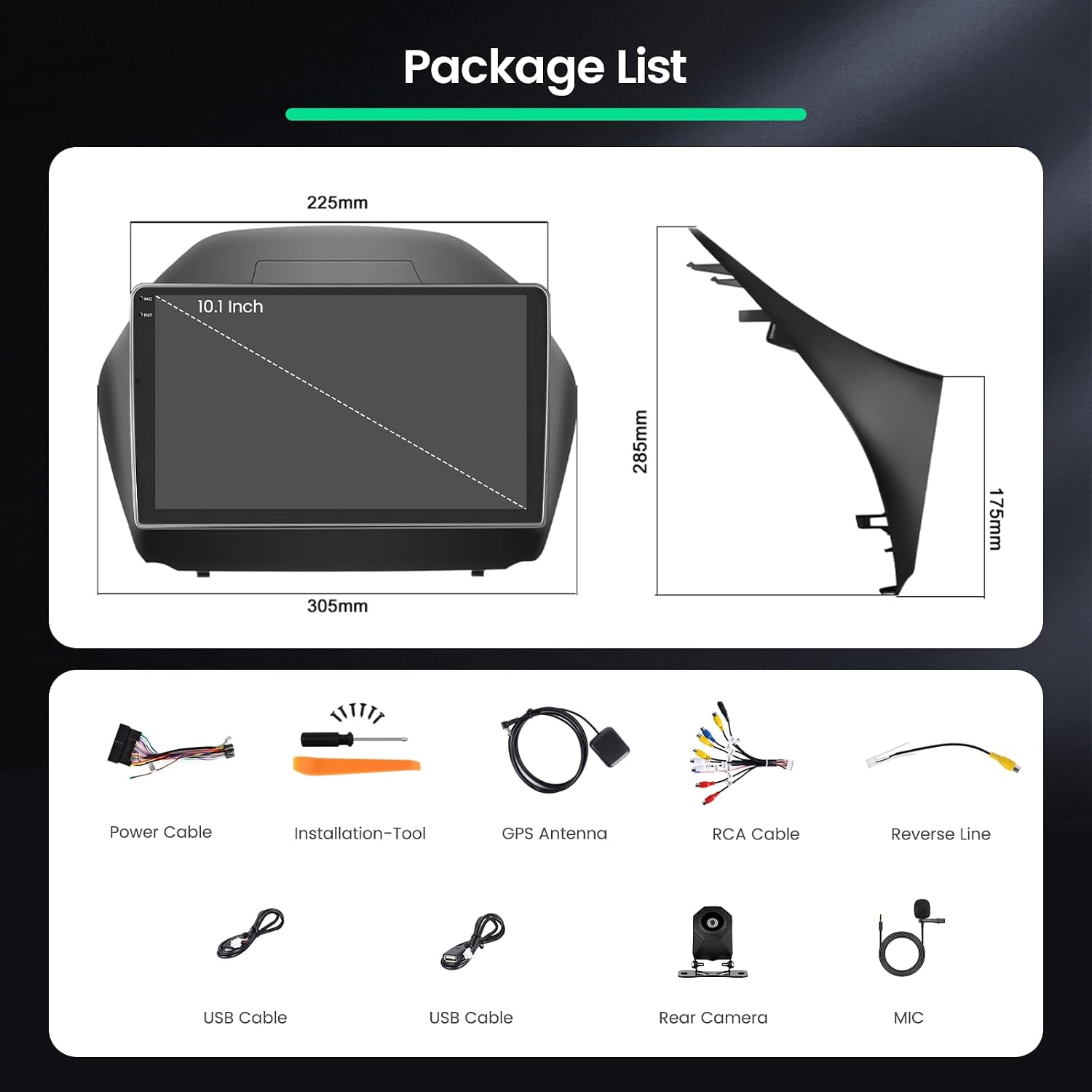
Image: Included components of the Roinvou car stereo. This image displays the main head unit, power cable, installation tool, GPS antenna, RCA cable, reverse line, two USB cables, rear camera, and microphone.
4. Product Overview
The Roinvou Android 15 Car Stereo is a feature-rich multimedia system designed to upgrade your driving experience. It features a 10-inch 1280x720 In-Cell touchscreen for clear visuals and responsive touch control. Powered by Android 15 with a 4-core processor and 4GB RAM + 128GB storage, it ensures smooth operation for various applications. Key functionalities include:
- Premium In-Cell Touchscreen: 1280 × 720 resolution for reduced glare and improved touch sensitivity.
- Wireless CarPlay & Android Auto: Seamless integration with your smartphone for navigation, calls, messages, and music.
- Powerful Performance: Android 15, 4-core processor, 4GB RAM, and 128GB storage for fast and stable operation.
- Enhanced Audio: EQ settings and FM/RDS radio for customizable sound.
- Connectivity: Bluetooth, GPS, Wi-Fi (5G support), and Mirror Link.
- Safety Features: Includes a reversing camera for safer parking.
- User Interface: Supports split-screen function and multiple UI options.
- Steering Wheel Control (SWC): Compatibility for convenient and safe operation.
5. Installation
This unit is designed for direct fitment in Hyundai IX35 models from 2010-2015. Professional installation is strongly recommended.
5.1. Compatibility Check
Ensure your vehicle's dashboard matches the compatible configuration. Refer to the image below for visual confirmation.

Image: Compatibility guide for Hyundai IX35 2010-2015. Panel 'A' shows a compatible dashboard configuration (Fit), while panel 'B' shows an incompatible configuration (Not Fit).
5.2. General Installation Steps
- Disconnect Battery: Before starting, disconnect the negative terminal of your vehicle's battery to prevent electrical shorts.
- Remove Old Unit: Carefully remove the existing car stereo and dashboard trim. Use the provided installation tool if necessary.
- Connect Wiring Harness: Connect the provided power cable, RCA cables, rear camera input cable, and USB cables to the corresponding ports on the new unit.
- GPS Antenna: Mount the GPS antenna in a location with a clear view of the sky, typically on the dashboard or under the windshield, ensuring it is securely attached.
- Rear Camera: Install the rear view camera at the back of your vehicle and route its cable to the main unit. Connect it to the 'Rear Camera Input' port.
- External Microphone: Connect the external microphone and position it for optimal voice pickup, usually near the driver's sun visor.
- Test Connections: Before fully reassembling, temporarily reconnect the battery and power on the unit to test basic functions (power, sound, display).
- Secure Unit: Mount the new car stereo securely into the dashboard opening.
- Reassemble: Reinstall all dashboard trim pieces.
- Final Check: Reconnect the battery fully and perform a comprehensive test of all functions.
6. Initial Setup
After installation, follow these steps for initial setup:
- Power On: Start your vehicle to power on the unit. The Roinvou logo will appear.
- Language Selection: Follow the on-screen prompts to select your preferred language.
- Date and Time: Set the correct date and time. This can often be synchronized automatically via GPS or network.
- Wi-Fi Connection: Go to Settings > Network & Internet > Wi-Fi. Select your Wi-Fi network and enter the password to connect. This is essential for online features and app downloads.
- Bluetooth Pairing: Go to Settings > Connected devices > Bluetooth. Turn on Bluetooth and pair your smartphone for hands-free calling and audio streaming.
- GPS Configuration: Ensure the GPS antenna is properly connected. The unit should automatically acquire a GPS signal for navigation.
- Steering Wheel Control (SWC) Learning: If your vehicle has steering wheel controls, navigate to the SWC settings in the unit's menu. Follow the instructions to map your vehicle's steering wheel buttons to the stereo's functions.
7. Operating Instructions
7.1. Touchscreen Operation
The unit features a responsive 10-inch In-Cell touchscreen. Use light touches for navigation. Swipe gestures are used to move between screens and access quick settings.

Image: In-Cell Touch Screen technology. This image highlights the benefits of the In-Cell display, such as fast response, true color, and high saturation, compared to traditional stacked composite screens.
7.2. Wireless CarPlay and Android Auto
Connect your iPhone or Android smartphone wirelessly to access navigation, calls, messages, and music directly on the car stereo screen.
- Ensure Bluetooth and Wi-Fi are enabled on both your smartphone and the car stereo.
- On the car stereo, open the CarPlay or Android Auto application.
- On your smartphone, search for the car stereo's Bluetooth name and pair.
- Confirm the connection on both devices. Your phone's interface will then appear on the stereo screen.

Image: Wireless CarPlay, Android Auto, and Mirror Link functionality. This image displays the car stereo screen showing navigation, music playback, phone calls, and messages, indicating seamless smartphone integration.
7.3. GPS Navigation
The unit comes with built-in GPS. Open the navigation application from the main menu. Ensure the GPS antenna has a clear view of the sky for accurate positioning.
7.4. Radio (FM/RDS)
Access the FM/RDS radio application. You can manually tune to stations or use the auto-scan function to find available frequencies. Save your favorite stations for quick access.
7.5. Bluetooth Functions
Once paired with your phone, you can make and receive calls hands-free, access your phonebook, and stream audio directly to the car stereo.
7.6. Multimedia Playback
Play audio and video files from connected USB devices. The unit supports various formats including APE, FLAC, WAV, MP3, WMA for audio and MKV, RMVB, AVI, MP4, MDV for video.
7.7. Internet Connectivity (Wi-Fi)
Connect to a Wi-Fi hotspot (e.g., from your smartphone) to access online services, browse the internet, and download apps from the Google Play Store. Supported services include Netflix, YouTube, and iTunes.

Image: Fast Internet 5G WiFi support. This image illustrates the car stereo's ability to run popular streaming applications such as Netflix, YouTube, Prime Video, and Spotify, enabled by its 5G WiFi connectivity.
7.8. Split Screen Function
The split-screen feature allows you to run two applications simultaneously, such as navigation and music playback.
- Open the first application you wish to use.
- Press and hold the recent apps button (usually a square icon) or swipe up from the bottom and hold, then drag the first app to one side of the screen.
- Select the second application from the recent apps list or app drawer to fill the other half of the screen.

Image: Multiple UI Options and Split Screen Technology. This image shows various user interface designs and demonstrates the split-screen feature, allowing two applications to be viewed simultaneously.
7.9. Rear Camera Display
When the vehicle is shifted into reverse gear, the unit will automatically display the feed from the connected rear view camera, providing a clear view for safer parking and reversing.
8. Maintenance
- Screen Cleaning: Use a soft, lint-free cloth to gently wipe the touchscreen. For stubborn smudges, slightly dampen the cloth with water or a screen-safe cleaner. Do not spray liquid directly onto the screen.
- Software Updates: Periodically check for software updates via the unit's settings menu (if available) to ensure optimal performance and access to new features.
- General Care: Avoid placing heavy objects on the unit or exposing it to direct impacts.
9. Troubleshooting
If you encounter issues, refer to the following common problems and solutions:
| Problem | Possible Cause | Solution |
|---|---|---|
| No power | Loose power cable, blown fuse, incorrect wiring. | Check power connections, inspect vehicle's fuse box, verify wiring. |
| No sound | Volume too low, mute activated, speaker wiring issue, incorrect audio source. | Increase volume, check mute status, verify speaker connections, select correct audio source. |
| GPS signal lost/weak | GPS antenna obstructed or disconnected. | Ensure GPS antenna has a clear view of the sky and is securely connected. |
| Bluetooth/CarPlay/Android Auto not connecting | Bluetooth/Wi-Fi off, incorrect pairing, software glitch. | Ensure Bluetooth/Wi-Fi is on for both devices, delete previous pairings and re-pair, restart both devices. |
| Touchscreen unresponsive | System freeze, dirt on screen. | Restart the unit (if possible, use a reset button or power cycle), clean the screen. |
If the problem persists after trying these solutions, please contact customer support.
10. Specifications
| Feature | Description |
|---|---|
| Brand | Roinvou |
| Connectivity Technology | Bluetooth |
| Control Type | Android |
| Special Features | Carplay, Android Auto, Mirror Link, Bluetooth, EQ, FM/RDS, WIFI, GPS, UI, SWC, Touchscreen |
| Compatible Devices | Smartphone |
| Audio Output Mode | APE/FLAC/WAV/MP3/WMA |
| Surround Sound Channel Configuration | 4 |
| Video Encoding | MKV/RMVB/AVI/MP4/MDV |
| Wattage | 45 Watts |
| Supported Internet Services | Netflix, YouTube, iTunes |
| Manufacturer | Roinvou |
| Included Components | Radio for Hyundai IX35 2010-2015, Power Cable, RCA Cable, Rear Camera Input Cable, GPS Antenna, USB Cable, Rear View Camera, External Microphone, Accessories, User Manual, Installation Tool |
11. Warranty and Support
For warranty information and customer support, please refer to the documentation provided with your purchase or contact the seller directly. Keep your proof of purchase for any warranty claims.


