
1. Introduction
Thank you for choosing the Roinvou Android 15 Car Stereo. This advanced multimedia system is designed specifically for Hyundai IX35 models from 2010 to 2015, offering a seamless integration of navigation, entertainment, and connectivity features. This manual provides detailed instructions for installation, operation, maintenance, and troubleshooting to ensure you get the most out of your new car stereo.

Image: Roinvou Android Car Stereo seamlessly integrated into a Hyundai IX35 dashboard, showcasing its modern interface with various app icons.
2. Package Contents
Please check the package carefully to ensure all items are present:
- Roinvou Android Car Stereo Unit for Hyundai IX35 (2010-2015)
- Power Cable
- RCA Cable
- Rear Camera Input Cable
- GPS Antenna
- USB Cables (x2)
- Rear Camera
- External Microphone
- Installation Tool
- User Manual (this document)
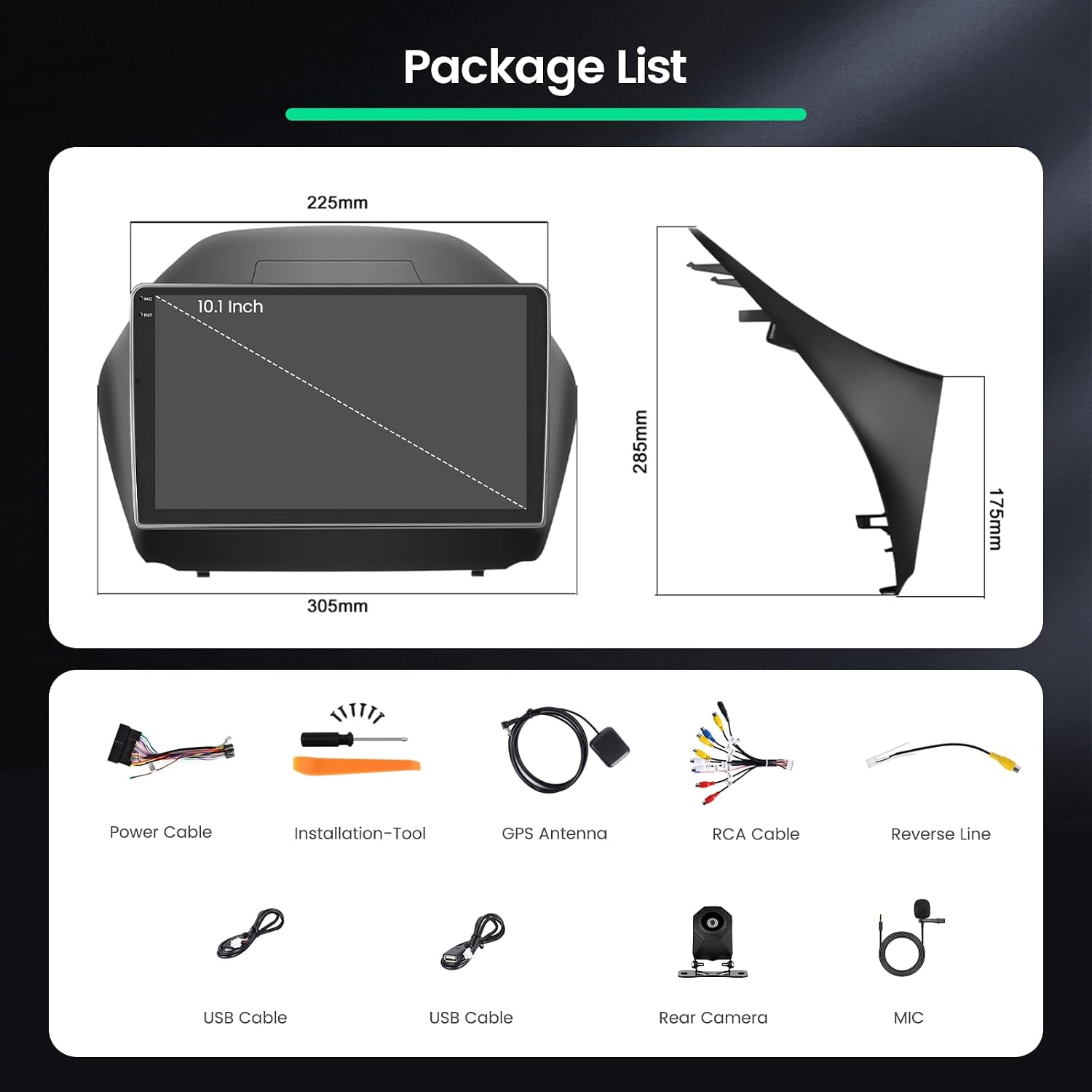
Image: A visual representation of all included accessories: the main unit, power cable, installation tool, GPS antenna, RCA cable, reverse line, USB cables, rear camera, and microphone.
3. Setup and Installation
3.1. Compatibility Check
Before installation, ensure your vehicle's dashboard matches the compatible design. This unit is designed for Hyundai IX35 models from 2010-2015.

Image: A comparison showing two Hyundai IX35 dashboards. One is marked 'Fit' (A) and the other 'Not Fit' (B), indicating the correct dashboard configuration for this stereo unit.
3.2. Wiring Port Connections
Carefully connect all necessary cables to the corresponding ports on the back of the car stereo unit. Refer to the diagram below for proper connections.
- Power Cable
- RCA Cable
- USB Cable
- Camera Input
- GPS Antenna
- Radio Antenna

Image: A comprehensive diagram illustrating the various wiring ports on the back of the car stereo and the corresponding cable connections, including power, RCA, USB, camera, GPS, and radio antenna inputs.
3.3. Backup Camera Wiring
For safe reversing, connect the included backup camera as shown in the diagram. Ensure the reverse trigger wire is correctly connected to activate the camera automatically when shifting into reverse.

Image: A detailed diagram showing how to connect the backup camera, including power, ground, and the reverse trigger wire, with options for roof or under-seat wiring.
3.4. Steering Wheel Control (SWC)
To use your vehicle's steering wheel controls with the stereo, follow these instructions:
- Without Canbus Decoder: Connect the Key1/Key2 wires from the power cable to the corresponding steering wheel control wires of your original car. Then, access the 'Steering Wheel' settings in the stereo to manually match the functions.
- With Canbus Decoder: Connect the Canbus decoder before powering on the unit. Navigate to Apps > Settings > Factory settings (1234) > CAN Settings. Select your car's brand and model to automatically configure SWC.

Image: An illustration of a modern car steering wheel with highlighted control buttons, demonstrating the integration of steering wheel controls with the car stereo system.
4. Operating Instructions
4.1. Touchscreen Interface
The unit features a responsive 10-inch Incell touchscreen with a 1280x720 resolution, providing clear visuals and smooth operation. Navigate through menus and applications by tapping, swiping, and pinching.

Image: A visual comparison highlighting the superior clarity, color, and responsiveness of the Incell touchscreen technology (right) compared to traditional displays (left).
4.2. Wireless CarPlay & Android Auto
Connect your iPhone or Android smartphone wirelessly to access navigation, calls, messages, and music directly on the car stereo screen. The unit also supports wired and wireless Mirror Link for broader compatibility.

Image: The car stereo display showing various smartphone integration features like Maps, Spotify, and YouTube, with icons for Wireless CarPlay, Android Auto, and Mirror Link.
4.3. Navigation (GPS)
Utilize the built-in GPS module for accurate navigation. Pre-installed maps or online navigation apps can be used to guide you to your destination.
4.4. Multimedia Playback
Enjoy your favorite audio and video content. The system supports various formats and allows streaming from popular apps like Netflix and YouTube via Wi-Fi.

Image: The car stereo screen showcasing popular streaming applications such as Netflix, YouTube, Prime Video, and Spotify, highlighting its 5G Wi-Fi capability for fast internet access.
4.5. Bluetooth Connectivity
Pair your smartphone via Bluetooth for hands-free calling and wireless audio streaming. Access your phone's contacts and call history directly from the stereo.
4.6. Radio (FM/RDS)
Tune into your favorite FM radio stations. The RDS (Radio Data System) feature provides additional information like station names and song titles where available.
4.7. Split Screen Function
Multitask efficiently with the split-screen feature, allowing you to run two applications simultaneously, such as navigation and music playback.

Image: A robotic hand interacting with the car stereo display, illustrating various user interface options and demonstrating the split-screen technology with two applications running side-by-side.
4.8. Wi-Fi Connectivity
Connect to a Wi-Fi hotspot to access online services, download apps, browse the internet, and receive real-time traffic updates.
5. Maintenance
To ensure the longevity and optimal performance of your Roinvou car stereo, follow these maintenance guidelines:
- Cleaning the Screen: Use a soft, lint-free cloth slightly dampened with water or a screen cleaner. Avoid abrasive materials or harsh chemicals.
- General Cleaning: Keep the unit free from dust and debris. Use a soft brush or compressed air for hard-to-reach areas.
- Avoid Extreme Temperatures: Do not expose the unit to prolonged direct sunlight or extreme cold, as this can affect performance and lifespan.
- Software Updates: Periodically check for software updates to ensure you have the latest features and bug fixes.
6. Troubleshooting
If you encounter any issues, refer to the following common problems and solutions:
| Problem | Possible Cause | Solution |
|---|---|---|
| No Power | Loose power connection, blown fuse | Check power cable connections. Inspect vehicle's fuse box and replace any blown fuses. |
| No Sound | Volume too low, incorrect audio source, loose speaker wires | Increase volume. Select correct audio source. Check speaker wire connections. |
| Bluetooth Not Connecting | Bluetooth off on phone/stereo, device not in pairing mode | Ensure Bluetooth is enabled on both devices. Put stereo in pairing mode. Forget and re-pair device. |
| GPS Not Working | GPS antenna not connected, poor signal | Ensure GPS antenna is securely connected and placed in a clear view of the sky. |
| Rear Camera Not Displaying | Incorrect wiring, faulty camera | Check camera input cable and reverse trigger wire connections. Test camera if possible. |
If the problem persists, please contact customer support.
7. Specifications
| Feature | Description |
|---|---|
| Brand | Roinvou |
| Operating System | Android 15 |
| RAM / Storage | 4GB RAM + 64GB Storage |
| Screen Size | 10 Inches |
| Screen Type | Incell Touchscreen |
| Resolution | 1280x720 |
| Connectivity | Bluetooth, USB, FM RDS, Wi-Fi, GPS |
| Special Features | Wireless CarPlay, Android Auto, Mirror Link, EQ, SWC, Rear Camera Input, Split Screen |
| Audio Output Mode | Stereo |
| Max Power Output | 45 Watts |
| Video Encoding | MKV/RMVB/AVI/MP4/MDV |
| Compatible Devices | Smartphones |
| Internet Services Supported | Netflix, YouTube, iTunes |
8. Warranty and Support
8.1. Product Warranty
This Roinvou car stereo comes with a 24-month warranty from the date of purchase. This warranty covers manufacturing defects and malfunctions under normal use. Please retain your proof of purchase for warranty claims.
8.2. Customer Support
For any questions, installation assistance, troubleshooting, or warranty claims, our customer support team is available to help. We offer lifetime online assistance with responses typically within 24 hours.
Contact Email: roinvouservices@163.com

Image: An illustration detailing the steps to contact customer support, including an email address for assistance.


