
1. Introduction
Thank you for purchasing the TCL 65U85A 4K QLED Google TV. This manual provides essential information for setting up, operating, and maintaining your television. Please read it thoroughly before use and keep it for future reference.
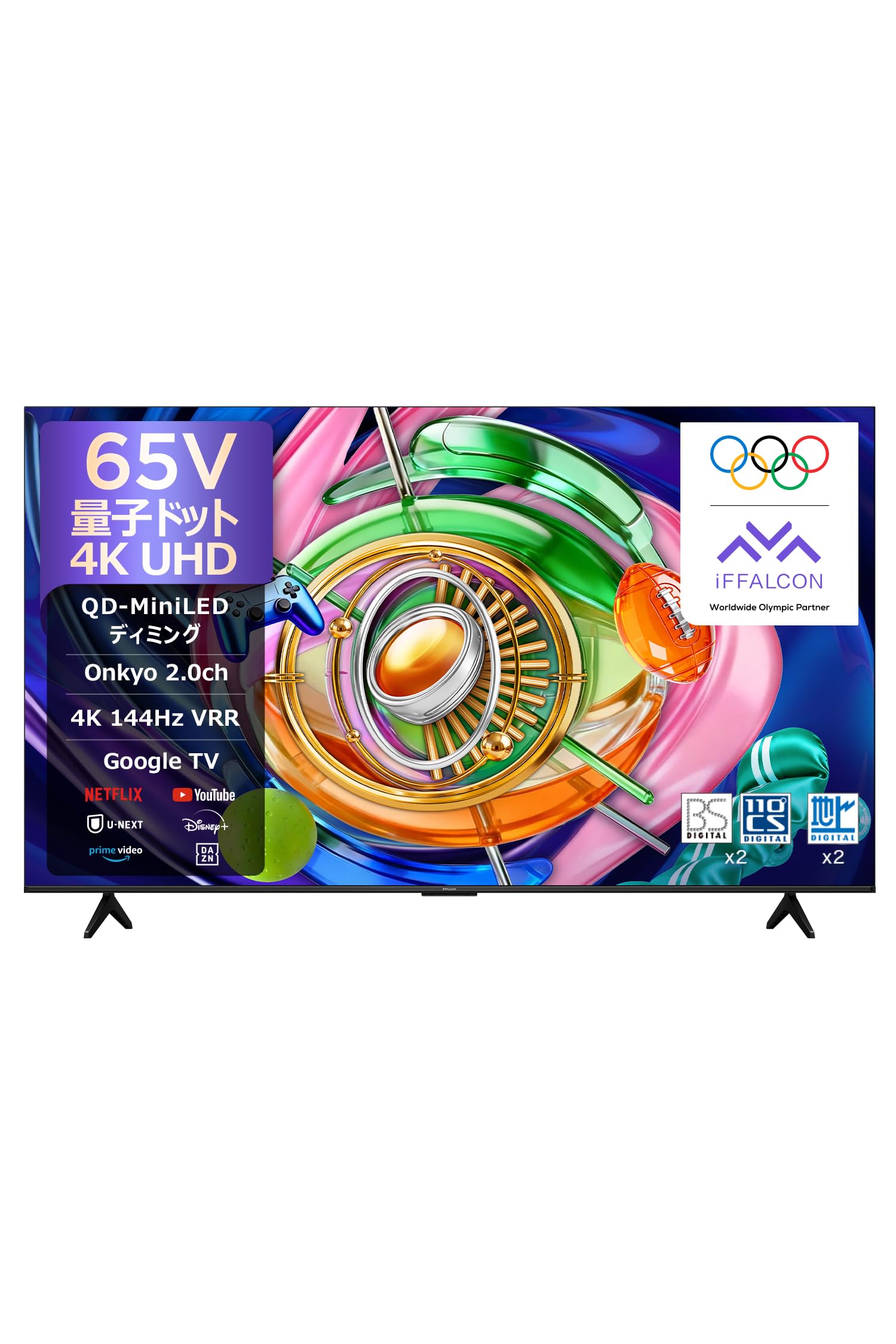
Figure 1: TCL 65U85A 4K QLED Google TV. This image shows the front view of the television with its slim bezel design.
2. Safety Information
Always follow basic safety precautions when using this product to reduce the risk of fire, electric shock, and injury. Keep the television away from moisture, direct sunlight, and heat sources. Ensure proper ventilation and do not block any ventilation openings. Use only accessories specified by the manufacturer. Disconnect the power cord during lightning storms or when unused for long periods.
3. Package Contents
Verify that all items are included in the package:
- TCL 65U85A 4K QLED Google TV
- Remote Control
- Power Cord
- TV Stand (if applicable)
- Screws for TV Stand
- Warranty Card
- Quick Start Guide
4. Setup
4.1 Physical Setup
You can either install the TV on its stand or mount it on a wall. For wall mounting, ensure you use a VESA-compatible mount (400x400mm) and follow the wall mount manufacturer's instructions carefully.
Stand Installation:
- Carefully place the TV face down on a soft, flat surface.
- Attach the stand to the designated slots on the bottom of the TV using the provided screws.
- Ensure the stand is securely fastened before placing the TV upright.
Wall Mount Installation:
This TV supports VESA 400x400mm wall mounts. Due to the curved back panel, use the included spacers when wall mounting to ensure proper fit and ventilation. Consult a professional for wall mounting if you are unsure.

Figure 2: Slim & Uni body design. This image highlights the TV's slim profile, seamless wall-mount installation, and integrated cable management.
4.2 Connections
Connect your devices to the TV using the appropriate ports.
- Power: Connect the power cord to the TV and a wall outlet.
- HDMI: Use HDMI cables for high-definition video and audio devices (e.g., Blu-ray players, game consoles). This TV has 2 HDMI ports.
- USB: Connect USB storage devices for media playback. This TV has 1 USB 3.0 port.
- Optical Digital: For connecting to external audio systems.
- Network (Ethernet/Wi-Fi): Connect to your home network for smart TV features.
4.3 Initial Setup
Upon first power-on, the TV will guide you through the initial setup process, including language selection, network connection (Wi-Fi or Ethernet), and Google TV account setup. Follow the on-screen instructions.
5. Operating Instructions
5.1 Basic Operation
- Power On/Off: Press the power button on the remote control.
- Input Selection: Use the 'Input' button on the remote to switch between connected devices.
- Volume Control: Use the 'Volume Up/Down' buttons.
5.2 Smart TV Features (Google TV)
Your TCL 65U85A is powered by Google TV, offering a personalized entertainment experience. Access streaming services like YouTube, Netflix, Hulu, and Prime Video directly from your home screen. Use Google Assistant for voice commands.

Figure 3: AI Features. This image illustrates various AI-driven enhancements for picture quality and content search.
AI Office Function:
Utilize Google Cast, AirPlay 2, and Chromecast for seamless screen mirroring and content sharing from your mobile devices or computer to the large screen, enhancing productivity for presentations or collaborative work.
AI Content Search:
Quickly find content across various streaming services and apps using intelligent search capabilities.
5.3 Picture Settings
The TCL 65U85A features advanced display technologies for superior picture quality.
- QD-Mini LED Dimming: This technology precisely controls the backlight at a system level, optimizing light emission from chips, lenses, and algorithms to deliver rich detail and vibrant color expression.
- QLED Technology: Experience over a billion vivid colors with enhanced color accuracy and longevity.
- HVA Panel: Provides high contrast and sharp details, ensuring clear images from the brightest to the darkest scenes.
- AiPQ Pro Processor: This processor analyzes images scene by scene, optimizing picture quality at the pixel level for a clearer and more immersive viewing experience.

Figure 4: QD-MiniLED Dimming. This image illustrates the precise backlight control for enhanced picture quality.

Figure 5: QLED Technology. This image compares iFFALCON QLED with conventional QLED, showing superior color and structure.

Figure 6: HVA Panel. This image demonstrates the high contrast and detailed clarity provided by the HVA panel.

Figure 7: AiPQ Pro Processor. This image shows a stylized representation of the AiPQ Pro processor chip.
5.4 Sound Settings
Enjoy immersive audio with the integrated sound system.
- ONKYO 2.1 Hi-Fi System: Delivers clear stereo sound and powerful bass, creating a live concert-like atmosphere.
- Dolby Atmos: Experience three-dimensional sound that fills the room, providing a cinematic audio experience.
- DTS Virtual:X: Creates virtual 3D sound, expanding audio from multiple directions for an immersive listening experience.

Figure 8: ONKYO 2.1 Hi-Fi System. This image depicts a living room setting with sound waves emanating from the TV, illustrating the immersive audio experience.

Figure 9: Dolby Atmos. This image shows a wave with water droplets, symbolizing the immersive, three-dimensional sound of Dolby Atmos.

Figure 10: DTS Virtual:X. This image features a whale jumping out of water, representing virtual 3D sound.
5.5 Gaming Features
The TCL 65U85A is designed for an enhanced gaming experience.
- 288 VRR Game Accelerator & 144Hz Native Refresh Rate: Enjoy smooth, tear-free, and blur-free gaming with a native 4K 144Hz refresh rate and up to 288Hz in dual mode.
- Gamebar: A customizable game interface optimized for major game consoles, allowing you to adjust graphic settings and game modes for optimal performance.

Figure 11: 288 VRR Game Accelerator. This image shows a racing car on a track, illustrating smooth and immersive gameplay.

Figure 12: Gamebar. This image displays the Gamebar interface with various settings for an optimized gaming experience.
5.6 Eye Care Features
The TV incorporates multiple features to protect your eyes.
- Multi-Eye Care: Includes low blue light, flicker-free technology (via overclocking), environmental light adaptation, and MEMC motion stabilization.

Figure 13: Multi-Eye Care. This image shows different visual scenarios comparing features like flicker-free, environmental light adaptation, low blue light, and motion compensation.
5.7 Product Introduction Video
Video 1: U85 Product Introduction. This video provides an overview of the key features and benefits of the TCL U85 series television.
6. Maintenance
6.1 Cleaning
To clean the screen, gently wipe it with a soft, lint-free cloth. For stubborn marks, dampen the cloth with a small amount of screen cleaner. Do not spray cleaner directly onto the screen. Clean the TV's exterior with a soft, dry cloth.
6.2 Software Updates
Your TV may receive automatic software updates via the internet. Ensure your TV is connected to a stable network for these updates. You can also manually check for updates in the TV's settings menu.
7. Troubleshooting
If you encounter issues, refer to the following common solutions:
| Problem | Solution |
|---|---|
| No Power | Check if the power cord is securely connected to both the TV and the power outlet. Try a different outlet. |
| No Picture, but Sound is Present | Ensure the correct input source is selected. Check HDMI/AV cable connections. Try restarting the TV. |
| No Sound, but Picture is Present | Check the volume level and mute settings. Ensure external audio devices are correctly connected and powered on. |
| Network Connection Issues | Verify your Wi-Fi password. Restart your router and modem. Try connecting via Ethernet cable. |
| Remote Control Not Working | Replace the batteries. Ensure there are no obstructions between the remote and the TV. |
8. Specifications
| Feature | Detail |
|---|---|
| Model Number | 65U85A |
| Screen Size | 65 inches |
| Display Technology | QLED, Mini LED Backlight |
| Resolution | 4K (3840 x 2160) |
| Refresh Rate | 144Hz (Native) |
| HDR Support | HDR10, HLG |
| Operating System | Google TV |
| Audio System | ONKYO 2.1 Hi-Fi System, Dolby ATMOS, DTS-X |
| Connectivity | Bluetooth, HDMI (2 ports), USB (1 USB 3.0 port), Wi-Fi, Optical Digital |
| VESA Mount Standard | 400x400mm |
| Dimensions (D x W x H) | 18 x 71.6 x 46.5 cm (approximate, without stand) |
| Product Weight | 3.19 kg (approximate) |
9. Warranty and Support
This product comes with a 1-year manufacturer's warranty. Please retain your proof of purchase for warranty claims. For technical support, service, or further inquiries, please refer to the contact information provided on your warranty card or visit the official TCL website.


