
1. Introduction
This manual provides instructions for setting up, operating, maintaining, and troubleshooting your HP DeskJet 2923 All-in-One Printer. This device is designed for home use, offering print, scan, and copy functionalities with wireless connectivity.

Image: The HP DeskJet 2923 All-in-One Printer, highlighting its capabilities for home printing.
2. What's in the Box
Verify that all components are present in the packaging:
- HP DeskJet 2923 All-in-One Printer
- HP 68 Setup Black Ink Cartridge
- HP 68 Setup Tri-color Ink Cartridge
- Regulatory flyer
- Setup guide
- Reference guide
- Power cord

Image: The HP DeskJet 2923 printer, setup ink cartridges, and power cord as found in the box.
3. Setup
3.1 Initial Power-On and Ink Installation
- Remove all packaging materials from the printer.
- Connect the power cord to the printer and a wall outlet.
- Turn on the printer using the power button.
- Open the ink cartridge access door.
- Install the HP 68 Black and Tri-color setup ink cartridges into their respective slots.
- Close the ink cartridge access door.
3.2 Wireless Connectivity and HP App Setup
The HP DeskJet 2923 features dual-band Wi-Fi for reliable wireless printing. For optimal setup and functionality, download the HP Smart App on your smartphone or tablet.
- Download the HP Smart App from your device's app store.
- Follow the on-screen instructions in the app to connect your printer to your Wi-Fi network. The app will guide you through the process, including connecting to the printer's Wi-Fi Direct if necessary.
- The printer's dual-band Wi-Fi automatically detects and resolves connection issues.
Video: Demonstrates the easy setup process for the HP DeskJet 2923 wireless printer, including connecting to a home network.

Image: The HP Smart App, illustrating its capabilities for printing, scanning, copying, and faxing directly from a smartphone.
4. Operating the Printer
4.1 Printing Documents
The HP DeskJet 2923 supports printing everyday color documents. It has a 60-sheet input tray and a 25-sheet output tray.
- Print Speed: Up to 7.5 pages per minute (ppm) for black and 5.5 ppm for color.
- Print Resolution: Up to 1200 x 1200 rendered dpi for black, and up to 4800 x 1200 optimized dpi for color.
- Paper Sizes: Supports various sizes including 8.27 x 11.7 inches, 8.5 x 11 inches, 7.16 x 10.12 inches, and 8.5 x 14 inches.
- Duplex Printing: Manual (driver support provided).
Use the HP Smart App or your computer's print function to send documents to the printer. The printer's Icon LCD provides basic status information.

Image: Labeled diagram of the HP DeskJet 2923, showing key components like the flatbed scanner, Icon LCD, and paper trays.
4.2 Scanning Documents
The printer features a flatbed scanner for digitizing documents and photos.
- Lift the scanner lid.
- Place the document face-down on the scanner glass, aligning it with the guide.
- Close the scanner lid.
- Initiate the scan from the HP Smart App or your computer's scanning software.
Video: Demonstrates how to print and scan documents using the HP DeskJet 2923.
4.3 Copying Documents
You can make copies directly from the printer's control panel or through the HP Smart App.
- Copy Speed: Up to 6 ppm for black and white.
- Maximum Copies: Up to 9 copies per run.
- Copy Resolution: Up to 300 x 300 dpi for both color and black and white.
4.4 HP AI Optimization
The HP DeskJet 2923 utilizes HP AI to optimize print formatting. This feature helps remove unwanted content from web pages and emails, ensuring precise layouts and reducing wasted pages. This requires optional HP AI software and the HP Smart App.

Image: Visual representation of HP AI's function in optimizing print layouts and reducing waste.
4.5 Instant Ink Program
Enroll in the HP Instant Ink program to receive ink automatically before you run out. This can reduce ink costs. A 6-month trial of Instant Ink is included with your purchase. After the trial, a monthly fee applies unless cancelled. Activate the trial offer during printer setup.
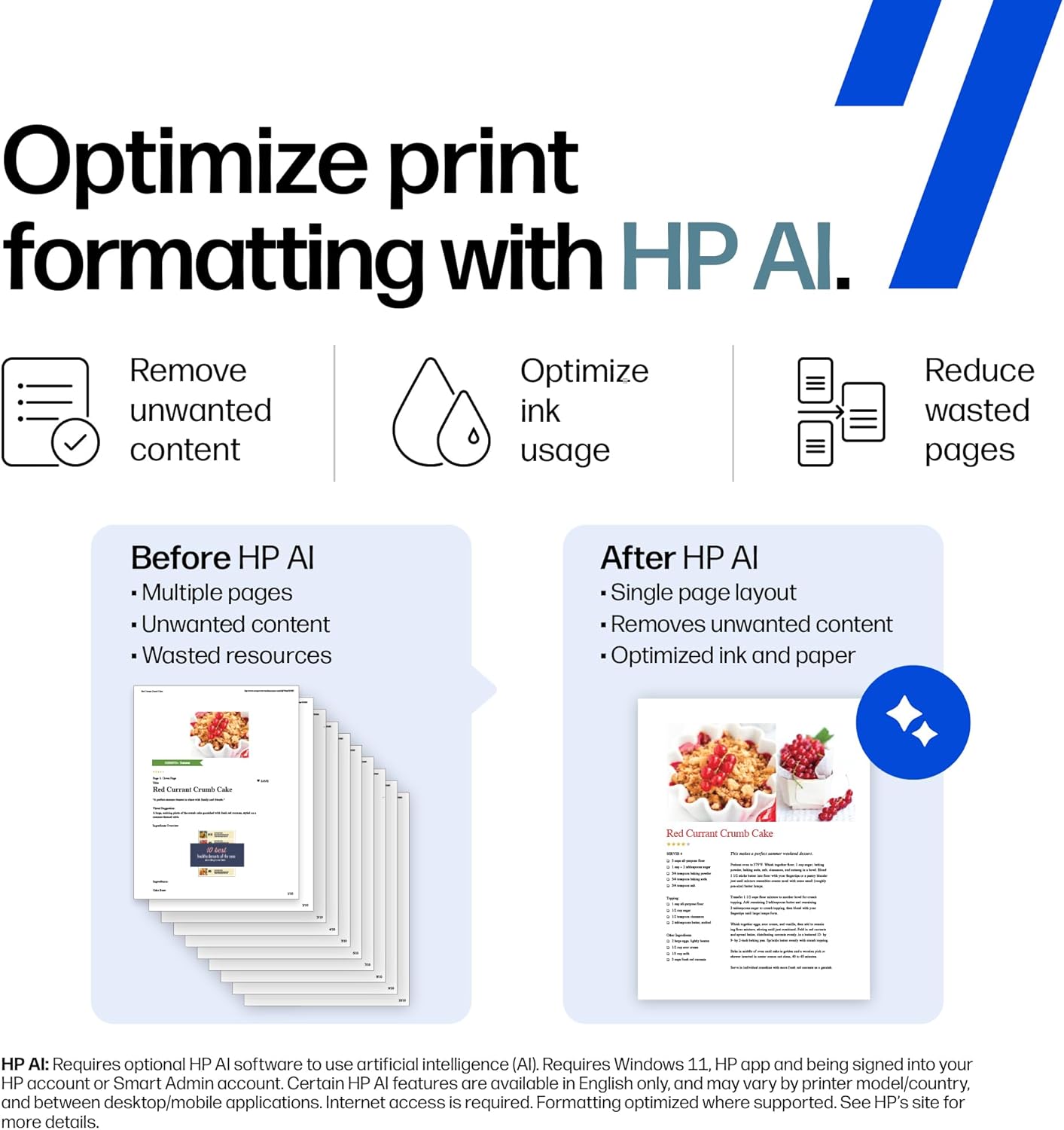
Image: Information about the 6-month Instant Ink trial included with the printer.
Video: Demonstrates features of the HP DeskJet 2923, including Instant Ink and mobile app functionalities like ID scan and fax.
5. Maintenance
5.1 Ink Cartridge Replacement
When an ink cartridge runs low or is empty, the printer's Icon LCD will indicate this. Replace cartridges with genuine HP ink cartridges for optimal performance.
- Compatible Cartridges (NA region): HP 68 Black Original Ink Cartridge (7FP21TN), HP 68 Tri-Color Original Ink Cartridge (7FP20TN), HP 68e EvoMore Black Original Ink Cartridge (7FP22TN).
- Refer to the HP support website for region-specific compatible cartridges.
- Ensure the printer is powered on.
- Open the ink cartridge access door.
- Gently press down on the old cartridge to release it, then pull it out.
- Unpack the new cartridge, remove the protective tape, and insert it into the correct slot until it clicks into place.
- Close the ink cartridge access door.
5.2 General Cleaning
Periodically wipe the exterior of the printer with a soft, damp, lint-free cloth. Avoid using abrasive cleaners or spraying liquids directly onto the printer components.
6. Troubleshooting
6.1 Connectivity Issues
- Ensure your printer is within range of your Wi-Fi router.
- Check that your Wi-Fi network is active and functioning correctly.
- The printer's dual-band Wi-Fi is designed to automatically detect and resolve connection issues. If problems persist, restart both your printer and router.
- Verify that the Wi-Fi indicator light on the printer is on and stable.
6.2 Printing Problems
- If prints are faded or streaky, check ink levels and replace cartridges if necessary.
- Ensure the correct paper type and size are loaded in the input tray.
- If paper jams occur, carefully remove any jammed paper from the input tray, output tray, and inside the printer.
7. Specifications
| Feature | Detail |
|---|---|
| Brand | HP |
| Model Name | HP DeskJet 2923 All-in-One Printer |
| Functions | Print, Copy, Scan |
| Connectivity Technology | Apple AirPrint, USB, Wireless (Wi-Fi), Wireless direct printing, Mopria |
| Printing Technology | HP Thermal Inkjet |
| Printer Output | Color |
| Max Print Speed (Black) | 7.5 ppm |
| Max Print Speed (Color) | 5.5 ppm |
| Max Print Resolution (Color) | Up to 4800 x 1200 optimized dpi |
| Max Print Resolution (Black) | Up to 1200 x 1200 rendered dpi |
| Scanner Type | Flatbed |
| Max Copy Speed (Black) | 6 ppm |
| Max Copies Per Run | Up to 9 copies |
| Input Tray Capacity | 60 sheets |
| Output Tray Capacity | 25 sheets |
| Duplex Printing | Manual (driver support provided) |
| Item Weight | 7.6 pounds |
| Dimensions (D x W x H) | 11.97"D x 16.73"W x 6.06"H |
| Power Consumption | 2.55 watts |

Image: The physical dimensions of the HP DeskJet 2923 printer.
8. Warranty and Support
The HP DeskJet 2923 All-in-One Printer comes with a one-year limited warranty. For more information, including full terms and conditions, please visit the official HP support website:
Warranty and support options may vary by product, country, and local legal requirements.


