
1. Product Overview
The Lemorele USB-C to HDMI Wireless Transmitter and Receiver (Model P400) provides a seamless solution for wirelessly extending video and audio from USB-C devices with DisplayPort Alternate Mode (DP Alt Mode) to HDMI-enabled displays such as monitors, projectors, and TVs. This plug-and-play system operates on a 5GHz Wi-Fi band, offering stable 1080P@60Hz full HD transmission with low latency.
Key Features:
- Plug & Play: Pre-paired for immediate use without requiring apps, Wi-Fi, or Bluetooth.
- 1080P@60Hz Full HD: Delivers crisp video and audio transmission.
- 50M/164FT Wireless Range: Utilizes 5GHz technology for robust line-of-sight transmission. Reliable connection up to 10 meters (32 feet) with obstacles.
- Low Latency: Achieves 50ms low latency for smooth operation.
- 5V/2A Type-C Power: Both Transmitter (TX) and Receiver (RX) are powered via Type-C for stable performance.
- Compact & Portable: Designed for easy transport and versatile use in various environments.
2. Package Contents
Verify that all items are present in the package:
- Wireless USB-C Transmitter (TX)
- HDMI Receiver (RX)
- White Power Cable (USB-A to USB-C) x1
- HDMI Male-to-Male Cable x1
- User Manual x1

Figure 2.1: Package Contents. The image displays the transmitter (TX) and receiver (RX) units, a white USB-A to USB-C power cable, a short HDMI male-to-male cable, and the user manual, alongside the product packaging.
3. Setup Instructions
The Lemorele P400 is designed for plug-and-play operation. Follow these steps for initial setup:
- Connect the Receiver (RX) to your Display:
- Plug the HDMI Receiver (RX) into an available HDMI input port on your monitor, projector, or TV.
- Connect the provided USB-A to USB-C power cable to the Type-C port on the RX unit and plug the USB-A end into a 5V/2A USB power source (e.g., a USB port on your TV, a wall adapter, or a power bank). Ensure the RX unit receives stable power.
- Connect the Transmitter (TX) to your Source Device:
- Plug the USB-C Transmitter (TX) directly into the USB-C port of your source device (laptop, tablet, smartphone). Ensure your device supports DisplayPort Alternate Mode (DP Alt Mode) for video output.
- The TX unit draws power from your source device. If your source device's USB-C port does not provide sufficient power, or for extended use, connect the provided USB-A to USB-C power cable to the Type-C port on the TX unit and a 5V/2A USB power source.
- Automatic Pairing:
Once both the TX and RX units are powered on and connected, they will automatically pair within 5-8 seconds. The "CONNECT" indicator light on both units will illuminate steadily when a connection is established.

Figure 3.1: Quick Setup Guide. This image illustrates the three-step connection process: connecting the RX to a display and power, plugging the TX into a laptop, and the automatic pairing sequence.
Video 3.1: How to use Lemorele Wireless HDMI transmitter and receiver. This video demonstrates the connection and usage of the Lemorele wireless HDMI system, showing how to connect the transmitter to a source device and the receiver to a display for wireless mirroring.
4. Operating Instructions
Once connected and paired, the Lemorele P400 will automatically mirror or extend your source device's display to the connected HDMI screen. No additional software or drivers are required.
Usage Scenarios:
- Presentations: Connect your laptop to a projector or large screen for business meetings or classroom teaching.
- Home Entertainment: Stream movies, videos, or games from your USB-C device to your TV.
- Extended Display: Use the system to extend your desktop for increased productivity.
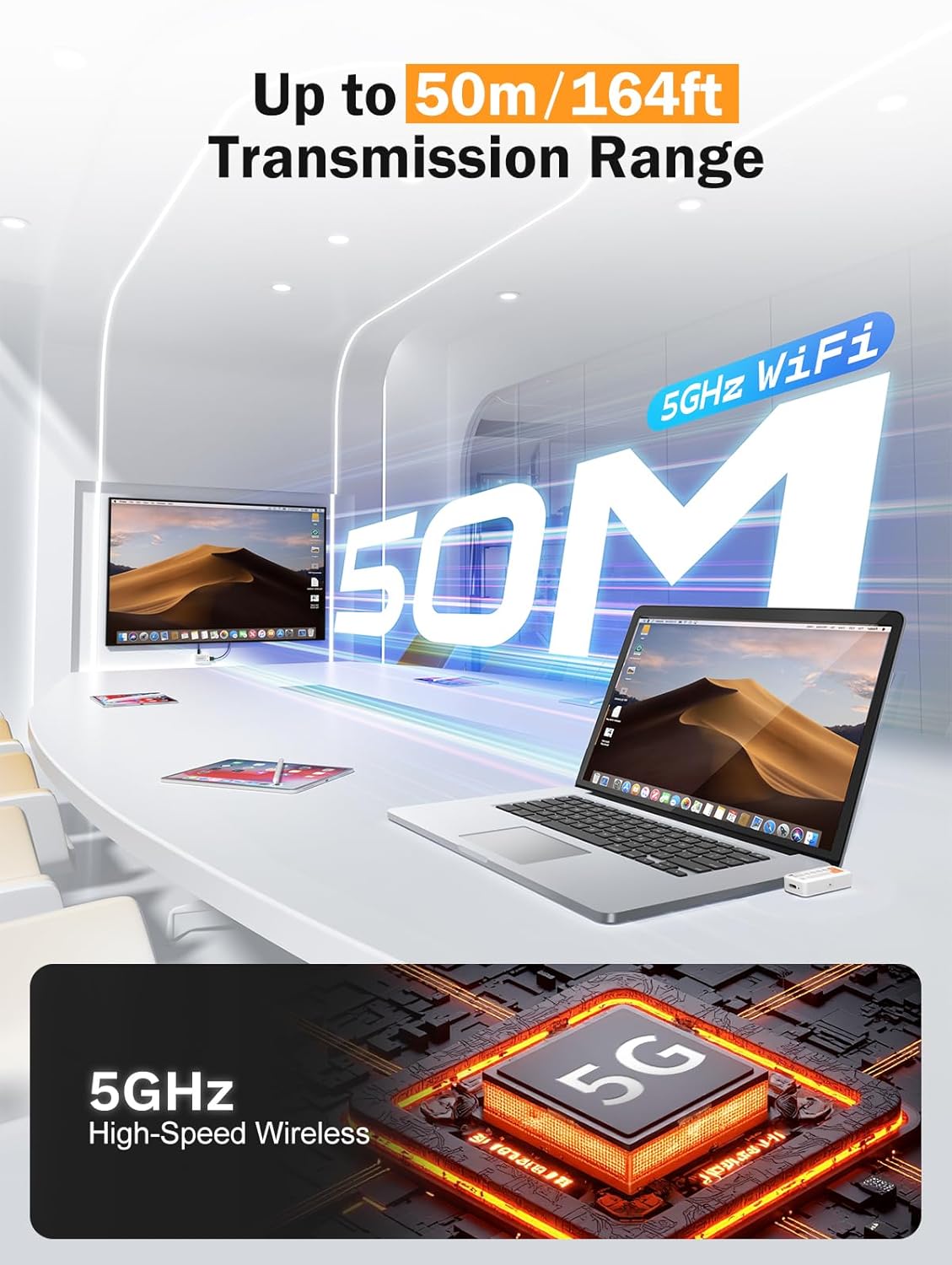
Figure 4.1: Wireless Home Entertainment. This image depicts a user enjoying a movie streamed wirelessly from a laptop to a television using the Lemorele transmitter and receiver.

Figure 4.2: Wireless Business Presentation. This image illustrates the use of the Lemorele system for a business presentation, wirelessly connecting a laptop to a large screen in a conference room.
5. Maintenance and Care
To ensure the longevity and optimal performance of your Lemorele P400, follow these maintenance guidelines:
- Cleaning: Use a soft, dry cloth to clean the devices. Avoid liquid cleaners or abrasive materials.
- Storage: Store the transmitter and receiver in a cool, dry place when not in use. Avoid extreme temperatures and humidity.
- Handling: Handle the units with care. Avoid dropping or subjecting them to strong impacts.
- Power Supply: Always use a stable 5V/2A power source for the receiver and, if necessary, for the transmitter.
6. Troubleshooting
If you encounter issues with your Lemorele P400, refer to the following common problems and solutions:
| Problem | Possible Cause | Solution |
|---|---|---|
| No signal on display |
|
|
| Video lag or stuttering |
|
|
| Audio not working |
|
|
| Transmitter/Receiver gets warm | Normal operation. | This is normal during operation, especially during extended use. Ensure proper ventilation around the units. If it becomes excessively hot, disconnect and allow to cool. |
7. Specifications
| Feature | Detail |
|---|---|
| Model Number | P400 |
| Product Dimensions | 2.59 x 2.52 x 0.5 inches |
| Item Weight | 5.9 ounces |
| Connectivity Technology | Wi-Fi (5GHz) |
| Video Resolution | 1080P@60Hz Full HD |
| Transmission Range | Up to 50 meters (164 feet) line-of-sight; up to 10 meters (32 feet) with obstacles |
| Latency | 50ms |
| Power Input | 5V/2A via Type-C port (for both TX and RX) |
| Compatible Devices | USB-C devices supporting DisplayPort Alternate Mode (DP Alt Mode) |
| Audio Output Mode | Surround |
| Video Encoding | H.264 |
8. Warranty and Support
Lemorele products come with a standard manufacturer's warranty. For specific warranty details, please refer to the warranty card included in your product packaging or visit the official Lemorele website. If you require technical assistance or have questions about your device, please contact Lemorele customer support through their official channels.
Contact Information:
- Official Website: www.lemorle.com
- Customer Service Email: (Refer to product packaging or website)