
1. Introduction
This manual provides essential information for the safe and efficient use of your Sony BRAVIA 3 II K-65XR30M2 65-inch 4K HDR Smart Google TV. Please read this manual thoroughly before operating the television and retain it for future reference.
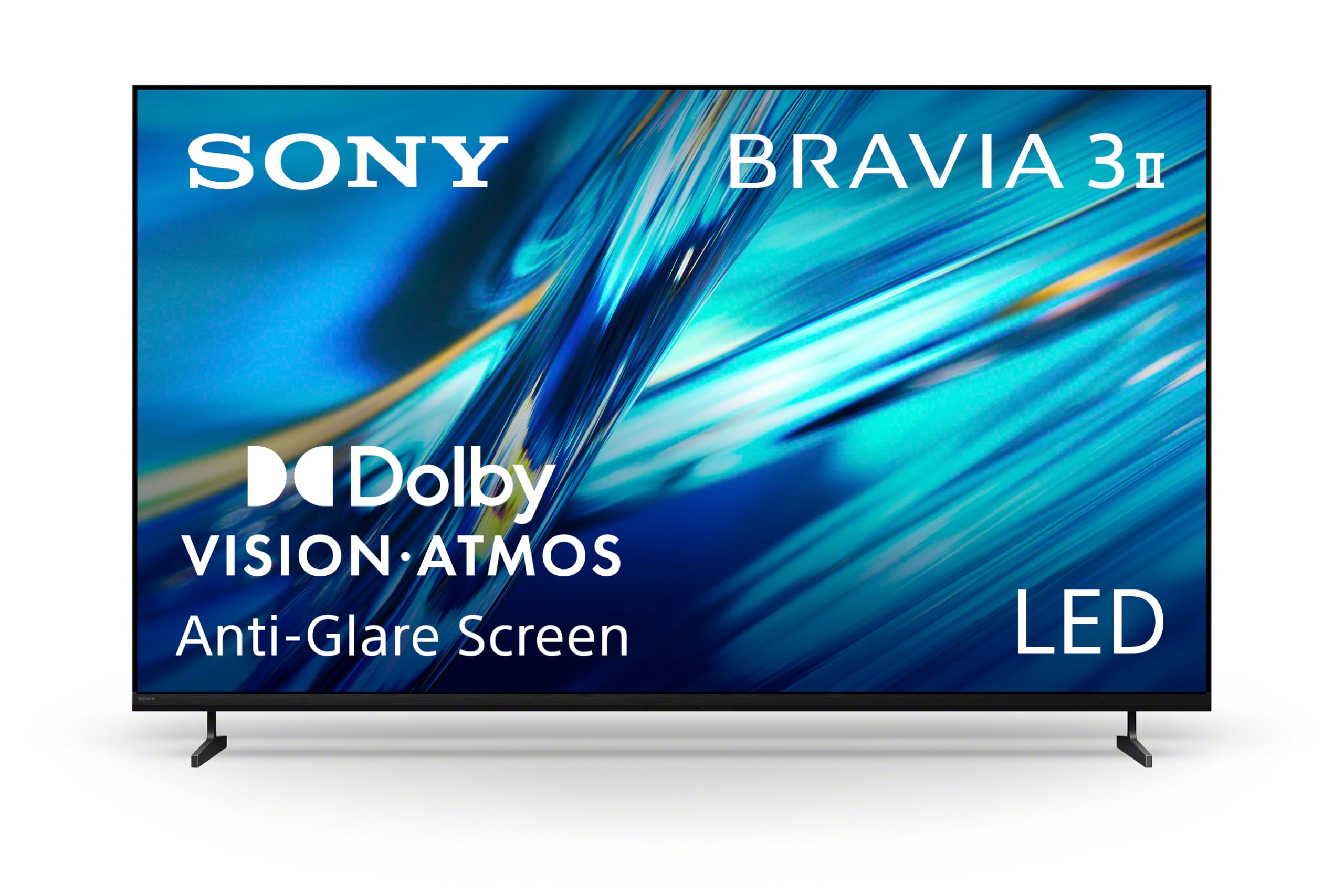
Figure 1: Front view of the Sony BRAVIA 3 II K-65XR30M2 65-inch TV.
2. Safety Information
Always follow basic safety precautions when using this television to reduce the risk of fire, electric shock, and injury. Keep the television away from water and moisture. Do not block ventilation openings. Use only attachments/accessories specified by the manufacturer. Refer to the separate 'Safety and Regulatory Information' document for detailed safety guidelines.
3. What's in the Box
Verify that all components are present before proceeding with setup:
- Sony BRAVIA 3 II K-65XR30M2 65-inch TV
- Power Cable
- Remote Control
- TV Stand (2 pieces)
- User Manual (this document)
- Warranty Card
4. Setup
4.1 Stand Installation
To install the TV stand:
- Carefully place the TV face down on a soft, clean surface to prevent screen damage.
- Align each stand piece with the corresponding slots on the bottom of the TV.
- Secure the stands using the provided screws. Ensure they are tightened firmly.

Figure 2: TV with stand installed, ready for placement.
4.2 Wall Mounting
This TV supports VESA mount standard 300 x 300 mm. For wall mounting, use a compatible wall-mount bracket (sold separately) and follow the instructions provided with the bracket. Professional installation is recommended.
4.3 Connecting Peripherals
Connect your devices to the TV's ports. The TV features 4 HDMI 2.1 ports, USB ports, Ethernet, and Optical audio output.
- HDMI: Connect Blu-ray players, gaming consoles (e.g., PlayStation 5), and other HDMI-enabled devices. HDMI 2.1 ports support 4K/120Hz, VRR, and ALLM for enhanced gaming.
- USB: Connect USB storage devices for media playback.
- Ethernet: For a wired internet connection.
- Optical: For connecting to external audio systems.

Figure 3: Rear view of the TV displaying various connectivity ports.
4.4 Initial Power On and Google TV Setup
After connecting the power cable and turning on the TV, the initial setup wizard will guide you through:
- Language selection.
- Network connection (Wi-Fi or Ethernet).
- Google account sign-in for Google TV features.
- Tuner setup (if connecting an antenna/cable).
Video 1: An overview of the Sony BRAVIA 3 II 4K HDR LED Google TV features and initial setup process.
5. Operating the TV
5.1 Remote Control Functions
The included remote control allows you to navigate the TV's interface, adjust settings, and access various features. Familiarize yourself with the button layout for optimal use.

Figure 4: The remote control for the Sony BRAVIA 3 II TV.
5.2 Google TV Interface and Apps
Your TV runs on Google TV, providing access to over 700,000 movies and TV episodes, live TV, and more from various streaming services like Prime Video, Netflix, Hulu, Max, Disney+, and YouTube. The home screen organizes content for easy discovery.

Figure 5: The Google TV home screen with various applications.
5.3 Using Gemini (Voice Control)
The TV integrates with Google Gemini. Press the dedicated button on your remote to activate voice control. You can ask Gemini to find content, answer questions, or control compatible smart home devices.

Figure 6: Interacting with Google TV using Gemini voice commands.
5.4 Picture and Sound Settings
The TV features advanced picture and sound technologies:
- XR Processor™: Utilizes AI scene recognition to optimize color, contrast, and clarity. XR Clear Image enhances detail and reduces noise.
- XR Triluminos Pro: Reproduces over a billion vivid, real-world colors.
- Anti-Glare Screen: Minimizes reflections from ambient light (available on 65" and 75" models).
- Dolby Vision/Atmos & DTS:X: Provides an immersive cinematic audio-visual experience.
- X-Balanced Speakers: Deliver clear sound with deep bass.

Figure 7: Visual representation of the XR Processor's AI technology.

Figure 8: Comparison of color vibrancy with XR Triluminos Pro.

Figure 9: Visual demonstration of the Anti-Glare screen technology.
5.5 Gaming Features
The TV is optimized for gaming, especially with PlayStation 5:
- 120Hz Refresh Rate: Provides smooth, blur-free motion for fast-paced action.
- HDMI 2.1: Supports 4K/120, Variable Refresh Rate (VRR), and Auto Low Latency Mode (ALLM).
- PlayStation 5 Optimization: Features Auto HDR Tone Mapping and Auto Genre Picture Mode. The Game Menu centralizes gaming settings.

Figure 10: PlayStation 5 connected to the BRAVIA TV, showcasing gaming features.
Video 2: Product overview highlighting the Sony BRAVIA 3 II's features, including gaming capabilities.
5.6 Screen Mirroring
The TV supports AirPlay 2 and Google Cast, allowing you to wirelessly share content from compatible smartphones, tablets, and computers to the TV screen.
5.7 Sony Pictures Core
Access SONY PICTURES CORE for movies. The TV includes 5 credits for new releases and a 12-month subscription to a library of classics.

Figure 11: The Sony Pictures Core application interface.
6. Maintenance
6.1 Cleaning the TV
- Screen: Gently wipe the screen with a soft, dry microfiber cloth. For stubborn marks, lightly dampen the cloth with water or a screen-cleaning solution specifically designed for TVs.
- TV Body: Wipe the frame and back panel with a soft, dry cloth. Avoid using harsh chemicals or abrasive materials.
6.2 Software Updates
Ensure your TV is connected to the internet to receive automatic software updates. Updates provide new features, performance improvements, and security enhancements. You can manually check for updates in the TV's settings menu.
7. Troubleshooting
If you encounter issues with your TV, refer to the following common solutions:
| Problem | Possible Solution |
|---|---|
| No Power | Check if the power cable is securely connected to both the TV and the power outlet. Ensure the outlet is functional. |
| No Picture/Sound | Verify correct input source. Check all cable connections (HDMI, optical). Restart connected devices. |
| Network Connection Issues | Check Wi-Fi password. Restart your router/modem. Try a wired Ethernet connection. |
| Remote Control Not Responding | Replace batteries. Ensure no obstructions between remote and TV. |
| Audio Output Resets to TV Speakers | Perform a soft reset by holding down the power button on the remote for a few seconds until the TV restarts. Reconfigure audio output settings. |
8. Specifications
| Feature | Detail |
|---|---|
| Model Name | BRAVIA 3 II |
| Model Number | K-65XR30M2 |
| Screen Size | 65 inches |
| Display Technology | LED |
| Resolution | 4K (3840 x 2160) |
| Refresh Rate | 120 Hz |
| HDR Format Supported | Dolby Vision, HDR10, HLG |
| Processor | XR Processor™ with AI Technology |
| Operating System | Google TV |
| Connectivity | 4x HDMI 2.1, 2x USB, Ethernet, Optical, Bluetooth 5.3, Wi-Fi |
| Audio Features | X-Balanced Speakers, Dolby Atmos, Dolby TrueHD, DTS:X |
| Screen Mirroring | AirPlay 2, Google Cast |
| Dimensions (W x D x H) | 57" x 11.44" x 35.56" (with stand) |
| Weight | 45.9 pounds (without stand) |
| VESA Mount Standard | 300 x 300 mm |
9. Warranty and Support
9.1 Warranty Information
This Sony BRAVIA TV comes with a 1-year limited warranty. Please refer to the included Warranty Card for specific terms, conditions, and coverage details.
9.2 Customer Support
For further assistance, technical support, or service inquiries, please visit the official Sony support website or contact Sony customer service. Contact details can be found on the Warranty Card or the Sony website.
Online Support: https://www.sony.com/electronics/support