
1. Introduction
Thank you for purchasing the Dpofirs Action Sports Smart Camera Glasses. This device allows you to capture high-definition 1080P video and photos discreetly, making it ideal for various activities such as sports, travel, and daily documentation. Please read this manual carefully to ensure proper use and maintenance of your camera glasses.
2. Package Contents
Verify that all items listed below are included in your package:
- 1 x Dpofirs Camera Glasses
- 1 x Cleaning Cloth
- 1 x User Manual
- 1 x Charging Cable (Mini USB 5 Pin)
- 1 x Storage Box
- 1 x Card Pin (for memory card removal/insertion)

Image: All items included in the Dpofirs Camera Glasses package. This includes the camera glasses, a cleaning cloth, a USB charging cable, a protective storage box, and a small pin for accessing the memory card slot.
3. Product Overview
Familiarize yourself with the main components of your Dpofirs Camera Glasses:
- Camera Lens: Located discreetly on the front frame.
- Indicator Light: Provides status feedback (e.g., charging, recording).
- Power/Record Button: Single button for all operations.
- Microphone: For audio recording.
- Mini USB Port: For charging and data transfer.
- Micro SD Card Slot: For storage (supports up to 128GB, not included).

Image: A close-up front view of the Dpofirs Camera Glasses, clearly showing the integrated camera lens at the center of the frame, along with icons indicating 1080p Full HD video, camera function, micro SD card support, and the glasses themselves.
4. Setup
4.1. Charging the Device
- Connect the provided Mini USB charging cable to the glasses' USB port.
- Plug the other end of the cable into a USB power adapter (not included) or a computer's USB port.
- The indicator light will show charging status (refer to the light behavior section in Operating for details).
- A full charge typically takes approximately 1.5 hours.
4.2. Inserting a Micro SD Card
A Micro SD card (up to 128GB, Class 10 or higher recommended) is required for recording and is not included.
- Locate the Micro SD card slot on the glasses frame.
- Using the provided card pin or a similar small tool, gently push the Micro SD card into the slot until it clicks into place. Ensure the gold contacts face the correct direction (usually towards the front of the glasses).
- To remove, gently push the card again until it springs out.
5. Operating Instructions
5.1. Powering On/Off
- Power On: Press and hold the Power/Record button for approximately 3 seconds until the indicator light turns on.
- Power Off: Press and hold the Power/Record button for approximately 5 seconds until the indicator light turns off.

Image: A visual representation of the simple one-touch button operation on the Dpofirs Camera Glasses, demonstrating how to power on, turn off, and capture photos or videos with a single button press. A person on a bicycle in the background suggests active use.
5.2. Recording Video
The glasses record 1080P HD video with audio.
- Ensure the device is powered on.
- Press the Power/Record button once briefly to start video recording. The indicator light will change to confirm recording has begun.
- Press the Power/Record button once briefly again to stop recording. The video file will be saved, and the indicator light will revert to standby mode.

Image: This image highlights the Ultra HD 1080p video recording feature of the Dpofirs Camera Glasses. It shows a couple cycling on a beach, suggesting the glasses are suitable for outdoor activities and capturing high-quality footage.
5.3. Taking Photos
Specific instructions for taking photos are not detailed in the product description, but typically involve a quick double-press or a different button press sequence. Please refer to the included printed manual for precise photo capture instructions if available. If not, the device may primarily be designed for video with photo capture as a secondary function via video frame extraction.
5.4. Connecting to a Computer (Data Transfer)
- Ensure the camera glasses are powered off.
- Connect the glasses to your computer using the provided Mini USB cable.
- The computer should recognize the glasses as a removable storage device.
- You can then access the recorded video and photo files directly from the Micro SD card.
- Safely eject the device from your computer before disconnecting the cable.
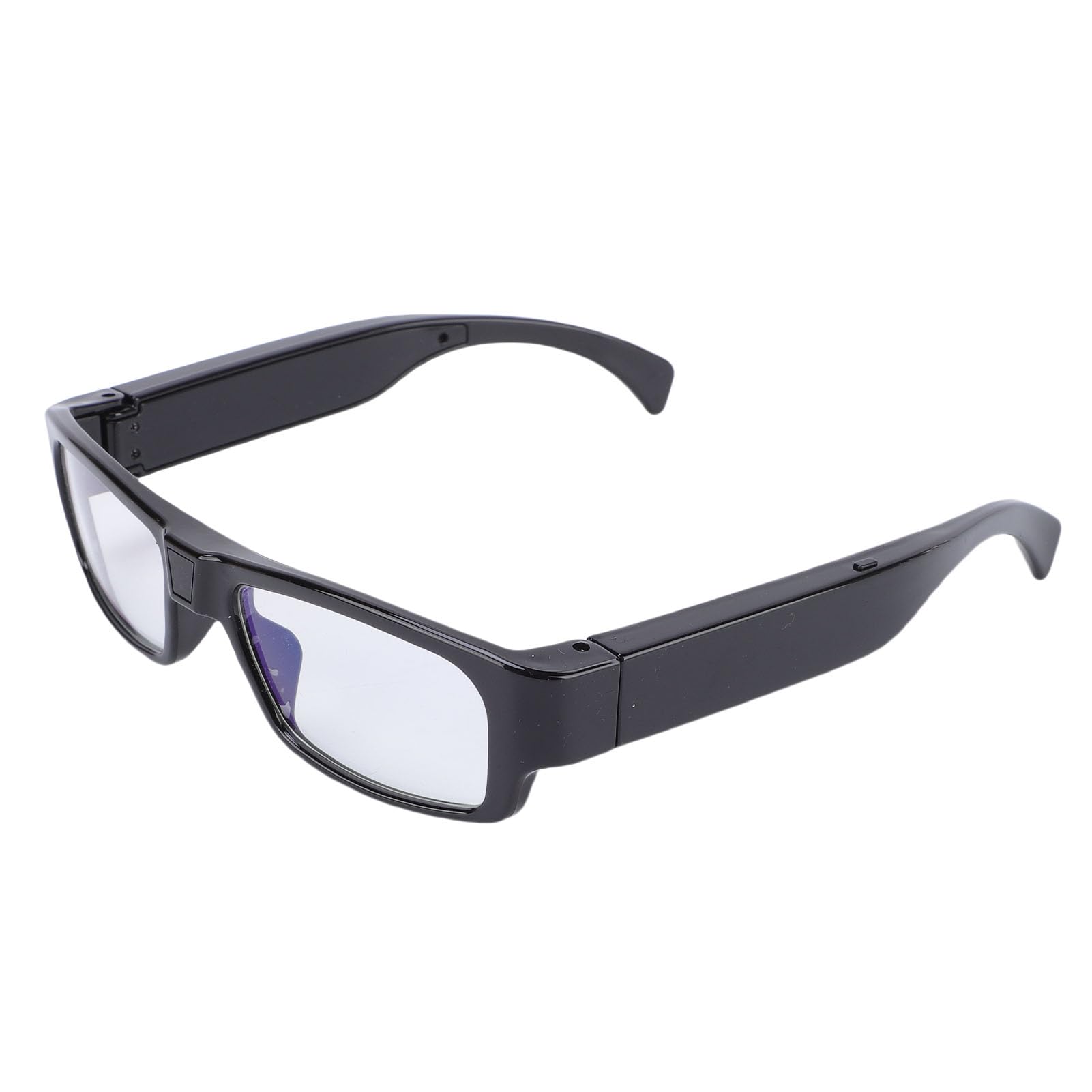
Image: The Dpofirs Camera Glasses are shown connected to a laptop via a USB cable, illustrating the ease of accessing and reading recorded files directly from the device as external storage.
6. Maintenance
- Cleaning: Use the provided cleaning cloth to gently wipe the lenses and frame. Avoid using harsh chemicals or abrasive materials.
- Storage: When not in use, store the glasses in the provided storage box to protect them from dust, scratches, and impacts.
- Temperature: Avoid exposing the device to extreme temperatures (hot or cold) or high humidity.
- Water Resistance: The glasses are not waterproof. Avoid contact with water or other liquids.
7. Troubleshooting
| Problem | Possible Cause | Solution |
|---|---|---|
| Device does not power on. | Low battery. | Charge the device fully. |
| Cannot record video. | No Micro SD card inserted or card is full/corrupted. | Insert a Micro SD card, ensure it has sufficient space, or try formatting the card (this will erase all data). |
| Computer does not recognize the device. | Faulty USB cable or port; device not powered off before connecting. | Try a different USB cable or port. Ensure the glasses are powered off before connecting to the computer. |
| Poor video quality. | Dirty lens; insufficient lighting; rapid movement. | Clean the lens. Ensure adequate lighting. The device features electronic stabilization, but extreme rapid movement can still affect quality. |
8. Specifications
| Feature | Detail |
|---|---|
| Video Resolution | 1080P (Max) |
| Lens | Wide Angle Lens |
| Frame Rate | 30 fps ± 1 fps |
| Stabilization Type | Electronic stabilization |
| Aspect Ratio | 16:9 |
| Image Format | JPG |
| Video Format | MP4 |
| Battery Type | Built-in high capacity lithium-ion battery |
| Battery Capacity | 300mAh |
| Storage Support | Micro SD card up to 128GB (not included) |
| Interface Type | Mini USB 5 Pin |
| Item Weight | 4.3 ounces |
| Package Dimensions | 6.69 x 2.76 x 2.76 inches |
9. Warranty and Support
For warranty information and technical support, please refer to the documentation included with your purchase or contact Dpofirs customer service through the retailer where the product was purchased. Keep your proof of purchase for warranty claims.
For further assistance, you may visit the Dpofirs store on Amazon: Dpofirs Store