
1. Introduction
Thank you for purchasing the Gurexl 47.2" W Glass Display Cabinet. This manual provides essential information for the safe assembly, operation, and maintenance of your new display cabinet. Please read these instructions thoroughly before beginning assembly and retain them for future reference.
2. Safety Information
- Always handle glass components with care to prevent breakage and injury.
- Ensure all connections for the LED lights and charging station are secure and correctly installed to avoid electrical hazards.
- Do not overload shelves. Refer to the specifications for maximum weight capacity per shelf.
- Place the cabinet on a flat, stable surface to prevent tipping.
- Keep small parts and assembly hardware away from children.
- This product is intended for indoor use only.
3. Package Contents
Before assembly, verify that all components are present and undamaged. If any parts are missing or damaged, contact customer support.
- Cabinet panels (wood components)
- 3 Tempered Glass Shelves (2 removable, 1 fixed)
- Tempered Glass Doors
- LED Lighting Kit
- Charging Station Module (USB-A and Type-C ports)
- Magnetic Locks and Key Lock Mechanism
- Assembly Hardware (screws, dowels, brackets, etc.)
- Assembly Tools (e.g., screwdriver, Allen wrench - may vary)
4. Assembly Instructions
Assembly typically requires two adults. Follow the detailed step-by-step instructions provided in the separate assembly diagram included with your purchase. General steps include:
- Prepare the Area: Clear a spacious, clean, and flat area for assembly. Lay down a blanket or cardboard to protect components from scratches.
- Assemble the Frame: Connect the wooden base, side panels, and top panel using the provided hardware. Ensure all connections are tightened securely.
- Install Glass Shelves: Carefully insert the fixed glass shelf into its designated slots. Install the adjustable shelf supports for the removable glass shelves at your desired height. Gently place the removable glass shelves onto the supports.
- Install LED Lighting: Follow the specific instructions for routing and connecting the LED light strips within the cabinet. Ensure all wiring is neatly tucked away.
- Install Charging Station: Integrate the charging station module into the designated cutout on the top panel. Connect its power supply according to the instructions.
- Attach Glass Doors: Mount the tempered glass doors using the provided hinges and magnetic latches. Ensure they open and close smoothly.
- Install Lock: Attach the key lock mechanism to the designated area on the cabinet doors for security.
- Final Checks: Verify all connections are secure, and the cabinet is stable.
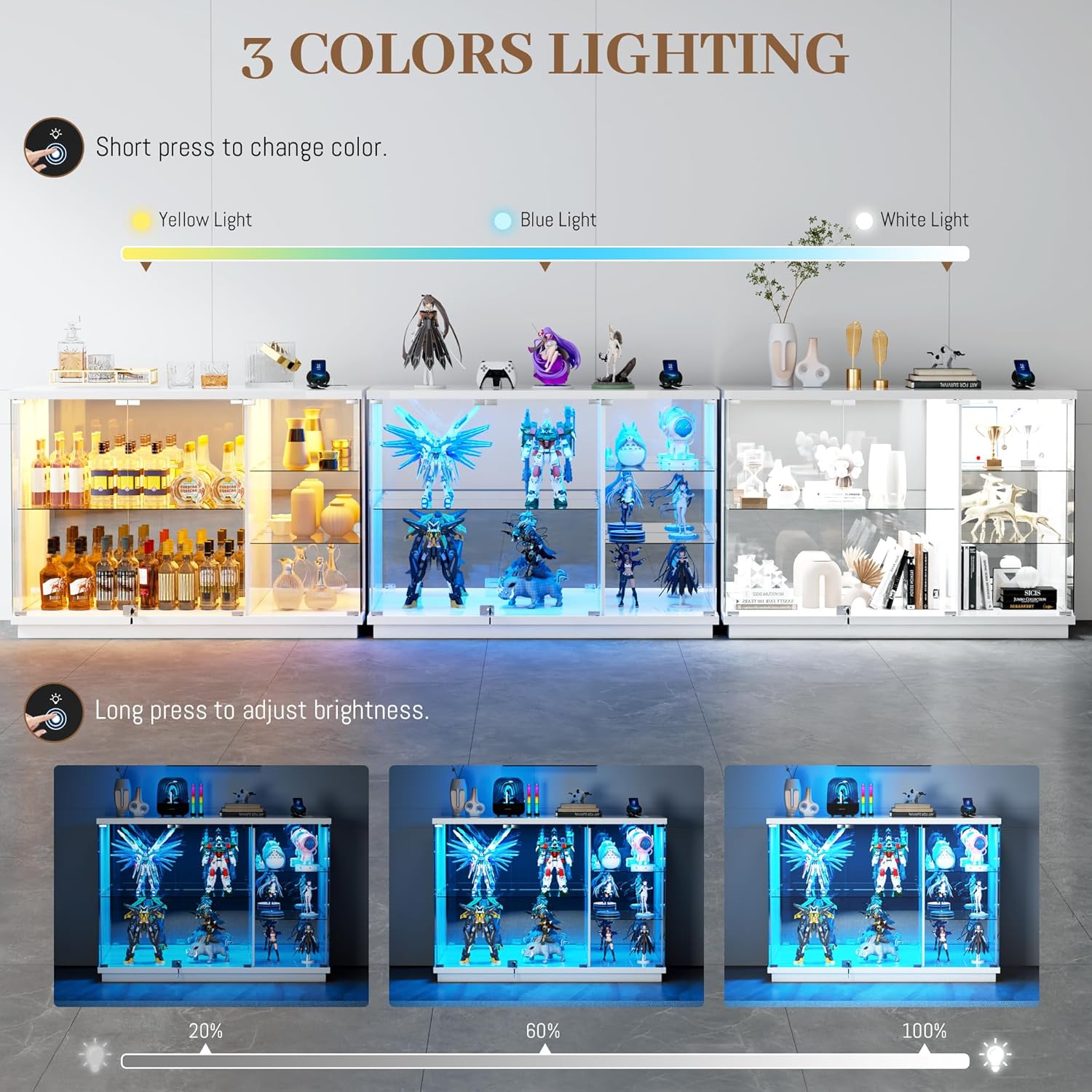
Image: Product dimensions of the Gurexl glass display cabinet, showing overall width of 47.24 inches (120cm), height of 33.46 inches (85cm), and depth of 14.96 inches (38cm). Detailed measurements for internal compartments and glass doors are also visible.
5. Operating Instructions
5.1 LED Lighting System
The cabinet features 3-color LED lighting with touch control and brightness adjustment.
- Change Color: Short press the light button to cycle through the three available colors: Blue, Warm (Yellow), and Cool (White) light.
- Adjust Brightness: Long press the light button to adjust the brightness level. The light will dim or brighten gradually. Release the button when the desired brightness is reached.

Image: Demonstrates the three LED light colors (Yellow, Blue, White) and the brightness adjustment feature (20%, 60%, 100%) controlled by short and long presses of the light button.
5.2 Human Body Sensor
The integrated human body sensor automatically activates the LED lights when motion is detected.
- Activation: The sensor detects human presence within approximately 2.5 meters (8.2 feet).
- Auto-Off: The lights will automatically turn off after 30 seconds of no detected motion.

Image: Illustrates the human body induction feature, showing the cabinet's sensor detecting a person within an induction range of 1.5-2 meters, activating the lights.
5.3 Built-in Charging Station
The cabinet includes a dual-port charging station for convenience.
- Ports: Features one USB-A port (5V/2A) and one Type-C port (5V/2A).
- Usage: Connect your compatible smartphones or other devices to charge them directly from the cabinet.

Image: A close-up view of the 2-in-1 charging station on the cabinet's top surface, highlighting the USB-A and Type-C ports, along with light control and human sensor indicators.
5.4 Locking Mechanism
The cabinet doors are equipped with both magnetic and key locks for security.
- Magnetic Locks: The smooth press-to-open tempered glass doors feature strong magnetic locks for easy access and secure closure.
- Key Lock: Use the provided key to lock the cabinet doors, adding an extra layer of security for your valuable collectibles.

Image: A collage showing key features: HD explosion-proof glass, sturdy wooden frame, push-type magnetic door latch, and key lock security protection.
6. Maintenance
- Cleaning Glass: Use a soft, lint-free cloth and a non-abrasive glass cleaner. Spray cleaner onto the cloth, not directly onto the glass, to avoid streaks and protect electrical components.
- Cleaning Wood Surfaces: Wipe wooden parts with a soft, damp cloth. Avoid harsh chemicals or abrasive cleaners that can damage the finish.
- Electrical Components: Ensure the cabinet is unplugged before cleaning near the LED lights or charging station. Use a dry cloth to dust these areas.
- Regular Checks: Periodically check all screws and connections to ensure they remain tight and secure.
7. Troubleshooting
| Problem | Possible Cause | Solution |
|---|---|---|
| LED lights do not turn on. | Power cable unplugged; loose connection; faulty LED strip. | Check if the power cable is securely plugged into an outlet. Verify all LED connections are tight. Contact support if the issue persists. |
| Human body sensor not activating. | Obstruction; sensor dirty; out of range. | Ensure no objects are blocking the sensor. Clean the sensor area. Stand within the 2.5-meter detection range. |
| Charging station not working. | Power cable unplugged; device incompatibility; faulty port. | Check if the cabinet is powered. Ensure your device is compatible with USB-A/Type-C 5V/2A. Try a different port or device. |
| Cabinet doors do not close properly. | Misaligned hinges; obstruction; magnetic latch issue. | Adjust hinges if necessary. Remove any obstructions. Check if magnetic latches are properly aligned. |
8. Specifications
- Brand: Gurexl
- Model: YX-97093-25
- Color: White
- Material: Wood, Tempered Glass
- Overall Dimensions (W x H x D): 47.2" x 33.46" x 14.96" (120cm x 85cm x 38cm)
- Number of Shelves: 3 (2 adjustable glass, 1 fixed glass)
- Lighting: 3-Color LED (Blue, Warm, Cool) with touch control and dimming
- Sensor: Human Body Sensor (activation range approx. 2.5m, auto-off 30s)
- Charging Station: 1x USB-A (5V/2A), 1x Type-C (5V/2A)
- Security: Magnetic door latches, Key lock
- Assembly Required: Yes
9. Warranty and Support
For warranty information and customer support, please refer to the documentation included with your purchase or contact the manufacturer directly. Keep your purchase receipt as proof of purchase.
Video: An overview of the Gurexl 47.2" W Glass Display Cabinet, showcasing its features such as the 2-in-1 charging station and the display of various collectibles within the cabinet.