
Introduction
The MageGee Moon98 is a versatile low-profile wireless mechanical keyboard designed for enhanced productivity and gaming. It offers triple-mode connectivity (Bluetooth 5.0, 2.4GHz wireless, and USB-C wired), vibrant RGB backlighting, and a high-capacity 8000mAh battery. This manual provides detailed instructions for setting up, operating, and maintaining your keyboard.
Package Contents
Please check the package for the following items:
- MageGee Moon98 Mechanical Keyboard x 1
- Dust Cover x 1
- 1.8m Type-C Cable x 1
- User Manual x 1

Image: Contents of the MageGee Moon98 package.
Product Overview
The Moon98 keyboard features a compact 98-key layout, providing essential functionality while saving desk space. Its low-profile mechanical switches offer a shorter actuation distance for faster response times compared to traditional mechanical keyboards.
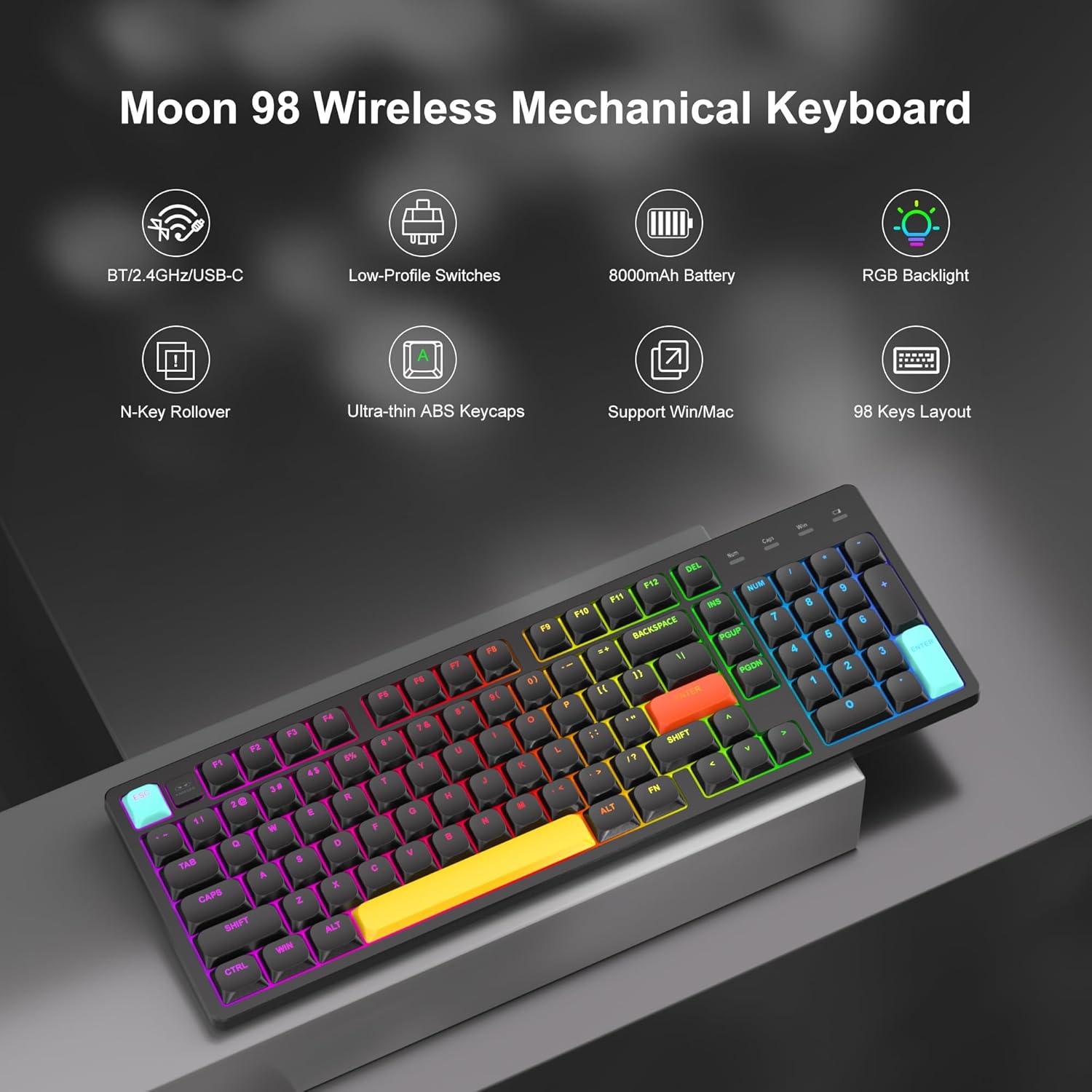
Image: Overview of the MageGee Moon98 keyboard and its main features.

Image: Detailed comparison of low-profile and regular mechanical switches.

Image: Physical dimensions of the 98-key keyboard layout.
Setup and Connectivity
The Moon98 keyboard supports three connection modes: USB-C wired, 2.4GHz wireless, and Bluetooth 5.0. Use the switch on the back of the keyboard to select your desired mode.

Image: Keyboard ports and switches for connectivity and system selection.
1. USB-C Wired Mode
- Connect the provided USB-C cable to the keyboard and your computer.
- Ensure the mode switch on the back of the keyboard is set to the wired (USB-C) position.
- The keyboard will be recognized automatically as a plug-and-play device.
2. 2.4GHz Wireless Mode
- Locate the 2.4GHz USB receiver, typically stored in a slot on the keyboard.
- Plug the USB receiver into an available USB port on your computer.
- Set the mode switch on the back of the keyboard to the 2.4G position.
- The keyboard should connect automatically.
3. Bluetooth 5.0 Mode
- Set the mode switch on the back of the keyboard to the BT position.
- Press and hold Fn + Q, Fn + W, or Fn + E for 3-5 seconds to enter pairing mode for Bluetooth device 1, 2, or 3 respectively. The corresponding key (Q, W, or E) will flash.
- On your device (computer, laptop, tablet, or phone), search for Bluetooth devices and select "MageGee Moon98" to pair.
- Once connected, the indicator light will stop flashing. You can switch between paired Bluetooth devices by pressing Fn + Q/W/E.

Image: Illustration of the keyboard's triple-mode connectivity.
Operating Instructions
RGB Backlight Control
The Moon98 keyboard features customizable RGB backlighting with multiple effects and colors.
- Fn + DEL: Cycle through 18 different light effects.
- Fn + INS: Cycle through 8 different light colors.
- Fn + ↑ (Up Arrow): Increase backlight brightness.
- Fn + ↓ (Down Arrow): Decrease backlight brightness.
- Fn + ← (Left Arrow): Decrease light effect speed.
- Fn + → (Right Arrow): Increase light effect speed.

Image: RGB backlight control functions.
System Compatibility Switch
The keyboard includes a switch on the back to toggle between Windows and Mac operating system layouts, ensuring full compatibility and correct key functions for your chosen system.
Charging and Battery
The Moon98 keyboard is equipped with an 8000mAh high-capacity battery for extended use.
- Battery Life: Approximately 48 hours with backlight on, and up to 250 hours with backlight off.
- Charging: Connect the keyboard to a power source using the provided USB-C cable. The charging indicator light will show the charging status.

Image: Battery capacity and estimated usage times.
Maintenance
To ensure the longevity and optimal performance of your MageGee Moon98 keyboard, follow these maintenance guidelines:
- Cleaning Keycaps: The ultra-thin ABS double-color injection keycaps are designed to be durable and fade-resistant. Use a soft, damp cloth to wipe the keycaps. For deeper cleaning, you may carefully remove keycaps using a keycap puller (not included) and clean them with mild soap and water. Ensure they are completely dry before reattaching.
- Dust Removal: Use compressed air to remove dust and debris from between the keycaps and switches.
- Storage: When not in use, especially for extended periods, use the provided dust cover to protect the keyboard from dust and spills. Store in a cool, dry place.
- Avoid Liquids: Do not expose the keyboard to excessive moisture or liquids. In case of a spill, immediately disconnect the keyboard and allow it to dry completely before use.

Image: Ultra-thin ABS double-color injection keycaps.
Troubleshooting
If you encounter issues with your MageGee Moon98 keyboard, refer to the following common solutions:
- Keyboard Not Responding:
- Ensure the keyboard is charged.
- Check the mode switch (USB-C, 2.4G, BT) is set correctly for your connection type.
- For 2.4GHz, ensure the USB receiver is securely plugged in.
- For Bluetooth, ensure the keyboard is paired correctly (Fn+Q/W/E) and your device's Bluetooth is enabled. Try re-pairing.
- Try connecting via USB-C cable to rule out wireless issues.
- Backlight Not Working/Incorrect:
- Ensure the backlight is not turned off (check brightness settings with Fn+↑/↓).
- Cycle through effects and colors using Fn+DEL and Fn+INS.
- Keys Not Registering:
- Check for physical obstructions under the keycaps.
- Ensure the keyboard is clean and free of debris.
- Lag or Disconnection in Wireless Mode:
- Move the keyboard closer to the receiver/device.
- Avoid interference from other wireless devices (e.g., Wi-Fi routers, other Bluetooth devices).
- Ensure the keyboard battery is sufficiently charged.
Specifications
| Feature | Detail |
|---|---|
| Brand | MageGee |
| Model Name | Moon98 |
| Keyboard Description | Mechanical, Low-Profile |
| Switch Type | Mechanical (Linear Red Switch) |
| Connectivity Technology | Bluetooth 5.0, 2.4GHz Wireless, USB-C Wired |
| Compatible Devices | Gaming Console, Laptop, PC |
| Compatible Operating System | Windows, Mac |
| Special Feature | Ergonomic, RGB Backlit |
| Battery Capacity | 8000mAh |
| Power Source | Battery Powered with Wired Option |
| Material | Plastic (ABS Keycaps) |
| Color | Black |
| Keyboard Layout | QWERTY, 98 Keys |
Warranty and Support
The MageGee Moon98 Low-Profile Wireless Mechanical Keyboard comes with a 1-year warranty from the date of purchase.
For technical support, warranty claims, or any questions regarding your product, please contact MageGee customer service through the retailer where you purchased the product or visit the official MageGee website for contact information.
Please retain your proof of purchase for warranty service.

