
Introduction
This manual provides detailed instructions for setting up, operating, and maintaining your Samsung Galaxy A17 5G smartphone. It covers essential features, connectivity options, camera functions, and troubleshooting tips to help you get the most out of your device.
For a complete step-by-step guide, refer to the official user guide book:
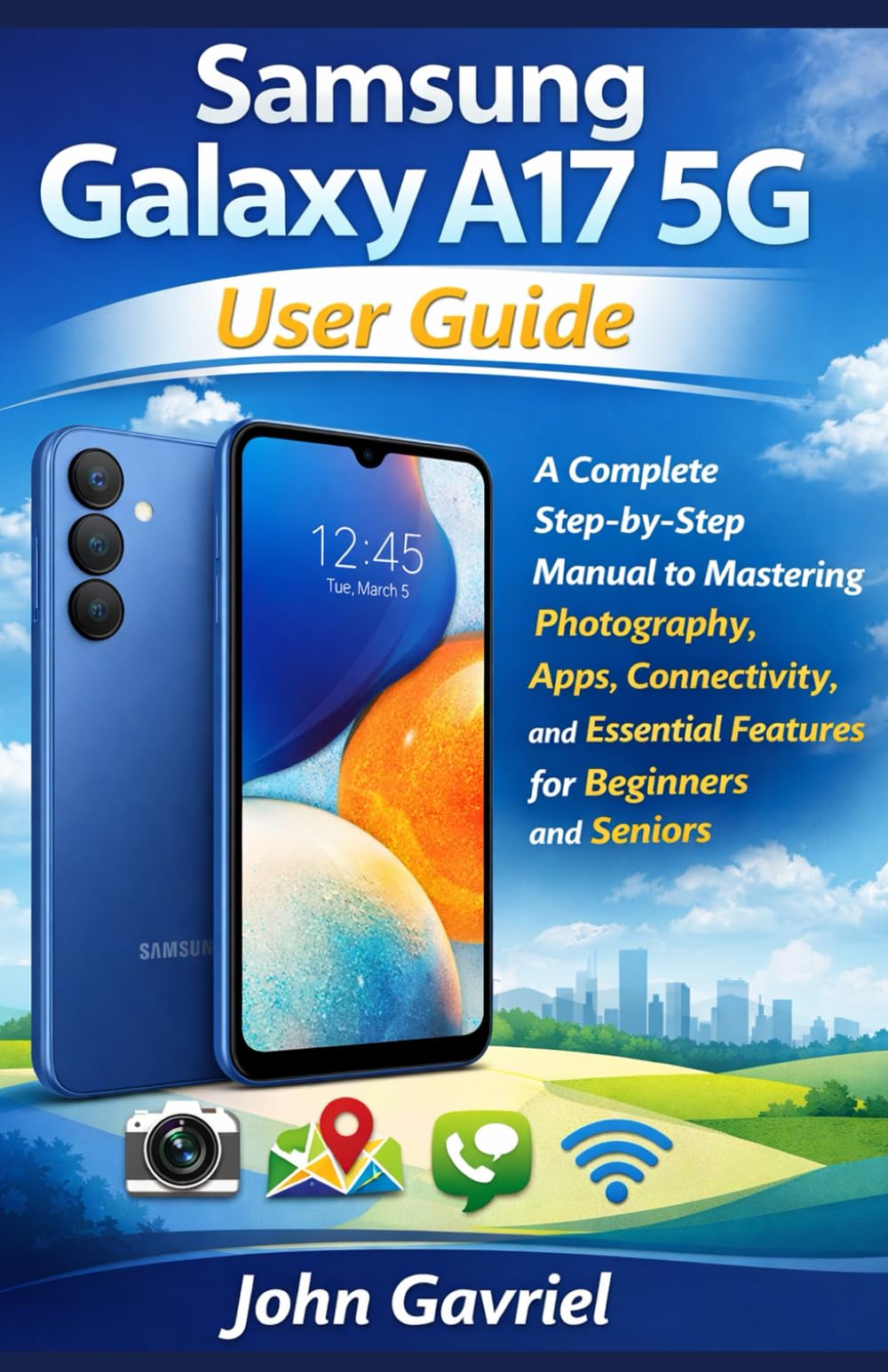
Image: Front cover of the Samsung Galaxy A17 5G User Guide book. This image displays the title and design of the instructional book that this manual is based on.
1. Setup
1.1 Initial Device Setup
Upon first powering on your Samsung Galaxy A17 5G, you will be guided through an initial setup process. This includes selecting your language, connecting to a Wi-Fi network, signing in with your Google account, and setting up security features like a PIN, pattern, or fingerprint.
- Power On: Press and hold the power button until the Samsung logo appears.
- Language Selection: Choose your preferred language from the list.
- Wi-Fi Connection: Select your Wi-Fi network and enter the password.
- Google Account: Sign in with an existing Google account or create a new one. This is essential for accessing the Google Play Store and other Google services.
- Security Setup: Configure a screen lock (PIN, pattern, password) and biometric security (fingerprint, face recognition) for device protection.
1.2 SIM Card and Storage Installation
Before initial setup, ensure your SIM card and any external storage (microSD card) are correctly installed.
- Locate the SIM tray on the side of your device.
- Insert the SIM ejection tool into the small hole next to the tray to open it.
- Place your Nano-SIM card(s) and/or microSD card into the tray, ensuring they are correctly oriented.
- Gently push the tray back into the device until it clicks into place.
2. Operating Your Device
2.1 Navigating the Home Screen and Apps
The home screen is your central hub for accessing applications, widgets, and notifications. Swipe left or right to navigate between different home screen panels. Swipe up from the bottom to access the app drawer, which lists all installed applications.
- App Management: To move an app, tap and hold its icon, then drag it to a desired location or folder. To uninstall, drag it to the "Uninstall" option.
- Widgets: Tap and hold an empty space on the home screen to add widgets for quick access to information or functions.
- Notifications Panel: Swipe down from the top of the screen to view notifications and quick settings toggles (Wi-Fi, Bluetooth, etc.).
2.2 Connectivity
Your Galaxy A17 5G offers various ways to stay connected.
- Wi-Fi: Go to Settings > Connections > Wi-Fi to connect to wireless networks.
- Mobile Data: Enable or disable mobile data via Settings > Connections > Data usage or the quick settings panel.
- Bluetooth: Pair with headphones, speakers, or other devices via Settings > Connections > Bluetooth.
- USB Connection: Connect your phone to a computer using a USB cable for file transfer or charging.
2.3 Camera and Multimedia
Capture moments with the integrated camera and manage your media files.
- Taking Photos: Open the Camera app, select your desired mode (Photo, Portrait, Pro, etc.), and tap the shutter button.
- Recording Videos: Switch to Video mode in the Camera app and tap the record button.
- Gallery: All photos and videos are saved in the Gallery app, where you can view, edit, and share them.
2.4 Smart Features
Leverage Samsung's unique features for enhanced productivity and convenience.
- Bixby: Samsung's intelligent assistant. Access it by pressing the side key or saying "Hi Bixby."
- Samsung DeX: Connect your phone to a monitor, keyboard, and mouse for a desktop-like experience.
- Samsung Pay: Make secure mobile payments at compatible terminals.
2.5 Accessibility and Customization
Adjust settings to personalize your device and improve usability.
- Font Size: Modify text size and style in Settings > Display > Font size and style.
- Notifications: Manage app notifications and alerts in Settings > Notifications.
- Parental Controls: Set up restrictions for app usage and content access via Settings > Digital Wellbeing and parental controls.
3. Maintenance
3.1 Battery Management
Optimize battery life for extended usage.
- Battery Usage: Monitor app battery consumption in Settings > Battery and device care > Battery.
- Power Saving Mode: Enable power saving to restrict background activity and extend battery life.
- Charging: Use only Samsung-approved chargers and cables. Avoid overcharging.
3.2 Device Care and Updates
Keep your device running smoothly and securely.
- Storage Management: Regularly clear unnecessary files and cache to free up storage space.
- Software Updates: Check for and install system updates via Settings > Software update to ensure optimal performance and security.
- Cleaning: Use a soft, lint-free cloth to clean the screen and device body. Avoid harsh chemicals.
4. Troubleshooting
This section addresses common issues you might encounter with your Samsung Galaxy A17 5G.
| Problem | Solution |
|---|---|
| Device not turning on | Ensure the battery is charged. Press and hold the power button for at least 10 seconds to force a restart. |
| Apps crashing or freezing | Clear the app's cache (Settings > Apps > [App Name] > Storage > Clear cache). If the issue persists, uninstall and reinstall the app. |
| Poor Wi-Fi connection | Restart your router and phone. Forget the network and reconnect (Settings > Connections > Wi-Fi > [Network Name] > Forget). |
| Battery draining quickly | Check battery usage in settings to identify power-hungry apps. Reduce screen brightness, disable unnecessary features (GPS, Bluetooth), and enable power saving mode. |
| Screen unresponsive | Force restart the device by holding the power button and volume down button simultaneously for about 7-10 seconds. |
5. Specifications
The Samsung Galaxy A17 5G is a mid-range smartphone designed for reliable performance and connectivity. Specific technical specifications can vary by region and carrier. For the most accurate and up-to-date specifications, please refer to Samsung's official website or your device's packaging.
Typical specifications for a device in this series may include:
- Display: Super AMOLED or LCD, 6.5-6.7 inches, HD+ or FHD+ resolution
- Processor: Octa-core (e.g., MediaTek Dimensity series)
- RAM: 4GB or 6GB
- Storage: 64GB or 128GB (expandable via microSD)
- Rear Camera: Multi-lens setup (e.g., 50MP main, ultrawide, macro)
- Front Camera: 8MP or 13MP
- Battery: 5000mAh (typical)
- Operating System: Android with Samsung One UI
- Connectivity: 5G, Wi-Fi, Bluetooth, GPS, USB-C
6. Warranty and Support
For detailed information regarding your Samsung Galaxy A17 5G's warranty, please refer to the warranty card included with your device or visit the official Samsung support website for your region. Warranty terms and conditions may vary by country and retailer.
Official Support:
- Samsung Website: www.samsung.com/support
- Customer Service: Refer to your regional Samsung website for local contact numbers and service centers.


