
1. Introduction
This manual provides detailed instructions for the setup, operation, maintenance, and troubleshooting of your Aigo AG98 Wireless Mechanical Keyboard. Please read this manual thoroughly before using the product to ensure optimal performance and longevity.
2. Safety Information
- Do not expose the keyboard to liquids or excessive moisture.
- Avoid extreme temperatures.
- Do not attempt to disassemble or repair the keyboard yourself. This may void the warranty and cause damage.
- Use only the provided USB Type-C cable for charging.
- Keep out of reach of children.
3. Package Contents
Verify that all items are present in your package:
- Aigo AG98 Wireless Mechanical Keyboard
- USB Type-C Cable
- User Manual
4. Product Overview
The Aigo AG98 is a versatile 98-key mechanical keyboard featuring triple-mode connectivity (Bluetooth, 2.4G Wireless, USB Type-C Wired), RGB backlighting, and hot-swappable switches. Its compact design and durable ABS construction make it suitable for both gaming and daily use across various devices.

Figure 1: Aigo AG98 keyboard demonstrating its triple-mode connectivity with various devices.
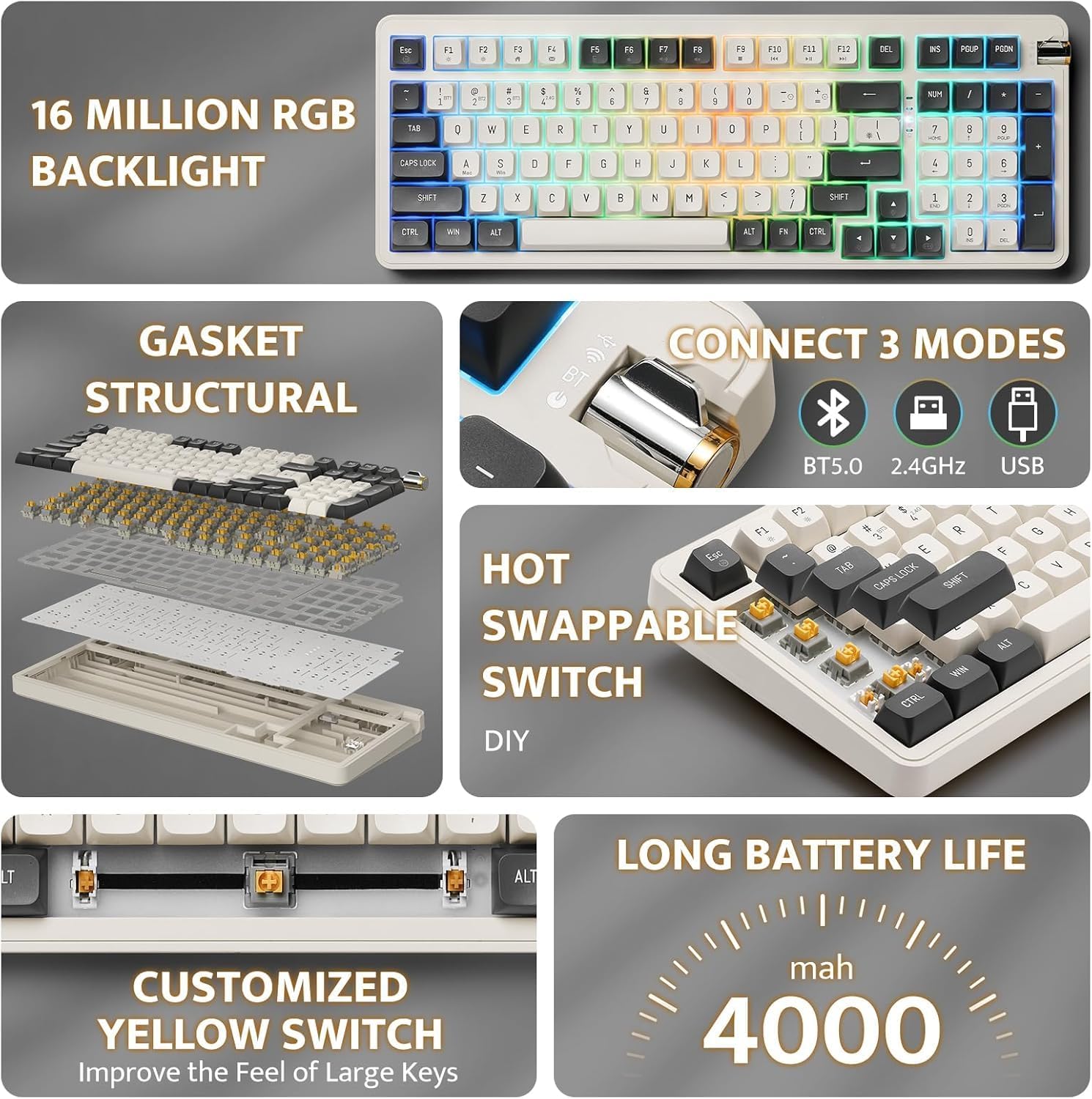
Figure 2: Key features of the Aigo AG98, including structural design, connectivity options, and battery capacity.
5. Setup
5.1. Charging the Keyboard
Before initial use, fully charge the keyboard using the provided USB Type-C cable. Connect the cable to the keyboard's USB-C port and the other end to a powered USB port (e.g., computer, wall adapter).

Figure 3: USB-C port and mode switch location.
5.2. Connection Modes
The Aigo AG98 supports three connection modes: Bluetooth, 2.4G Wireless, and USB Type-C Wired. Use the switch on the side of the keyboard to select your desired mode.
5.2.1. USB Type-C Wired Connection
- Ensure the mode switch on the keyboard is set to the wired (USB) position.
- Connect the USB Type-C cable to the keyboard and your computer.
- The keyboard will be automatically recognized by your operating system.
5.2.2. 2.4G Wireless Connection
- Ensure the mode switch on the keyboard is set to the 2.4G wireless position.
- Plug the 2.4G USB receiver into an available USB port on your device.
- The keyboard should connect automatically. If not, press and hold the Fn + 4 key combination to initiate pairing.
5.2.3. Bluetooth Connection
- Ensure the mode switch on the keyboard is set to the Bluetooth (BT) position.
- On your device (PC, tablet, smartphone), enable Bluetooth and search for new devices.
- On the keyboard, press and hold Fn + 1, Fn + 2, or Fn + 3 to enter pairing mode for BT1, BT2, or BT3 respectively. The indicator light will flash.
- Select "Aigo AG98" from the list of available devices on your screen.
- Once paired, the indicator light will stop flashing.
6. Operating Instructions
6.1. RGB Backlight Control
The Aigo AG98 features customizable RGB backlighting. Use the following key combinations to control the lighting effects:
- Fn + \|: Change backlight mode.
- Fn + ↑: Increase backlight brightness.
- Fn + ↓: Decrease backlight brightness.
- Fn + ←: Slow down backlight effect speed.
- Fn + →: Speed up backlight effect speed.

Figure 4: Aigo AG98 with RGB backlighting activated.
6.2. Hot-Swappable Switches
The Aigo AG98 keyboard features hot-swappable switches, allowing you to change mechanical switches without soldering. This enables customization of typing feel and sound.

Figure 5: Hot-swappable yellow switches with details on pre-lubrication and stable shaft design.
To replace a switch:
- Power off the keyboard or disconnect it from your device.
- Use a switch puller tool (not included) to carefully grip the switch and pull it straight up.
- Align the pins of the new switch with the holes on the PCB and press it gently until it clicks into place. Ensure the pins are not bent.
7. Maintenance
7.1. Cleaning
- Disconnect the keyboard before cleaning.
- Use a soft, dry cloth to wipe the surface of the keyboard.
- For deeper cleaning, use a keycap puller (not included) to remove keycaps and clean dust or debris with compressed air or a small brush.
- Do not use harsh chemicals or abrasive materials.
7.2. Battery Care
- Avoid fully discharging the battery frequently.
- Charge the keyboard regularly, even if not in use, to maintain battery health.
- Store the keyboard in a cool, dry place if not used for extended periods.
8. Troubleshooting
| Problem | Possible Cause | Solution |
|---|---|---|
| Keyboard not responding (Wireless) | Low battery, incorrect mode, pairing issue, receiver not connected. | Charge the keyboard. Ensure correct mode is selected. Re-pair the keyboard (Fn + 1/2/3 for BT, Fn + 4 for 2.4G). Check USB receiver connection. |
| Keyboard not responding (Wired) | Cable issue, incorrect mode. | Ensure cable is securely connected. Try a different USB port or cable. Ensure wired mode is selected. |
| RGB backlight not working | Backlight turned off, brightness set to minimum. | Press Fn + \| to cycle modes. Increase brightness with Fn + ↑. |
| Specific key not working | Faulty switch, debris under keycap. | Remove keycap and clean. If issue persists, replace the hot-swappable switch. |
| End key not working (Windows) | Mouse Keys enabled in OS accessibility settings. | Disable "Mouse Keys" in your operating system's accessibility settings. |
9. Specifications
- Model: AG98
- Brand: Aigo
- Connectivity: Bluetooth 5.0, 2.4G Wireless, USB Type-C Wired
- Number of Keys: 98
- Layout: QWERTY (English)
- Switch Type: Mechanical (Linear Yellow Switches)
- Special Features: Hot-swappable switches, RGB Backlighting, Ergonomic Design
- Material: Acrylonitrile Butadiene Styrene (ABS)
- Battery: 1200 mAh Rechargeable Lithium Battery
- Compatible OS: Windows 10+, Android, iOS, Mac, Linux
- Compatible Devices: PC, Laptop, Tablet, Smartphone
- Item Weight: 425 grams
10. Warranty Information
The Aigo AG98 keyboard comes with a 14-day warranty from the date of purchase. This warranty covers manufacturing defects. It does not cover damage caused by misuse, accidents, unauthorized modifications, or normal wear and tear. Please retain your proof of purchase for warranty claims.
11. Support
For further assistance or technical support, please refer to the contact information provided with your purchase or visit the official Aigo website.

