
1. Introduction
The XTOOL TP300 is a professional diagnostic tool designed for comprehensive Tire Pressure Monitoring System (TPMS) service and main vehicle system diagnostics. This device integrates TPMS sensor activation, programming, and relearn functions with advanced diagnostics for Engine, Anti-lock Braking System (ABS), Supplemental Restraint System (SRS), and Transmission. It also supports full OBD2 functions and various service resets, making it an essential tool for automotive technicians and DIY enthusiasts.

Figure 1: XTOOL TP300 TPMS Programming Tool
This image displays the XTOOL TP300 handheld device, its wireless Vehicle Communication Interface (VCI), and a general overview of its user interface.
2. What's in the Box
Please check the contents of your package against the list below. If any items are missing or damaged, contact your vendor.
- XTOOL TP300 Main Unit
- Wireless VCI Box
- Power Supply (5V/3A)
- Charging Adapter (EU, UK, AU variants may be included)
- Data Cable (Type-A to Type-C)
- Lanyard

Figure 2: XTOOL TP300 Package Contents
This image illustrates all the components included in the XTOOL TP300 product package, such as the main unit, VCI, cables, and adapters.
3. Setup
3.1 Charging the Device
Before first use, fully charge the TP300 main unit. Connect the provided Type-C USB cable to the device and the power adapter, then plug the adapter into a power outlet. The charging indicator will show the charging status.
3.2 Initial Power-On and Configuration
- Press and hold the Power button to turn on the device.
- Follow the on-screen prompts to select your preferred language, time zone, and other initial settings.
- Connect to a Wi-Fi network for software updates and online features. Go to Settings > Wi-Fi and select your network.
3.3 Software Updates
It is crucial to keep your TP300 software updated to ensure the latest vehicle coverage and functionalities. Connect the device to Wi-Fi and navigate to the Updates icon on the main menu. Follow the instructions to download and install available updates.

Figure 3: Software Update Interface
This image shows the XTOOL TP300 display during a software update process, highlighting the importance of regular updates for optimal performance.
4. Operating Instructions
4.1 TPMS Service Functions
The TP300 offers comprehensive TPMS capabilities for 315MHz and 433MHz sensors.
4.1.1 TPMS Sensor Activation
This function allows you to wirelessly activate almost all OEM and universal TPMS sensors to read their data.
- From the main menu, select TPMS.
- Choose Activate Sensor.
- Select the vehicle make, model, and year.
- Follow the on-screen instructions to position the tool near each tire's sensor to activate it. The tool will display sensor ID, pressure, temperature, battery status, and frequency.
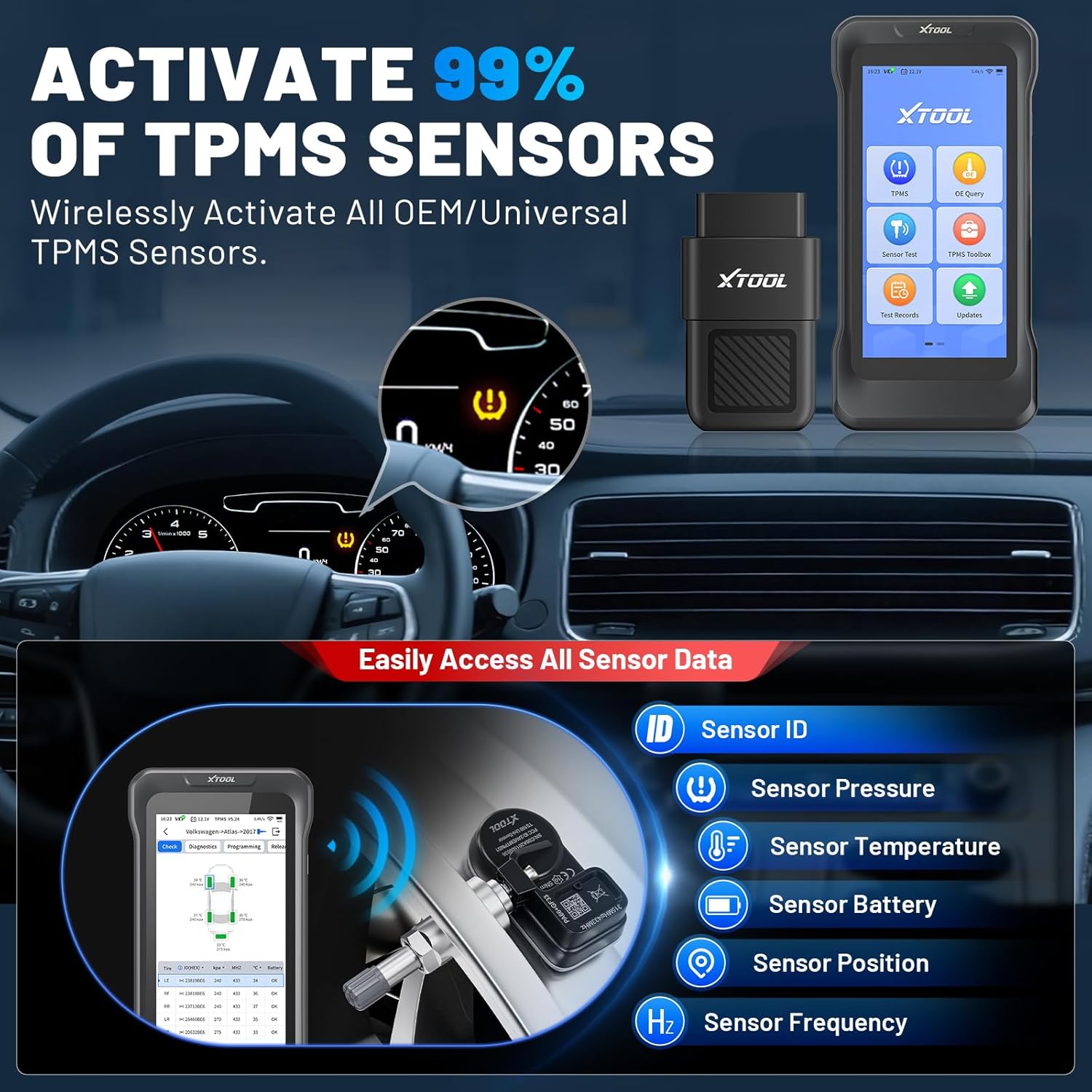
Figure 4: TPMS Sensor Activation
This image demonstrates the XTOOL TP300 activating a TPMS sensor, showing the device displaying sensor data such as ID, pressure, and temperature.
4.1.2 TPMS Sensor Programming
The TP300 can program XTOOL TS100 sensors using four methods:
- Auto ID Generation: Creates a new, unique sensor ID.
- Manual ID Entry: Allows you to input an existing sensor ID.
- Copy ID via Activation: Reads the ID from an existing sensor and programs it to a new sensor.
- Copy ID via OBD: Retrieves sensor IDs from the vehicle's ECU via the OBD port and programs them to new sensors.

Figure 5: TPMS Sensor Programming Methods
This image illustrates the four different methods available on the XTOOL TP300 for programming TPMS sensors: Auto ID Generation, Manual ID Entry, Copy ID via Activation, and Copy ID via OBD.
4.1.3 TPMS Relearn
After replacing sensors or rotating tires, the vehicle's ECU needs to relearn the new sensor IDs and positions. The TP300 supports four relearn methods:
- Automatic Relearn: The vehicle learns new sensor IDs during a drive cycle.
- OBD Relearn: Sensor IDs are written directly to the vehicle's ECU via the OBD port.
- Stationary Relearn: Requires the vehicle to be in a specific mode (e.g., parking brake engaged) and often involves activating sensors in a specific order.
- Copy Sensors Relearn: Copies existing sensor IDs to new sensors, eliminating the need for a relearn procedure if the IDs match the ECU's stored data.

Figure 6: TPMS Sensor Relearn Methods
This image displays the four relearn methods supported by the XTOOL TP300: OBD Relearn, Manual Relearn, Auto Relearn, and Copy Sensors, ensuring broad compatibility for TPMS system resets.
4.1.4 TPMS Diagnostics
This function allows you to read and clear TPMS Diagnostic Trouble Codes (DTCs), check the health of the TPMS system, and turn off the TPMS warning light.
4.2 System Diagnostics
The TP300 can diagnose four main vehicle systems: Engine, ABS, SRS, and Transmission.
- Connect the VCI to the vehicle's OBD2 port.
- From the main menu, select Diagnosis.
- The tool will automatically identify the vehicle via Auto VIN or prompt for manual selection.
- Select the system you wish to diagnose (e.g., Engine, ABS).
- You can then choose to Read Fault Codes, Clear Fault Codes, or view Live Data Stream.
4.3 Service Functions (Resets)
The TP300 supports over 8 common service functions:
- Oil Reset: Resets the oil life reminder.
- ABS Bleeding: Bleeds air from the brake system.
- EPB Reset: Resets the electronic parking brake after pad replacement.
- Throttle Body Relearn: Relearns the throttle valve position.
- SAS Calibration: Calibrates the steering angle sensor.
- Tire Size Reset: Adjusts vehicle parameters after changing tire size.
- DPF Regeneration: Initiates diesel particulate filter regeneration.
- GPF Regeneration: Initiates gasoline particulate filter regeneration.

Figure 7: Hot Service Functions
This image highlights the various quick reset functions available on the XTOOL TP300, including Oil Reset, ABS Bleeding, EPB Reset, and Throttle Relearn.
4.4 OBD2 Functions
The TP300 provides full OBD2 functionality for all OBD2 compliant vehicles (1996 and newer).
- Read DTCs: Retrieves current, pending, and permanent diagnostic trouble codes.
- Clear DTCs: Erases diagnostic trouble codes and turns off the Malfunction Indicator Lamp (MIL).
- Live Data: Displays real-time data stream from vehicle sensors.
- I/M Readiness: Checks the status of emission-related monitors.
- Freeze Frame Data: Shows engine conditions at the time a fault code was set.
- O2 Monitor Test: Retrieves O2 sensor monitoring test results.
- On-Board Monitor Test: Retrieves results for emission-related powertrain components and systems.
- Component Test: Allows initiation of a leak test for the vehicle's EVAP system.
- Vehicle Information: Retrieves VIN, CIN, and CVN.
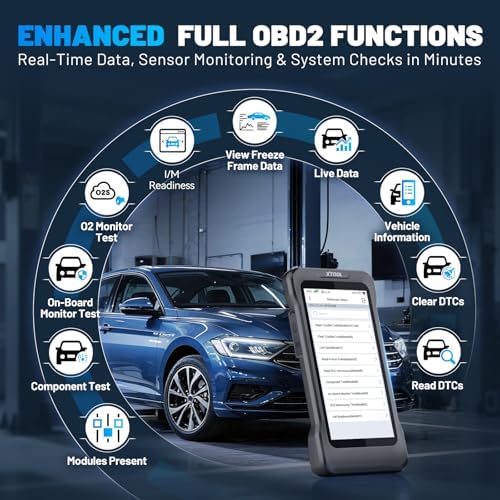
Figure 8: Full OBD2 Functions
This image details the comprehensive OBD2 functions available on the XTOOL TP300, including reading DTCs, viewing live data, and performing various system checks.
4.5 Official Product Videos
Video: XTOOL TP300 TPMS TOOL + Engine ABS SRS Transmission Scanner
This video provides an overview of the XTOOL TP300's capabilities, showcasing its integrated TPMS functions and diagnostic features for Engine, ABS, SRS, and Transmission systems.
Video: XTOOL TPMS Programming & OBD2 Scanner Diagnostic Tool
This video demonstrates the XTOOL TP300's TPMS programming features and its functionality as an OBD2 scanner for comprehensive vehicle diagnostics.
Video: XTOOL TP300: TPMS service, 4-system diagnostics, 8+ resets
This video highlights the key features of the XTOOL TP300, including its TPMS service capabilities, 4-system diagnostic functions, and over 8 reset services.
5. Maintenance
5.1 Software Updates
Regularly check for and install software updates via Wi-Fi to ensure optimal performance, the latest vehicle coverage, and new features. This is a lifetime free service.
5.2 Cleaning the Device
Use a soft, damp cloth to clean the device's screen and body. Avoid using abrasive cleaners or solvents that could damage the plastic or screen.
5.3 Battery Care
To prolong battery life, avoid fully discharging the device frequently. Store the device in a cool, dry place when not in use for extended periods.
6. Troubleshooting
- Device does not power on: Ensure the device is fully charged. If the issue persists, contact technical support.
- VCI not connecting to vehicle: Check if the VCI is securely plugged into the OBD2 port. Ensure the vehicle's ignition is on. Verify the VCI's indicator lights are active.
- TPMS light not resetting: Ensure all sensors are correctly activated and relearned. Check for faulty or damaged sensors, as these will prevent the light from resetting. Perform a full TPMS diagnostic to identify specific issues.
- Software update failure: Ensure a stable Wi-Fi connection. Try restarting the device and attempting the update again. If the problem continues, contact support.
7. Specifications
| Display | 5.45-inch HD Touchscreen |
| Processor | Quad-Core 1.8GHz |
| Operating System | Linux |
| Memory | 64GB (expandable) |
| Battery | 4500mAh |
| Connectivity | Dual-band Wi-Fi (2.4GHz & 5GHz), Wireless VCI |
| Dimensions (L x W x H) | 10 x 6 x 3.5 inches |
| Supported Protocols | FCA, CAN FD, DoIP, and standard OBD2 protocols |
| Languages | 22 languages supported |
8. Warranty and Support
8.1 Product Warranty
The XTOOL TP300 comes with a 2-Year US Warranty from the date of purchase. This warranty covers manufacturing defects and malfunctions under normal use. Please retain your proof of purchase for warranty claims.
8.2 Technical Support
XTOOL provides Lifetime Technical Support for the TP300. If you encounter any issues or have questions regarding the operation of your device, please contact XTOOL's customer service. Support is available 24/7.
For technical assistance, please refer to the contact information provided with your product or visit the official XTOOL website.


