
1. Introduction
This manual provides comprehensive instructions for the safe and efficient use of your HGFRTEE 27-inch 4K UHD 60Hz Monitor. Please read this manual thoroughly before operating the device and retain it for future reference.
The HGFRTEE 27-inch 4K UHD monitor features a 3840 x 2160 resolution IPS panel, 60Hz refresh rate, HDR10 support, 100% sRGB color gamut, and AMD FreeSync technology. It is designed for a wide range of applications, from professional work to casual entertainment.
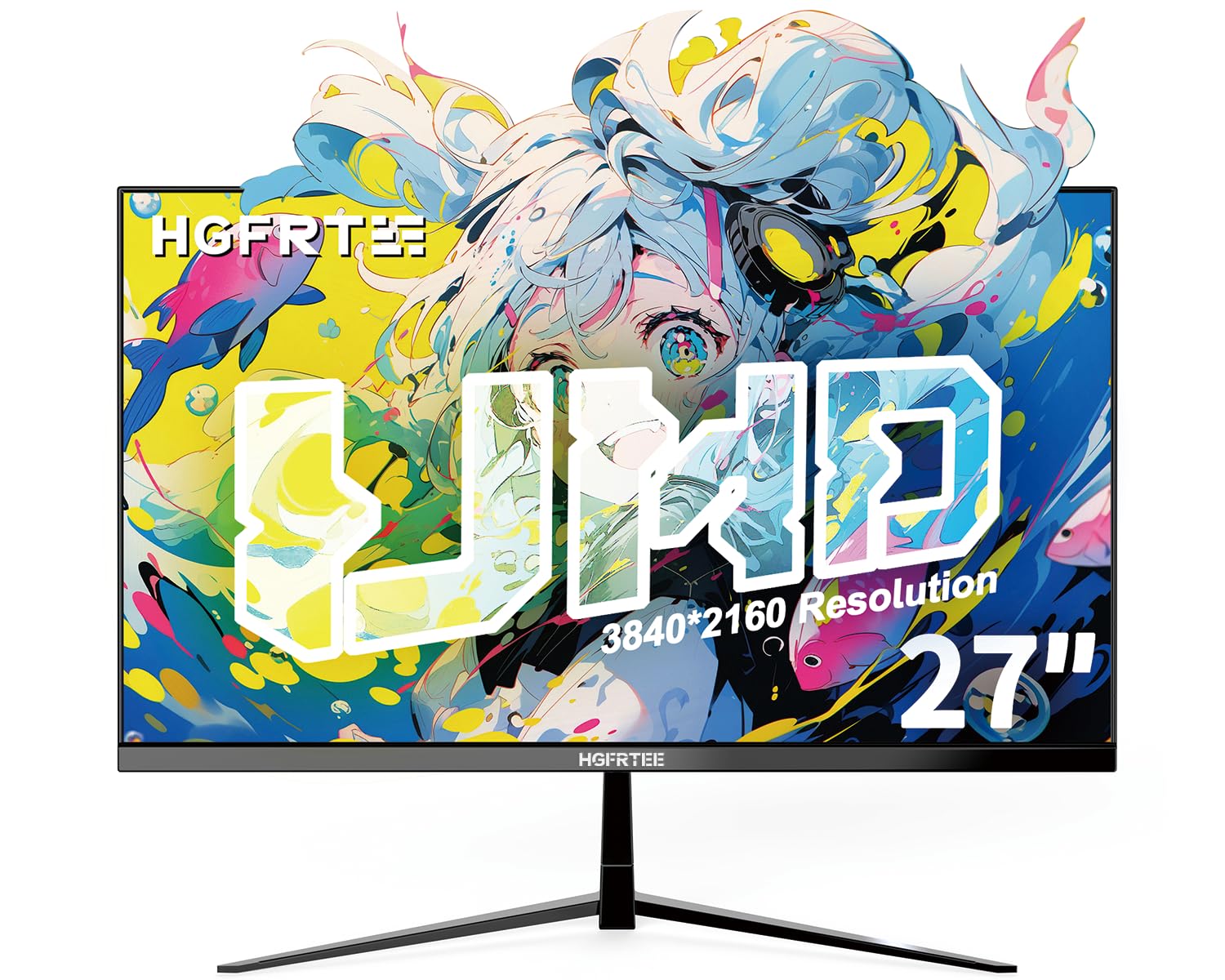
Image 1.1: Front view of the HGFRTEE 27-inch 4K UHD Monitor.
2. Safety Information
Always follow these basic safety precautions to reduce the risk of fire, electric shock, and injury:
- Do not expose the monitor to rain or moisture.
- Do not open the monitor casing. Refer all servicing to qualified personnel.
- Ensure proper ventilation around the monitor.
- Use only the power adapter supplied with the monitor.
- Avoid placing the monitor on unstable surfaces.
- Clean the monitor with a soft, dry cloth. Do not use liquid cleaners or aerosol cleaners.
3. Package Contents
Verify that all items are present in your package:
- HGFRTEE 27-inch 4K UHD Monitor
- Monitor Stand (Base and Neck)
- Power Adapter
- HDMI Cable
- DisplayPort Cable
- User Manual
4. Setup
4.1 Stand Assembly
- Carefully remove the monitor from its packaging, keeping it protected on a soft surface.
- Attach the stand neck to the monitor's rear mounting point.
- Secure the stand base to the stand neck using the provided screws.
- Place the assembled monitor on a stable, flat surface.

Image 4.1: Illustrated steps for monitor stand assembly.
4.2 VESA Mounting
The monitor supports VESA 100x100mm mounting. To mount the monitor on a wall or an alternative stand:
- Remove the original stand if it is already attached.
- Attach your VESA-compatible mount to the four screw holes on the back of the monitor using M4 screws (not included with the monitor, typically supplied with the VESA mount).
- Ensure the mount is securely fastened before releasing the monitor.
4.3 Connecting to a Device
The monitor features multiple input ports for connectivity:
- HDMI 2.0: Connect to devices such as PCs, laptops, and gaming consoles.
- DisplayPort 1.4: Connect to PCs and graphics cards for high-resolution and refresh rate output.
- USB (Power): For powering external devices.
- Audio Out: Connect external speakers or headphones (monitor does not have built-in speakers).
To connect:
- Connect one end of the HDMI or DisplayPort cable to the corresponding port on your computer or device.
- Connect the other end of the cable to the HDMI or DisplayPort input on the monitor.
- Connect the power adapter to the monitor's DC input and then plug it into a power outlet.

Image 4.2: Rear view of the monitor displaying available input ports.
5. Operating the Monitor
5.1 Power On/Off
Press the power button located on the back of the monitor to turn it on or off.
5.2 OSD Menu Navigation
The monitor features a joystick control for navigating the On-Screen Display (OSD) menu. The controls are typically located on the back or bottom of the monitor.

Image 5.1: Diagram illustrating the monitor's control buttons and their functions.
- Power Button: Turns the monitor on or off.
- 'E' Button: HDMI Port/DP Port Selection, Back/Exit Key.
- Up Arrow: Increase value, Up Key.
- Down Arrow: Decrease value, Down Key.
- 'M' Button: Confirmation Key, Enter Submenu Key.
5.3 Display Settings
Access the OSD menu to adjust various display settings:
- Brightness/Contrast: Adjust the overall luminance and contrast of the display.
- Color Settings: Fine-tune color temperature, gamma, and color space (e.g., sRGB).
- Input Source: Manually select between HDMI and DisplayPort inputs.
- Picture Mode: Select from preset modes (e.g., Standard, Game, Movie, Text).
- FreeSync: Enable or disable AMD FreeSync for adaptive synchronization with compatible graphics cards.
- HDR: Enable or disable HDR10 support for enhanced dynamic range.
- Eye Care: Activate features like flicker-free technology and blue light filter to reduce eye strain.
5.4 Advanced Features
- Motion Clarity (MEMC): This feature enhances motion smoothness by inserting black frames and optimizing motion processing, which can improve clarity in fast-moving scenes.
- Gaming Crosshairs: For gaming, the monitor offers six types of on-screen crosshairs to assist with aiming.

Image 5.2: Demonstration of Motion Clarity feature.

Image 5.3: Examples of gaming crosshairs.
6. Maintenance
6.1 Cleaning the Monitor
To clean the monitor screen and casing:
- Turn off the monitor and unplug the power cord.
- Use a soft, lint-free cloth to gently wipe the screen. For stubborn marks, slightly dampen the cloth with water or a specialized screen cleaner (ensure it is alcohol-free and ammonia-free).
- Wipe the casing with a soft, dry cloth.
- Do not spray cleaners directly onto the screen or into any openings.
6.2 Storage
If storing the monitor for an extended period, ensure it is powered off, unplugged, and stored in a cool, dry place away from direct sunlight and extreme temperatures. Use original packaging if available for best protection.
7. Troubleshooting
Refer to the following table for common issues and their solutions:
| Problem | Possible Cause | Solution |
|---|---|---|
| No image on screen | Monitor not powered on; Incorrect input selected; Loose video cable. | Ensure power is connected and monitor is on; Select correct input source via OSD; Check video cable connections. |
| Image flickering or tearing | FreeSync not enabled or incompatible; Graphics driver issues; Cable quality. | Enable FreeSync in OSD and graphics card settings; Update graphics drivers; Try a different high-quality video cable. |
| Colors appear incorrect | Color settings misconfigured; Faulty cable. | Reset color settings in OSD; Adjust color temperature; Try a different video cable. |
| No audio from headphones/speakers | Audio cable not connected; Volume too low; Incorrect audio output selected on PC. | Ensure audio cable is securely connected to the monitor's audio out port; Adjust volume on connected device; Select monitor as audio output on your computer. |
If the problem persists after trying these solutions, please contact customer support.
8. Specifications
Below are the technical specifications for the HGFRTEE 27-inch 4K UHD Monitor (Model B270BZU06):
| Feature | Specification |
|---|---|
| Brand | HGFRTEE |
| Model Number | B270BZU06 |
| Screen Size | 27 Inches |
| Resolution | 4K UHD (3840 x 2160) |
| Refresh Rate | 60 Hz |
| Response Time | 1 Millisecond (MPRT) |
| Display Type | IPS LCD |
| Aspect Ratio | 16:9 |
| Color Gamut | 100% sRGB |
| HDR Support | HDR10 |
| Adaptive Sync | AMD FreeSync |
| Viewing Angle | 178° (Horizontal/Vertical) |
| Connectivity | HDMI 2.0 (x2), DisplayPort 1.4 (x1), USB (Power), Audio Out (3.5mm) |
| VESA Compatibility | 100 x 100 mm |
| Ergonomics | Tilt Adjustment (-10° to 10°) |
| Dimensions (W x H x D) | Approx. 612mm x 452mm x 210mm (with stand) |
| Weight | Approx. 4kg / 8.81lbs |

Image 8.1: Monitor dimensions and key physical features.
9. Warranty Information
This HGFRTEE monitor is covered by a 2-Year Manufacturer's Warranty from the date of purchase. This warranty covers defects in materials and workmanship under normal use. It does not cover damage caused by misuse, accidents, unauthorized modifications, or external causes.
Please retain your proof of purchase for warranty claims.
10. Customer Support
For technical assistance, warranty claims, or any questions regarding your HGFRTEE monitor, please contact our customer support team.
You can find more information and contact details on the official HGFRTEE store page: HGFRTEE Store on Amazon