
BENFEI 000438
BENFEI Mac mini M4 Dock & Stand User Manual
Model: 000438
1. Introduction
This manual provides detailed instructions for the BENFEI Mac mini M4 Dock & Stand. This device is designed to expand the connectivity and storage capabilities of your Mac mini M4 or M4 Pro (2024) by integrating multiple ports and an NVMe SSD enclosure into a compact and efficient unit.
Please read this manual thoroughly before using the product to ensure proper operation and to maximize its features.

Image 1.1: BENFEI Mac mini M4 Dock and Stand, showcasing its sleek design and integration with the Mac mini.
2. Product Features
The BENFEI Mac mini M4 Dock & Stand offers a comprehensive set of features to enhance your Mac mini experience:
- 10-in-1 Connectivity: Integrates essential ports for seamless connection.
- NVMe SSD Enclosure: Supports M.2 NVMe SSDs (2230/2242/2260/2280) for up to 8TB storage expansion with 10Gbps transfer speeds. (SSD not included)
- 4K DisplayPort Output: Supports resolutions up to 4K@30Hz, 2K@60Hz, and 1080P@120Hz for external displays.
- High-Speed USB Ports:
- 1 x 10Gbps USB-C port
- 1 x 10Gbps USB-A 3.2 port
- 3 x 5Gbps USB-A 3.0 ports
- SD/TF Card Reader: Front-facing slots with transfer speeds up to 170MB/s, supporting simultaneous reading and writing to two cards.
- 5V USB-C Power Port: Provides additional power for stable operation with multiple connected devices.
- Floating Cooling Stand Design: Features a hollow design for improved heat dissipation, maintaining optimal performance for your Mac mini.

Image 2.1: Detailed diagram illustrating the various ports and their specifications on the BENFEI Mac mini M4 Dock.
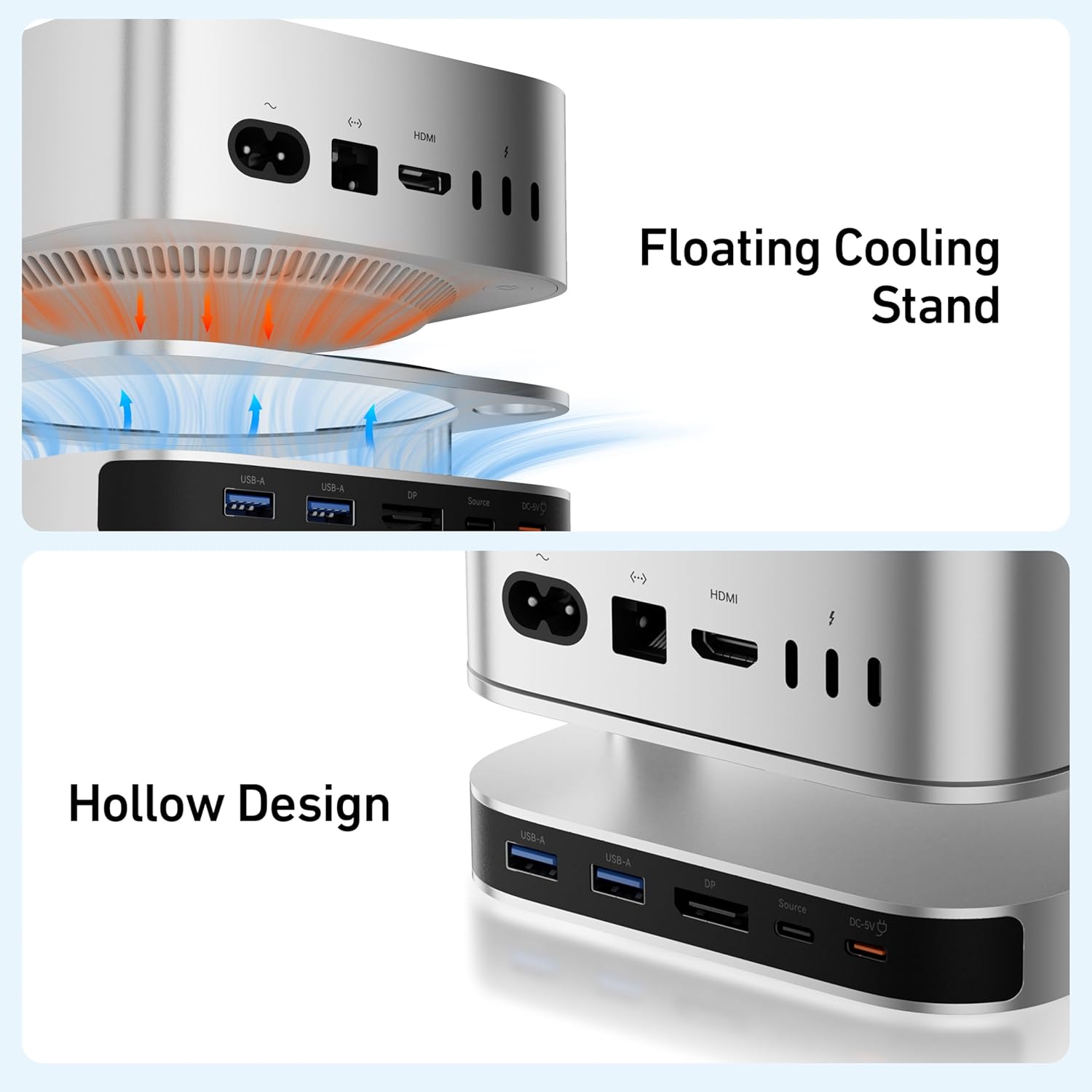
Image 2.2: Illustration of the floating cooling stand and hollow design, demonstrating enhanced airflow for heat dissipation.
3. Package Contents
Please verify that all items are present in your package:
- BENFEI Mac mini M4 Dock & Stand (Model: 000438)
- USB-C to USB-C Cable (for connecting to Mac mini)
- Small Screwdriver (for SSD installation)
- User Manual (this document)
4. Setup Guide
4.1 Connecting the Dock to Your Mac mini
- Place the BENFEI Dock on a stable, flat surface.
- Carefully place your Mac mini M4 or M4 Pro onto the top of the dock, ensuring it is centered and stable.
- Connect one end of the provided USB-C to USB-C cable to the "Host" port on the back of the dock.
- Connect the other end of the USB-C cable to a Thunderbolt/USB-C port on your Mac mini.
- (Optional) If using power-intensive devices, connect a 5V USB-C power adapter (not included) to the "DC 5V" port on the back of the dock for stable power delivery.
4.2 NVMe SSD Installation
The dock supports M.2 NVMe SSDs of sizes 2230, 2242, 2260, and 2280 for storage expansion.

Image 4.1: Visual guide for NVMe SSD installation, showing the process from opening the enclosure to securing the SSD.
- Disconnect the dock from your Mac mini and any power source.
- Turn the dock over. Using the provided screwdriver, unscrew the side panel covering the NVMe enclosure and carefully remove it.
- Locate the screw on the M.2 interface inside the enclosure. Loosen this screw.
- Insert your M.2 NVMe SSD into the slot at an angle, then gently push down to secure it. Fasten the SSD with the screw you loosened in the previous step.
- Reattach the side panel and tighten the screws.
- Connect the dock back to your Mac mini. The new drive should appear on your computer, indicating successful installation. You may need to format the SSD before use.

Image 4.2: Illustration showing the various M.2 NVMe SSD sizes (2230, 2242, 2260, 2280) compatible with the dock's enclosure.
5. Operating Instructions
5.1 Using USB Ports
Connect your USB devices (keyboards, mice, external drives, etc.) to the available USB-C and USB-A ports on the front and back of the dock. The dock provides:
- 1 x 10Gbps USB-C port (front)
- 1 x 10Gbps USB-A 3.2 port (front)
- 3 x 5Gbps USB-A 3.0 ports (2 rear, 1 front)
For optimal performance, connect high-speed devices to the 10Gbps ports. If you experience issues with power-hungry devices, ensure the optional 5V power adapter is connected to the dock.

Image 5.1: Diagram illustrating the different USB port speeds available on the dock (10Gbps USB-C/A and 5Gbps USB-A).
5.2 Using SD/TF Card Slots
Insert your SD or microSD (TF) cards into the corresponding front-facing slots. The card reader supports UHS-I mode with speeds up to 170MB/s for efficient data transfer. Both slots can be used simultaneously.

Image 5.2: Close-up of the SD and TF card slots, highlighting their 170MB/s transfer capability in UHS-I mode.
5.3 Connecting External Displays via DisplayPort
Connect an external monitor, HDTV, or projector to the DisplayPort on the back of the dock using a DisplayPort cable. The dock supports:
- Up to 4K resolution at 30Hz
- Up to 2K resolution at 60Hz
- Up to 1080P resolution at 120Hz
This allows for screen mirroring or extending your desktop for enhanced productivity or entertainment. Note that for dual monitor setups, one monitor connects to the dock's DisplayPort, and the second monitor connects directly to the Mac mini's HDMI port.

Image 5.3: Example of a dual monitor setup, utilizing the dock's DisplayPort and the Mac mini's native HDMI port.
6. Maintenance
- Cleaning: Use a soft, dry cloth to clean the exterior of the dock. Avoid liquid cleaners or abrasive materials.
- Storage: Store the dock in a cool, dry place away from direct sunlight and extreme temperatures.
- Handling: Handle the device with care. Avoid dropping or subjecting it to strong impacts.
- Ventilation: Ensure the hollow design and ventilation openings are not obstructed to maintain proper airflow and heat dissipation.
7. Troubleshooting
| Problem | Possible Cause | Solution |
|---|---|---|
| Dock not recognized by Mac mini. | Loose USB-C connection, incompatible Mac mini model, or macOS version. | Ensure the USB-C cable is securely connected to both the dock and Mac mini. Verify your Mac mini is an M4 or M4 Pro (2024) and running macOS 14 Sonoma or later. Try a different USB-C port on the Mac mini. |
| External display not working via DisplayPort. | Incorrect cable, display settings, or power issue. | Check DisplayPort cable connection. Ensure the monitor is set to the correct input source. Verify Mac mini display settings. If using multiple power-hungry devices, connect an external 5V power adapter to the dock. |
| NVMe SSD not appearing or slow performance. | Incorrect installation, unformatted drive, or power issue. | Recheck SSD installation steps (refer to Section 4.2). Ensure the SSD is properly seated and secured. Format the SSD if it's new. Connect an external 5V power adapter to the dock if multiple devices are drawing power. |
| USB devices not working or disconnecting. | Insufficient power, loose connection, or driver issue. | Connect an external 5V power adapter to the dock. Ensure USB devices are securely plugged in. Try connecting the device to a different USB port on the dock or directly to the Mac mini to isolate the issue. |
8. Specifications
| Feature | Detail |
|---|---|
| Brand | BENFEI |
| Model Number | 000438 |
| Color | Silver |
| Compatible Devices | Mac mini M4 & M4 Pro (2024) |
| Hardware Interface | SDHC, USB 3.0 Type A, USB 3.1 Type A, USB-C, DisplayPort |
| Total USB Ports | 5 |
| Total Ports | 10 (including SSD enclosure, card reader, DisplayPort, power input) |
| NVMe SSD Support | M.2 NVMe (2230/2242/2260/2280), up to 8TB, 10Gbps |
| DisplayPort Resolution | Max 4K@30Hz, 2K@60Hz, 1080P@120Hz |
| SD/TF Card Speed | Up to 170MB/s (UHS-I) |
| Wattage | 15.0 W |
| Product Dimensions (L x W x H) | 12.7 x 12.7 x 3.9 cm |
| Minimum OS Requirement | Mac OS 14 Sonoma |
| Origin | China |
9. Warranty and Support
9.1 Warranty Information
This BENFEI product is covered by an 18-month warranty from the date of purchase. This warranty covers manufacturing defects and ensures long-term satisfaction with your product. Please retain your proof of purchase for warranty claims.
9.2 Customer Support
For technical assistance, troubleshooting, or warranty inquiries, please contact BENFEI customer service. You can find contact information on the official BENFEI website or through your retailer.
We are committed to providing timely solutions to any issues you may encounter.
Ask a question about this manual
Ask about setup, troubleshooting, compatibility, parts, safety, or missing instructions. Manuals+ will review the question and use this page’s manual context to help answer it.