
1. Introduction
1.1 Product Overview
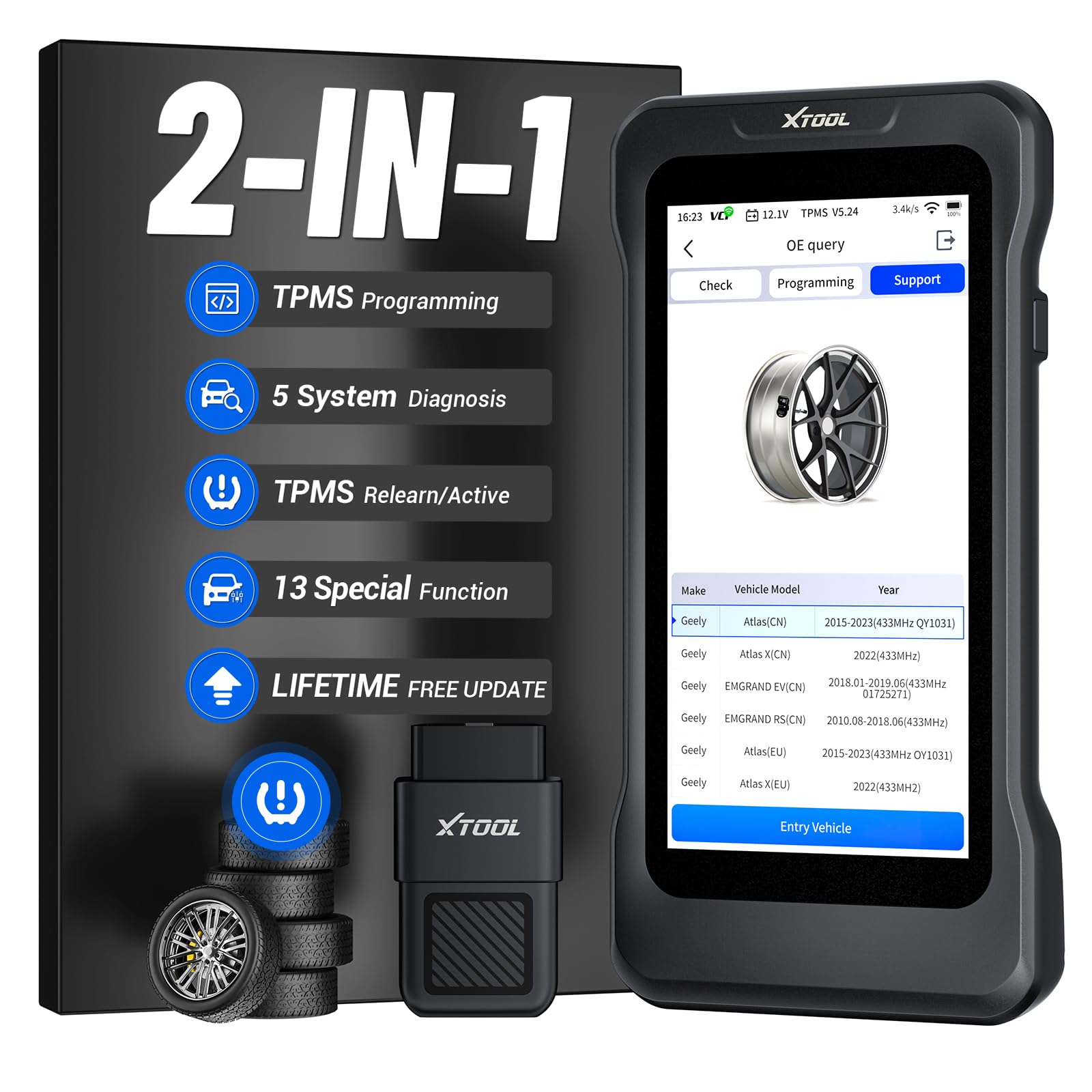
The XTOOL TP380 is an advanced automotive diagnostic tool designed to integrate professional TPMS (Tire Pressure Monitoring System) functions with comprehensive OBD2 (On-Board Diagnostics II) scanning capabilities. This device allows users to perform a wide range of vehicle maintenance tasks, from managing tire pressure sensors to diagnosing engine, ABS, SRS, and transmission systems, and executing various service resets.
1.2 Key Features
- TPMS Functions: Activation, Programming (for XTOOL TS100 sensors), and Relearn for 99% of OEM/Universal 315MHz & 433MHz sensors.
- 5-System Diagnostics: OE-level diagnosis for Engine, ABS, SRS (Airbag), Transmission, and TPMS systems.
- 13+ Service Resets: Includes Oil Reset, BMS Reset, EPB (Electronic Parking Brake), SAS (Steering Angle Sensor) Calibration, ABS Bleeding, Throttle Relearn, and more.
- Full OBD2 Functions: Read/Clear DTCs, I/M Readiness, O2 Sensor tests, Live Data Stream, Freeze Frame, On-Board Monitoring Test, EVAP Test, and Auto VIN.
- Wireless Connectivity: Allows for flexible operation up to 33 feet from the vehicle.
- Lifetime Free Updates: Ensures the device remains current with the latest vehicle models and software features via Wi-Fi.
2. What's in the Box
The XTOOL TP380 package typically includes the following components:
- XTOOL TP380 Main Unit
- OBD2 Dongle (VCI)
- USB Cable
- Power Adapter
- User Manual (this document)
3. Setup
3.1 Initial Device Setup
- Charge the Device: Connect the TP380 to the power adapter and charge it fully before first use.
- Power On: Press and hold the power button to turn on the device.
- Wi-Fi Connection: Navigate to 'Settings' and connect the device to a stable Wi-Fi network to enable updates and online features.
- Software Update: After connecting to Wi-Fi, go to the 'Updates' section and download any available software updates to ensure optimal performance and the latest vehicle coverage.
3.2 Connecting to Vehicle
- Locate the vehicle's OBD2 port, typically found under the dashboard on the driver's side.
- Plug the provided OBD2 dongle (VCI) into the vehicle's OBD2 port. Ensure a secure connection.
- The TP380 device will automatically establish a wireless connection with the OBD2 dongle. Confirm the connection status on the device screen.

4. Operating Instructions
4.1 TPMS Functions
The TP380 offers comprehensive TPMS capabilities:
- Sensor Activation: Trigger 99% of OEM and universal 315MHz & 433MHz TPMS sensors to read their data.
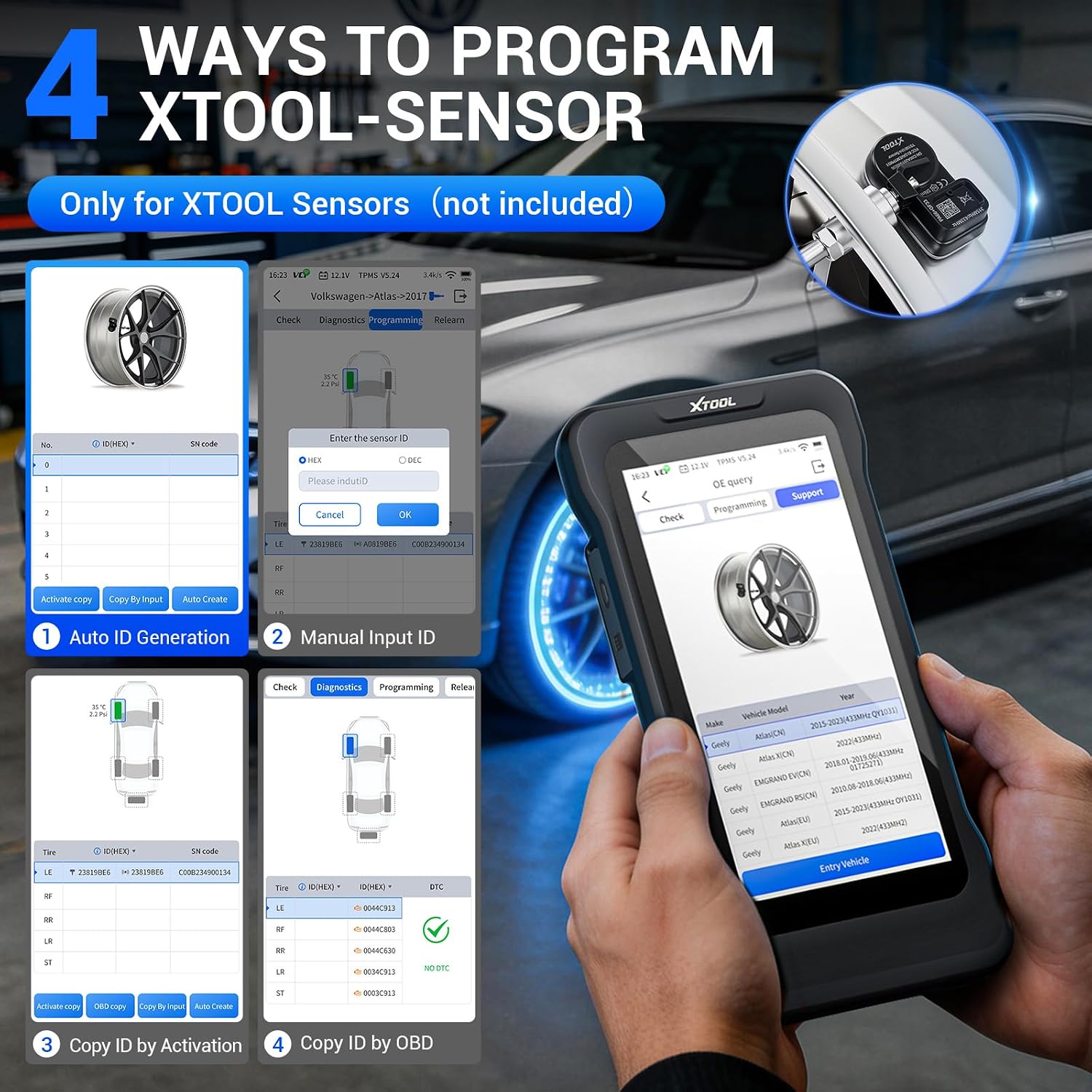
- Sensor Programming: Program XTOOL TS100 sensors using four methods: Auto ID Generation, Manual Input, Copy by Activation, and Copy by OBD. Note: Programming is specifically for XTOOL TS100 sensors.
- TPMS Relearn: Perform stationary or OBD relearn procedures after tire rotation or sensor replacement.
- TPMS Diagnostics: Read and clear TPMS diagnostic trouble codes (DTCs), check sensor ID, tire temperature, and battery life.


4.2 OBD2 & System Diagnostics
The TP380 provides in-depth diagnostic capabilities:
- 5-System Diagnosis: Access and diagnose critical systems including Engine, ABS, SRS, Transmission, and TPMS. Read and clear fault codes for these modules.
- Full OBD2 Functions: Perform standard OBD2 tests such as reading and clearing DTCs, checking I/M readiness status for emissions, monitoring O2 sensor data, viewing live data streams, and retrieving freeze frame data.
- Auto VIN: Automatically identifies vehicle information for quicker diagnosis.
- Live Data Stream: Monitor real-time parameters (e.g., coolant temperature, RPM) in graphical format to identify performance issues.


4.3 Special Service Resets
The TP380 supports over 13 essential maintenance functions:
- Oil Reset: Resets the oil service light after an oil change.
- BMS Reset: Registers a new battery after replacement and clears old battery data.
- EPB Reset: Safely retracts electronic parking brake calipers for pad replacement.
- SAS Calibration: Calibrates the steering angle sensor.
- ABS Bleeding: Bleeds air from the brake system to restore braking performance.
- Throttle Relearn: Adapts the throttle position sensor to ensure smooth idling.
- Injector Coding: Resets injectors to ensure accurate fuel delivery.
- Crank Sensor Relearn: Used after crankshaft or camshaft-related service to re-sync sensors.
Note: The availability and specific functions of these resets may vary by vehicle make, model, and year. Please consult the vehicle's service manual or contact support for specific compatibility.

5. Maintenance
5.1 Device Care
- Keep the device clean by wiping it with a soft, dry cloth. Avoid using harsh chemicals or abrasive cleaners.
- Store the device in a cool, dry place away from direct sunlight and extreme temperatures.
- Protect the screen from scratches by using a screen protector if available.
5.2 Software Updates
The XTOOL TP380 offers lifetime free software updates. Regularly check for and install updates via Wi-Fi to ensure the device has the latest vehicle coverage, bug fixes, and new features. To update, navigate to the 'Updates' section on the device's main menu and follow the on-screen instructions.
6. Troubleshooting
| Problem | Possible Cause | Solution |
|---|---|---|
| Device does not power on. | Low battery or power issue. | Ensure the device is fully charged. Check the power adapter and USB cable for damage. |
| Cannot connect to vehicle. | OBD2 dongle not properly connected or vehicle ignition is off. | Ensure the OBD2 dongle is securely plugged into the vehicle's OBD2 port. Turn the vehicle ignition to the ON position (engine off). |
| TPMS sensor cannot be read or relearned. | Sensor not activated or incompatible sensor. | Ensure the TPMS sensor is activated by the TP380 before attempting to read or relearn. Verify sensor compatibility. |
| Software update fails. | Unstable Wi-Fi connection or insufficient storage. | Ensure a strong and stable Wi-Fi connection. Check available storage space on the device. Restart the update process. |
| Diagnostic codes reappear after clearing. | Underlying vehicle issue not resolved. | Clearing codes only resets the warning light; it does not fix the problem. Diagnose and repair the root cause of the fault. |
For further assistance, please refer to the support section.
7. Specifications
| Feature | Detail |
|---|---|
| Brand | XTOOL |
| Model Number | TP380 |
| Power Source | Battery Powered |
| Product Dimensions (L x W x H) | 2"L x 0.78"W x 5.5"H |
| Operating System | Linux |
| Screen Size | 5 inches |
| UPC | 751662077434 |
| Manufacturer | XTOOL |
| Automotive Fit Type | Universal Fit |
8. Warranty and Support
8.1 Product Warranty
The XTOOL TP380 comes with a 2-year manufacturer's warranty, covering defects in materials and workmanship under normal use. Please retain your proof of purchase for warranty claims.
8.2 Technical Support
For any technical questions, operational issues, or warranty inquiries, XTOOL provides 24/7 U.S.-Based Technical Support. Please refer to the contact information provided with your product packaging or visit the official XTOOL website for support details.


