
1. Setup Guide
1.1 Unboxing and Package Contents
Carefully remove all components from the packaging. Ensure all items are present before proceeding with installation.

Image: This diagram illustrates the physical dimensions of the 75-inch TCL F8D Series TV and lists the contents included in the box, such as the power cable, remote control, stand, user manual, and warranty card.
Included Components:
- TCL 75-Inch F8D Series Smart Fire TV
- Power Cable
- Remote Control (with 2 AAA batteries)
- TV Stand (2 pieces)
- User Manual (this document)
- Warranty Card
1.2 Stand Installation
If you are not wall-mounting your TV, attach the included stands. Place the TV screen-down on a soft, flat surface to prevent damage. Align each stand with the corresponding screw holes on the bottom of the TV and secure them with the provided screws. Ensure the stands are firmly attached before placing the TV upright.
1.3 Wall Mounting
The TCL F8D Series TV is compatible with VESA standard wall mounts. Refer to your wall mount's instructions for proper installation. It is recommended to seek professional assistance for wall mounting to ensure safety and proper installation.
1.4 Connecting Devices
Your TV offers various connectivity options for external devices.

Image: This image displays the rear panel of the TV, highlighting the locations and types of ports available for connecting external devices, including HDMI, USB, LAN, and optical audio out.
- HDMI: Connect up to four HDMI devices (e.g., Blu-ray player, game console, cable box). HDMI 1 and HDMI 2 support 4K@144Hz or 1080p/288Hz for optimal gaming. HDMI 4 supports ARC/eARC for audio return to a soundbar or receiver.
- USB: Two USB ports (one USB 2.0, one USB 3.0) are available for connecting USB flash drives to view pictures or movies.
- LAN (Ethernet): For a stable wired internet connection.
- Wi-Fi: Built-in Wi-Fi 5 for wireless internet connectivity.
- Bluetooth: Bluetooth 5.4 for connecting wireless accessories like headphones or speakers.
- Optical Audio Out: For connecting to external sound systems.
- Cable/ANT: For connecting an antenna or cable TV.
1.5 Initial Power On and Setup
After connecting all necessary cables, plug the power cable into an electrical outlet. Press the power button on the remote control or the TV. Follow the on-screen instructions to complete the initial setup, which includes:
- Language selection
- Network connection (Wi-Fi or Ethernet)
- Fire TV account login or creation
- Channel scanning (if using an antenna/cable)
- Alexa voice assistant setup
2. Operating Instructions
2.1 Remote Control Overview
The included remote control provides access to all TV functions. Familiarize yourself with the buttons for power, volume, channel, input selection, navigation, and dedicated app buttons.
2.2 Navigating Fire TV
Your TCL F8D Series TV features the Fire TV operating system, offering a personalized and intuitive user experience.

Image: This image displays the Fire TV home screen, featuring a clean layout with popular streaming apps like Netflix, Prime Video, and Disney+, along with content recommendations.
- Home Screen: Access your favorite apps, live TV, and content recommendations.
- Smart Recommendations: Fire TV learns your viewing habits and suggests content tailored to your preferences.
- Watchlists: Add movies and shows to your watchlist to easily pick up where you left off.
- App Store: Download and install additional streaming services and applications.
2.3 Picture Settings
Optimize your viewing experience with advanced picture technologies.

Image: A visual summary of the TV's core features, including its 4K UHD resolution, QLED technology, Alexa+ integration, High Brightness LED Backlight, Game Accelerator 288, HDR PRO+ support, 144Hz refresh rate, and Auto Game Mode.
- 4K QLED with Quantum Dot Color: Enjoy stunning detail with four times the resolution of Full HD and vibrant, true-to-life colors covering 93% of the DCI-P3 spectrum.
- Dolby Vision HDR & HDR10+: Built-in support for advanced HDR formats (Dolby Vision, HDR10+, HDR10, HLG) delivers deeper blacks, brighter highlights, and more accurate colors.
- High Brightness LED Backlight: Ensures a bright and vibrant picture, even in well-lit rooms, reducing glare and maintaining detail.
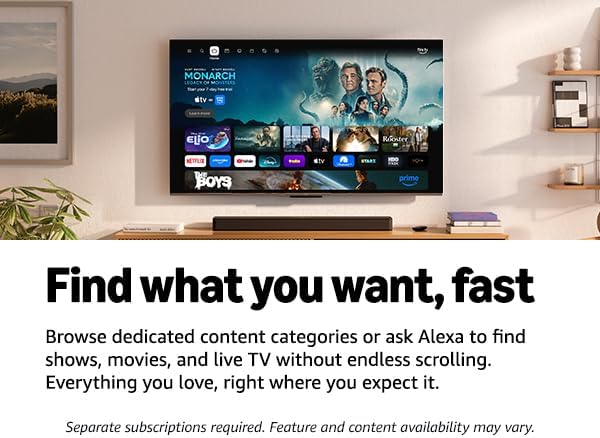
Image: This comparison image demonstrates the enhanced color vibrancy and realism achieved with QLED Quantum Dot Technology compared to a standard display.

Image: This image illustrates the superior contrast and color accuracy provided by HDR PRO+ with Dolby Vision, HDR10+, HDR10, and HLG, showcasing a more detailed and vibrant scene.
2.4 Audio Settings
Experience immersive sound directly from your TV's built-in speakers.
- Dolby Atmos & DTS Virtual:X: Enjoy theater-like, multi-dimensional audio that adds depth and clarity to movies, sports, and games.
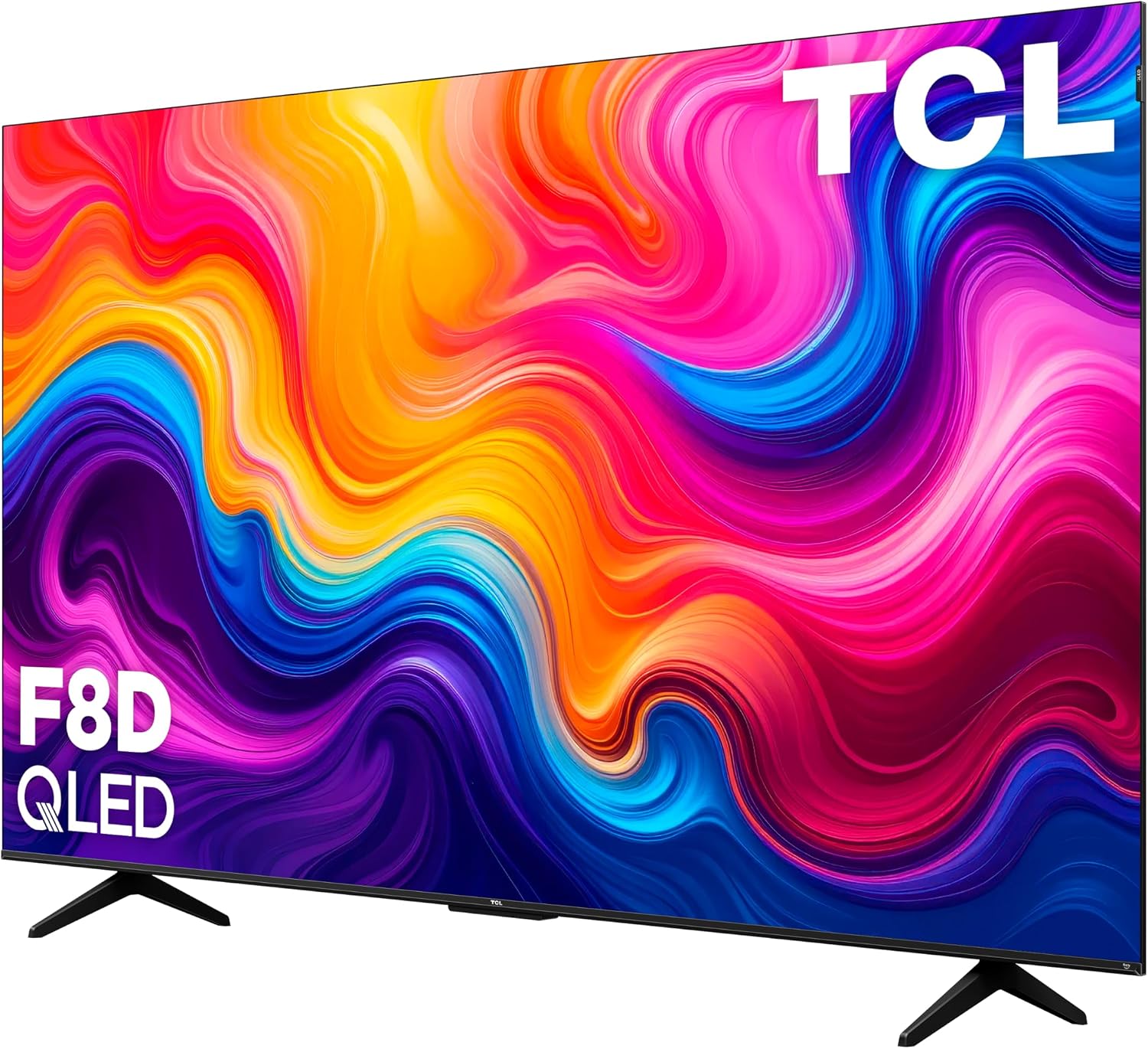
Image: This image visually represents the immersive audio experience of Dolby Atmos, showing sound waves surrounding a scene from a movie.
2.5 Gaming Features
The F8D Series is designed for an enhanced gaming experience.
- 144Hz Refresh Rate: A native 144Hz refresh rate with Motion Rate 480 ensures fast-paced action and sports remain smooth and clear, free from blur.
- Game Accelerator 288: Combined with Variable Refresh Rate (VRR) and Auto Game Mode (ALLM), this feature minimizes input lag for fluid and responsive gameplay.
- Auto Game Mode (ALLM): Automatically detects when you're gaming and switches to a low-latency mode for optimal performance.
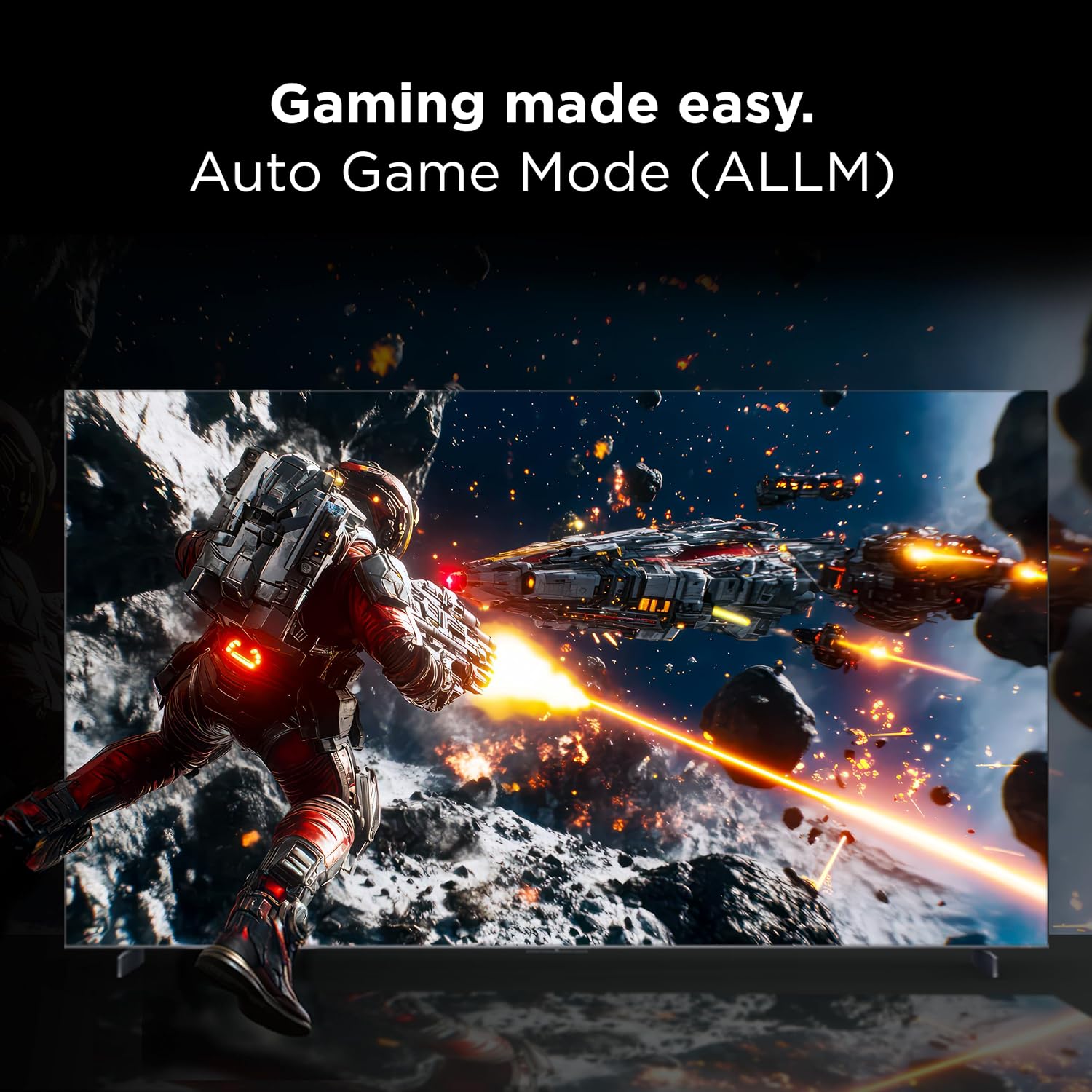
Image: This image highlights the benefit of a 144Hz refresh rate, showing a fast-moving scene with exceptional clarity and no motion blur.

Image: A dynamic image of a high-speed race car, symbolizing the fast and responsive gaming experience enabled by Game Accelerator 288.

Image: This image depicts a scene from a video game, demonstrating how Auto Game Mode (ALLM) optimizes the display for gaming, reducing input lag.
2.6 Voice Control (Alexa+) and Smart Home Integration
Utilize Alexa+ for seamless voice control and smart home management.

Image: A user is shown interacting with their TV using voice commands, demonstrating how Alexa+ can manage smart home devices and provide information.
- Alexa+: Talk naturally to find content, manage smart home devices, and access information.
- Hands-free Control: Control your TV from across the room without the remote.
- Smart Home Integration: View camera feeds, adjust lights, and control other compatible smart home devices directly from your TV. Works with Amazon Alexa and Apple HomeKit.

Image: This image illustrates the convenience of hands-free control, where a user can command the TV using only their voice, without needing the remote.
3. Maintenance
3.1 Cleaning the TV
To maintain the TV's appearance and performance, follow these cleaning guidelines:
- Screen: Gently wipe the screen with a soft, lint-free cloth. For stubborn marks, lightly dampen the cloth with water or a specialized screen cleaner. Never spray liquid directly onto the screen.
- Body: Use a soft, dry cloth to wipe the TV's frame and back panel. Avoid using abrasive cleaners, waxes, or solvents.
- Ventilation: Ensure the ventilation openings on the back of the TV are not blocked to prevent overheating.
3.2 Software Updates
Your Fire TV will automatically check for and install software updates when connected to the internet. These updates provide new features, performance improvements, and security enhancements. You can manually check for updates in the TV's settings menu.
4. Troubleshooting
If you encounter issues with your TV, refer to the following common troubleshooting steps:
- No Power: Ensure the power cable is securely plugged into both the TV and a working electrical outlet. Try a different outlet.
- No Picture/Black Screen: Check that the TV is powered on. Verify the correct input source is selected. Ensure all HDMI cables are securely connected. Try restarting the TV by unplugging it for 60 seconds and plugging it back in.
- No Sound: Check the volume level and ensure the TV is not muted. If using external audio devices (soundbar, receiver), ensure they are powered on and correctly connected, and the TV's audio output settings are configured appropriately.
- Remote Control Not Responding: Replace the batteries in the remote control. Ensure there are no obstructions between the remote and the TV's IR sensor.
- Network Connection Issues: For Wi-Fi, ensure your router is on and within range. Try restarting your router and modem. For wired connections, ensure the Ethernet cable is securely connected.
- Picture Quality Issues: Adjust picture settings (brightness, contrast, color) in the TV menu. Ensure the content source is high quality (e.g., 4K content for 4K resolution).
For more detailed troubleshooting or persistent issues, please contact TCL customer support.
5. Specifications
| Feature | Description |
|---|---|
| Screen Size | 75 inches (74.5" diagonal) |
| Model Number | 75F8D |
| Display Technology | QLED |
| Resolution | 4K UHD (3840 x 2160) |
| Refresh Rate | Native 144 Hz |
| HDR Format Support | Dolby Vision, HDR10+, HDR10, HLG |
| Audio Technology | Dolby Atmos, DTS Virtual:X |
| Smart TV Platform | Fire TV |
| Voice Assistant | Alexa+ |
| Connectivity | 4x HDMI (HDMI 1 & 2: 4K@144Hz; HDMI 4: ARC/eARC), 2x USB (1x 2.0, 1x 3.0), LAN, Wi-Fi 5, Bluetooth 5.4, RF, Optical Audio Out |
| Special Features | Bezel-Less Design, Game Accelerator 288, VRR, ALLM, Apple AirPlay 2, Apple HomeKit compatibility |
| Dimensions (with stand) | 13.7"D x 65.6"W x 40.4"H |
| Weight | 39.7 pounds |
| Power Supply | AC 120V, 60Hz |
6. Warranty Information
This TCL 75-Inch F8D Series Smart Fire TV is covered by a 1-Year Manufacturer's Warranty. This warranty covers defects in materials and workmanship under normal use. For specific terms, conditions, and limitations, please refer to the warranty card included in your product packaging or visit the official TCL support website.
7. Support
For further assistance, technical support, or service inquiries, please contact TCL customer support:
- Online Support: Visit the official TCL support website for FAQs, troubleshooting guides, and contact information.
- Phone Support: Refer to your warranty card or the TCL website for regional customer service phone numbers.
You can also visit the TCL Store on Amazon for additional product information and resources.