
1. Product Overview
The MIPOW Miffy 104-Key Wireless Keyboard and Mouse Combo with a large Miffy desk pad offers a blend of functional design and aesthetic appeal. This set is designed for comfortable and efficient use across various operating systems.
Key features include:
- Retro Typewriter Style: Round, candy-colored keycaps provide tactile feedback.
- Ergonomic Design: Features a 15° typing angle and foldable stands for comfort.
- Full-Size Layout: A 104-key QWERTY layout with a numeric keypad and dedicated function keys.
- Adjustable DPI Mouse: An ergonomic wireless mouse with 3 sensitivity levels (800/1200/1600 DPI).
- Large Desk Pad: A water-resistant, anti-slip desk pad featuring Miffy prints.
- Wide Compatibility: Supports Windows, macOS, iOS, and Android devices.
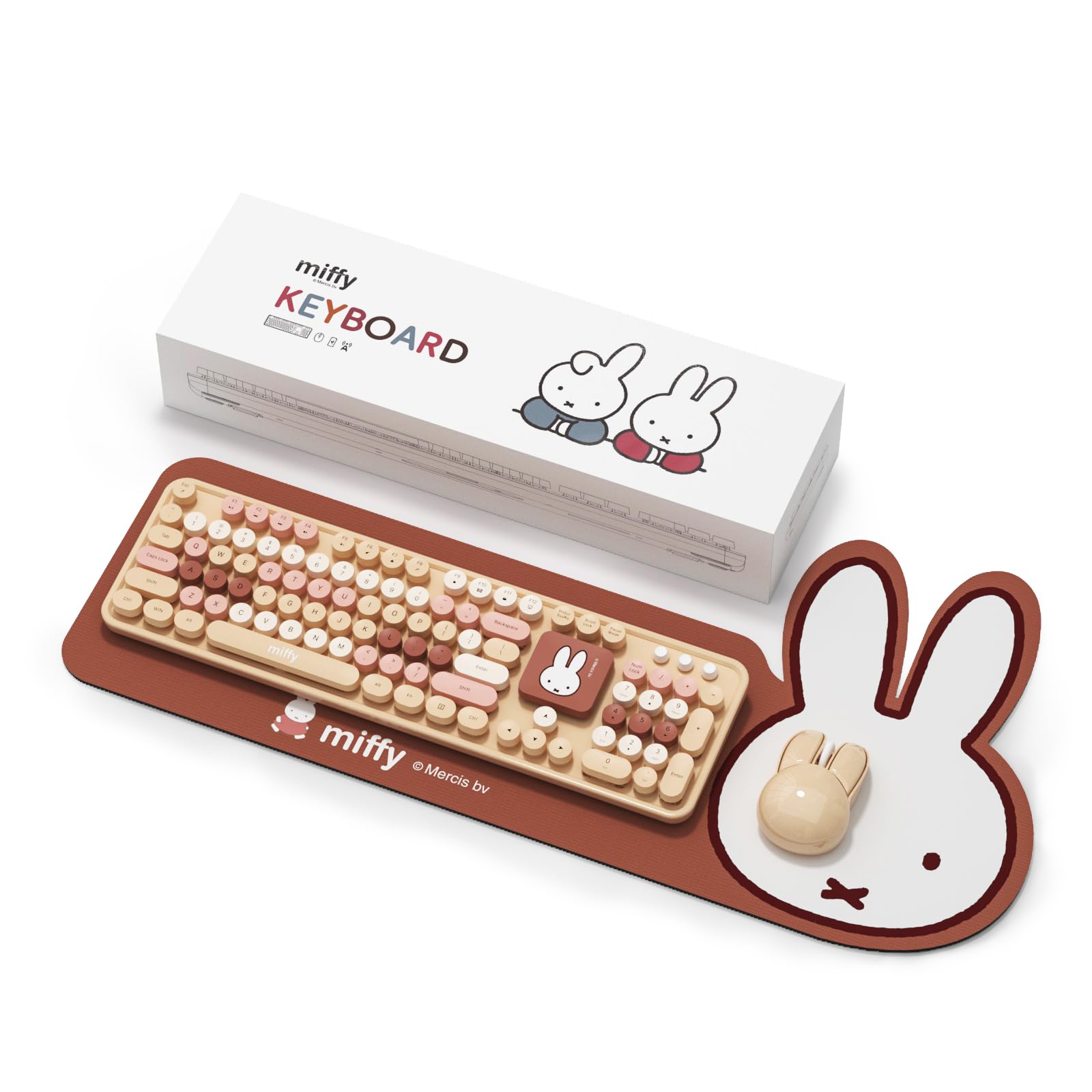
Image 1.1: The MIPOW Miffy Wireless Keyboard and Mouse Combo, including the large Miffy desk pad.
2. Setup Instructions
2.1. Battery Installation
The keyboard and mouse require batteries for operation.
- For the Keyboard: Locate the battery compartment on the underside of the keyboard. Insert 2 AA batteries, ensuring correct polarity.
- For the Mouse: Locate the battery compartment on the underside of the mouse. Insert 1 AA battery, ensuring correct polarity.
2.2. Connecting the USB Receiver
The keyboard and mouse connect wirelessly via a single 2.4GHz USB receiver.
- Locate the USB receiver, typically stored within the mouse's battery compartment for safekeeping.
- Plug the USB receiver into an available USB port on your computer or compatible device.
- The system should automatically detect and install the necessary drivers. This may take a few moments.

Image 2.1: The USB receiver, which enables wireless connectivity for both the keyboard and mouse.
2.3. Powering On
Ensure both the keyboard and mouse are switched on after battery installation.
- Keyboard: Locate the power switch, usually on the top right or underside, and slide it to the 'ON' position.
- Mouse: Locate the power switch on the underside of the mouse and slide it to the 'ON' position.
Your keyboard and mouse should now be ready for use.
3. Operating Instructions
3.1. Keyboard Usage
The 104-key layout includes a full QWERTY keyboard, numeric keypad, and function keys (F1-F12). The keyboard is designed for ergonomic comfort with a 15-degree typing angle.
- Function Keys: Use the 'Fn' key in combination with F1-F12 for multimedia controls or system functions, depending on your operating system.
- Miffy Key: The unique Miffy key serves as an additional function key, often programmable or linked to specific system shortcuts. Refer to your operating system's settings for customization options.
- Foldable Stands: Adjust the foldable stands on the underside of the keyboard to achieve your preferred typing angle.

Image 3.1: Close-up of the keyboard showcasing its retro typewriter-style keycaps and ergonomic design.

Image 3.2: The unique Miffy key, which can be used for additional functions.
3.2. Mouse Usage
The ergonomic mouse features adjustable DPI settings for precision control.
- DPI Adjustment: Press the DPI button (usually located near the scroll wheel) to cycle through the three sensitivity levels: 800, 1200, and 1600 DPI. Select the setting that best suits your needs.
- Power-Saving Mode: The mouse includes an auto-sleep power-saving mode. If inactive for a period, it will enter sleep mode to conserve battery. Click any button to wake it up.

Image 3.3: The ergonomic Miffy wireless mouse with adjustable DPI settings.
3.3. Desk Pad Usage
The large Miffy desk pad provides a stable and comfortable surface for both the keyboard and mouse. Its water-resistant and anti-slip properties ensure durability and stability during use.

Image 3.4: The large Miffy desk pad, designed to accommodate both the keyboard and mouse.
3.4. Product Video
Video 3.1: An official product video demonstrating the features and use of the Miffy 104-Key Wireless Keyboard & Mouse Combo.
4. Maintenance
4.1. Cleaning
- Keyboard and Mouse: Use a soft, dry cloth to wipe down the surfaces. For stubborn dirt, a slightly damp cloth with mild soap can be used, ensuring no liquid enters the device. Avoid abrasive cleaners.
- Desk Pad: The desk pad is water-resistant. Wipe spills immediately with a cloth. For general cleaning, use a damp cloth with mild soap and allow it to air dry completely.
4.2. Battery Replacement
Replace batteries when performance degrades or devices stop responding. Always use new, good-quality AA batteries and dispose of old batteries responsibly.
5. Troubleshooting
5.1. Keyboard or Mouse Not Responding
- Check Batteries: Ensure batteries are correctly installed and have sufficient charge. Replace if necessary.
- Power Switch: Verify that the power switches on both the keyboard and mouse are in the 'ON' position.
- USB Receiver: Ensure the USB receiver is securely plugged into a working USB port on your device. Try a different USB port.
- Re-pairing: In rare cases, the devices might lose connection. Try unplugging and re-plugging the USB receiver.
- Interference: Move the devices closer to the USB receiver and away from other wireless devices that might cause interference.
5.2. Mouse Cursor Jumps or is Erratic
- Surface: Ensure the mouse is used on a clean, non-reflective surface. The Miffy desk pad is recommended.
- Optical Sensor: Check the mouse's optical sensor for any obstructions or dirt. Clean gently with a soft cloth.
- DPI Setting: Adjust the DPI setting to a lower sensitivity if the cursor is too fast or erratic.
5.3. Keyboard Keys Not Registering
- Clean Keys: Ensure no debris is lodged under the keycaps.
- Battery Level: Low battery can affect key registration. Replace batteries.
6. Specifications
| Feature | Detail |
|---|---|
| Brand | MIPOW |
| Model Number | SL7-MPC-006 |
| Color | Brown (Milk Tea Colorful) |
| Connectivity Technology | 2.4GHz Radio Frequency |
| Keyboard Layout | 104-Key QWERTY Full-Size |
| Keyboard Special Feature | Ergonomic, Retro Typewriter Style, 15° Typing Angle, Foldable Stands |
| Mouse Movement Detection | Optical |
| Mouse DPI Levels | 800/1200/1600 DPI (Adjustable) |
| Compatible Devices | Laptop, Personal Computer |
| Operating Systems | Windows, macOS, iOS, Android |
| Batteries Required | Yes (2 AA for Keyboard, 1 AA for Mouse) |
| Desk Pad Features | Water-resistant, Anti-slip |
7. Warranty Information
This product is covered by a 1-year manufacturer's warranty from the date of purchase. This warranty covers defects in materials and workmanship under normal use. It does not cover damage caused by misuse, accident, unauthorized modification, or external causes.
Please retain your proof of purchase for warranty claims.
8. Support
For further assistance, technical support, or warranty inquiries, please contact MIPOW customer service. You can typically find contact information on the MIPOW official website or through the retailer where the product was purchased.
Please have your product model number (SL7-MPC-006) and proof of purchase ready when contacting support.
