
1. Introduction
The TIDRADIO TD-H9 is a 10-watt multi-band ham radio designed for versatile communication. It integrates advanced features such as built-in GPS and APRS for location tracking, Bluetooth connectivity for wireless accessories and programming, SMS text messaging, and spectrum analysis. The radio also includes a NOAA weather receiver and supports firmware upgrades to ensure continuous performance improvements. With a 1.77-inch LCD color screen, multiple display modes, and language options, the TD-H9 offers a user-friendly experience for various applications.

Image: Overview of TIDRADIO TD-H9 features including GPS, APRS, Bluetooth, SMS, Spectrum Scan, Odmaster APP, 1.77-inch color screen, 199 channels, 2500mAh battery, USB-C charging, 3 display modes, 18 menu colors, 10-watt max power, frequency copy, AM/FM/VHF/1.25M/UHF bands, NOAA weather reception, CPS programming, and firmware update capability.
2. Package Contents
Verify that all items are present in the package:
- 1 x TIDRADIO TD-H9 Ham Radio (Crystal)
- 1 x 2500mAh Battery
- 1 x Desktop Charger
- 1 x Original Antenna
- 1 x 18.8-inch Foldable Tactical Antenna
- 1 x USB-C Charging Cable
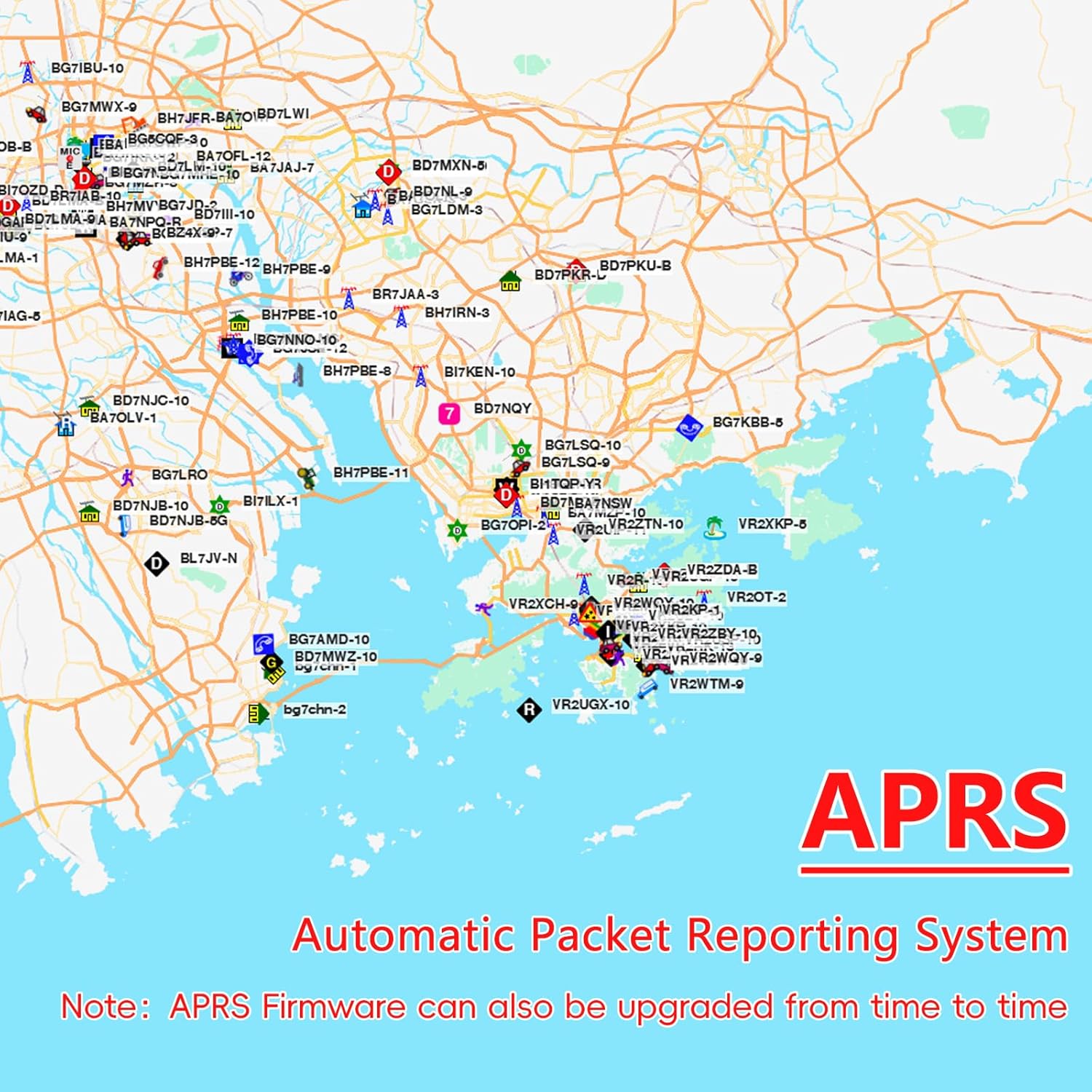
Image: A visual representation of the TIDRADIO TD-H9 radio and its included accessories, such as the 2500mAh battery, desktop charger, original antenna, foldable tactical antenna, and USB-C charging cable.
3. Setup
3.1 Battery Installation and Charging
To install the battery, align the battery pack with the compartment on the back of the radio and slide it into place until it clicks. To charge the battery, use the provided desktop charger or connect the USB-C charging cable directly to the radio's side port. The 2500mAh battery provides extended operation.

Image: A close-up of the 2500mAh battery, highlighting its capacity for the TD-H9 radio.

Image: A detailed view of the USB-C charging port on the side of the TD-H9 radio, demonstrating direct charging capability.
3.2 Antenna Attachment
Screw the desired antenna (original or tactical) clockwise onto the antenna connector at the top of the radio until it is finger-tight. Do not overtighten.
4. Operating Instructions
4.1 GPS Function
The built-in GPS chip provides real-time location tracking. To access GPS information, navigate through the radio's menu. The display will show coordinates, altitude, speed, and satellite status.
Video: This video demonstrates how to access and view the GPS feature on the TIDRADIO TD-H9, showing real-time location data and satellite information on the radio's display.

Image: The TD-H9 radio screen showing GPS data, including speed, distance, altitude, latitude, and longitude.
4.2 APRS Function
The Automatic Packet Reporting System (APRS) feature allows you to share and view real-time location and movement data with other radio users on a live map. This function is interoperable with other brands' devices that support the same feature. Recommended APRS Map Server: aprs.fi/

Image: A map displaying various radio users' locations and movement data, illustrating the APRS function.
4.3 Bluetooth Connectivity
The TD-H9 supports Bluetooth connectivity for external devices like headsets or microphones. This allows for hands-free operation and enhanced audio experiences.
- Turn on the Bluetooth function via the radio menu: Menu > Bluetooth > BT ON/OFF (Menu No.1).
- Set the Bluetooth mode: Menu > Bluetooth > BT Mode (Menu No.2).
- Pair with your device: Menu > Bluetooth > BT Pairing (Menu No.4).
Video: This video demonstrates the steps to connect a Bluetooth device, such as a speaker microphone, to the TIDRADIO TD-H9 radio, showing the pairing process on the radio's display.

Image: The TD-H9 radio screen showing Bluetooth pairing options, with icons for a smartphone, earphone, and wireless mic, indicating its versatile connectivity.
4.4 SMS Text Messaging
The TD-H9 allows for secure text message transmission between radios. Messages are visible only to the sender and recipient, ensuring privacy.
Video: This video illustrates how to send and receive SMS messages between two TIDRADIO TD-H9 radios, demonstrating the text input and message delivery process.

Image: The TD-H9 radio screen showing the SMS input interface and menu options for sending, receiving, and managing text messages.
4.5 Spectrum Analysis
The built-in Spectrum Analyzer scans the radio environment in real-time, visually distinguishing busy channels from clear ones. This helps reduce call interruptions and simplifies operation.
- To use: Long press Button 7 to enter the Spectrum interface.
- If there is radio transmission on the current frequency, the bar graph will rise and fall, indicating channel activity.
Video: This video demonstrates the Spectrum Analysis function on the TIDRADIO TD-H9, showing how the radio scans frequencies and displays signal strength on a bar graph.

Image: The TD-H9 radio screen showing the Spectrum interface, with a bar graph indicating signal strength across a frequency range.
4.6 NOAA Weather Receiver
The TD-H9 includes a NOAA Weather Receiver, providing access to weather alerts and forecasts to keep you informed of changing conditions.

Image: The TD-H9 radio displaying information related to NOAA weather channel reception, indicating its capability to receive weather alerts.
4.7 Air Band Reception
The radio supports AM air band frequency reception, allowing you to monitor aviation communications.

Image: The TD-H9 radio screen showing an AM frequency, indicating its capability for air band reception.
4.8 Global Talk
When paired with the "Talk" module in the Odmaster app, the TD-H9 enables global walkie-talkie functionality, facilitating real-time communication over long distances.
4.9 Display Modes and Menu Colors
The TD-H9 features a 1.77-inch LCD color screen with 3 display modes and 18 menu colors, allowing for customization to improve clarity and comfort.

Image: The TD-H9 radio displaying different screen layouts and menu color options, showcasing its customizable interface.
5. Programming
5.1 Odmaster App Programming
The Odmaster app serves as a comprehensive companion for your TD-H9. It allows you to program your radio directly from your phone, chat with other users, discover and import nearby repeaters, and save/share custom configurations. Note: The TD-H9 is programmed exclusively through the Odmaster app; CHIRP is not currently supported.

Image: The Odmaster app interface shown on a smartphone, demonstrating its use for programming the TD-H9 ham radio.
5.2 USB-C Programming
The TD-H9 supports USB-C programming via its side port, offering an alternative method for configuration.

Image: The TD-H9 radio connected to a laptop via a USB-C cable, illustrating the USB-C programming method alongside the Odmaster app option.
5.3 Firmware Upgrade
Powered by a 240MHz CPU and 120MB of storage, the TD-H9 has ample capacity for seamless firmware upgrades. Regular updates refine radio performance and APRS functionality.

Image: An illustration depicting the firmware upgrade process for the TD-H9, with an arrow pointing upwards to symbolize updates.
6. Maintenance
To ensure optimal performance and longevity of your TD-H9 radio, follow these maintenance guidelines:
- Cleaning: Use a soft, damp cloth to clean the radio's exterior. Avoid harsh chemicals or abrasive cleaners.
- Battery Care: Charge the battery regularly. Avoid fully discharging the battery frequently to prolong its lifespan. Store the radio and battery in a cool, dry place when not in use.
- Antenna: Ensure the antenna is securely attached. Do not bend or force the antenna, as this can damage the connector.
- Water Resistance: The radio has an IP54 waterproof rating, meaning it is resistant to dust and splashing water. Avoid submerging the radio in water.
7. Troubleshooting
If you encounter issues with your TD-H9 radio, consider the following basic troubleshooting steps:
- No Power: Check if the battery is properly installed and charged. Ensure the power knob is turned on.
- No Reception/Transmission: Verify the antenna is securely attached. Check the frequency and channel settings. Ensure the volume is adjusted appropriately.
- Bluetooth Pairing Issues: Ensure Bluetooth is enabled on both the radio and the external device. Make sure the device is in pairing mode and within range.
- Display Problems: If the screen is unresponsive or displaying incorrectly, try restarting the radio.
- Software/Programming Issues: Ensure the Odmaster app is up-to-date. Refer to the app's help section or contact support if problems persist.
For more complex issues, please contact TIDRADIO customer support.
8. Specifications
| Feature | Specification |
|---|---|
| Brand | TIDRADIO |
| Model Number | TD-H9 |
| Number of Channels | 199 |
| Frequency Range | AM/FM/VHF/1.25M/UHF |
| Talking Range Maximum | 20 Mile |
| Voltage | 7.4 Volts |
| Water Resistance Level | Water Resistant (IP54) |
| Number of Batteries | 1 Nonstandard Battery (included) |
| Temperature Range | -10℃ to 50℃ Degrees Celsius |
| Impedance | 50 Ohms |
| CPU | 240MHz |
| Storage | 120MB |
| Display | 1.77" LCD Color Screen, 3 Display Modes, 18 Menu Colors |
9. Warranty and Support
The TIDRADIO TD-H9 comes with a 1-year warranty. For any assistance, technical support, or warranty claims, please contact the seller directly. You can also visit the official TIDRADIO website for additional resources and information.


